
Introduction
This manual provides detailed instructions for the KZZI K75 Lite Wireless Mechanical Keyboard. It covers setup, operation, maintenance, and troubleshooting to ensure optimal performance and user experience. Please read this manual thoroughly before using your new keyboard.
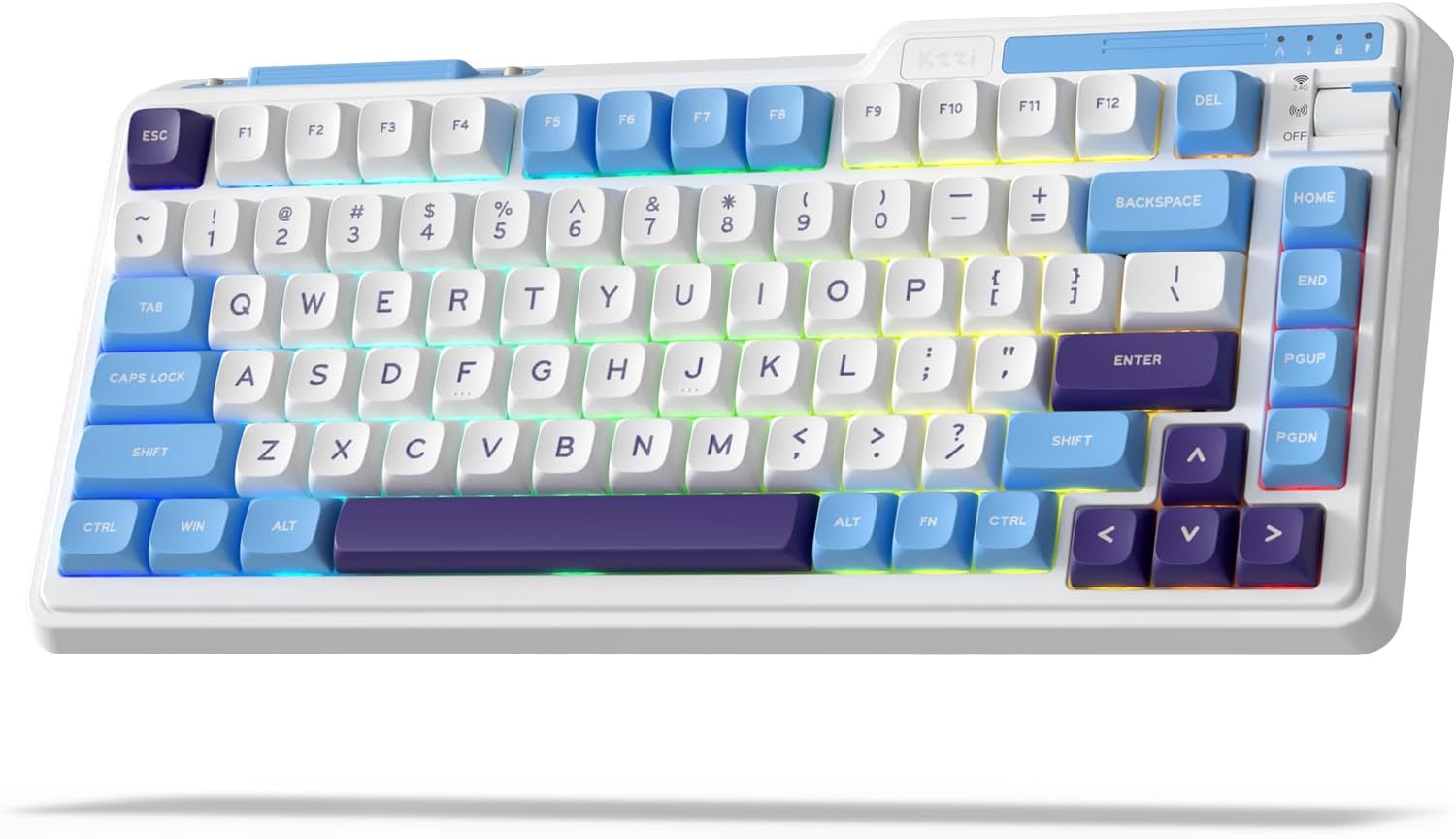
Image: The KZZI K75 Lite Wireless Mechanical Keyboard, showcasing its 75% layout and Grand Sea Blue color scheme with RGB backlighting.
Package Contents
Please verify that all items are present in the package:
- 1 x KZZI K75 Lite Keyboard
- 1 x USB-C Cable
- 1 x 2-in-1 Keycap & Switch Puller
- 4 x Backup Switches
- 1 x User Manual (this document)

Image: An overhead view of the KZZI K75 Lite keyboard and its included accessories: USB-C cable, 2-in-1 keycap and switch puller, and four backup switches.
Setup
1. Charging the Keyboard
Before first use, it is recommended to fully charge the keyboard. Connect the provided USB-C cable to the keyboard's Type-C charging port and the other end to a USB power source (e.g., computer USB port, wall adapter).
2. Connectivity Modes
The K75 Lite supports three connectivity modes: USB-C Wired, 2.4GHz Wireless, and Bluetooth 5.0. Use the toggle switch located on the top right of the keyboard to select your desired mode.

Image: An illustration demonstrating the 3-mode toggle switch on the K75 Lite keyboard, allowing users to easily switch between Bluetooth 5.0, 2.4GHz wireless, and USB-C wired modes for connecting to multiple devices like laptops, monitors, and tablets.
2.1. USB-C Wired Mode
- Set the toggle switch to the 'Wired' position.
- Connect the keyboard to your device using the provided USB-C cable.
- The keyboard will be recognized automatically.
2.2. 2.4GHz Wireless Mode
- Locate the 2.4G USB dongle, usually stored in a magnetic slot on the keyboard.
- Set the toggle switch to the '2.4G' position.
- Plug the 2.4G USB dongle into an available USB port on your computer.
- The keyboard should connect automatically.
2.3. Bluetooth 5.0 Mode
- Set the toggle switch to the 'BT' position.
- On your device (PC, laptop, tablet, phone), enable Bluetooth and search for new devices.
- On the keyboard, press and hold FN + Q, FN + W, or FN + E for 3-5 seconds to enter pairing mode for BT1, BT2, or BT3 respectively. The corresponding key will flash rapidly.
- Select 'K75 Lite' from the list of available Bluetooth devices on your device to pair.
- Once paired, the key will stop flashing and remain steadily lit for a few seconds.
- You can pair up to three Bluetooth devices and switch between them by pressing FN + Q/W/E.

Image: A composite image highlighting various physical features of the K75 Lite keyboard, including the Type-C charging port, the magnetic storage for the 2.4G dongle, and the two-level adjustable feet for ergonomic positioning.
Operating Instructions
1. Checking Battery Level
To check the current battery level, press FN + ENTER. The number keys (1-0) will light up to indicate the approximate battery percentage.

Image: An illustration demonstrating the battery level check function (FN + ENTER) on the K75 Lite keyboard, indicating a 3750mAh battery capacity, with up to 200 hours of use with RGB off and 30 hours with RGB on.
2. RGB Backlight Controls
The K75 Lite features dynamic RGB backlighting with 18 available modes. Use the following FN key combinations to control the lighting:
- FN + \|: Switch Backlight Mode
- FN + <: Switch Backlight Color
- FN + ↑: Increase Backlight Brightness
- FN + ↓: Decrease Backlight Brightness
- FN + >: Adjust Breathing Speed (Increase)
- FN + <: Adjust Breathing Speed (Decrease)

Image: An overhead view of the K75 Lite keyboard illustrating the FN key combinations used to control the 18 brilliant RGB effects, including switching modes, colors, brightness, and adjusting breathing speed.
3. Software Customization
The KZZI K75 Lite keyboard supports powerful software for advanced customization. This software allows you to:
- Redefine keys and create custom keyboard shortcuts.
- Set up macros for complex command sequences.
- Customize the full RGB backlight with dynamic effects.
Please visit the official KZZI website to download the latest software for your K75 Lite keyboard.

Image: Screenshots of the KZZI software, illustrating its capabilities for redefining keys, managing macros, and customizing the full RGB backlight settings for the keyboard.
Maintenance
1. Hot-Swapping Switches
The K75 Lite features a hot-swappable design, allowing you to change switches without soldering. It supports most 3-pin/5-pin mechanical switches.
- Using the provided 2-in-1 keycap & switch puller, carefully remove the keycap from the desired switch.
- Insert the switch puller's prongs into the two small tabs on the top and bottom of the switch.
- Gently squeeze the tabs and pull the switch straight up to remove it from the PCB.
- Align the pins of the new switch with the holes on the PCB. Ensure the pins are straight.
- Press the new switch firmly into place until it clicks. Do not force it if resistance is met; check pin alignment.
- Replace the keycap.
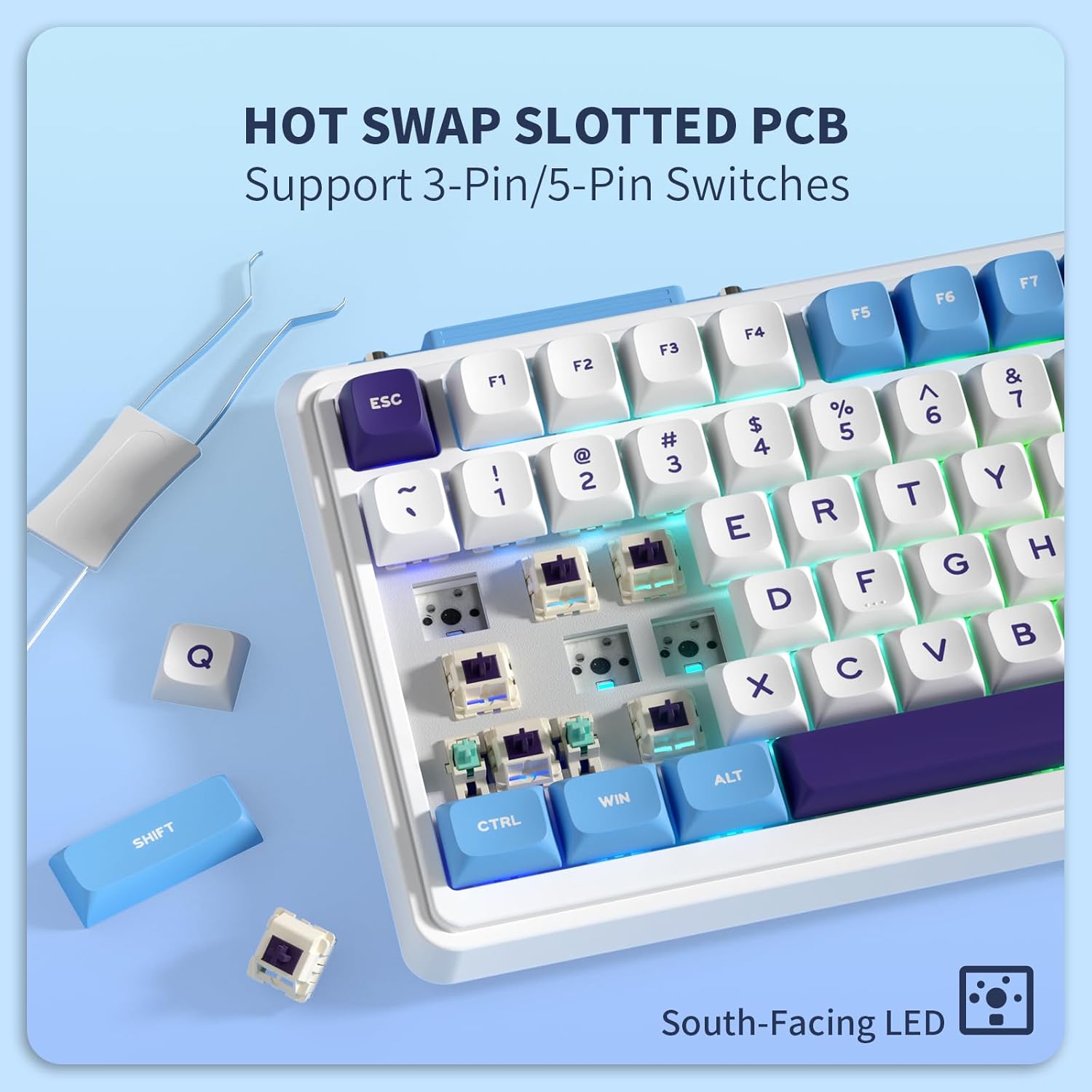
Image: A close-up view of the K75 Lite keyboard's hot-swappable PCB, illustrating how switches can be easily removed and replaced using a switch puller, supporting both 3-pin and 5-pin switches.
2. Cleaning the Keyboard
Regular cleaning helps maintain the keyboard's appearance and functionality.
- Disconnect the keyboard from all devices before cleaning.
- Use a soft, lint-free cloth dampened with a small amount of water or a mild cleaning solution to wipe down the keycaps and casing.
- For dust and debris between keycaps, use compressed air or a small brush.
- Avoid using harsh chemicals or abrasive materials.
Troubleshooting
If you encounter issues with your KZZI K75 Lite keyboard, please refer to the following common solutions:
- Keyboard not responding:
- Ensure the keyboard is charged.
- Check the connectivity mode switch (Wired, 2.4G, BT) and ensure it matches your connection method.
- For 2.4G, ensure the dongle is securely plugged in.
- For Bluetooth, re-pair the device or try a different Bluetooth channel (FN+Q/W/E).
- Try connecting via USB-C cable to rule out wireless issues.
- Keys not registering or double-typing:
- This could indicate a faulty switch. Use the switch puller to replace the problematic switch with one of the backup switches provided.
- Ensure the switch is fully seated in the PCB.
- RGB backlight not working or inconsistent:
- Check battery level; low battery can affect backlight performance.
- Cycle through backlight modes (FN + \|) and brightness levels (FN + ↑/↓).
- If using software, ensure settings are correctly applied.
- Bluetooth connection unstable:
- Ensure no other devices are interfering with the Bluetooth signal.
- Move closer to the connected device.
- Try re-pairing the keyboard.
Specifications
Key technical specifications for the KZZI K75 Lite Wireless Mechanical Keyboard:
| Feature | Detail |
|---|---|
| Model | K75 Lite |
| Dimensions (L x W x H) | 13.22 x 6.12 x 1.68 inches (335.8 x 155.5 x 42.7 mm) |
| Item Weight | 1.78 pounds |
| Connectivity | Bluetooth 5.0, 2.4GHz Wireless, USB-C Wired |
| Battery | 3750mAh Lithium Polymer (included) |
| Battery Life | Up to 200 hours (RGB off), 30 hours (RGB on) |
| Keyboard Type | Gasket Mounted Mechanical Keyboard |
| Switches | Custom POM Linear Switches (Pre-lubed, Hot-Swappable 3/5-pin) |
| Keycaps | MDA Double-Shot PBT |
| Special Features | RGB Backlit, Hot-Swappable, Rechargeable, 5-Layer Sound Padding |
| Compatible Devices | Laptop, PC, Tablet |

Image: A comprehensive diagram detailing various features of the K75 Lite keyboard, such as its 2-stage adjustable feet, MDA Double-Shot PBT keycaps, hot-swappable slotted PCB, south-facing RGB LEDs, well-tuned stabilizers, and pre-lubed switches, alongside its precise dimensions.

Image: An exploded diagram illustrating the internal construction of the K75 Lite keyboard, highlighting its gasket-mounted structure and the five layers of sound-dampening materials (Poron foam, IXPE switch pad, PET film, sound dampening foam, silicone dampener pad) designed for a soft typing feel and HIFI sound.
Warranty and Support
Warranty Information
KZZI products are typically covered by a limited warranty against manufacturing defects. Please refer to the warranty card included in your package or visit the official KZZI website for specific warranty terms and conditions applicable to your region.
Customer Support
For technical assistance, troubleshooting not covered in this manual, or warranty claims, please contact KZZI customer support through their official website or the contact information provided with your product. When contacting support, please have your product model (K75 Lite) and purchase details ready.


