
1. Introduction
Thank you for choosing the LAMA 4K UHD 75MP Digital Camera, Model LM249A. This camera is designed to capture high-quality photos and videos with ease, featuring a 75-megapixel sensor, 4K Ultra HD video recording, 18X digital zoom, autofocus, anti-shake technology, and a convenient 180° flip screen. This manual provides detailed instructions to help you get started and make the most of your new camera.
2. Product Overview
Familiarize yourself with the main components and controls of your LAMA digital camera.

Figure 2.1: Front view of the LAMA 4K UHD 75MP Digital Camera, showing the lens and flash.

Figure 2.2: Overview of the camera's key features including 64MP resolution, 4K video, 18X zoom, autofocus, and fill light.
2.1 Camera Components
- Lens: Captures images and videos. Features 18X digital zoom.
- LCD Screen: 3.0-inch display for viewing, menu navigation, and playback. It can flip 180 degrees for selfies.
- Shutter Button: Press halfway to focus, fully to capture a photo or start/stop video recording.
- Power Button: Turns the camera on or off.
- Mode Dial: Selects different shooting modes (e.g., Photo, Video, Timed).
- Zoom Lever (T/W): Adjusts the digital zoom (Telephoto/Wide).
- Navigation Buttons (OK, Up, Down, Left, Right): Used for menu navigation and setting adjustments.
- Menu Button: Accesses camera settings.
- DISP Button: Changes display information on the LCD screen.
- Built-in Fill Light: Provides additional illumination in low-light conditions.
- Battery Compartment: Houses the rechargeable battery.
- Memory Card Slot: For inserting a Micro SD (TF) card.
- USB-C Port: For charging and data transfer to a computer.
3. Setup
3.1 Inserting the Battery and Memory Card
Before using the camera, ensure the battery is charged and a memory card is inserted.
- Open the Cover: Slide to open the battery/memory card compartment cover located on the side or bottom of the camera.
- Insert Battery: Insert the provided battery into the battery compartment, ensuring the correct orientation.
- Insert Memory Card: Gently pull out the "USB/TF" silicone cover. Insert a Micro SD (TF) card (up to 64GB supported) into the memory card slot until it clicks into place. Ensure the card is facing the correct direction.
- Close Cover: Close the compartment cover securely.

Figure 3.1: Visual guide for installing the battery and Micro SD card into the camera.
3.2 Charging the Battery
Connect the camera to a power source using the provided Type-C USB cable. The charging indicator will illuminate. Once fully charged, the indicator will change or turn off.
4. Basic Operation
4.1 Powering On/Off
Press and hold the Power button to turn the camera on or off.
4.2 Taking Photos
- Select Photo Mode: Turn the mode dial to the photo icon.
- Frame Your Shot: Use the LCD screen to compose your image.
- Autofocus: Press the shutter button halfway down. The camera will automatically focus. A green frame indicates successful focus.
- Capture Photo: Press the shutter button fully down to take the picture.
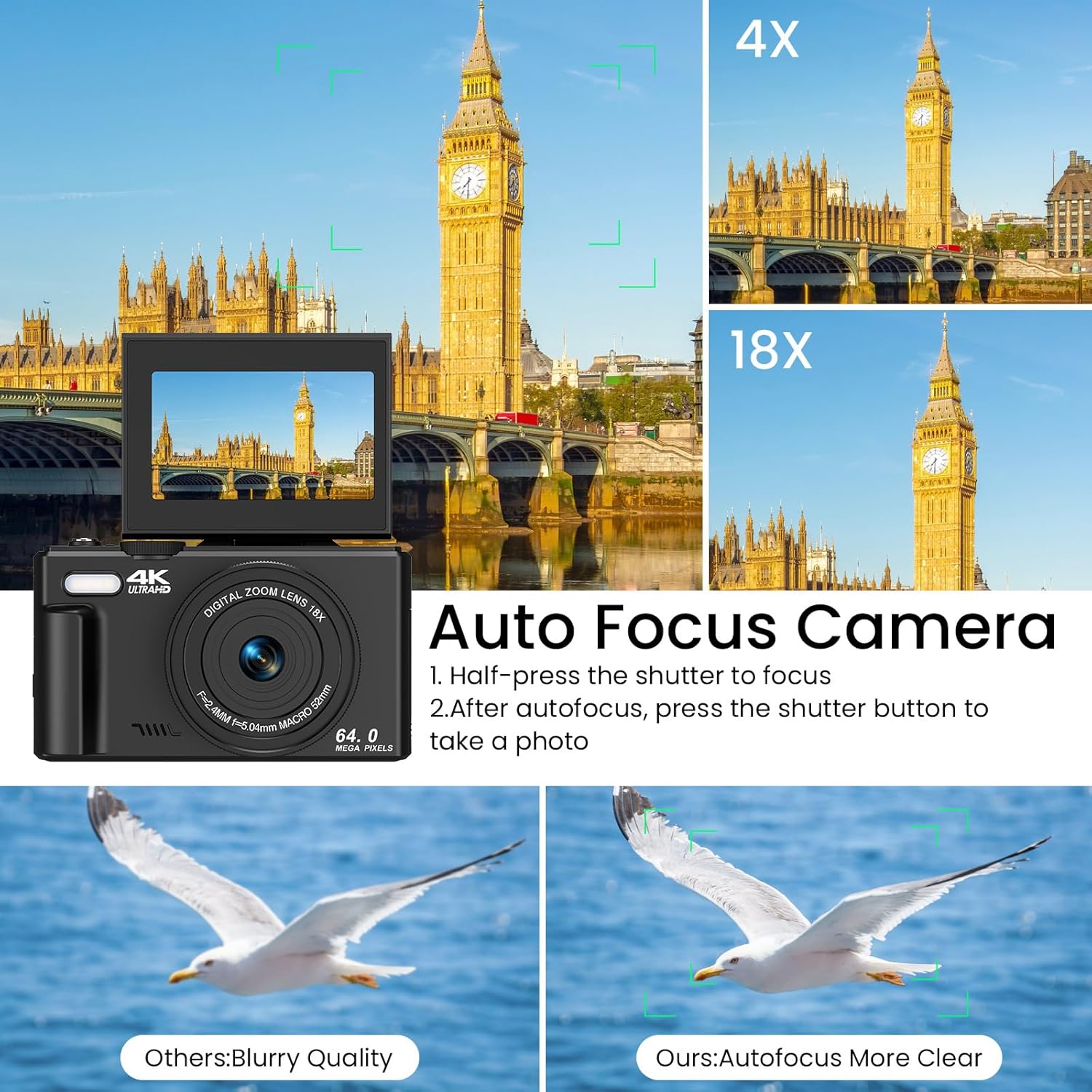
Figure 4.1: Illustration of the autofocus function, showing how to achieve clear images.
4.3 Recording Videos
- Select Video Mode: Turn the mode dial to the video icon.
- Start Recording: Press the shutter button to begin recording. A red indicator on the screen will show recording is active.
- Stop Recording: Press the shutter button again to stop recording.
4.4 Using the Zoom
Use the T (Telephoto) and W (Wide) buttons on the zoom lever to adjust the 18X digital zoom. Press T to zoom in and W to zoom out.

Figure 4.2: Demonstration of the 18X digital zoom capability, showing different levels of magnification.
4.5 Anti-Shake Function
The camera features an anti-shake function to help reduce blur in photos and videos, especially when shooting handheld or in motion. This feature is automatically enabled.

Figure 4.3: Comparison showing the effectiveness of the anti-shake feature in capturing clear action shots.
5. Advanced Features
5.1 180° Flip Screen
The LCD screen can be flipped 180 degrees, allowing you to easily frame yourself for selfies and vlogging. Simply pull the screen up and rotate it forward.
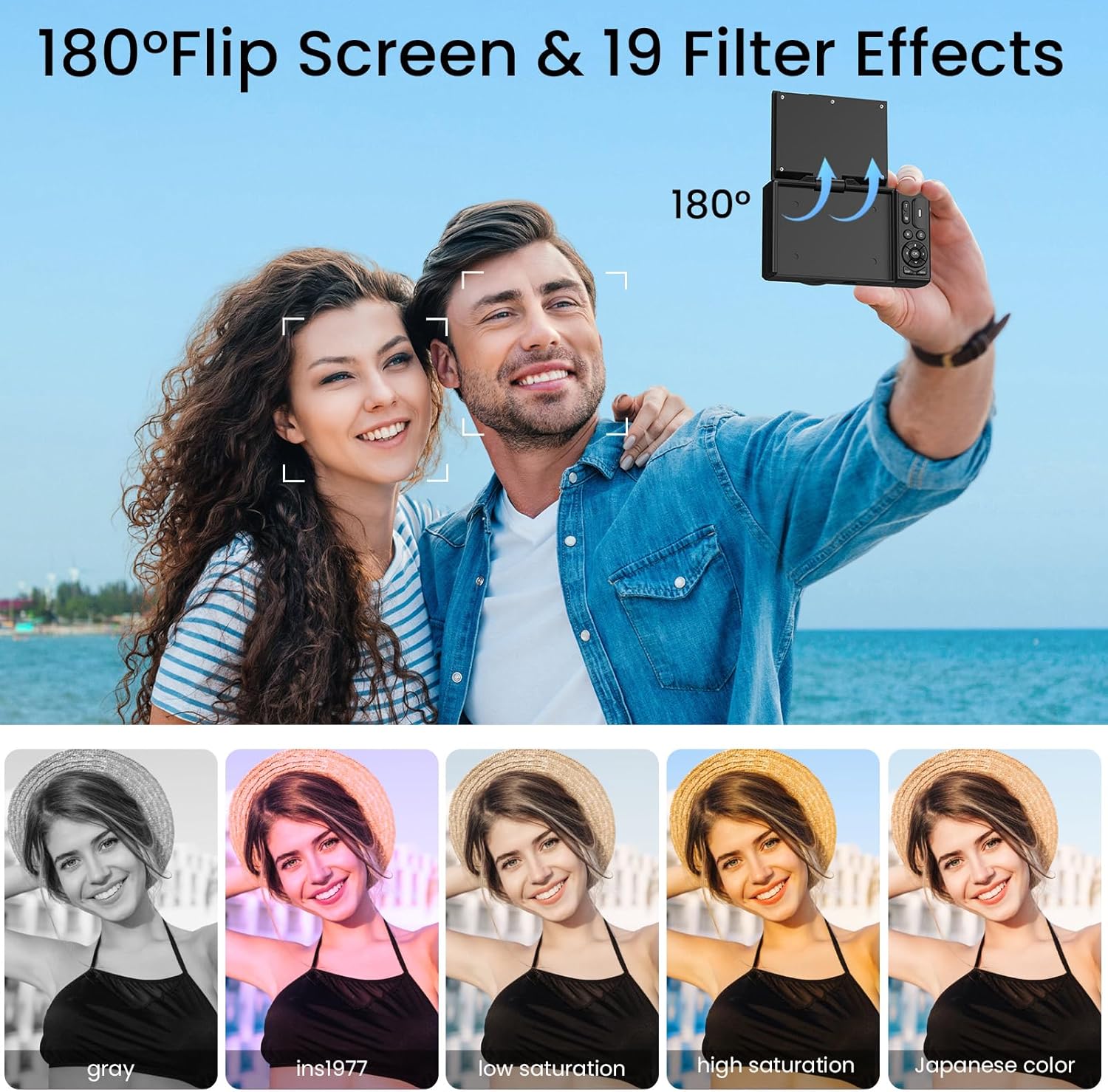
Figure 5.1: The camera's 180° flip screen, ideal for self-portraits and vlogging.

Figure 5.2: The flip screen in action, making it convenient for selfies and group shots.
5.2 Built-in Fill Light
Activate the built-in fill light to brighten your subjects in dimly lit environments, ensuring clearer photos and videos.
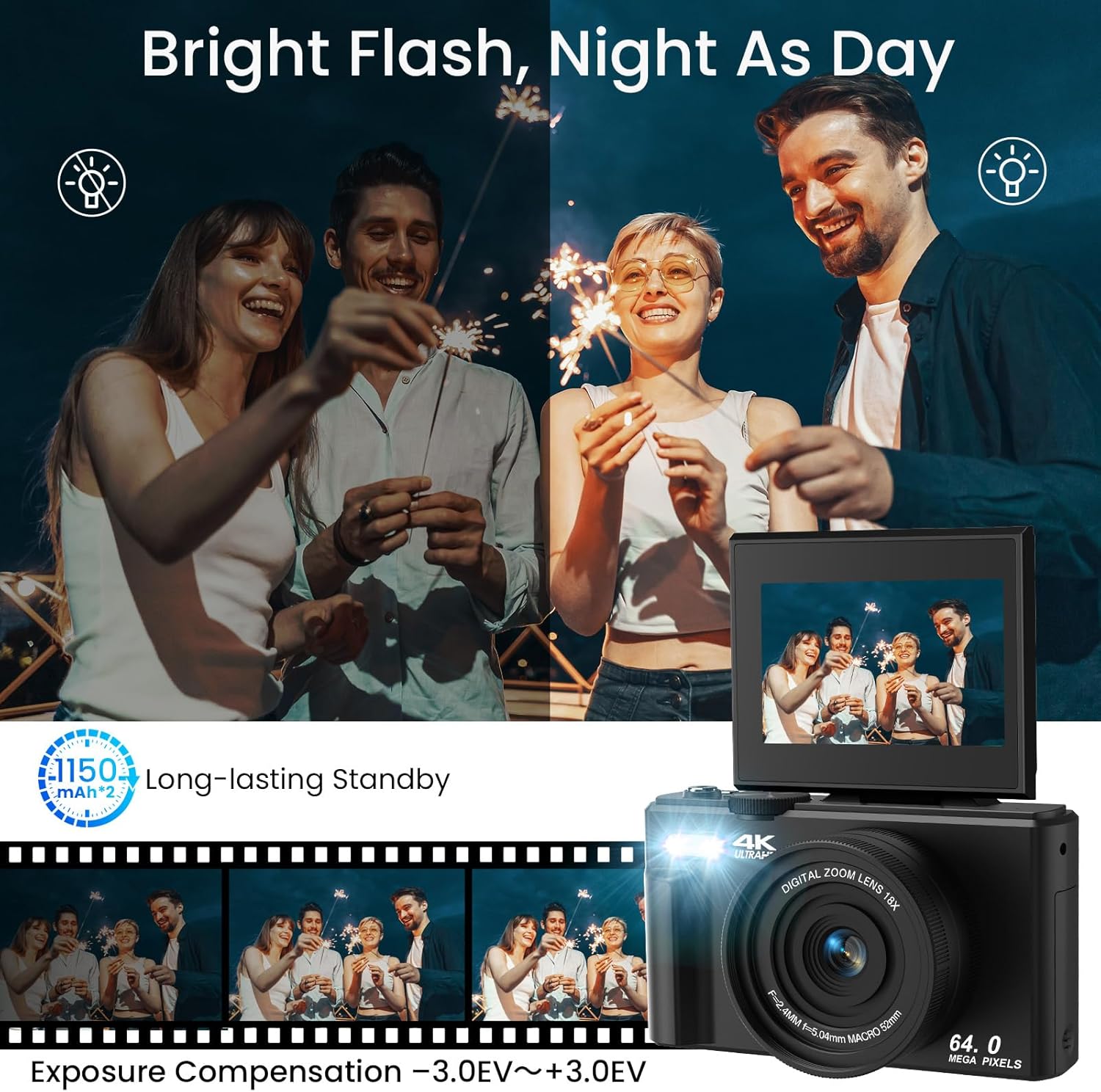
Figure 5.3: The camera's built-in fill light, enhancing visibility in low-light conditions.

Figure 5.4: Before and after comparison demonstrating the effectiveness of the fill light.
5.3 Special Shooting Modes and Effects
Your camera offers various modes and effects to enhance your creativity:
- Timed Shooting: Set a timer (2s, 5s, 10s, 15s, 30s) for self-portraits or group photos.
- Burst Mode: Capture a rapid sequence of photos for action shots.
- Slowly Shooting: Record videos in slow motion.
- Lapse Effects: Create time-lapse videos by compressing time.
- Face Detection & Smile Capture: Automatically detects faces and captures smiles.
- Beauty Function: Enhances facial features for more flattering portraits.
- 19 Filter Effects: Apply various artistic filters (e.g., Gray, Ins1977, Low Saturation, High Saturation, Japanese Color) to your photos.

Figure 5.5: Overview of creative shooting modes available on the camera.

Figure 5.6: Examples of the 19 built-in filter effects that can be applied to photos.

Figure 5.7: The Beauty Effect and Smile Face Detection features for enhanced portraits.
5.4 WiFi Transfer
Transfer photos and videos wirelessly to your smartphone or computer using the camera's built-in Wi-Fi function. Refer to the camera's on-screen menu for specific instructions on connecting to a Wi-Fi network and transferring files.
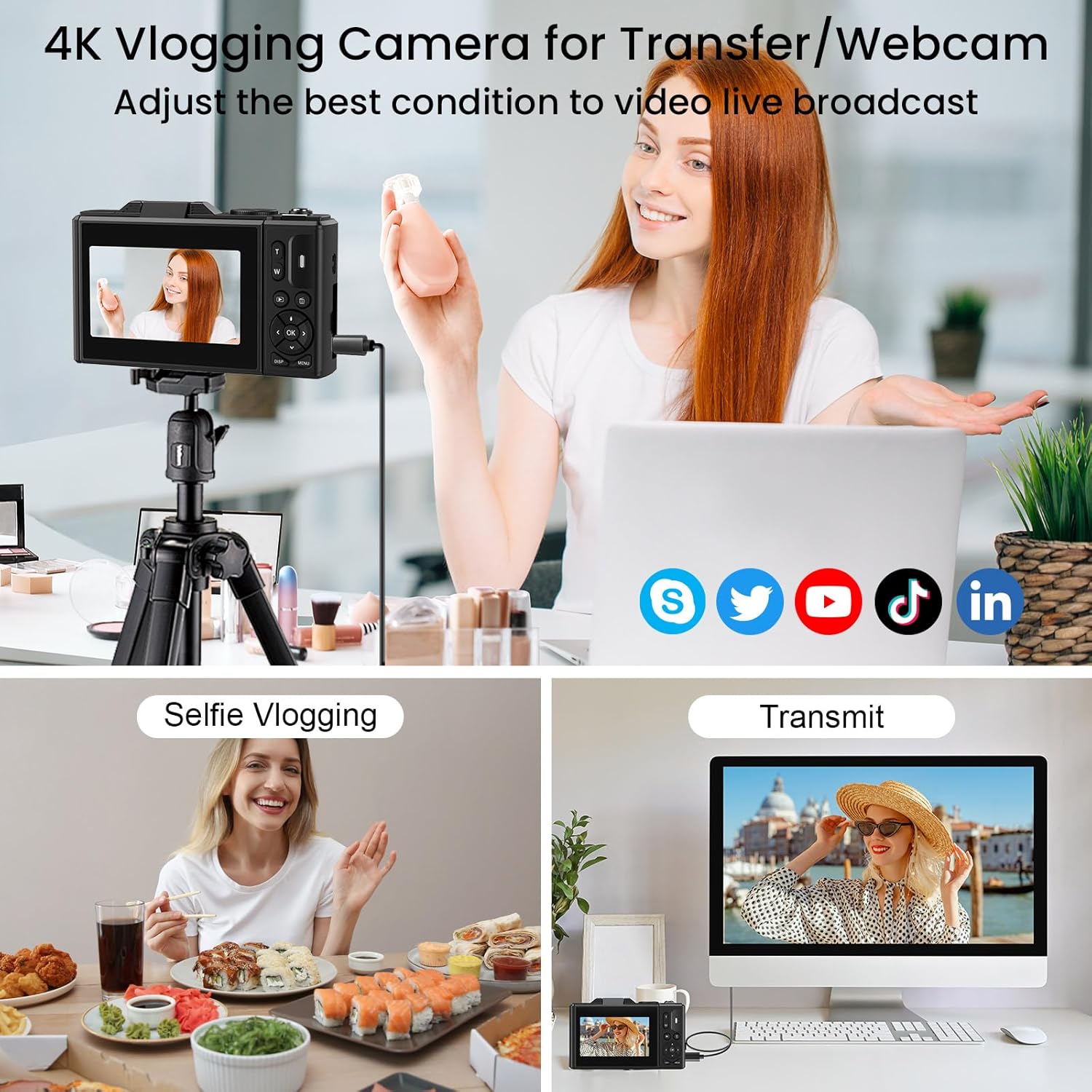
Figure 5.8: The camera supports WiFi transfer for easy sharing of content.

Figure 5.9: Visual representation of wireless file transfer from camera to smartphone.
5.5 Webcam Functionality
Connect your LAMA camera to a computer via the USB-C cable to use it as a webcam for video calls or live streaming. Select the "Webcam" option on the camera's screen when prompted after connecting.

Figure 5.10: The camera can be used as a webcam for video conferencing or streaming.
5.6 Official Product Videos
Watch these official videos for a visual guide on using your LAMA 4K UHD Digital Camera.
Video 5.1: An overview of the LAMA 4K UHD 64MP Digital Camera's features and functions.
Video 5.2: A demonstration of the LAMA 4K Digital Camera's capabilities in various scenarios.
6. Maintenance
- Cleaning: Use a soft, dry cloth to clean the camera body. For the lens, use a specialized lens cleaning cloth and solution. Avoid harsh chemicals.
- Storage: Store the camera in a cool, dry place away from direct sunlight and extreme temperatures. Remove the battery if storing for extended periods.
- Battery Care: Fully charge the battery before first use. Avoid overcharging or completely draining the battery.
- Memory Card: Regularly back up your photos and videos to a computer or external storage device. Format the memory card periodically within the camera to maintain optimal performance.
7. Troubleshooting
| Problem | Possible Solution |
|---|---|
| Camera does not power on. | Ensure the battery is fully charged and correctly inserted. Try charging the camera for at least 30 minutes. |
| Cannot take photos/record videos. | Check if a memory card is inserted and has sufficient free space. Ensure the mode dial is set to the correct mode (Photo/Video). |
| Images are blurry. | Ensure the autofocus has locked onto the subject (green frame). Check for smudges on the lens and clean if necessary. Ensure sufficient lighting. |
| Wi-Fi transfer not working. | Ensure Wi-Fi is enabled on both the camera and your smart device. Follow the specific connection instructions in the camera's menu. |
| Camera freezes or becomes unresponsive. | Remove the battery, wait a few seconds, and reinsert it to perform a soft reset. |
8. Specifications
| Feature | Detail |
|---|---|
| Model Name | LM249A |
| Photo Sensor Resolution | 75 MP (Effective Still Resolution) |
| Video Resolution | 4K UHD |
| Digital Zoom | 18X |
| Screen Size | 3.0 inches (Tilting LCD) |
| Image Stabilization | Digital (Anti-Shake) |
| Connectivity | Wi-Fi, USB-C |
| Storage Media | Micro SD (TF) Card, up to 64GB |
| Battery Type | Lithium Polymer |
| Special Features | 180° Flip Screen, Built-in Fill Light, Autofocus, Face Detection, Smile Capture, Timed Shooting, Burst Mode, Slow Motion, Time-Lapse, 19 Filter Effects, Webcam Function |
| Item Weight | 8.8 ounces |
9. Warranty and Support
The LAMA 4K UHD 75MP Digital Camera comes with a 1-year warranty from the date of purchase. For technical support, warranty claims, or any questions regarding your product, please contact LAMA customer service through the retailer's platform or visit the official LAMA brand store online. Please retain your proof of purchase for warranty validation.
10. Included Accessories
The following items are included with your LAMA 4K UHD 75MP Digital Camera:
- LAMA 4K UHD 75MP Digital Camera Body
- 64GB Micro SD (TF) Card
- 2 x Rechargeable Batteries
- Lens Cap
- Type-C USB Cable
- Lanyard
- Storage Bag
- User Manual (this document)

Figure 10.1: All accessories included with the camera package.