
1. Introduction
The AIYEEN USB-C TF/Micro SD Card Reader is a compact and versatile device designed to expand storage and facilitate data transfer for your USB-C enabled smartphones, tablets, laptops, and PCs. Its plug-and-play functionality and durable design make it an essential accessory for managing your digital content on the go.
2. Product Features
- Mini USB-C Card Reader with LED Indicator: Extends storage capacity for USB-C devices. A blue LED light confirms device connection status.
- Wide Card Compatibility: Supports TF (Micro SD, Micro SDHC, Micro SDXC) cards.
- OTG Functionality: Enables direct connection and data transfer with compatible smartphones and tablets without needing a computer.
- Compact and Portable Design: Crafted from high-quality zinc alloy, lightweight, and includes an anti-loss keychain for easy transport.
- Broad Device Compatibility: Works with most USB-C devices supporting OTG, including MacBook Pro/Air, iPhone 15 series, Samsung Galaxy, Google Pixel, and PCs running Mac OS, Windows, and Linux.
- High-Speed Data Transfer: USB 3.0 interface for fast file transfers.

Figure 2.1: The AIYEEN USB-C Card Reader connected to a tablet, highlighting the built-in LED indicator that illuminates when the device is connected.
3. Package Contents
- 1 x AIYEEN USB-C TF/Micro SD Card Reader (Light Gold)
- 1 x Keychain

Figure 3.1: The AIYEEN USB-C Card Reader, showing its compact size, light gold finish, attached keychain, and a compatible MicroSD card.
4. Setup Instructions
- Insert Micro SD Card: Gently insert your TF (Micro SD, Micro SDHC, or Micro SDXC) card into the card slot on the AIYEEN reader until it clicks into place. Ensure the card is inserted in the correct orientation.
- Connect to Device: Plug the USB-C connector of the card reader into the USB-C port of your compatible device (smartphone, tablet, laptop, or PC).
- Verify Connection: The blue LED indicator on the card reader will illuminate, confirming a successful connection. Your device should recognize the card reader as external storage.

Figure 4.1: The card reader connected to a laptop and a smartphone, illustrating how it can be used with different USB-C enabled devices.
5. Operating Instructions
5.1. Accessing Files
Once connected, your device will typically display a notification or automatically open a file manager application. You can then navigate to the external storage (usually labeled as "USB Drive," "SD Card," or similar) to access, copy, move, or delete files on your Micro SD card.
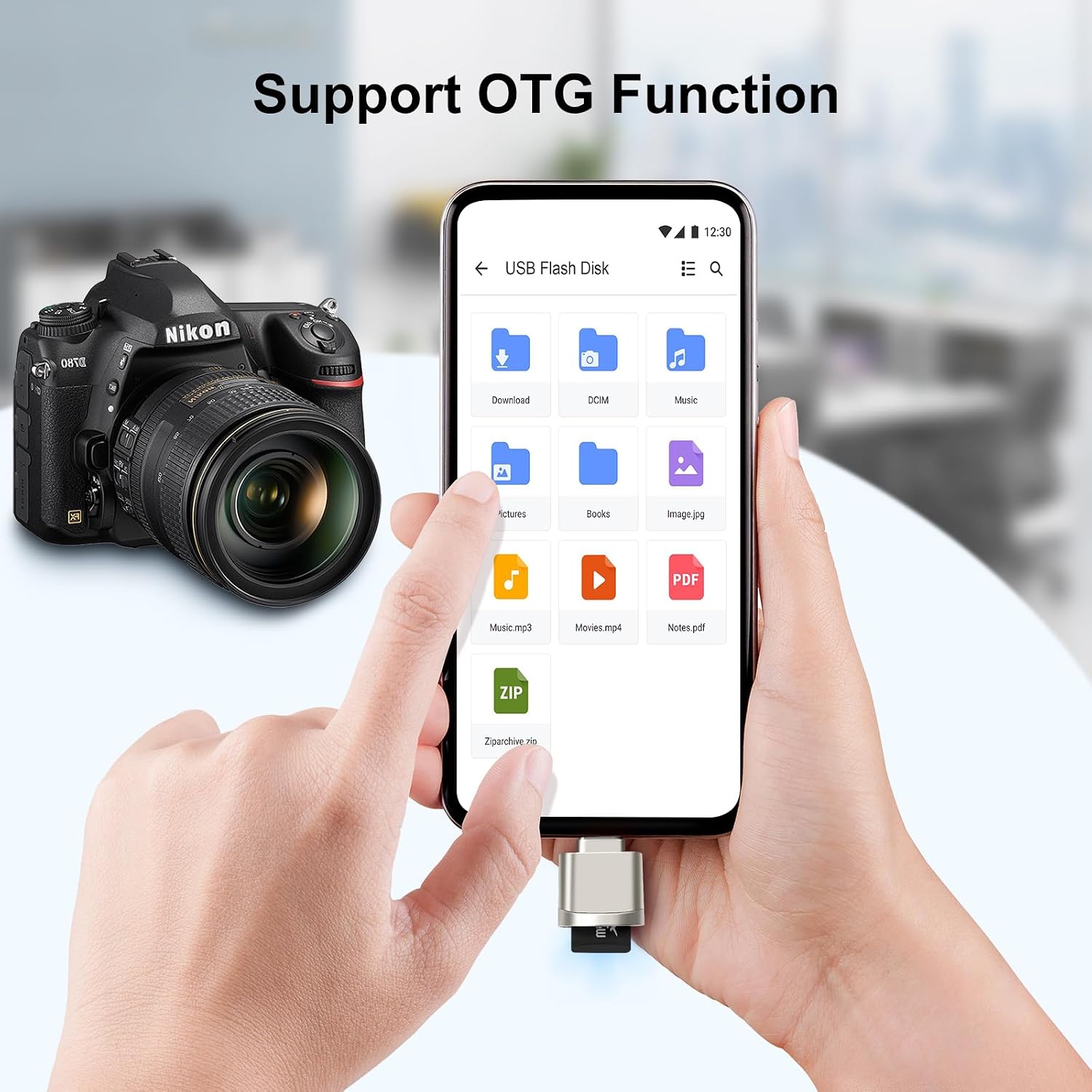
Figure 5.1: A smartphone displaying its file manager, with the card reader connected, allowing direct access to files on the Micro SD card via OTG.
5.2. Data Transfer
Utilize your device's file management system to transfer photos, videos, documents, and other data between your device's internal storage and the Micro SD card. The USB 3.0 interface ensures fast transfer speeds for efficient data management.

Figure 5.2: The card reader connected to a laptop, demonstrating its capability for ultra-fast file transfer speeds, indicated by "USB 3.0 5Gbps".
5.3. Media Playback
You can directly play media files (movies, music, photos) stored on the Micro SD card through the card reader on your compatible device, without needing to transfer them to internal storage first.

Figure 5.3: A smartphone playing a movie, demonstrating the ability to enjoy media content directly from the Micro SD card via the card reader.
6. Compatibility
The AIYEEN USB-C TF/Micro SD Card Reader is designed for broad compatibility with various devices and operating systems:
- Devices: Personal Computers, Laptops, Smartphones, Tablets with a USB Type-C port supporting OTG functionality.
- Examples: MacBook Pro/Air, iPhone 15 series, Samsung Galaxy Note/S series, Google Pixel, and other USB-C enabled devices.
- Operating Systems: Mac OS, Windows, Linux, Android.
- Media Types: Micro SD, Micro SDHC, Micro SDXC (TF cards).

Figure 6.1: The card reader's universal compatibility with a range of USB-C devices and various Micro SD card formats.

Figure 6.2: Supported operating systems for the AIYEEN USB-C Card Reader.
7. Maintenance
To ensure the longevity and optimal performance of your AIYEEN USB-C TF/Micro SD Card Reader:
- Keep the device clean and free from dust and debris. Use a soft, dry cloth for cleaning.
- Avoid exposing the reader to extreme temperatures, humidity, or direct sunlight.
- Do not attempt to disassemble or modify the device, as this will void the warranty.
- Always safely eject the card reader from your device before unplugging it to prevent data corruption.
8. Troubleshooting
| Problem | Possible Cause | Solution |
|---|---|---|
| Device not recognized. |
|
|
| Blue LED not lighting up. |
|
|
| Slow data transfer. |
|
|
9. Specifications
| Attribute | Detail |
|---|---|
| Brand | AIYEEN |
| Model Name | AY-MiniReader-GD |
| Connectivity Technology | USB Type-C |
| Hardware Interface | USB 3.0 Type-C |
| Compatible Devices | Personal Computer, Laptop, Smartphone |
| Compatible Operating Systems | Mac OS, Windows, Linux |
| Media Type Supported | Micro SDHC (also Micro SD, Micro SDXC) |
| Data Transfer Rate | Up to 5 Gigabits per second (USB 3.0) |
| Material | High-quality Zinc Alloy |
| Color | Light Gold |

Figure 9.1: Dimensions of the MiniReader model (bottom row of devices in the image) are approximately 23mm x 16mm (0.9in x 0.63in).
10. Warranty and Support
All AIYEEN products come with a 2-year warranty against manufacturing defects. If you encounter any issues or have questions regarding your product, please do not hesitate to contact AIYEEN customer support for assistance.
For support, please refer to the contact information provided with your purchase or visit the official AIYEEN website.