
weelikeit CP35S
Weelikeit Portable Mini Projector CP35S User Manual
Model: CP35S | Brand: Weelikeit
Introduction
This manual provides detailed instructions for the setup, operation, and maintenance of your Weelikeit Portable Mini Projector CP35S. This projector supports 1080P native resolution with 4K support, features 5G WiFi 6 and Bluetooth connectivity, and includes automatic focusing and keystone correction for an optimized viewing experience.
What's in the Box
Upon unpacking, ensure all the following items are present:
- 1x Weelikeit Projector CP35S
- 1x Power Adapter
- 1x Remote Control
- 1x HDMI Cable
- 1x User Manual

Image: Contents of the Weelikeit Projector CP35S retail box.
Product Overview
The Weelikeit CP35S projector is designed for portability and ease of use. It features multiple connectivity options and automatic image adjustment capabilities.
Ports and Connections
The rear panel of the projector provides various ports for connecting external devices:
- USB Ports: For connecting USB storage devices.
- HDMI Port: For connecting devices such as laptops, gaming consoles, or media players.
- Audio Port (3.5mm Jack): For connecting external audio systems or headphones.
- Power Input: For connecting the power adapter.

Image: Rear view of the Weelikeit CP35S Projector, highlighting the various input/output ports.
Setup
- Placement: Place the projector on a stable, flat surface. Ensure there are no obstructions in front of the lens. The optimal projection distance is approximately 3 meters for a 100-inch screen.
- Power Connection: Connect the power adapter to the projector's power input port and then plug it into a power outlet.
- Power On: Press the power button on the projector or the remote control to turn on the device.

Image: Recommended projection distances for different screen sizes.
Operating Instructions
Automatic Image Adjustment
The CP35S projector features intelligent automatic focus, keystone correction, and obstacle avoidance. When the projector is moved or initially powered on, it will automatically adjust the image for clarity and proper geometry on the projection surface. This ensures a clear, rectangular image without manual intervention.

Image: Visual representation of the projector's intelligent auto-focus and auto-keystone correction.
Connecting to Wi-Fi
To access online content and streaming services, connect your projector to a Wi-Fi network:
- Navigate to the "Settings" menu using the remote control.
- Select "Network & Internet".
- Choose your desired Wi-Fi network from the list and enter the password if prompted.
- The projector supports 2.4G/5G dual-band WiFi 6 for stable and fast connections.
Bluetooth Connectivity
Pair Bluetooth devices like external speakers or headphones for enhanced audio:
- Go to the "Settings" menu.
- Select "Bluetooth" and turn it on.
- The projector will scan for available devices. Select your device from the list to pair.
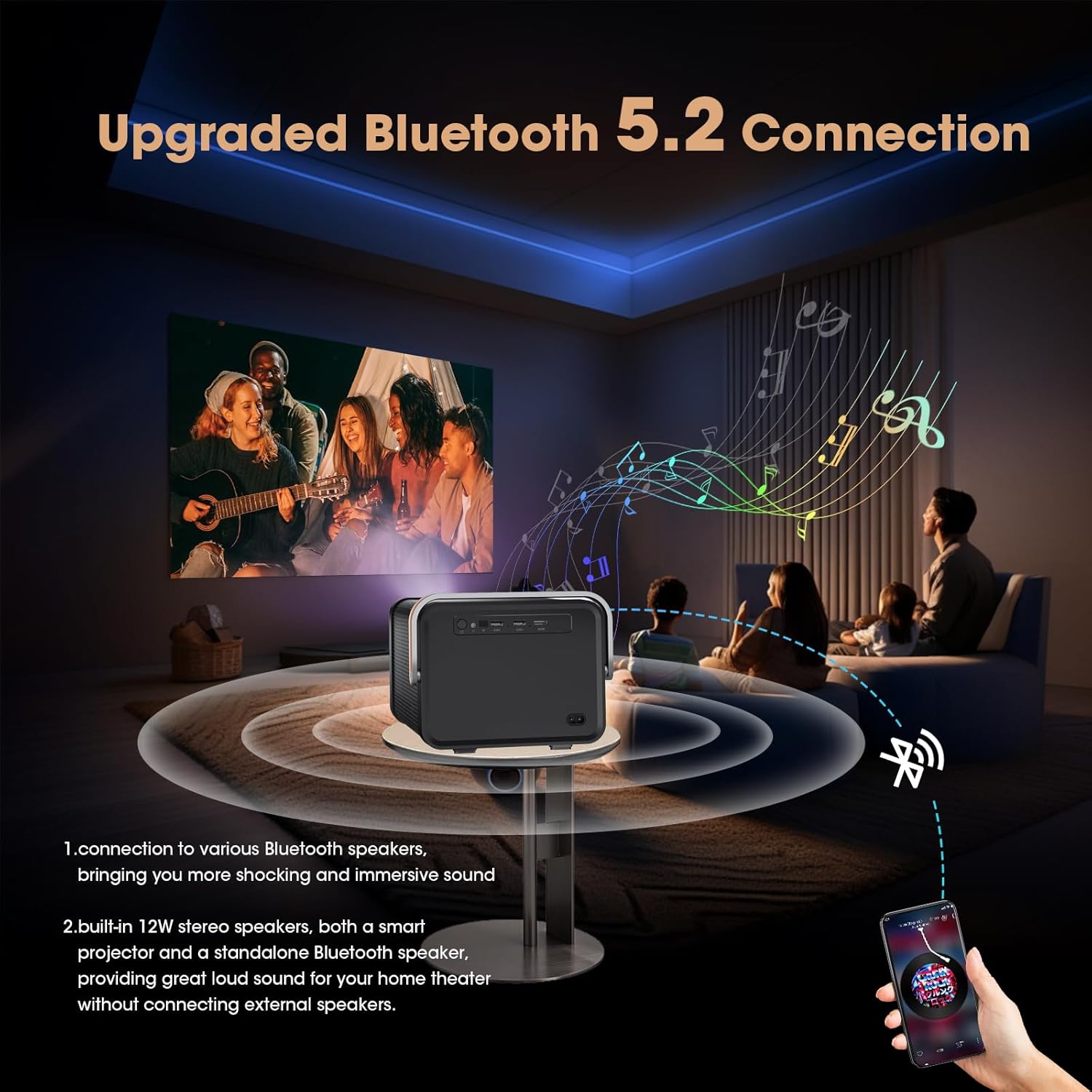
Image: Projector connected to external Bluetooth speakers for an immersive audio experience.
Using HDMI and USB Inputs
To display content from external sources:
- HDMI: Connect your device (e.g., laptop, game console, TV stick) to the projector's HDMI port using an HDMI cable. Select the HDMI input source from the projector's main menu.
- USB: Insert a USB drive into a USB port. The projector's media player will allow you to browse and play compatible files.
Accessing Built-in Apps
The projector comes with a pre-installed Android TV system, offering access to popular streaming applications:
- From the home screen, select the desired application (e.g., Netflix, YouTube, Prime Video).
- Log in with your account credentials to access content.
- Additional applications can be downloaded from the AppMarket or Play Store.

Image: Home screen of the projector showing pre-installed streaming applications.
Maintenance
- Lens Cleaning: Use a soft, lint-free cloth specifically designed for optical lenses to gently wipe the projector lens. Avoid abrasive materials or harsh chemicals.
- Dust Removal: Regularly clean the projector's vents to prevent dust buildup, which can affect performance and lifespan. Use a soft brush or compressed air.
- Storage: When not in use for extended periods, store the projector in a cool, dry place, away from direct sunlight and extreme temperatures.
Troubleshooting
| Problem | Possible Cause | Solution |
|---|---|---|
| No image or blurry image | Incorrect focus, projector too far/close, lens obstruction. | Ensure auto-focus is enabled or manually trigger it via remote. Adjust projector distance. Clean the lens. |
| No sound | Volume too low, external audio device not connected, incorrect audio output selected. | Increase volume. Check Bluetooth connection or 3.5mm audio cable. Verify audio settings. |
| Wi-Fi connection unstable | Weak signal, incorrect password, router issues. | Move projector closer to router. Re-enter Wi-Fi password. Restart router and projector. |
| Remote control not working | Dead batteries, obstruction, remote not paired. | Replace batteries (AAA). Ensure clear line of sight to projector. Re-pair remote if necessary (refer to device settings). |
Specifications
| Feature | Detail |
|---|---|
| Product Dimensions | 24 x 25.5 x 23.19 cm |
| Item Weight | 1.17 kg (2.59 Pounds) |
| Item Model Number | CP35S |
| Recommended Uses | Business, Education, Gaming, Home Cinema |
| Special Features | Auto Focus, Auto Obstacle Avoidance, Auto Screen Alignment, Built-In Speaker, Digital Keystone Correction |
| Connectivity Technology | WiFi (2.4G/5G WiFi 6), Bluetooth, HDMI, USB, VGA, AV, 3.5mm Jack |
| Native Resolution | 1920 x 1080 Pixels |
| Display Resolution Maximum | 1920 x 1080 Pixels (4K Support) |
| Display Type | LCD |
| Form Factor | Portable |
| Mounting Type | Tabletop Mount |
| Brightness | 400 ANSI Lumen |
| Contrast Ratio | 15000:1 |
| Maximum Throw Distance | 20 Feet |
| Maximum Image Size | 214 Inches |
| Minimum Throw Distance | 2.6 Feet |
| Minimum Image Size | 29 Inches |
| Controller Type | Remote Control |
| Compatible Devices | Laptops, smartphones, gaming consoles, media players |
Official Product Video
Video: A comprehensive overview and demonstration of the Weelikeit CP35S Projector, showcasing its unboxing, port details, automatic focus and keystone correction, built-in app functionality, and outdoor usage scenarios.
Warranty and Support
The product comes with a 1-year warranty. For technical support, troubleshooting, or warranty claims, please contact Weelikeit customer service.
Manufacturer Contact Information: Shenzhenshichengfengleqidianziyouxiangongsi dalangjiedaohenglangshequweihuagongyequAdong1ceng,longhuaqu,shenzhenshi,guangdongsheng,CN Contact: 17711075006
Ask a question about this manual
Ask about setup, troubleshooting, compatibility, parts, safety, or missing instructions. Manuals+ will review the question and use this page’s manual context to help answer it.