
airgoo AG-AMSC01
Airgoo Dual USB-C Streaming Audio Mixer Instruction Manual
Brand: airgoo | Model: AG-AMSC01
1. Setup
This section guides you through the initial setup of your Airgoo Dual USB-C Streaming Audio Mixer.
1.1. Package Contents
Upon unboxing, verify that all components are present:
- 1 x Airgoo AG-AMSC01 Audio Mixer
- 1 x USB C-A/C cable
- 1 x USB C-C/Lightning cable
- 1 x User Manual
Below is an overview of the mixer unit:

1.2. Connecting Your Devices
The AG-AMSC01 offers versatile connectivity options for various setups.

1.2.1. Dual USB-C Connectivity (PC/Mac & Smartphone/Tablet)
The mixer features dual digital audio I/O ports, allowing simultaneous connection to two PCs or smartphones. This enables flexible setups for podcasting, recording, vocal performances, or gaming.

- Connect the mixer to your PC/Mac using the USB C-A/C cable (OTG1 port).
- Connect your smartphone/tablet using the USB C-C/Lightning cable (OTG2 port).
- Compatible with Android 7.0+, iOS 10.0+, Mac OS 10.15+, and Windows XP/7/8/10/11. No extra drivers are needed.
1.2.2. Microphone Connection
The AG-AMSC01 supports both condenser and dynamic microphones.

- For XLR microphones (condenser mics), connect to the XLR/6.35mm combo jack and activate the 48V Phantom Power button on the mixer.
- For dynamic microphones, connect using a 6.35mm connector to the same combo jack.
- Adjustable mic gain up to 60dB is available.
1.2.3. Guitar Input
A dedicated guitar input port is available for musicians.
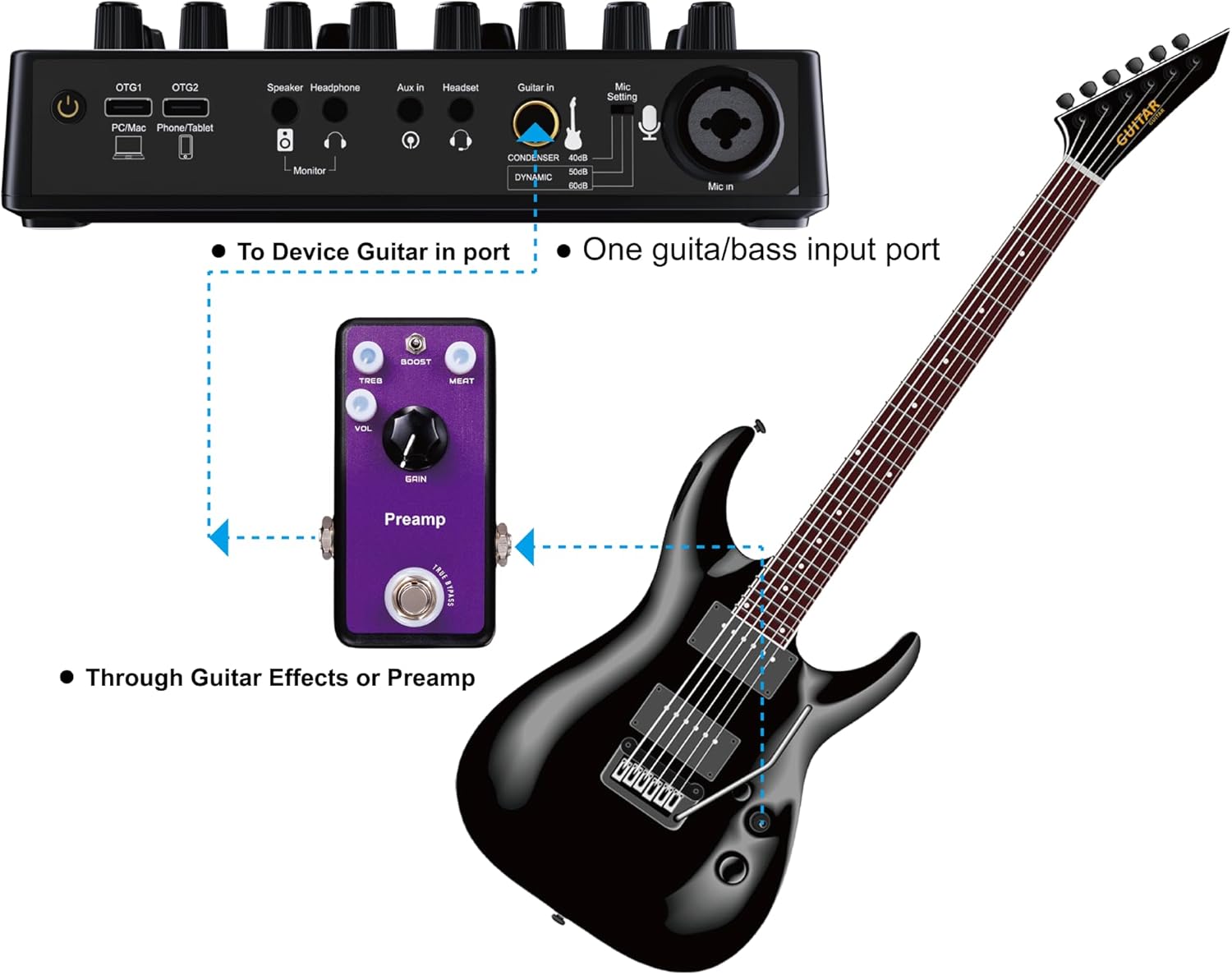
- Connect your guitar to the "Guitar In" port.
- Note: The mixer does not have a built-in preamp for the guitar input. An external preamp or modulation pedal is required for optimal sound.
1.3. Official Product Videos
No official seller videos were found for this product. The videos available are from influencers or customers.
2. Operating
Familiarize yourself with the mixer's controls for optimal audio management.
2.1. Control Layout
The mixer features intuitive sliders, knobs, and buttons.
2.1.1. Sliders
- Music Input: Adjusts the volume of music or external audio sources.
- Guitar: Controls the volume of the connected guitar.
- Mic: Adjusts the microphone volume.
- OTG2: Controls the volume for the device connected to the OTG2 port (e.g., smartphone).
- OTG1: Controls the volume for the device connected to the OTG1 port (e.g., PC/Mac).
2.1.2. Knobs
- Headphone Volume: Adjusts the output volume for connected headphones.
- Bass: Controls the low-frequency equalization for the microphone.
- Mid: Controls the mid-frequency equalization for the microphone.
- Treble: Controls the high-frequency equalization for the microphone.
- Reverb: Adjusts the amount of reverb effect applied to the microphone.
- Change Voice: Selects different voice modulation effects.
- Soundpad Volume: Controls the playback volume of the soundpad effects.
2.1.3. Buttons
- 48V: Activates/deactivates 48V phantom power for condenser microphones.
- BT: Activates/deactivates Bluetooth connectivity for wireless audio input.
- Reverb: Toggles the reverb effect on/off.
- Music Mute: Mutes/unmutes the music input.
- Change Voice: Cycles through available voice change effects.
- Loop Back: Enables/disables audio loopback, allowing output audio to be routed back as input.
- Noise Reducer: Activates/deactivates the noise reduction feature to minimize background noise.
- Soundpad (A, B, C): Triggers pre-programmed sound effects.
3. Maintenance
Proper maintenance ensures the longevity and optimal performance of your Airgoo mixer.
3.1. Cleaning
- Use a soft, dry cloth to wipe down the exterior of the mixer.
- Avoid using abrasive cleaners, solvents, or harsh chemicals.
- Keep the ports and sliders free from dust and debris. Use compressed air if necessary.
3.2. Storage
- Store the mixer in a cool, dry place away from direct sunlight and extreme temperatures.
- If storing for extended periods, disconnect all cables and place the unit back in its original packaging or a protective case.
4. Troubleshooting
This section addresses common issues you might encounter with your mixer.
4.1. No Power / Device Not Turning On
- Ensure the USB-C power cable is securely connected to the mixer and a powered USB port on your computer or a compatible power adapter.
- Verify that the power source is active and providing sufficient power (5 Volts).
4.2. Audio Feedback or Noise
- Activate the "Noise Reducer" button on the mixer to minimize background noise.
- Check all cable connections (microphones, instruments, output devices) to ensure they are secure and not damaged.
- Ensure proper gain staging. If the microphone gain is too high, it can introduce feedback or distortion. Adjust the mic gain knob and slider.
4.3. Low Microphone Volume
- Increase the "Mic" slider volume on the mixer.
- Adjust the mic gain knob (Bass, Mid, Treble) to boost the signal. The mixer offers adjustable mic gain up to 60dB.
- For condenser microphones, ensure 48V phantom power is activated.
- Ensure your microphone is positioned correctly and close enough to the sound source.
4.4. Device Not Recognized by PC/Smartphone
- Ensure you are using the correct USB-C cable for your device (USB C-A/C for PC, USB C-C/Lightning for smartphone/tablet).
- Try connecting to a different USB port on your computer or a different device.
- Restart your computer or smartphone.
5. Specifications
| Feature | Detail |
|---|---|
| Item Weight | 1.21 pounds (0.55 Kilograms) |
| Package Dimensions | 9.29 x 6.57 x 2.91 inches |
| Country of Origin | China |
| Item Model Number | AG-AMSC01 |
| Power Source | USB-C for Power Supply |
| Voltage | 5 Volts |
| Number of Channels | 2 |
| Connectivity Technology | Bluetooth, Auxiliary, USB, USB for Power Supply, XLR for Mic Input |
6. Warranty and Support
Airgoo provides a 12-month warranty for the AG-AMSC01 Dual USB-C Streaming Audio Mixer.
For any questions regarding our products, both before and after placing your order, please contact us. We are committed to replying within 24 hours.
Contact Information: Please refer to the user manual included in your package or visit the official airgoo website for support contact details.
Ask a question about this manual
Ask about setup, troubleshooting, compatibility, parts, safety, or missing instructions. Manuals+ will review the question and use this page’s manual context to help answer it.