
1. Introduction
The Genérico Wi-Fi Temperature and Humidity Sensor is designed to monitor environmental conditions in your home or office. It provides real-time temperature and humidity data, which can be accessed via a smartphone application and integrated with popular smart home platforms like Amazon Alexa and Google Home. This manual will guide you through the setup, operation, and maintenance of your device.
2. Package Contents
- 1x Wi-Fi Temperature and Humidity Sensor
- 1x User Manual
- 1x Adhesive backing
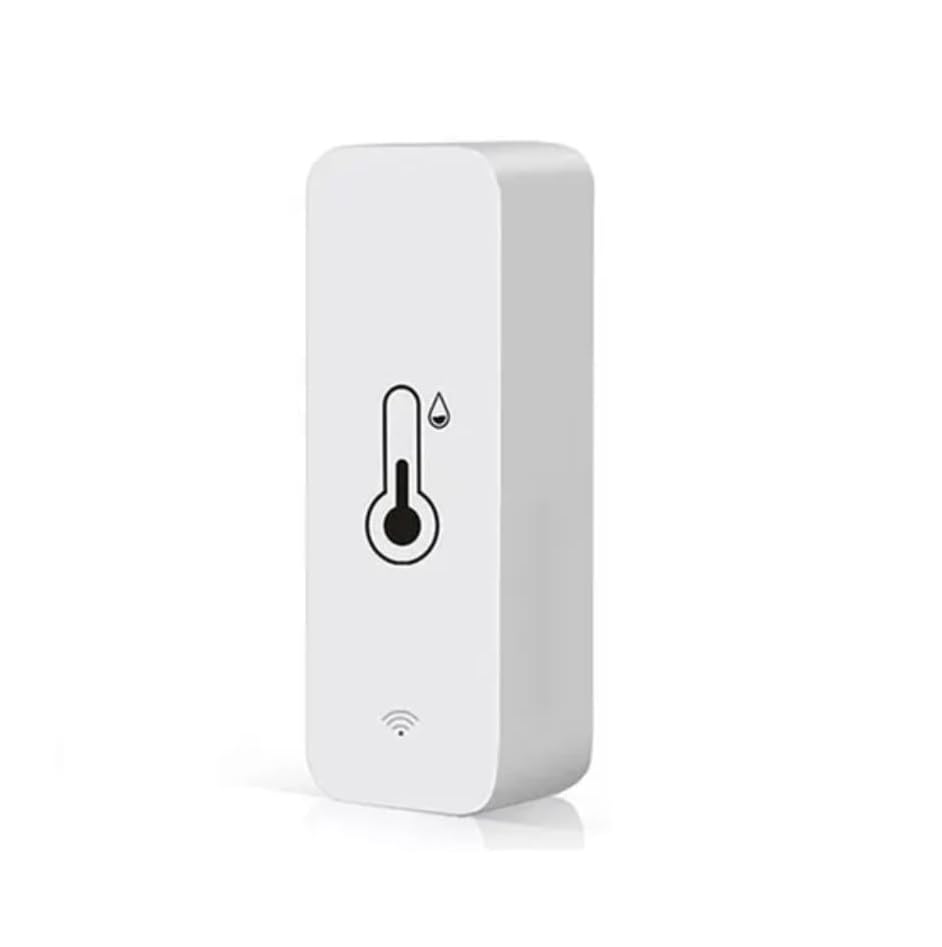
Image: The Genérico Wi-Fi Temperature and Humidity Sensor, a compact white device with a thermometer and humidity droplet icon, and a Wi-Fi signal icon at the bottom.
3. Specifications
- Material: ABS
- Power Source: 2x AAA 1.5V Batteries (not included)
- Wi-Fi Frequency: 2.4 GHz IEEE 802.11 b/g/n
- Temperature Measurement Range: -20°C ~ 60°C
- Humidity Measurement Range: 0% RH ~ 100% RH
- Temperature Measurement Accuracy: ±1°C
- Humidity Measurement Accuracy: ±5% RH
- App Compatibility: Tuya / Smart Life
- Smart Home Integration: Amazon Alexa, Google Assistant
4. Setup
- Insert Batteries: Open the battery compartment on the back of the sensor and insert two (2) AAA 1.5V batteries, ensuring correct polarity. Batteries are not included.
- Download App: Download and install the "Tuya Smart" or "Smart Life" application from your smartphone's app store (available on iOS and Android).
- Register/Log In: Open the app and register a new account or log in with an existing one.
- Add Device:
- Ensure your smartphone is connected to a 2.4 GHz Wi-Fi network.
- In the app, tap the "+" icon (usually in the top right corner) to add a new device.
- Select "Sensor" or "Temperature and Humidity Sensor" from the device list.
- Follow the on-screen instructions to put the sensor into pairing mode (this usually involves pressing and holding a button on the device until an indicator light flashes).
- Confirm the Wi-Fi network and enter the password when prompted.
- Wait for the device to connect. Once connected, you can rename the sensor.
- Mounting: Use the provided adhesive backing to mount the sensor on a clean, dry surface in your desired location.
5. Operating Instructions
- Real-time Monitoring: Open the Tuya Smart or Smart Life app to view real-time temperature and humidity readings from your sensor.
- Historical Data: The app typically provides historical data and graphs, allowing you to track environmental changes over time.
- Alerts: Set up custom alerts within the app to receive notifications if temperature or humidity levels exceed or fall below your predefined thresholds.
- Smart Home Integration (Alexa/Google Home):
- Open the Amazon Alexa or Google Home app.
- Enable the "Tuya Smart" or "Smart Life" skill/service.
- Link your Tuya/Smart Life account.
- Discover devices. Your sensor should now appear in your Alexa/Google Home device list.
- You can now ask Alexa or Google Assistant for the current temperature and humidity readings (e.g., "Alexa, what is the temperature in the living room?").
6. Maintenance
- Battery Replacement: When the battery indicator in the app or on the device shows low power, replace the two (2) AAA 1.5V batteries.
- Cleaning: Wipe the sensor periodically with a soft, dry cloth to remove dust and ensure accurate readings. Avoid using liquid cleaners.
7. Troubleshooting
- Device not connecting to Wi-Fi:
- Ensure your Wi-Fi network is 2.4 GHz. The sensor does not support 5 GHz networks.
- Check Wi-Fi password accuracy.
- Move the sensor closer to your Wi-Fi router.
- Restart your router and the sensor.
- Ensure the sensor is in pairing mode (indicator light flashing).
- Inaccurate Readings:
- Ensure the sensor is not placed near heat sources (e.g., direct sunlight, heating vents) or moisture sources (e.g., humidifiers, open windows).
- Allow the sensor some time to stabilize after placement or battery change.
- Clean the sensor if dust or debris is present.
- No data in app:
- Check if the sensor is connected to Wi-Fi and has sufficient battery power.
- Ensure your phone has an active internet connection.
- Restart the app.
8. Warranty and Support
For warranty information and technical support, please refer to the retailer where the product was purchased or contact the manufacturer directly. Please retain your proof of purchase for any warranty claims.