
1. Introduction
This manual provides comprehensive instructions for the setup, operation, and maintenance of your JBL Tour One M2 Wireless Over-Ear Noise Cancelling Headphones. Please read this manual thoroughly before using your headphones to ensure proper functionality and to maximize your listening experience.
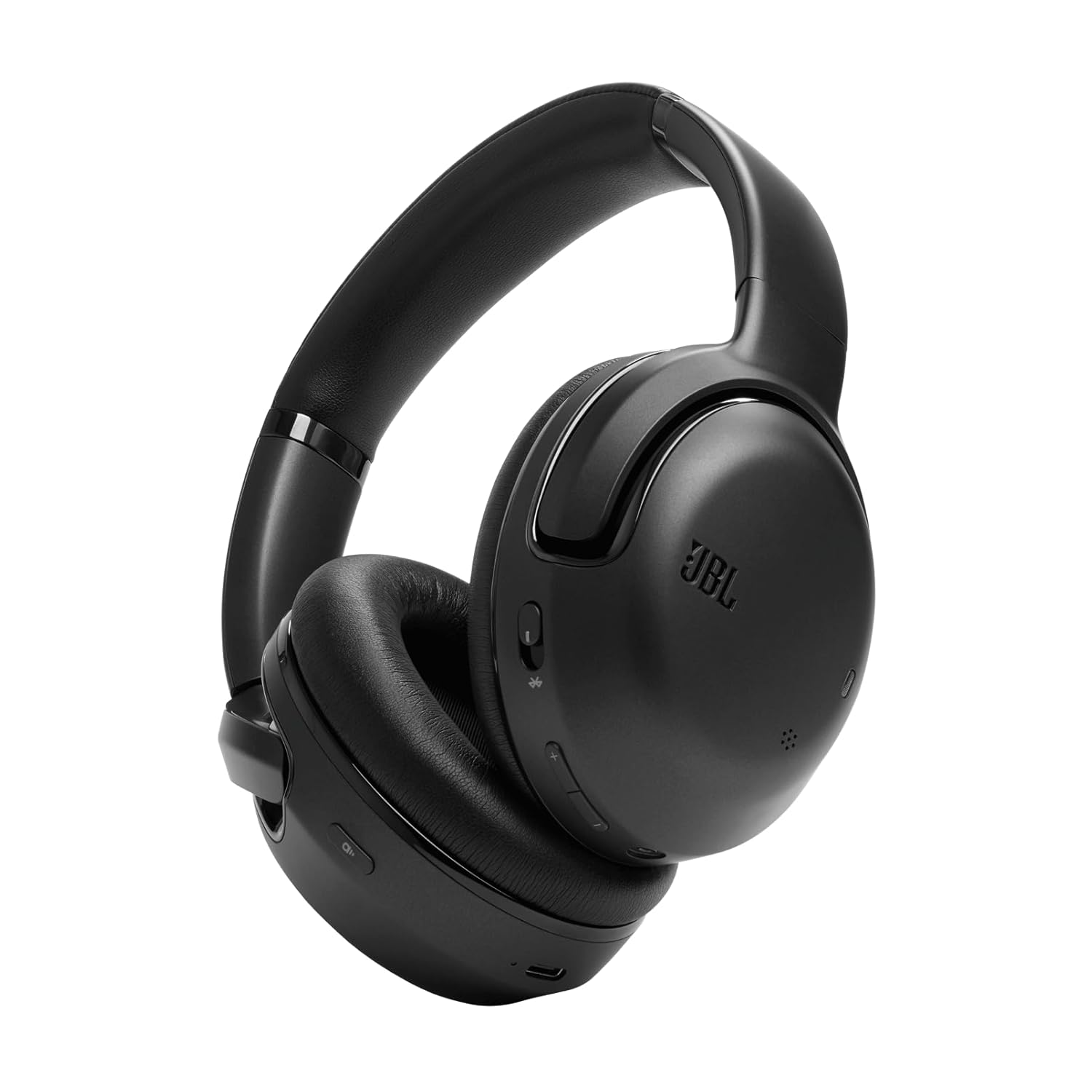
Image 1.1: JBL Tour One M2 Headphones. These over-ear headphones feature a sleek black design with the JBL logo on the earcups.
2. What's in the Box
Verify that all items are present in the package:
- JBL Tour One M2 Headphones
- USB-C Charging Cable
- Audio Cable (3.5mm)
- Carrying Case
- Flight Adapter
- Quick Start Guide (this manual serves as a detailed guide)
- Safety Sheet
3. Product Overview
Familiarize yourself with the components and controls of your JBL Tour One M2 headphones.
3.1 Headphone Components

Image 3.1: Internal components of the JBL Tour One M2 headphones. This diagram highlights the 40mm speaker driver, battery, and various microphones (FB MIC, FF MIC, CALL MIC) for superior audio and call quality.
3.2 Controls and Indicators
The headphones feature various buttons and indicators for control:
- Power Button: On/Off, Bluetooth pairing.
- Volume Up/Down: Adjust audio volume.
- Multi-function Button: Play/Pause, Skip tracks, Answer/End calls.
- ANC/Ambient Aware Button: Toggle between Active Noise Cancellation, Ambient Aware, and TalkThru modes.
- LED Indicator: Shows power status, charging status, and Bluetooth pairing status.
- USB-C Port: For charging.
- 3.5mm Audio Jack: For wired connection.
3.3 Dimensions

Image 3.2: Dimensions of the JBL Tour One M2 headphones. The image shows approximate measurements of 22.3 cm height, 20.5 cm width, and 7.8 cm depth.
4. Setup
4.1 Charging the Headphones
- Connect the USB-C charging cable to the USB-C port on the headphones.
- Connect the other end of the cable to a USB power adapter (not included) or a computer's USB port.
- The LED indicator will show charging status. It typically turns off or changes color when fully charged.
Note: Fully charge the headphones before first use.
4.2 Powering On/Off
- To Power On: Press and hold the Power button for approximately 2 seconds until the LED indicator lights up.
- To Power Off: Press and hold the Power button for approximately 2 seconds until the LED indicator turns off.
4.3 Bluetooth Pairing
- Ensure the headphones are powered off.
- Press and hold the Power button for approximately 5 seconds until the LED indicator flashes blue, indicating pairing mode.
- On your device (smartphone, tablet, computer), enable Bluetooth and search for available devices.
- Select "JBL Tour One M2" from the list of devices.
- Once connected, the LED indicator will turn solid blue.
Note: The headphones can connect to two devices simultaneously (multi-point connection).
5. Operating the Headphones
5.1 Audio Playback
- Play/Pause: Press the Multi-function button once.
- Next Track: Double-press the Multi-function button.
- Previous Track: Triple-press the Multi-function button.
- Volume Up: Press the Volume Up button.
- Volume Down: Press the Volume Down button.
5.2 Call Functions
- Answer/End Call: Press the Multi-function button once.
- Reject Call: Press and hold the Multi-function button for 2 seconds.
- Switch between calls: During a call, double-press the Multi-function button to switch between active calls.

Image 5.1: A person wearing JBL Tour One M2 headphones while walking, illustrating the adaptive noise cancellation feature that adjusts to surroundings.
5.3 Noise Cancellation and Ambient Sound Modes
The JBL Tour One M2 features Adaptive Noise Cancelling and Smart Ambient technology.
- Active Noise Cancellation (ANC): Press the ANC/Ambient Aware button once to activate. This mode reduces external noise for an immersive listening experience.
- Ambient Aware: Press the ANC/Ambient Aware button again to activate. This mode allows you to hear your surroundings while still enjoying your audio.
- TalkThru: Press the ANC/Ambient Aware button a third time to activate. This mode lowers music volume and amplifies speech, allowing for quick conversations without removing your headphones.
- Off: Press the ANC/Ambient Aware button a fourth time to turn off all noise control features.

Image 5.2: A couple walking outdoors, both wearing JBL Tour One M2 headphones, highlighting the Smart Ambient technology that allows users to stay aware of their environment.
6. Maintenance
6.1 Cleaning
- Wipe the headphones with a soft, dry cloth.
- Do not use liquid cleaners or aerosols directly on the headphones.
- Clean ear cushions gently with a slightly damp cloth if necessary, and allow them to air dry completely before use.
6.2 Storage
When not in use, store the headphones in their provided carrying case to protect them from dust and damage.

Image 6.1: JBL Tour One M2 headphones folded, demonstrating their compact design for easy storage and portability.
7. Troubleshooting
| Problem | Possible Cause | Solution |
|---|---|---|
| No power | Battery drained | Charge the headphones using the USB-C cable. |
| Cannot pair via Bluetooth | Headphones not in pairing mode; device Bluetooth off; interference | Ensure headphones are in pairing mode (flashing blue LED). Turn device Bluetooth off and on. Move closer to the device. |
| No sound | Volume too low; not connected; incorrect audio source | Increase volume on headphones and device. Reconnect Bluetooth. Check device audio output settings. |
| Poor sound quality | Weak Bluetooth signal; audio file quality | Move closer to the connected device. Try a different audio source or file. |
| ANC not working effectively | ANC mode not active; improper fit | Ensure ANC is activated. Adjust headphones for a snug fit over your ears. |
8. Specifications
- Model: Tour One M2
- Brand: JBL
- Form Factor: Over-Ear
- Connectivity: Wireless (Bluetooth)
- Noise Control: Active Noise Cancellation, Ambient Aware, TalkThru
- Battery: 1 Lithium Ion battery (rechargeable)
- Product Dimensions: Approximately 8.07 x 3.07 x 8.78 inches
- Weight: Approximately 9.59 ounces
- Manufacturer: JBL
9. Warranty and Support
JBL products are designed for reliability and performance. For detailed warranty information, please refer to the warranty card included with your product or visit the official JBL website. For technical support, frequently asked questions, or to contact customer service, please visit www.jbl.com/support.
Please retain your proof of purchase for warranty claims.


