
MESWAO MES-B3
MESWAO 15.6 Inch Android 14 Tablet MES-B3 User Manual
Comprehensive instructions for setup, operation, and maintenance.
1. Introduction
This manual provides detailed instructions for the MESWAO 15.6 Inch Android 14 Tablet, model MES-B3. It covers essential information regarding product features, setup, operation, maintenance, and troubleshooting to ensure optimal performance and user experience. Please read this manual thoroughly before using your device.
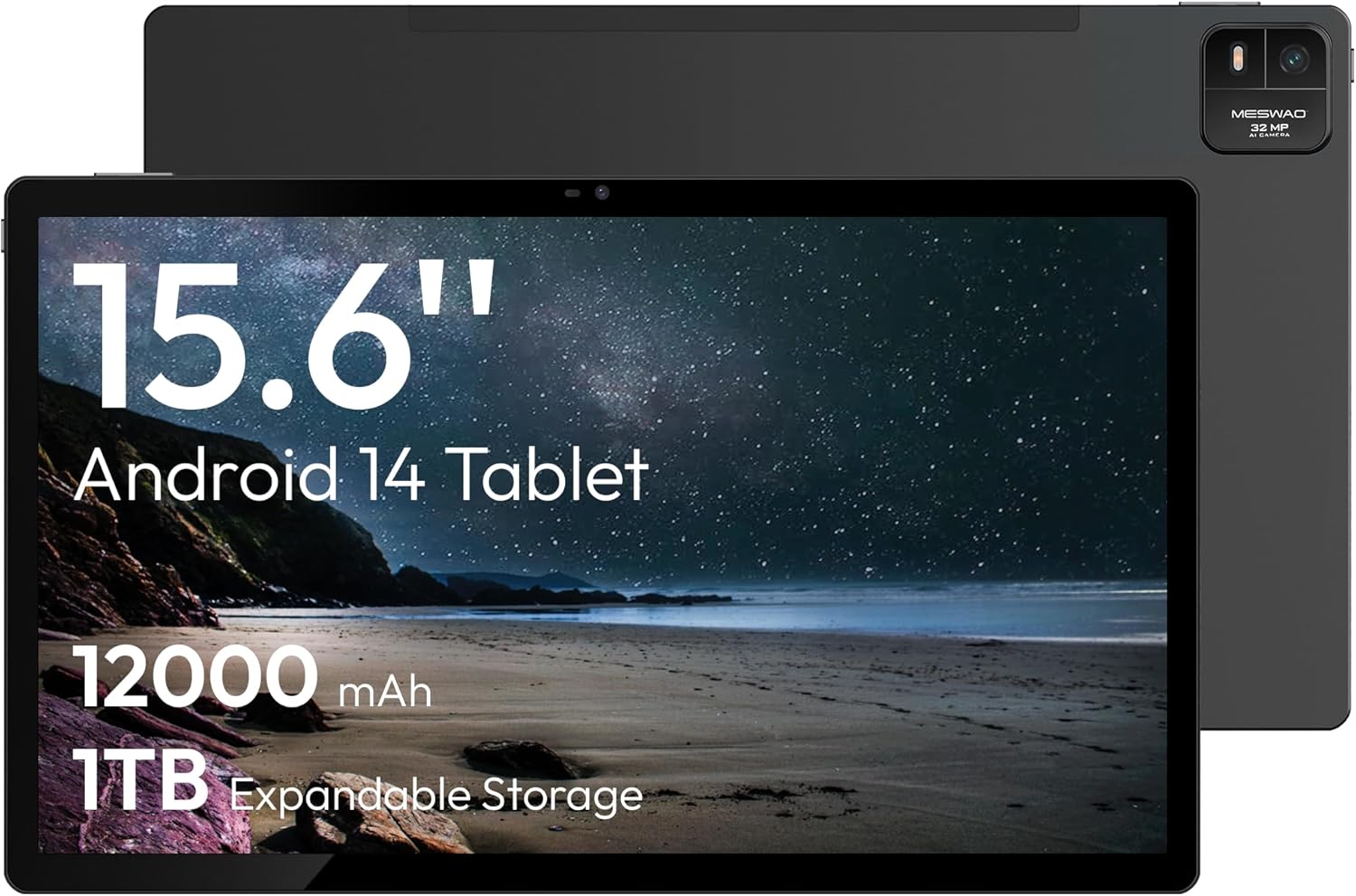
Figure 1.1: MESWAO 15.6 Inch Android 14 Tablet. This image displays the front and back view of the tablet, highlighting its large screen and rear camera module.
2. Safety Information
To prevent damage to your device or injury to yourself or others, please observe the following precautions:
- Do not expose the tablet to extreme temperatures, direct sunlight, or high humidity.
- Avoid dropping or subjecting the tablet to severe impact.
- Use only approved chargers and accessories.
- Do not attempt to disassemble or repair the tablet yourself.
- Keep the tablet away from water and other liquids.
- Observe all local regulations regarding the use of electronic devices.
3. Package Contents
Verify that all items are present in the package:
- 15.6-inch Tablet x1
- 15W Charger x1
- Type-C to 3.5mm Adapter x1
- USB-A to Type-C Adapter x1
- Stuck Pin x1 (for SIM/TF card tray)
4. Device Overview
Familiarize yourself with the physical components of your MESWAO tablet.
4.1. Physical Features
- Front Camera: Located at the top center of the screen when held horizontally.
- Rear Camera with Flash: Located on the back, typically in a corner.
- Power Button: Usually on the side, used to power on/off or wake/sleep the device.
- Volume Buttons: Adjust audio levels.
- USB-C Port: For charging and data transfer.
- TF Card Slot: For expandable storage.
- Speakers: Quad speakers with 8 sound chambers for audio output.

Figure 4.1: Overview of MESWAO Tablet's physical features. This image illustrates the location of stereo speakers, power and volume buttons, front camera, rear camera with flashlight, Type-C port, and TF card slot.
5. Setup
5.1. Initial Charging
Before first use, fully charge the tablet using the provided 15W charger and USB-C cable. Connect the charger to the USB-C port on the tablet and plug it into a power outlet. The battery indicator on the screen will show charging progress.

Figure 5.1: Tablet charging illustration. This image shows the tablet connected to a charger, displaying a charging icon and indicating 100% charge in 3.5 hours.
5.2. Powering On/Off
- To Power On: Press and hold the Power button until the MESWAO logo appears.
- To Power Off: Press and hold the Power button until the power options menu appears, then select "Power off."
- To Sleep/Wake: Briefly press the Power button.
5.3. Initial Configuration
Upon first power-on, follow the on-screen prompts to set up your tablet:
- Select your preferred language.
- Connect to a Wi-Fi network.
- Sign in with your Google account or create a new one.
- Review and accept the terms and conditions.
- Set up screen lock (PIN, pattern, or password).
5.4. Inserting a TF Card
To expand storage, insert a TF (microSD) card:
- Locate the TF card slot on the side of the tablet.
- Use the provided stuck pin to gently eject the card tray.
- Place the TF card into the tray with the gold contacts facing down.
- Carefully reinsert the tray into the tablet.

Figure 5.2: Tablet storage capabilities. This image highlights the 128GB ROM and support for up to 1TB expandable storage via TF card.
6. Operating Instructions
6.1. Basic Navigation
The MESWAO tablet uses Android 14, offering intuitive touch-based navigation:
- Tap: Select an item or open an application.
- Swipe: Scroll through screens or lists.
- Pinch-to-Zoom: Enlarge or reduce content on the screen.
- Long Press: Access contextual menus or move icons.

Figure 6.1: Android 14 operating system interface. This image displays various application icons and highlights features like smooth multitasking, parental control, and enhanced privacy.
6.2. Connecting to Wi-Fi
- Go to Settings > Network & internet > Wi-Fi.
- Toggle Wi-Fi On.
- Select your desired network from the list.
- Enter the password if prompted, then tap Connect.
6.3. Managing Applications
- Install Apps: Download from the Google Play Store.
- Uninstall Apps: Long-press an app icon, then drag it to "Uninstall" or go to Settings > Apps.
- Close Apps: Swipe up from the bottom of the screen and swipe away the app card.
6.4. Camera Usage
The tablet features a 32MP rear camera with flash and a 5MP front camera.
- Open the Camera application.
- Tap the shutter button to take a photo.
- Switch between front and rear cameras using the camera switch icon.
- Access settings for flash, modes, and other options.
6.5. Battery Management
The 12000mAh battery provides extended usage. To optimize battery life:
- Adjust screen brightness.
- Close unused applications.
- Enable battery saver mode in Settings > Battery.
6.6. Connectivity
- Bluetooth: Pair with wireless headphones, speakers, or other devices via Settings > Connected devices > Bluetooth.
- USB-C: Connect to a computer for file transfer or use with compatible USB-C accessories.
- Wireless Screen Casting: Share your tablet's screen to a compatible smart TV or monitor. Access this feature from the Quick Settings panel or Settings > Connected devices > Cast.
6.7. Sound Settings
Adjust volume and audio output options:
- Use the physical volume buttons on the side of the tablet.
- Access detailed settings in Settings > Sound & vibration.
- The tablet supports multiple audio options, including USB-C audio and 3.5mm via the provided adapter.
7. Maintenance
7.1. Cleaning Your Tablet
To clean the tablet, use a soft, lint-free cloth. For stubborn smudges, slightly dampen the cloth with water or a screen cleaner designed for electronics. Avoid harsh chemicals or abrasive materials.
7.2. Software Updates
Regularly check for and install software updates to ensure optimal performance, security, and access to new features. Go to Settings > System > System update.
7.3. Storage Management
To maintain performance, periodically manage your tablet's storage:
- Delete unnecessary apps and files.
- Move large files to the TF card or cloud storage.
- Clear cache data for apps in Settings > Apps > [App Name] > Storage & cache.
8. Troubleshooting
Refer to the following common issues and solutions:
| Problem | Solution |
|---|---|
| Tablet does not power on. | Ensure the battery is charged. Connect the charger and wait a few minutes before attempting to power on again. |
| Cannot connect to Wi-Fi. | Check if Wi-Fi is enabled. Verify the Wi-Fi password. Restart your router and the tablet. |
| Apps are crashing or freezing. | Close background apps. Clear the app's cache. Restart the tablet. Ensure the app is updated. |
| Slow performance. | Free up storage space. Close unused apps. Restart the tablet. |
| Battery drains quickly. | Reduce screen brightness. Disable unused features like Bluetooth or GPS. Close background apps. Check battery usage in settings. |
9. Specifications
Key technical specifications for the MESWAO 15.6 Inch Android 14 Tablet (MES-B3):
| Feature | Detail |
|---|---|
| Brand | MESWAO |
| Model Name | MES-B3 |
| Operating System | Android 14 |
| Screen Size | 15.6 Inches |
| Screen Resolution | 1920 x 1080 Pixels (IPS HD) |
| Processor | Octa-Core (MediaTek Helio G99, up to 2.2 GHz) |
| Graphics Coprocessor | Mali-G57 |
| RAM (Memory Storage Capacity) | 6GB (DDR3 SDRAM) |
| Internal Storage (Flash Memory Size) | 128 GB |
| Expandable Storage | Up to 1TB via TF Card |
| Rear Camera Resolution | 32 MP |
| Front Camera Resolution | 5 MP |
| Battery Capacity | 12000mAh |
| Average Battery Life | 12 Hours |
| Wireless Type | 802.11a/b/g/n/ac (Wi-Fi 5) |
| Color | Grey |
| Item Weight | 2.35 pounds |
| Product Dimensions (LxWxH) | 14.53 x 8.78 x 0.43 inches |
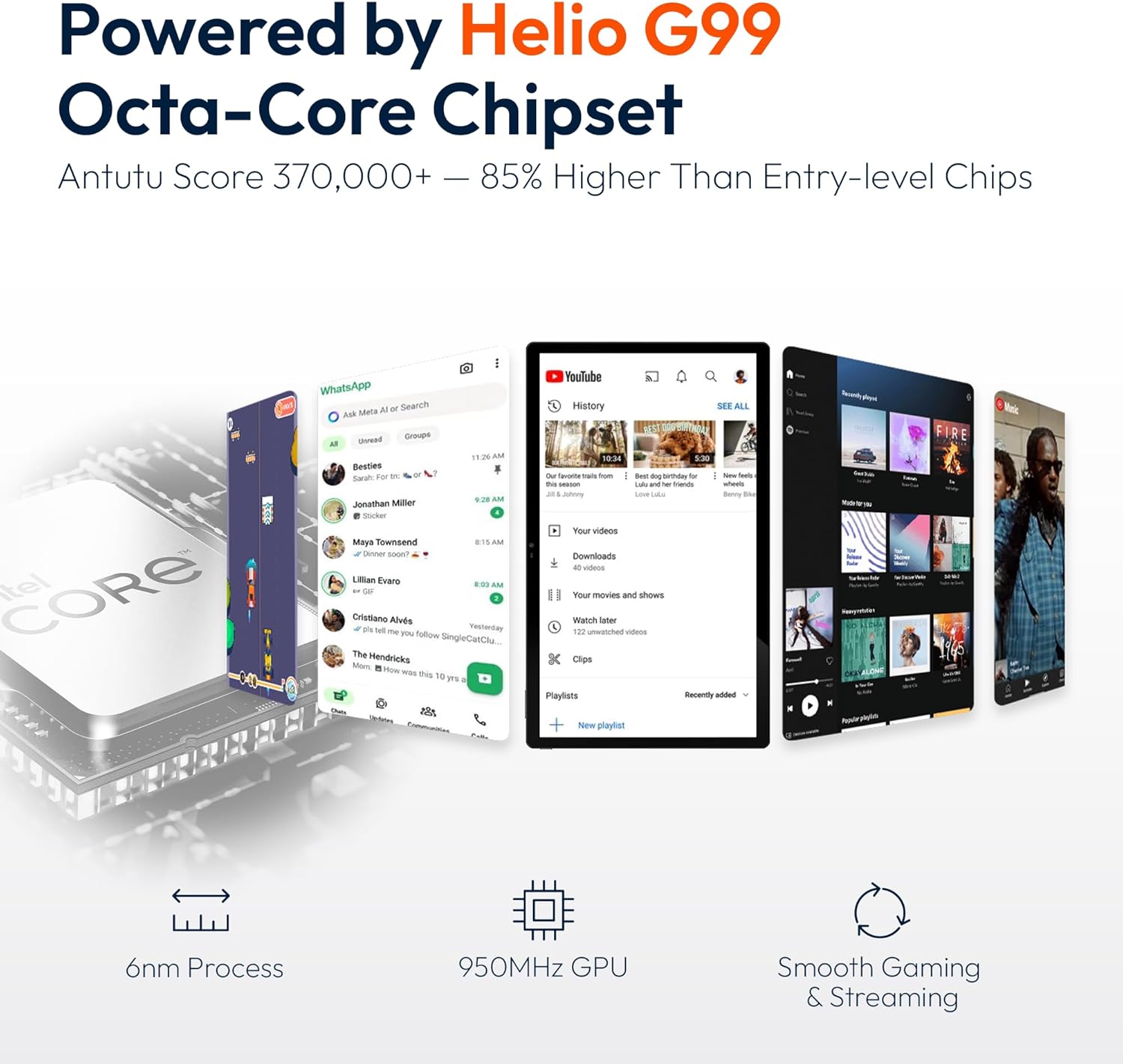
Figure 9.1: Processor and performance details. This image highlights the Helio G99 Octa-Core chipset, 6nm process, 950MHz GPU, and smooth gaming/streaming capabilities.
10. Warranty and Support
10.1. Warranty Information
The MESWAO 15.6 Inch Android 14 Tablet comes with a 12-month warranty covering manufacturing defects. Please retain your proof of purchase for warranty claims.
10.2. Customer Support
For technical assistance, troubleshooting, or warranty inquiries, please contact MESWAO customer support. They offer 24-hour customer support and have local service centers in the US, EU, and Japan.
- Contact Method: Refer to the contact information provided with your product packaging or visit the official MESWAO website.
- Issue Resolution: Issues reported are typically responded to within 24 hours, with problems resolved or replaced according to policy.

Figure 10.1: MESWAO customer support and warranty details. This image highlights the 12-month warranty, 24-hour customer support, local after-sales centers, and quick response flow.
Related documentsMES-B3


Ask a question about this manual
Ask about setup, troubleshooting, compatibility, parts, safety, or missing instructions. Manuals+ will review the question and use this page’s manual context to help answer it.