
ZOSKVEE P95
ZOSKVEE P95 Smart Watch User Manual
Model: P95
1. Introduction
Thank you for choosing the ZOSKVEE P95 Smart Watch. This device is designed to enhance your daily life with advanced features for communication, fitness tracking, and health monitoring. It comes with a 2.0" HD display and four interchangeable bands to suit your style.

Image: The ZOSKVEE P95 Smart Watch, showcasing its sleek design with a black mesh band, alongside a black silicone band and two additional replacement bands (rose gold mesh and black silicone).
What's in the Box:
- ZOSKVEE P95 Smart Watch
- Charging Cable
- User Manual (this document)
- Four (4) Replacement Bands (various materials and colors)
2. Setup
2.1 Initial Charging
Before first use, fully charge your smart watch. Connect the magnetic charging cable to the charging points on the back of the watch and plug the USB end into a standard USB power adapter (not included). A full charge typically takes about 2 hours.
2.2 App Installation and Pairing
To unlock the full potential of your ZOSKVEE P95 Smart Watch, you need to download and install the companion app on your smartphone. The watch is compatible with smartphones running iOS 9.0 or Android 9.0 and above.
- Scan the QR code provided in the watch's packaging or search for the app name (usually mentioned in the quick start guide or on the watch screen during initial setup) in your phone's app store (App Store for iOS, Google Play Store for Android).
- Install the app and open it.
- Follow the on-screen instructions in the app to create an account and pair your watch. Ensure Bluetooth is enabled on your phone.
- During pairing, the app will guide you through connecting the watch to your phone's Bluetooth for calls and notifications.
2.3 Attaching/Changing Bands
Your ZOSKVEE P95 Smart Watch comes with four interchangeable bands. To attach or change a band:
- Locate the quick-release pins on the back of each band.
- Slide the pin inwards to detach the current band.
- Align the new band with the watch lugs, slide one end of the pin into the lug hole, then slide the other end of the pin inwards and release it into the opposite lug hole.
- Gently pull the band to ensure it is securely attached.

Image: A diagram illustrating the 22mm measurement for watch band width and the dimensions of both silicone and stainless steel bands, along with their compatible wrist sizes.

Image: Two individuals wearing the ZOSKVEE P95 Smart Watch, showcasing the watch's appearance and fit on different wrists with both the rose gold mesh and black silicone bands.
3. Operating Instructions
3.1 Basic Navigation
The ZOSKVEE P95 Smart Watch features a 2.0" HD touchscreen for intuitive navigation. Swipe left/right, up/down, and tap to access various functions and menus. The side button typically serves as a power/home button.

Image: The 2.0-inch HD screen of the ZOSKVEE P95 Smart Watch, displaying a vibrant butterfly watch face and emphasizing its broad color range, IPS technology for wide vision, and high color saturation.
3.2 Making & Answering Calls / AI Voice Control
Once connected to your phone via Bluetooth, you can manage calls directly from your watch.
- Making Calls: Access the dial pad or contacts on your watch to initiate calls.
- Answering/Rejecting Calls: Incoming calls will display on your watch; tap to answer or reject.
- AI Voice Control: Activate the voice assistant feature on your watch to control your phone with voice commands for calls, information search, or music playback.
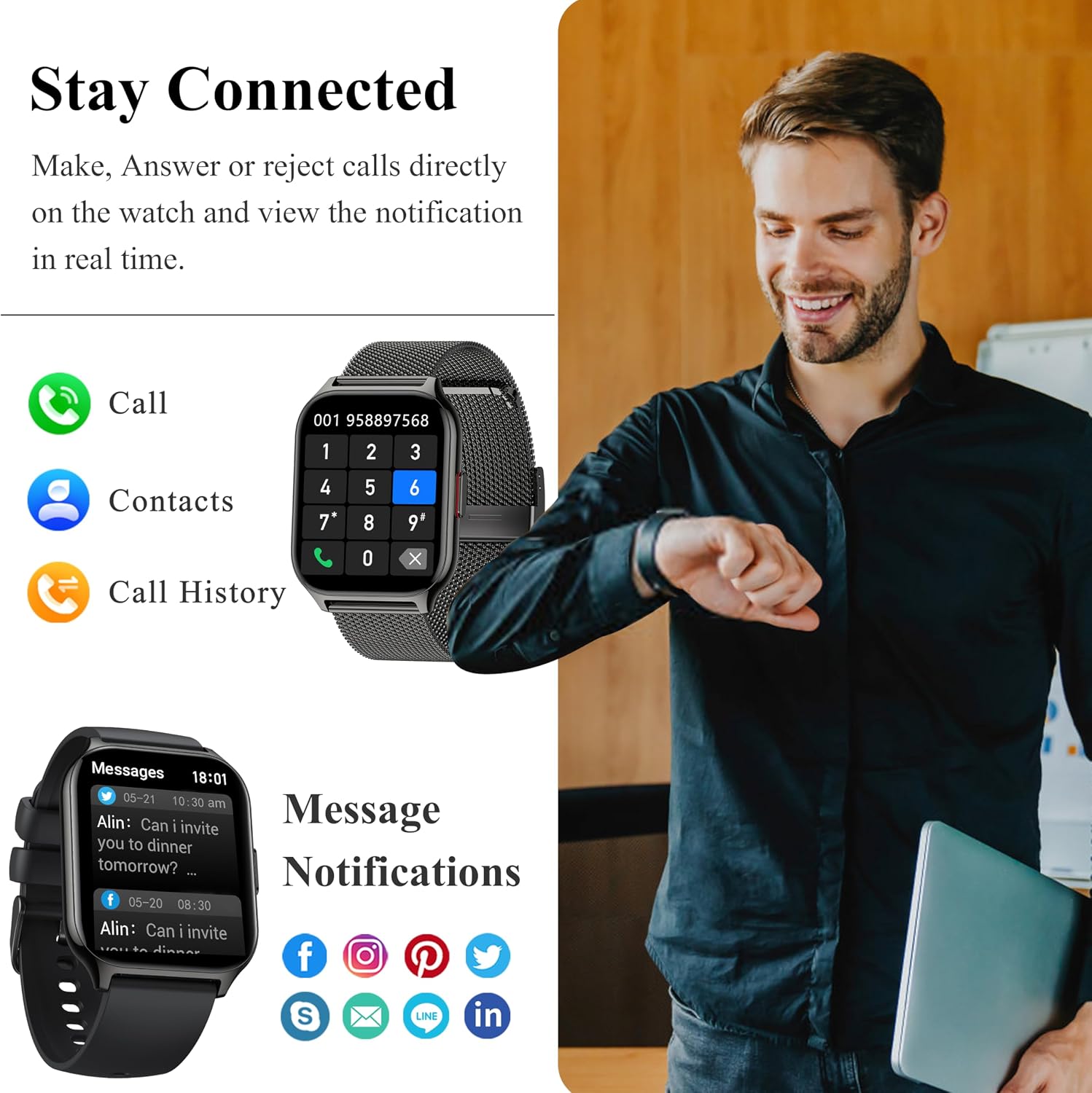
Image: A man interacting with his ZOSKVEE P95 Smart Watch, illustrating its capabilities for making/receiving calls, accessing contacts and call history, and displaying real-time message notifications from various social media and messaging applications.
3.3 Customizing Watch Faces
The watch offers 8 built-in dials and allows for custom watch faces. Use the companion app to browse and select new watch faces or upload your own photos to personalize your display.
Image: The ZOSKVEE P95 Smart Watch displaying its large screen with a vibrant butterfly design, alongside examples of customizable watch faces that allow users to set personal photos as backgrounds.
3.4 Health Monitoring
The P95 Smart Watch provides comprehensive health monitoring features:
- Heart Rate Monitor: Continuously tracks your heart rate.
- Blood Pressure Monitor: Measures your blood pressure.
- Blood Oxygen (SpO2) Monitor: Measures your blood oxygen levels.
- Sleep Monitor: Tracks your sleep patterns and quality.
- Female Health Reminders: Provides reminders for female physiological cycles.
Note: Health data from this device is for reference only and should not be used for medical diagnosis or treatment.

Image: The ZOSKVEE P95 Smart Watch displaying blood pressure and blood oxygen readings, accompanied by graphs illustrating historical data. The image also features individuals engaged in physical activities, suggesting the watch's use during exercise.

Image: The ZOSKVEE P95 Smart Watch displaying heart rate and sleep monitoring data, including graphical representations of trends. The image also depicts individuals in various daily life settings, highlighting the watch's integration into everyday routines.
3.5 Sports Modes & Activity Tracking
The watch supports over 100 sports modes available through the app. It records key metrics such as exercise duration, calories burned, steps taken, and distance.

Image: The ZOSKVEE P95 Smart Watch highlighting its support for over 100 sports modes and activity tracking, with icons representing various sports such as basketball, badminton, football, and yoga. Key activity metrics like steps, distance, and calories burned are also displayed.
3.6 Smart Notifications & Other Features
Stay connected with smart notifications and utilize various practical tools:
- Notifications: Receive alerts for incoming calls, SMS, and app messages (Whatsapp, Twitter, Facebook, etc.).
- Alarm Clock: Set alarms directly from your watch.
- Timer & Stopwatch: Convenient tools for timing activities.
- Breathing Training: Guided breathing exercises for relaxation.
- Sedentary Reminder: Alerts you to move after periods of inactivity.
- Find Device/Phone: Helps locate your watch or paired phone.
- Music Control: Control music playback on your phone.
- Camera Control: Remotely trigger your phone's camera.
- Watch Password: Enhance security with a password lock.
- Drinking Reminder: Prompts you to stay hydrated.
- Business Card: Quick access to your digital business card.
- Weather: Get real-time weather updates.

Image: The ZOSKVEE P95 Smart Watch showcasing its array of practical features through various app icons, including Voice Assistant, Weather, Timer, Find Phone, Alarm Clock, Women Health, Watch Password, Breath Training, Drinking Reminder, Business Card, Sedentary Reminder, and Music Control.
4. Maintenance
4.1 Water Resistance
The ZOSKVEE P95 Smart Watch is water resistant, suitable for daily activities such as washing hands or wearing in rainy conditions. It is not recommended for swimming, diving, or showering with hot water, as steam and high pressure can damage the device.
4.2 Cleaning
To keep your watch clean, wipe the screen and body with a soft, lint-free cloth. For the bands, use a damp cloth and mild soap if necessary, then dry thoroughly. Avoid using harsh chemicals or abrasive materials.
4.3 Charging Best Practices
To prolong battery life, avoid fully discharging the watch frequently. Charge it when the battery level is low. Use the provided charging cable and a compatible USB power adapter.
5. Troubleshooting
Common Issues and Solutions:
- Watch not turning on: Ensure the watch is fully charged. Connect it to the charger for at least 10 minutes.
- Cannot pair with phone:
- Ensure Bluetooth is enabled on your phone and the watch.
- Make sure the watch is within the Bluetooth range of your phone.
- Restart both the watch and your phone.
- Check if the app is updated to the latest version.
- Inaccurate health data:
- Ensure the watch is worn snugly on your wrist, not too tight or too loose.
- Clean the sensors on the back of the watch.
- Avoid excessive movement during measurements.
- Short battery life:
- Reduce screen brightness.
- Disable unnecessary notifications or features.
- Limit continuous heart rate monitoring if not needed.
- Notifications not appearing:
- Check app permissions on your phone to ensure the watch app has access to notifications.
- Ensure the watch is properly connected to your phone.
- Verify notification settings within the watch app.
For more detailed troubleshooting or persistent issues, please refer to the FAQ section within the companion app or contact customer support.
6. Specifications
| Feature | Specification |
|---|---|
| Model | P95 |
| Screen Size | 2.0 inches HD |
| Compatibility | iOS 9.0 and above, Android 9.0 and above |
| Battery Life (Typical Use) | 5-7 days |
| Battery Life (Standby) | 15-20 days |
| Charging Time | Approx. 2 hours |
| Water Resistance | Daily life water resistant (e.g., washing hands, rain) |
| Band Width | 22mm |
| Band Material | Silicone, Stainless Steel |
| Health Monitoring | Heart Rate, Blood Pressure, Blood Oxygen, Sleep, Female Health |
| Sports Modes | 100+ |
7. Warranty and Support
ZOSKVEE products are manufactured to high quality standards. For information regarding warranty coverage, please refer to the warranty card included with your product or visit the official ZOSKVEE store on Amazon (ZOSKVEE Store).
For technical support, product inquiries, or assistance with troubleshooting, please contact ZOSKVEE customer service through the Amazon platform or via the contact information provided in the companion app.
Related documentsP95


Ask a question about this manual
Ask about setup, troubleshooting, compatibility, parts, safety, or missing instructions. Manuals+ will review the question and use this page’s manual context to help answer it.