
Nokia TA-1542
Nokia C32 User Manual
Model: TA-1542
1. Introduction
The Nokia C32 is an unlocked GSM smartphone designed for reliable performance and user-friendly experience. It features a 6.5-inch screen, a 50MP dual camera, and a long-lasting 3-day battery. Running on Android 13, it offers enhanced personalization, security, and privacy features. This manual provides essential information for setting up, operating, and maintaining your device.

Image: Front and back view of the Nokia C32 smartphone, showcasing its charcoal color and camera module.
2. What's in the Box
Verify that all items are present in your product packaging:
- Nokia C32 Smartphone
- Power Adapter
- USB Cable
- Headset
- Phone Case
3. Setup
3.1 Inserting the SIM Card
The Nokia C32 requires a nano SIM card. Locate the SIM card tray on the side of the device. Use the SIM ejector tool (if provided) to open the tray. Place your nano SIM card into the designated slot, ensuring proper orientation. Gently push the tray back into the phone until it clicks into place.
Note: This product is exclusively compatible with GSM carriers. Please confirm compatibility with your network service provider before inserting the SIM card. It is not compatible with AT&T, Verizon, or their subsidiaries.
3.2 Initial Power On and Setup Wizard
To power on your device, press and hold the power button located on the side until the Nokia logo appears. Follow the on-screen instructions to complete the initial setup, which includes selecting your language, connecting to Wi-Fi, and signing in with your Google account. This process will guide you through setting up essential features of Android 13.
3.3 Fingerprint Unlock Setup
The Nokia C32 features a fingerprint sensor integrated into the power button for quick and secure device unlocking. During the initial setup or later via the device settings, you can register your fingerprints. Follow the prompts to place your finger on the sensor multiple times until it is fully registered. This allows for convenient and secure access to your phone.

Image: Side view of the Nokia C32, highlighting the power button with integrated fingerprint sensor and the volume rocker.
4. Operating Your Device
4.1 Android 13 Overview
Your Nokia C32 runs on Android 13, offering a streamlined and personalized user experience. Key features include enhanced privacy controls, improved notification management, and customizable themes. Navigate the interface using gestures or traditional on-screen buttons. Access the app drawer by swiping up from the home screen.
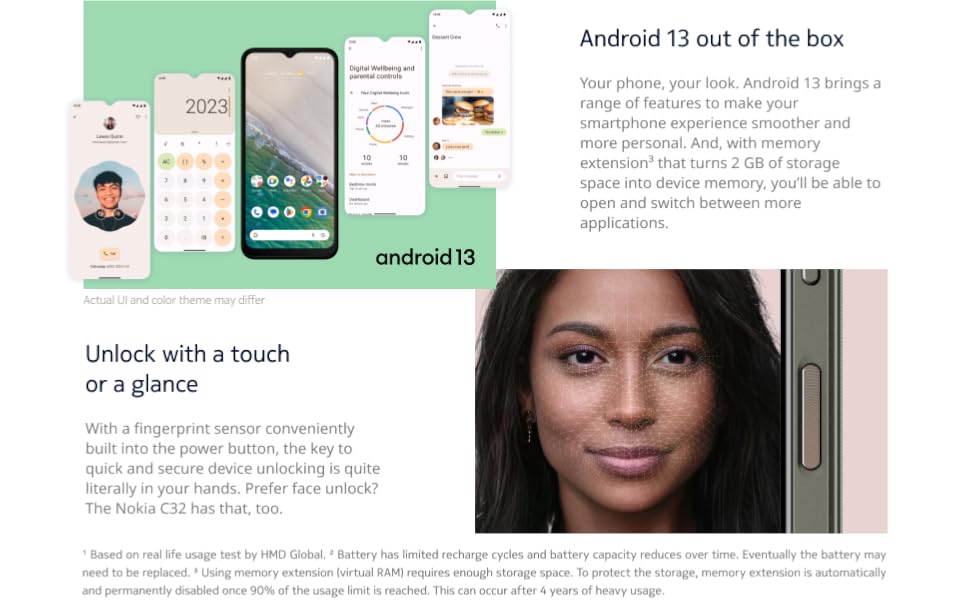
Image: Various screenshots demonstrating the Android 13 user interface on the Nokia C32, including home screen, settings, and privacy features.
4.2 Camera Features
The Nokia C32 is equipped with a 50MP dual rear camera and a front camera. Open the Camera app to capture photos and videos. Utilize features like Night mode for improved low-light photography and Portrait mode for artistic depth effects. The camera is designed to capture more light, ensuring clear and vibrant images.

Image: Rear view of the Nokia C32, prominently displaying the 50MP AI Camera module with its dual lenses and flash.
4.3 Battery Management
Your Nokia C32 features a large 5000 mAh battery, designed to provide up to 3 days of battery life under typical usage conditions. To optimize battery performance, enable battery saver mode, close unused applications, and reduce screen brightness. The device incorporates AI-powered battery saving features to extend usage time.
4.4 Connectivity
The Nokia C32 supports various connectivity options:
- Wi-Fi: Connect to wireless networks for internet access. Go to Settings > Network & internet > Internet.
- Bluetooth: Pair with wireless headphones, speakers, and other Bluetooth-enabled devices. Go to Settings > Connected devices > Connection preferences > Bluetooth.
- USB: Connect your phone to a computer using the provided USB cable for data transfer or charging.
- GPS: Utilize location services for navigation and location-based apps. Ensure GPS is enabled in your device settings for accurate positioning.
4.5 Durability Features
The Nokia C32 is built with a luxurious glass back and an inner metal chassis, providing a sleek yet sturdy feel. It boasts an IP52 protection rating, meaning it is protected against limited dust ingress and splashing water. This protection helps the device withstand everyday spills and dust exposure.
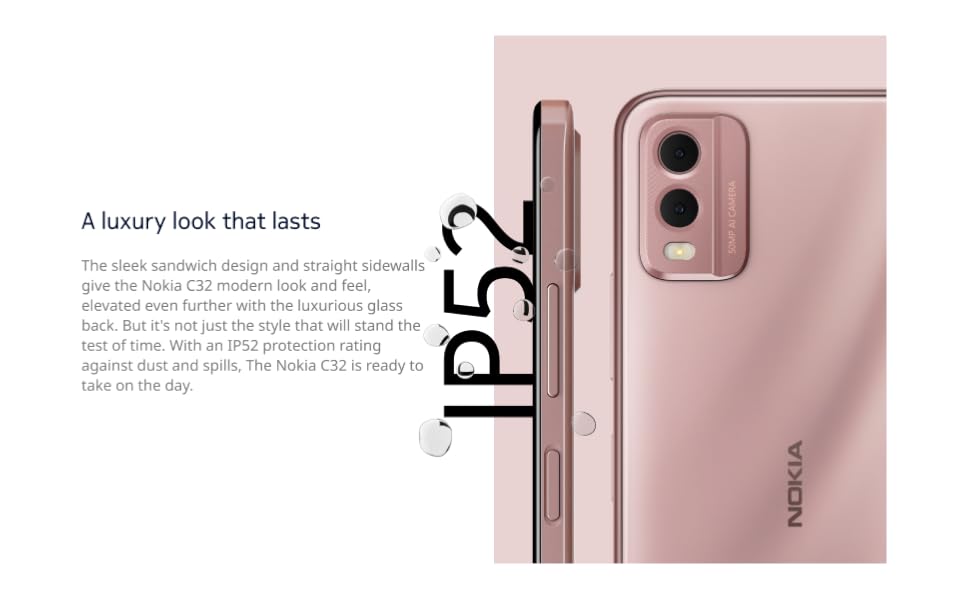
Image: Graphic illustrating the IP52 protection rating of the Nokia C32, showing water droplets on the phone's surface.
5. Maintenance
5.1 Cleaning Your Device
To clean your Nokia C32, use a soft, lint-free cloth. For stubborn smudges, slightly dampen the cloth with water. Avoid using harsh chemicals, abrasive cleaners, or compressed air, as these can damage the device's finish or internal components.
5.2 Software Updates
Keep your device's software up to date to ensure optimal performance, security, and access to the latest features. You will receive notifications when updates are available. To manually check for updates, go to Settings > System > System update.
5.3 Battery Care
To prolong the lifespan of your battery, avoid exposing the phone to extreme temperatures. It is recommended to keep the battery charge between 20% and 80% for daily use. While the battery is designed for longevity, its capacity will naturally decrease over time.
6. Troubleshooting
If you encounter issues with your Nokia C32, try the following common troubleshooting steps:
- Device not turning on: Ensure the battery is charged. Connect the phone to the power adapter and try turning it on after a few minutes.
- Network issues: Check if your SIM card is properly inserted. Verify that you have network coverage in your area. Restart the device.
- Apps crashing or freezing: Close and reopen the app. Clear the app's cache (Settings > Apps > [App Name] > Storage & cache > Clear cache). If the issue persists, restart your phone.
- Poor camera quality: Ensure the camera lenses are clean. Check lighting conditions.
- Slow performance: Close unused apps. Clear cache and temporary files. Consider freeing up storage space.
For more detailed troubleshooting or issues not covered here, please refer to the official Nokia support website or contact customer service.
7. Specifications
| Feature | Specification |
|---|---|
| Model Number | TA-1542 |
| Operating System | Android 13.0 |
| Screen Size | 6.5 Inches |
| Resolution | 720 x 1600 |
| Rear Camera | 50 MP Dual Camera |
| Battery Capacity | 5000 Milliamp Hours |
| RAM Memory | 4 GB |
| Product Dimensions | 6.48 x 2.99 x 0.34 inches |
| Item Weight | 13.7 ounces |
| Color | Charcoal |
| Wireless Carrier Compatibility | Unlocked GSM (Not compatible with AT&T, Verizon) |
| Special Features | Fast Charging Support, Expandable Memory, Built-In GPS, Water Resistant (IP52) |
8. Warranty and Support
Your Nokia C32 comes with a manufacturer's warranty. Please refer to the warranty card included in your product packaging or visit the official Nokia website for detailed warranty terms and conditions. For technical support, product inquiries, or service requests, please contact Nokia customer support through their official channels.
Online Support: Visit the Nokia support website for FAQs, troubleshooting guides, and software downloads.
Contact Support: Information for phone or chat support can be found on the official Nokia support page.
Ask a question about this manual
Ask about setup, troubleshooting, compatibility, parts, safety, or missing instructions. Manuals+ will review the question and use this page’s manual context to help answer it.