
1. Product Overview
The Redragon Ziggs K669 is a compact 94-key wired mechanical gaming keyboard designed for performance and durability. It features Redragon Red hot-swappable switches, customizable RGB backlighting, and a robust construction.
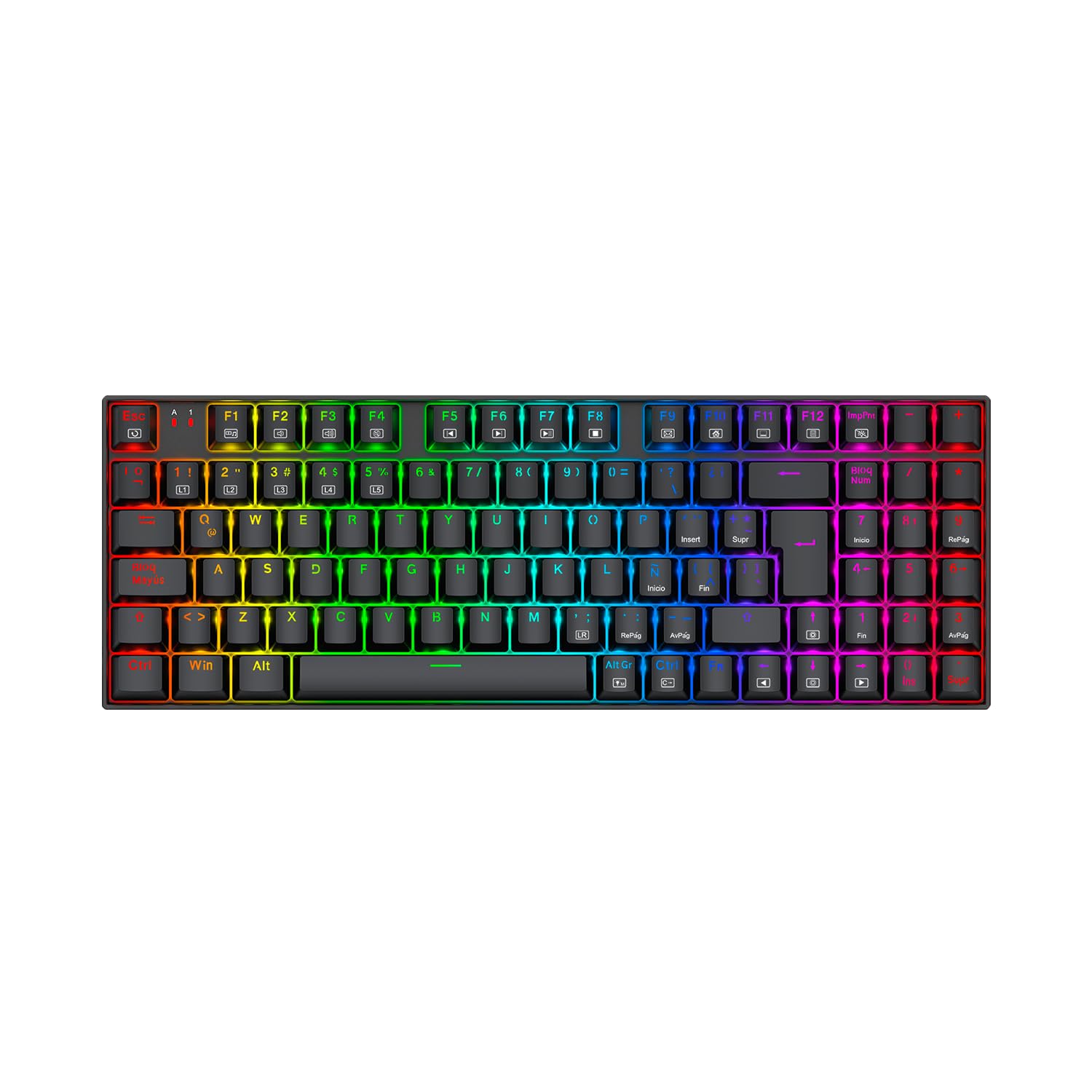
Image: Redragon Ziggs K669 Wired Gaming Keyboard with RGB lighting.
2. Package Contents
- Redragon Ziggs K669 Wired Gaming Keyboard
- User Manual
- Keycap Puller (may be included)
- Switch Puller (may be included)
- Spare Switches (may be included)
3. Setup
3.1 Connecting the Keyboard
- Locate an available USB port on your computer.
- Plug the USB connector of the Redragon Ziggs K669 keyboard into the USB port.
- The keyboard will automatically be recognized by your operating system. No additional drivers are typically required for basic functionality.
3.2 Software Installation (Optional)
For advanced customization of RGB lighting and other features, download the official Redragon software from the Redragon website. Follow the on-screen instructions for installation.
4. Operating Instructions
4.1 Compact 94-Key Layout
The Ziggs K669 features a compact 94-key layout, including a numeric keypad, balancing space-saving design with full functionality.
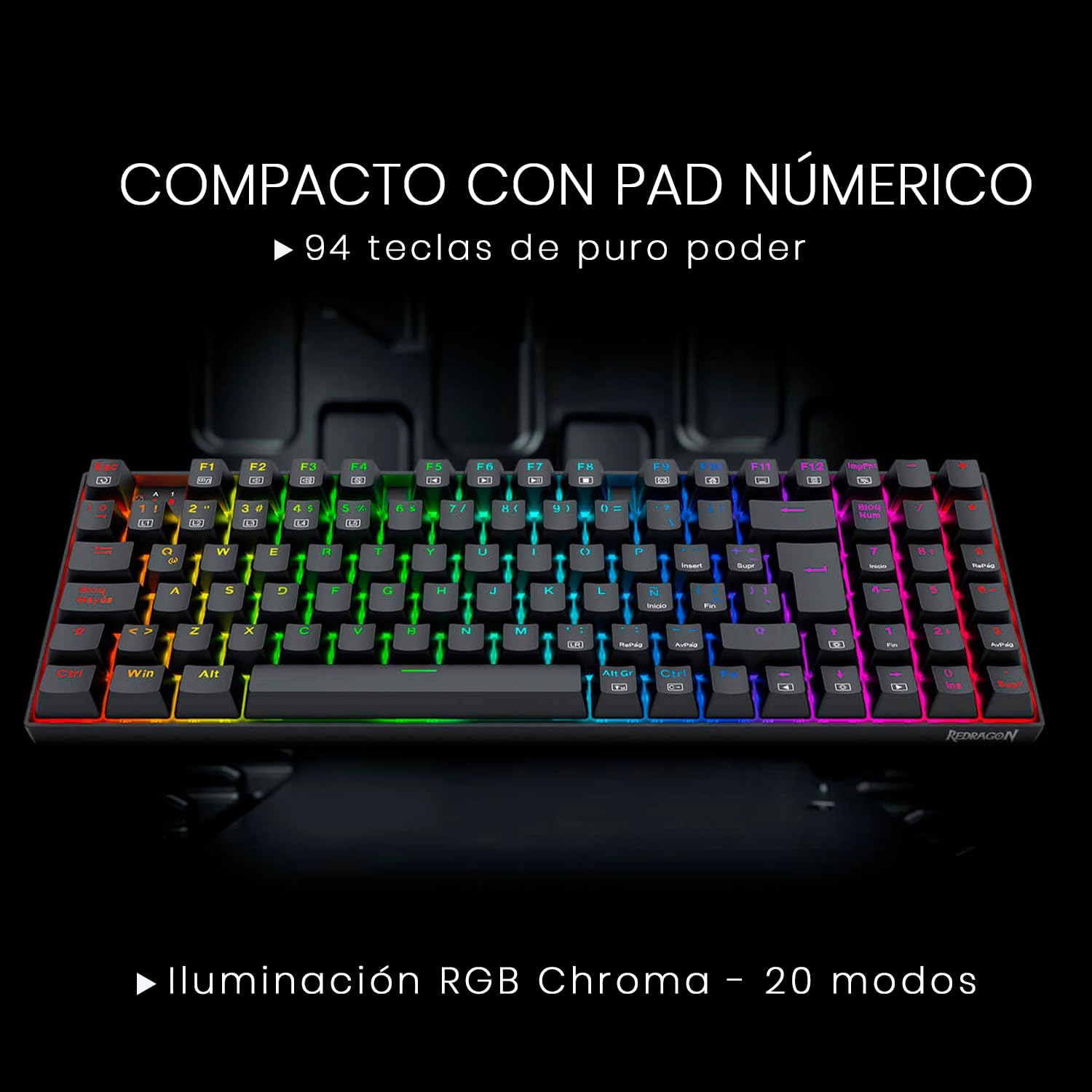
Image: Redragon Ziggs K669 keyboard showcasing its compact 94-key layout with integrated numeric pad.
4.2 Multimedia Keys
Access multimedia functions by pressing the FN key in combination with the designated function keys (F1-F12). Refer to the keycaps for specific multimedia icons.
4.3 RGB Lighting Control
The keyboard offers up to 20 preset RGB backlight modes. These can be cycled directly from the keyboard. Brightness and flow speed are also adjustable without software.

Image: Redragon Ziggs K669 keyboard displaying various RGB lighting effects.
4.4 Windows Key Lock
The keyboard includes a function to lock the Windows key, preventing accidental presses during gaming sessions.
5. Maintenance
5.1 Cleaning
To clean the keyboard, disconnect it from your computer. Use a soft, dry cloth to wipe the surface. For deeper cleaning, use a keycap puller to remove keycaps and clean underneath with compressed air or a small brush. Avoid using harsh chemicals or excessive moisture.
5.2 Hot-Swappable Switches
The Redragon Ziggs K669 features hot-swappable Redragon Red switches, allowing for easy replacement without soldering. Use the provided switch puller to carefully remove and insert switches.

Image: Close-up view of the Redragon Red hot-swappable mechanical switches on the Ziggs K669 keyboard.
6. Troubleshooting
- Keyboard not responding: Ensure the USB cable is securely connected to both the keyboard and the computer. Try a different USB port. Restart your computer.
- RGB lighting not working: Check if the lighting is turned off or set to a very low brightness level using the keyboard's control functions or software.
- Specific keys not working: If the keyboard is hot-swappable, try reseating the switch for the non-functional key. If the issue persists, consider replacing the switch.
7. Specifications
| Feature | Description |
|---|---|
| Keyboard Type | Mechanical |
| Switches | Redragon Red (Linear, 45g actuation force, hot-swappable) |
| Key Layout | Compact 94-key with numeric pad |
| Backlighting | RGB Chroma (20 preset modes) |
| Connectivity | Wired USB (Reinforced cable, gold-plated USB, anti-interference filter) |
| Construction | Reinforced ABS plastic, steel plate |
| Anti-Splash | Yes |
| Keycaps | Double-injection |
| Weight | 792 g |
| Dimensions | 34.8 x 12.3 x 3.5 cm |
| Software Support | Yes |
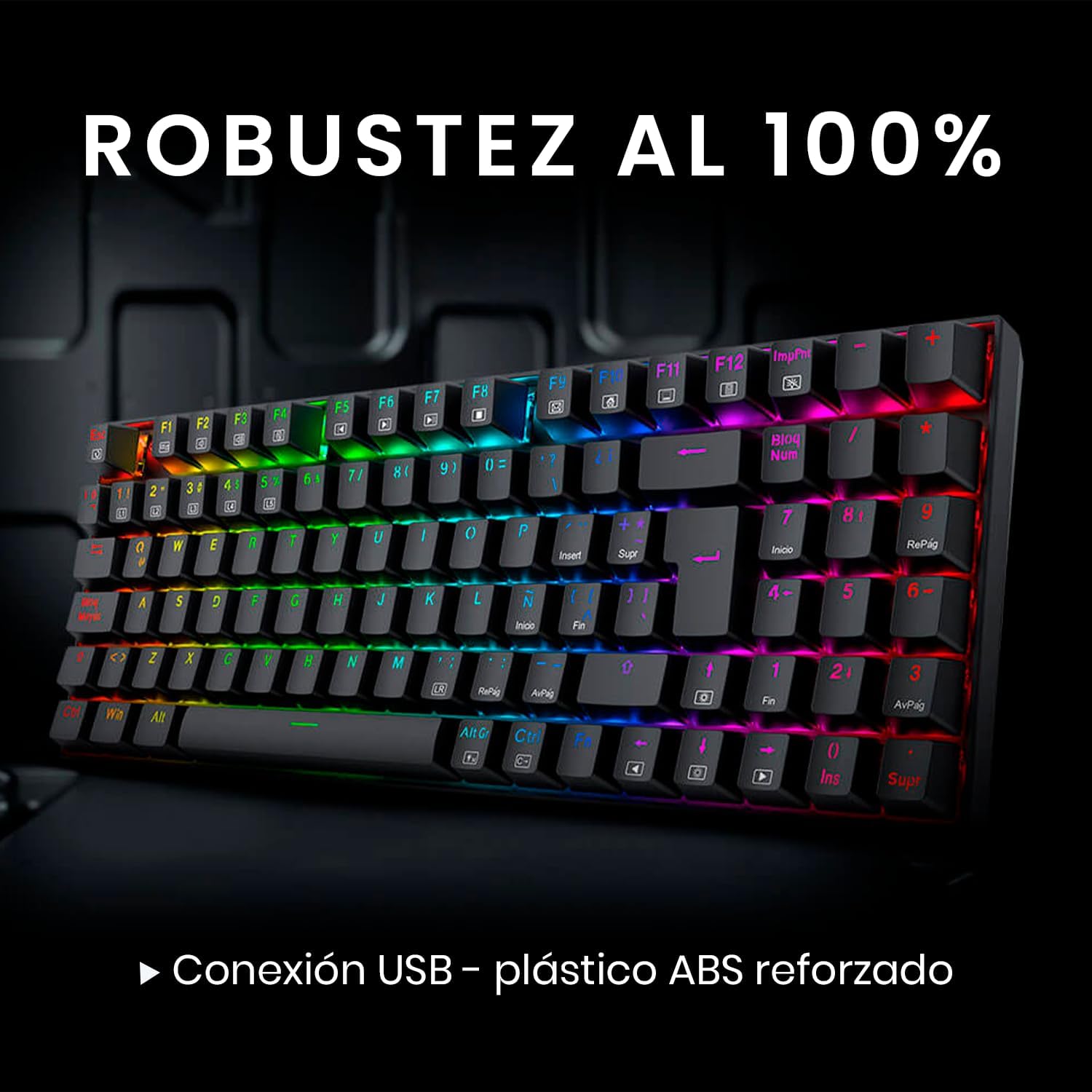
Image: Redragon Ziggs K669 keyboard highlighting its robust construction and wired connection.
8. Warranty and Support
8.1 Warranty Information
Redragon products are covered by a manufacturer's warranty against defects in materials and workmanship. Please refer to the warranty card included with your product or visit the official Redragon website for detailed warranty terms and conditions.
8.2 Customer Support
For technical assistance, troubleshooting, or product inquiries, please visit the official Redragon support website or contact their customer service team. Contact information can typically be found on the Redragon website.


