
Introduction
Thank you for choosing the Amazon Basics Full-Size Wireless Keyboard and Mouse Combo. This product is designed to provide a comfortable and efficient computing experience with its reliable 2.4 GHz wireless connection. This manual will guide you through the setup, operation, maintenance, and troubleshooting of your new device.

Image: The Amazon Basics wireless keyboard and mouse combo, showcasing its ergonomic design, tilt legs for reduced hand strain, and contoured mouse grip for comfort and precision. It highlights 2.4 GHz wireless connectivity and compatibility with Windows operating systems.
Setup
1. Unpacking and Battery Installation
Carefully remove the keyboard and mouse from their packaging. The USB receiver is located inside the mouse's battery compartment.
- Mouse: Open the battery compartment cover on the underside of the mouse. Insert one AA battery (included), ensuring correct polarity (+/-). Close the cover.
- Keyboard: Open the battery compartment cover on the underside of the keyboard. Insert two AAA batteries (included), ensuring correct polarity (+/-). Close the cover.
2. Connecting the USB Receiver
- Locate the 2.4 GHz USB receiver inside the mouse's battery compartment. Remove it.
- Plug the USB receiver into an available USB-A port on your computer.
3. Powering On and Initial Connection
- Turn on the mouse using the On/Off switch located on its underside.
- The keyboard does not have a separate power switch; it activates when keys are pressed after battery installation.
- Your computer should automatically detect and install the necessary drivers. This is a plug-and-play device, so no additional software installation is required.
- Test the keyboard and mouse to ensure they are functioning correctly.
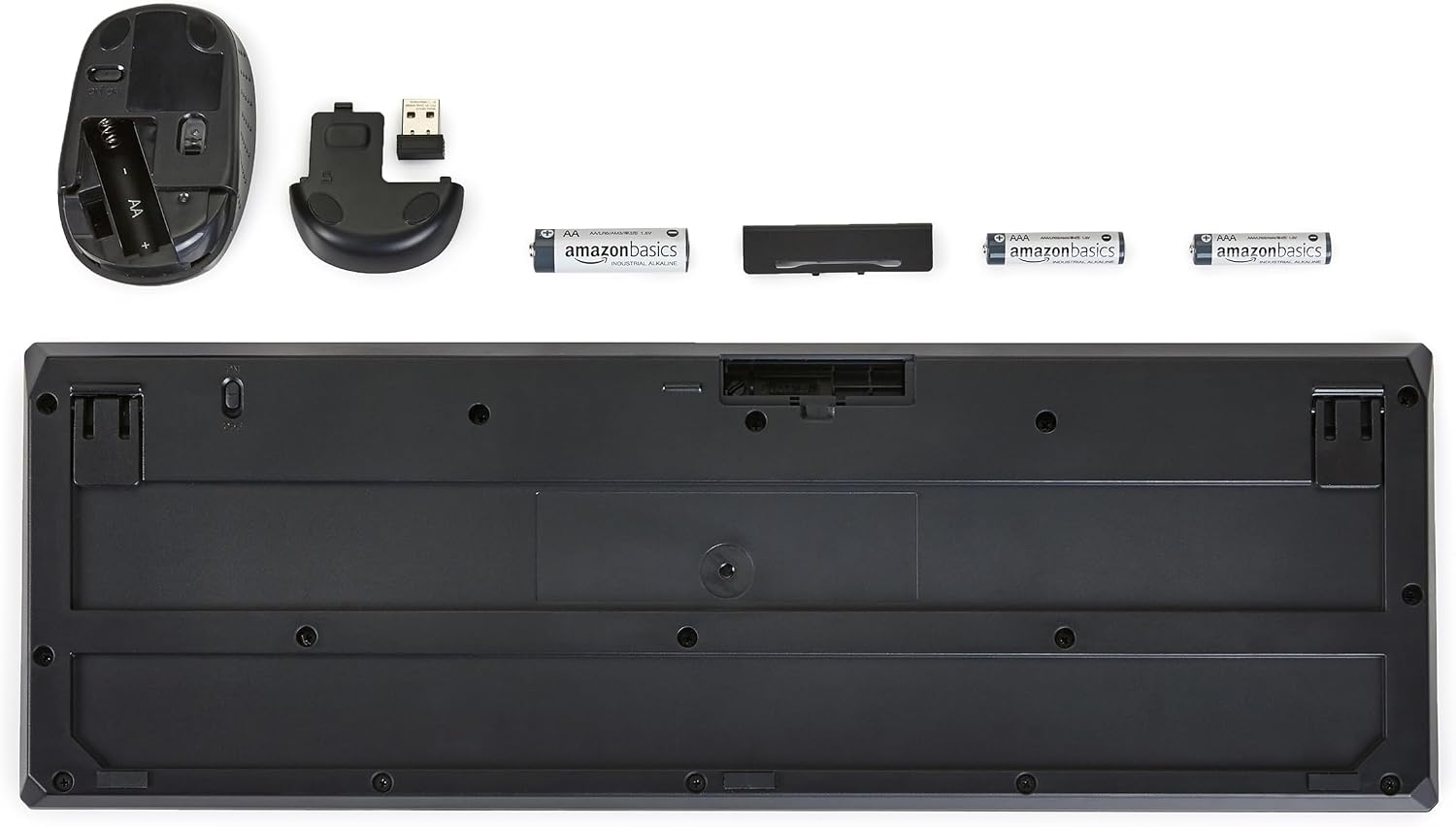
Image: The underside of the Amazon Basics wireless keyboard and mouse, showing the battery compartments, the location of the USB receiver within the mouse, and the included AA and AAA batteries.
Operating Instructions
Keyboard Usage
- The keyboard features a full-size Spanish layout, including a numeric keypad.
- Adjust the keyboard's tilt by extending the foldable legs on its underside for a more comfortable typing angle.
- Utilize the dedicated multimedia keys for quick access to volume control, playback, and other functions.
Mouse Usage
- The mouse features a contoured design for comfortable grip and precise control.
- Use the left and right click buttons for primary and secondary functions.
- The scroll wheel allows for easy navigation through documents and web pages.

Image: The Amazon Basics wireless keyboard and mouse combo positioned on a desk, ready for use with a computer monitor, illustrating a typical setup for general computing tasks.

Image: A close-up view of a hand comfortably gripping and operating the Amazon Basics wireless mouse, highlighting its ergonomic design during active use.
Maintenance
Cleaning
To maintain optimal performance and appearance, clean your keyboard and mouse regularly.
- Use a soft, dry, lint-free cloth to wipe down the surfaces.
- For stubborn dirt, slightly dampen the cloth with water or a mild cleaning solution. Avoid excessive moisture.
- Do not use abrasive cleaners, solvents, or aerosol sprays directly on the devices.
Battery Replacement
When the keyboard or mouse performance degrades (e.g., delayed response, erratic cursor movement), it may be time to replace the batteries.
- Mouse: Replace the AA battery.
- Keyboard: Replace the two AAA batteries.
- Always ensure correct polarity when inserting new batteries.
- Dispose of used batteries responsibly according to local regulations.
Troubleshooting
If you encounter issues with your Amazon Basics Wireless Keyboard and Mouse Combo, refer to the following common solutions:
- No Response from Keyboard or Mouse:
- Ensure the mouse is switched ON.
- Check if the batteries in both the keyboard and mouse are correctly installed and not depleted. Replace them if necessary.
- Verify that the USB receiver is securely plugged into a working USB-A port on your computer. Try a different USB port.
- Move the keyboard and mouse closer to the USB receiver to rule out range issues.
- Restart your computer.
- Erratic Cursor Movement or Delayed Typing:
- This often indicates low battery power. Replace the batteries in the affected device.
- Ensure there are no large metallic objects or other wireless devices interfering with the 2.4 GHz signal between the receiver and the devices.
- Clean the mouse's optical sensor if cursor movement is inconsistent.
- Specific Keys Not Working:
- Check for any physical obstructions under the key.
- Ensure the keyboard is clean and free of debris.
- If only a few keys are affected, it might indicate a hardware issue.
- Device Not Recognized by Computer:
- Unplug the USB receiver, wait a few seconds, and plug it back in.
- Try connecting the receiver to a different USB port.
- Ensure your operating system is compatible (Windows 2000, XP, Vista, 7, 8, 10/11, Android, Chrome OS, Linux).
Specifications
| Brand | Amazon Basics |
| Model Number | MD023 |
| Color | Black |
| Connectivity Technology | 2.4 GHz Wireless (USB-A Receiver) |
| Keyboard Layout | Full-size, Spanish |
| Power Source | Batteries |
| Batteries Required | Mouse: 1x AA; Keyboard: 2x AAA |
| Operating System Compatibility | Windows 2000, XP, Vista, 7, 8, 10/11; Android; Chrome OS; Linux |
| Product Dimensions (Keyboard) | 45 x 21 x 4.4 cm (17.7 x 8.3 x 1.7 inches) |
| Product Weight | 570 g (1.26 lbs) |
| Country of Origin | China |

Image: The Amazon Basics wireless keyboard displaying its overall dimensions of 45 cm in length and 21 cm in width.

Image: The Amazon Basics wireless mouse with its dimensions indicated: 3.7 inches (9.48 cm) in length, 2.2 inches (5.55 cm) in width, and 1.5 inches (3.9 cm) in height.
Warranty Information
This product is covered by the standard Amazon Basics warranty. For specific details regarding warranty coverage, duration, and terms, please refer to the warranty documentation included with your purchase or visit the Amazon Basics official website.
Customer Support
For further assistance, technical support, or to report any issues not covered in this manual, please contact Amazon Basics customer service. You can typically find contact information on the Amazon website under the 'Help' or 'Customer Service' sections, or by visiting the Amazon Basics brand store.
Online Support: Visit Amazon Basics Store


