
1. Introduction
The Yoidesu 4G LTE Mobile Hotspot provides high-speed internet access on the go. This portable travel router supports 3G and 4G main bands in most countries and allows up to 10 devices to share a Wi-Fi connection simultaneously. With its compact design and 2100mAh battery, it offers a secure and stable internet experience for various applications, including travel, business, and home use.
2. Package Contents
Please verify that all items are present in your package:
- 1 x Yoidesu 4G LTE Mobile Hotspot
- 1 x Charging Cable
- 1 x Instruction Manual
3. Product Overview
The Yoidesu 4G LTE Mobile Hotspot features a slim and compact design for easy portability. It includes an LED smart screen display for status updates and essential ports for connectivity.

Figure 1: Yoidesu 4G LTE Mobile Hotspot. A sleek, black, rectangular device with a central display showing signal, battery, and Wi-Fi status, along with a '4G' indicator.
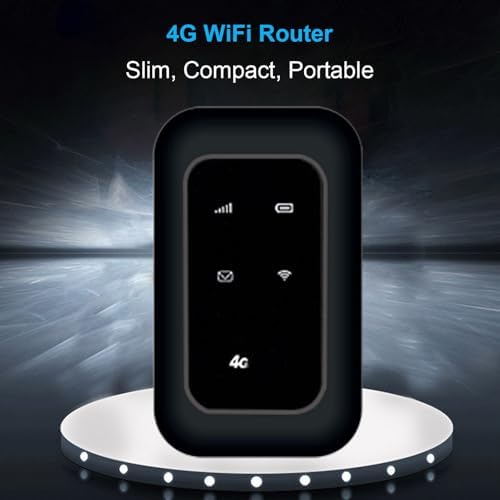
Figure 2: Key features of the Yoidesu 4G LTE Mobile Hotspot, highlighting its 4G LTE capability, support for 10 devices, durable ABS material, and fast/stable performance.
Ports and Indicators:
- LED Smart Screen Display: Shows signal strength, battery level, Wi-Fi status, and message notifications.
- Micro SIM Card Slot: For inserting a standard Micro SIM card (not included) to enable 4G connectivity.
- USB Charging Port: For connecting the charging cable.
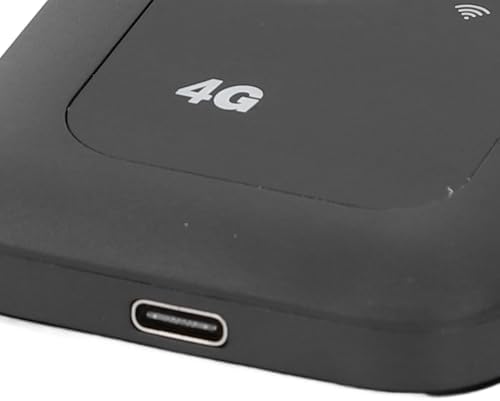
Figure 3: Close-up view of the USB charging port on the Yoidesu 4G LTE Mobile Hotspot.
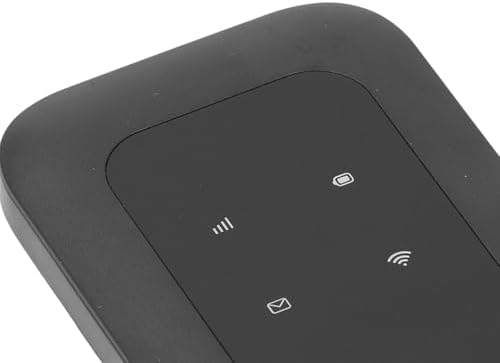
Figure 4: Close-up view of the LED smart screen display on the Yoidesu 4G LTE Mobile Hotspot, showing various status icons.
4. Setup Instructions
Follow these steps to set up your Yoidesu 4G LTE Mobile Hotspot:
- Charge the Device: Before first use, fully charge the device for at least 24 hours using the provided charging cable. The built-in 2100mAh lithium battery supports up to 72 hours of standby time.
- Insert SIM Card: Locate the Micro SIM card slot on the device. Carefully insert a standard Micro SIM card (not included) into the slot until it clicks into place. Ensure the SIM card is correctly oriented.
- Power On: Press and hold the power button (location may vary, typically on the side or front) until the LED smart screen display lights up.
5. Operating Instructions
Connecting Devices:
Once the hotspot is powered on and has established a 4G connection (indicated on the LED screen), you can connect up to 10 devices:
- On your Wi-Fi enabled device (e.g., smartphone, laptop, tablet, game console), search for available Wi-Fi networks.
- Select the network name (SSID) corresponding to your Yoidesu Mobile Hotspot. The SSID and default password are typically found on a sticker inside the device's battery compartment or on the packaging.
- Enter the Wi-Fi password when prompted.
- Your device should now be connected to the internet through the mobile hotspot.
Sharing Your Wi-Fi Connection:
The hotspot supports sharing its 4G LTE internet connection with up to 10 devices simultaneously, providing download speeds up to 150 Mbps and upload speeds up to 50 Mbps.
Video 1: Official product video demonstrating the Yoidesu Mobile Wi Fi Hotspot. This short clip highlights the device's appearance and basic functionality.
Video 2: A seller-provided video showcasing a 4G Mobile Hotspot, emphasizing its high-speed wireless internet router capabilities. This video provides a general overview of similar devices.
6. Specifications
| Item Type | 4G LTE Mobile Hotspot |
| Material | ABS |
| Network Band | B1/3/5/8/38/39/40/41 (Asia) |
| Network | 4G |
| Rate | 150Mbps (Download) |
| Support Protocol | 802.11ac |
| Network Support Frequency | 2.4G |
| Built-in Firewall | Yes |
| Built-in Battery | 1 x 2100mAh Lithium Battery |
| SIM Card Slot | Standard SIM Card (Micro SIM) |
| Item Weight | 3.52 ounces |
| Package Dimensions | 4.69 x 2.87 x 0.94 inches |
7. Troubleshooting
Common Issues and Solutions:
- No Internet Connection:
- Ensure a valid Micro SIM card is inserted and activated with a data plan.
- Check the LED screen for signal strength. If signal is weak, move to an area with better reception.
- Restart the device.
- Unable to Connect Devices to Wi-Fi:
- Verify the Wi-Fi network name (SSID) and password.
- Ensure the hotspot is powered on and Wi-Fi is enabled.
- Check if the maximum number of connected devices (10) has been reached.
- Slow Internet Speed:
- Check your 4G signal strength.
- Reduce the number of connected devices.
- Ensure your SIM card's data plan has not been exhausted or throttled.
- Battery Not Charging:
- Ensure the charging cable is securely connected to both the device and a power source.
- Try a different charging cable or power adapter.
8. Maintenance
To ensure the longevity and optimal performance of your Yoidesu 4G LTE Mobile Hotspot, follow these maintenance guidelines:
- Charging: Always use the provided charging cable. Avoid overcharging the device.
- Cleaning: Use a soft, dry cloth to clean the device. Avoid liquid cleaners or abrasive materials.
- Storage: Store the device in a cool, dry place away from direct sunlight and extreme temperatures.
- Handling: Handle the device with care to prevent physical damage.
9. Warranty and Support
For warranty information or technical support, please refer to the contact details provided in your product packaging or visit the official Yoidesu website. Keep your purchase receipt as proof of purchase for warranty claims.