
Roenllce Printer-01
Roenllce Bluetooth Thermal Shipping Label Printer User Manual
Model: Printer-01
1. Introduction
Thank you for choosing the Roenllce Bluetooth Thermal Shipping Label Printer. This device is designed to provide efficient and high-quality label printing for various applications, particularly for small businesses and e-commerce operations. It supports both Bluetooth and USB connectivity, allowing for flexible printing from Windows, Mac, iOS, and Android devices. This manual provides detailed instructions for setup, operation, maintenance, and troubleshooting to ensure optimal performance of your printer.

Image: The Roenllce Bluetooth Thermal Shipping Label Printer actively printing a shipping label, demonstrating its compact design and ease of use. A smartphone in the foreground shows the associated mobile printing application.
2. Safety Information
Please read all safety instructions carefully before using the printer to prevent damage to the device or injury to yourself. Keep this manual for future reference.
- Use only the power adapter supplied with the printer.
- Do not expose the printer to water, moisture, or extreme temperatures.
- Avoid placing the printer on unstable surfaces.
- Do not attempt to disassemble or repair the printer yourself. Contact customer support for assistance.
- Keep the printer away from children.
3. Package Contents
Verify that all items are present in the package:
- 1x Roenllce 4x6 Label Printer
- 1x Power Adapter
- 1x Power Cable
- 1x USB Cable
- 1x USB Flash Drive (containing drivers and software)
- 1x User Manual (this document)
- 30x Test Labels

Image: An overhead view of all components included in the Roenllce label printer package, neatly arranged on a wooden desk. This includes the thermal printer, power adapter, power cable, USB cable, USB flash drive, user manual, and a stack of test labels.
4. Setup
4.1. Physical Connection
- Connect the power adapter to the printer and then plug it into a power outlet.
- For USB connection, connect one end of the USB cable to the printer and the other end to your computer.
4.2. Loading Labels
- Open the printer cover.
- Place the thermal labels into the label compartment, ensuring the printing side faces upwards.
- Adjust the label guides to fit the width of your labels snugly.
- Close the printer cover. The printer will automatically detect and calibrate the label size.
4.3. Software and Driver Installation
The included USB flash drive contains necessary drivers for Windows and Mac operating systems, as well as links to the mobile application.
For Windows/Mac PC:
- Insert the USB flash drive into your computer.
- Locate and run the appropriate driver installer for your operating system.
- Follow the on-screen instructions to complete the installation.
For iOS/Android Mobile Devices:
- Scan the QR code provided in the quick start guide or on the USB drive packaging, or search for the 'Zlabel' app in your device's app store (Google Play Store for Android, Apple App Store for iOS).
- Download and install the application.
4.4. Connectivity
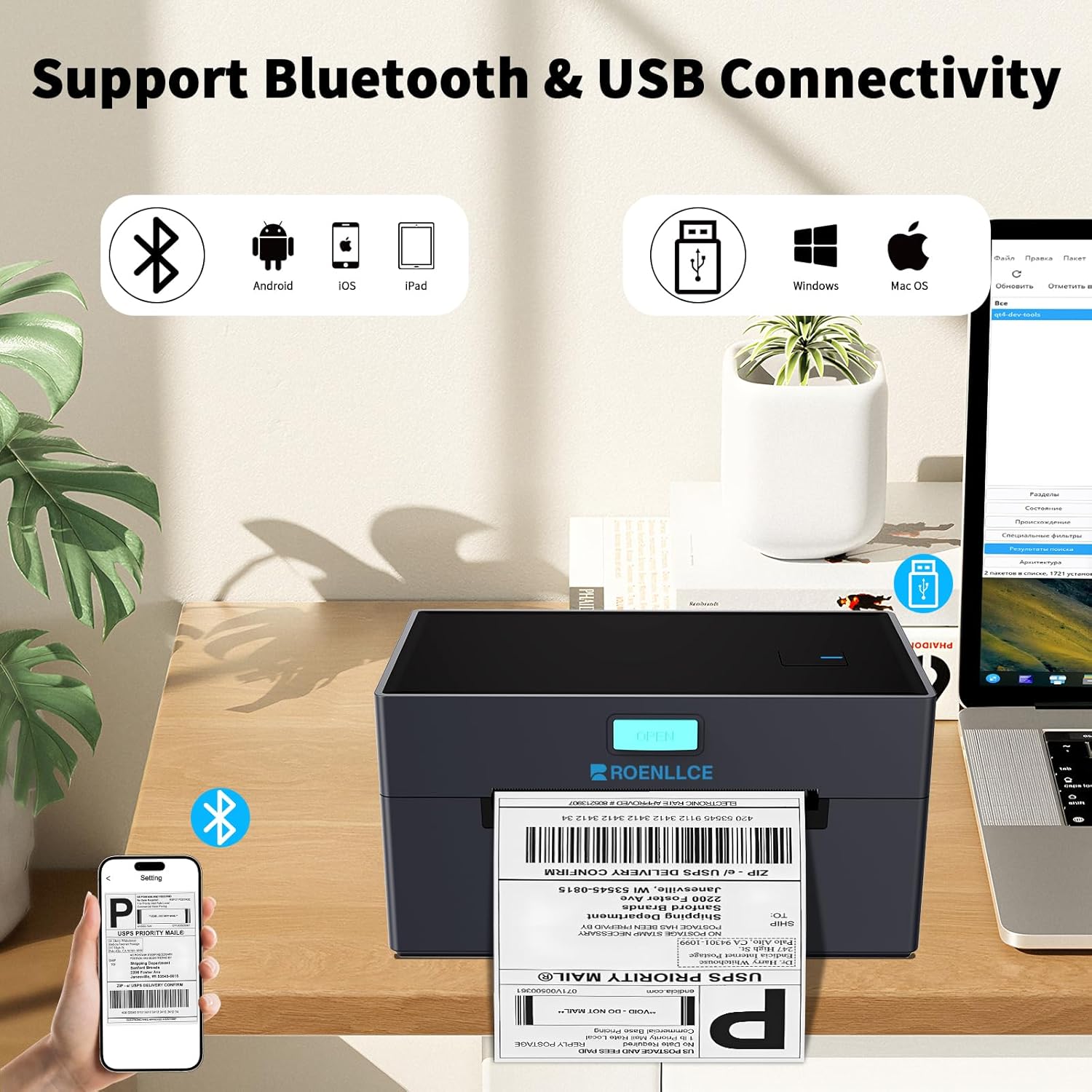
Image: The Roenllce label printer positioned on a desk, illustrating its dual connectivity options. Icons for Bluetooth (Android, iOS, iPad) and USB (Windows, Mac OS) are displayed, indicating broad device compatibility.
Bluetooth Pairing (for iOS/Android):
- Ensure the printer is powered on.
- Enable Bluetooth on your mobile device.
- Open the 'Zlabel' app.
- Within the app, navigate to the device connection settings and select your printer from the list of available Bluetooth devices.
- Confirm pairing if prompted.
USB Connection (for Windows/Mac PC):
After installing the drivers, connect the printer to your PC via the USB cable. The operating system should recognize the printer automatically. You may need to select the printer in your application's print dialogue.
5. Operating Instructions
5.1. Basic Printing from PC/Mac
- Ensure the printer is connected via USB and powered on.
- Open the document or label file you wish to print (e.g., PDF shipping label).
- Go to 'File' > 'Print' in your application.
- Select the Roenllce printer from the list of available printers.
- Adjust print settings such as paper size (e.g., 4x6 inches) and orientation as needed.
- Click 'Print'.
5.2. Printing from Mobile App (iOS/Android)

Image: A visual guide demonstrating the four steps to print labels using the mobile application via Bluetooth. This includes downloading the app, connecting the printer, opening a PDF file, and initiating the print command from the app interface.
- Ensure the printer is paired via Bluetooth and powered on.
- Open the 'Zlabel' app on your mobile device.
- Import the label file (e.g., PDF) into the app. Note: You may need to download the label as a PDF and crop it to the correct size before printing.
- Adjust any necessary settings within the app (e.g., label size, print density).
- Tap the 'Print' button.
5.3. Supported Label Types and Sizes
The printer supports direct thermal labels with a print width ranging from 0.8 inches to 4.1 inches. Both fanfold and roll labels can be used. Common sizes include 2"x1", 3"x2", 4"x4", and 4"x6" shipping labels.

Image: The Roenllce label printer demonstrating its versatility by supporting multiple direct thermal label sizes, including circular labels and rectangular labels of 2"x1", 3"x2", 4"x4", and 4"x6" dimensions.
5.4. Compatibility with Platforms
This thermal label printer is compatible with major shipping and e-commerce platforms. Users should save labels as PDF files and crop them to the correct size before printing for optimal results.
- Shipping Carriers: USPS, UPS, FedEx, DHL
- E-commerce Platforms: Amazon, eBay, Shopify, Etsy, PayPal, Poshmark
- Shipping Software: Stamps.com, ShippingEasy, ShipWorks, ShipStation, Easypost, Ordoro, J&T Express, XPSship.com, Endicia, Shippo, Shipwire

Image: The Roenllce label printer shown with a collage of logos from various compatible shipping carriers and e-commerce platforms, highlighting its broad integration capabilities. The instruction to 'Save as PDF file' is also visible.
6. Maintenance
6.1. Cleaning the Print Head
Regular cleaning of the print head ensures clear and consistent print quality. It is recommended to clean the print head after every roll of labels or if print quality degrades.
- Turn off the printer and unplug the power cable.
- Open the printer cover.
- Gently wipe the print head with an alcohol swab or a soft, lint-free cloth lightly dampened with isopropyl alcohol.
- Allow the print head to dry completely before closing the cover and powering on the printer.
6.2. General Care
- Keep the printer free from dust and debris. Use a soft, dry cloth to wipe the exterior.
- Avoid touching the thermal print head directly with your fingers.
- Store the printer in a cool, dry place when not in use.
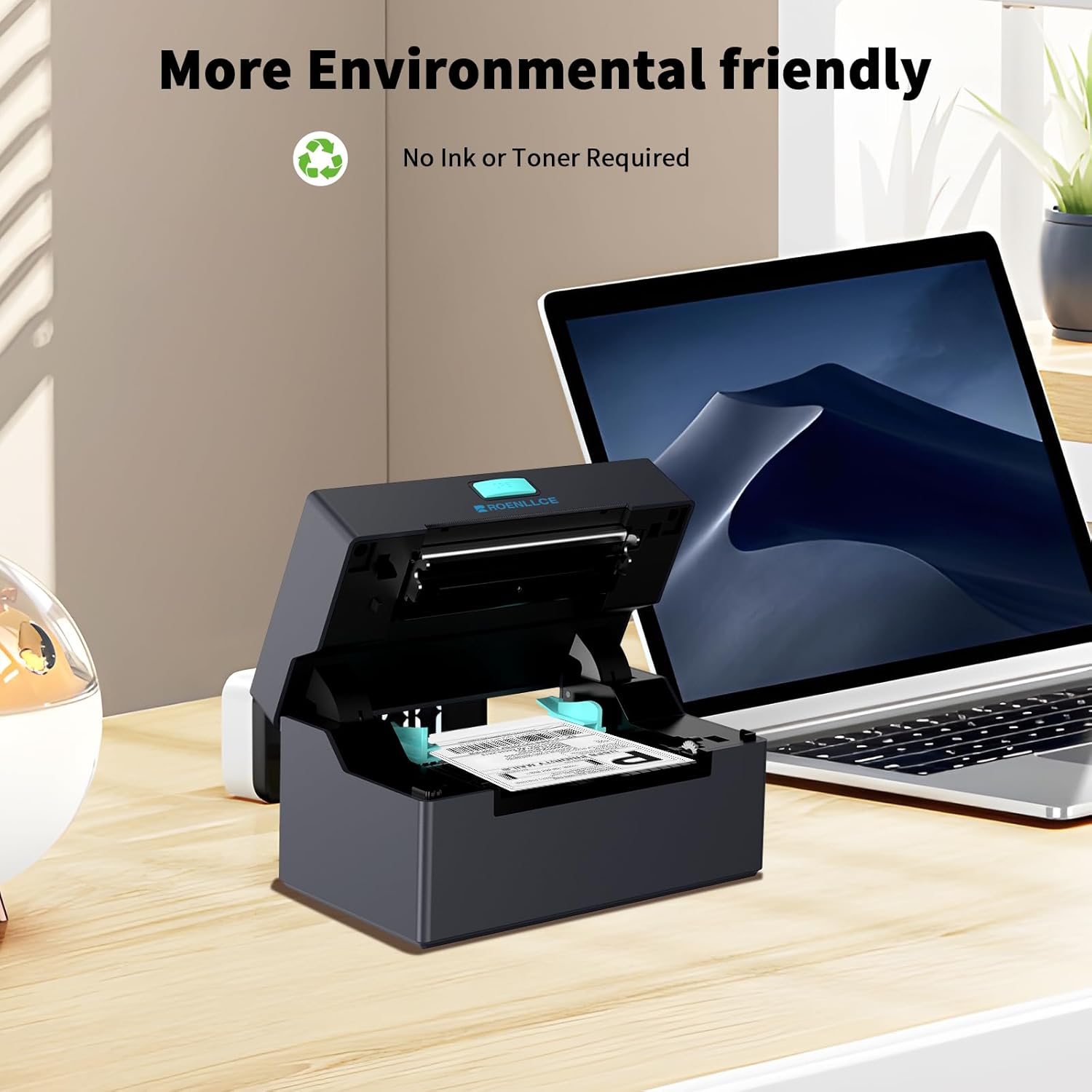
Image: The Roenllce label printer with its top cover open, revealing the label path and internal components. This image highlights the printer's design, which requires no ink or toner, making it environmentally friendly.
7. Troubleshooting
This section addresses common issues you might encounter with your Roenllce label printer.
| Problem | Possible Cause | Solution |
|---|---|---|
| Printer not powering on | Power cable loose; power outlet faulty; power adapter damaged. | Check power connections; try a different outlet; replace power adapter if damaged. |
| No labels feeding or blank output | Labels incorrectly loaded; labels not thermal; printer cover not closed; label sensor dirty. | Reload labels correctly (printing side up); ensure using thermal labels; close cover firmly; clean label sensor. |
| Poor print quality (faint, streaky) | Print head dirty; low-quality labels; print density settings incorrect. | Clean the print head; use high-quality thermal labels; adjust print density in software/app. |
| Cannot connect via Bluetooth | Bluetooth not enabled on device; printer not in pairing mode; incorrect app used. | Ensure Bluetooth is on; restart printer; use the 'Zlabel' app; try re-pairing. |
| Cannot print from PC via USB | Drivers not installed; USB cable faulty; incorrect printer selected. | Install drivers from USB drive; try a different USB cable/port; select the correct printer in print dialogue. |
| Labels printing off-center or wrong size | Label guides not adjusted; label calibration needed; print settings incorrect in software/app. | Adjust label guides; perform label calibration (usually by pressing feed button); verify print size settings. |
8. Specifications
Technical specifications for the Roenllce Bluetooth Thermal Shipping Label Printer (Model: Printer-01).
| Feature | Detail |
|---|---|
| Model Name | Printer-01 |
| Printing Technology | Thermal |
| Connectivity | Bluetooth, USB |
| Print Resolution | 203 DPI (8 dots/mm) |
| Max Print Speed | 160 mm/s (approximately 60 ppm for 4x6 labels) |
| Label Width | 0.8" to 4.1" (20mm to 104mm) |
| Supported Media | Direct Thermal Labels (Roll or Fanfold) |
| Operating System Support | Windows, Mac OS, iOS, Android |
| Product Dimensions | 4.48"D x 7.68"W x 4.18"H (11.38 x 19.5 x 10.62 cm) |
| Item Weight | 3.05 pounds (1.38 kg) |
| Power Input | AC 100-240V, 50/60Hz |
| Control Method | App, USB |

Image: The Roenllce label printer on a desk, with graphical overlays indicating a printing speed of 160mm/s and a resolution of 203 DPI, emphasizing its fast and clear label printing capabilities. A magnifying glass highlights the detail of a printed barcode.
9. Warranty and Support
Roenllce offers a 1-year limited warranty for the Bluetooth Thermal Shipping Label Printer (Model: Printer-01) from the date of purchase. This warranty covers manufacturing defects and malfunctions under normal use.
For technical support, warranty claims, or any questions regarding your product, please contact Roenllce customer service through the retailer where you purchased the product or visit the official Roenllce website for contact information.
Please have your purchase receipt and product model number (Printer-01) ready when contacting support.
Related Documents - Printer-01
 |
ROENLLCE POS-9220 Thermal Label Printer User Guide User guide for the ROENLLCE POS-9220 thermal label printer, covering installation, setup, connectivity, specifications, maintenance, and troubleshooting. |
 |
MUNBYN Logistics Label Printer User Guide - Setup and Operation Comprehensive user guide for the MUNBYN Logistics Label Printer (ITPP941), covering setup, driver installation for Windows and Mac, label calibration, troubleshooting, and specifications. |
 |
MUNBYN Shipping Label Printer User Manual - Model ITPP941B Comprehensive user manual for the MUNBYN Shipping Label Printer (Model ITPP941B), covering setup, driver installation, troubleshooting, specifications, and safety notices. Learn how to connect via USB and Bluetooth for small business shipping. |
 |
Phomemo 241-BT Bluetooth Thermal Label Printer: Installation and User Resources Find installation tutorials, user guides, and support resources for the Phomemo 241-BT Bluetooth Thermal Label Printer, a wireless solution for small businesses and shipping. |
 |
LOSRECAL Logistics Label Printer User Guide User guide for the LOSRECAL Logistics Label Printer (Model: ITPP128), covering product introduction, installation, label setup, driver installation for Windows and Mac, button functions, LED status, platform setup, FAQs, and specifications. |
 |
ITPP130B Label Printer: Frequently Asked Questions and Troubleshooting Guide A comprehensive guide to troubleshooting and using the Munbyn ITPP130B Label Printer, covering installation issues, printing problems, print quality adjustments, and platform integration for shipping labels. |
Ask a question about this manual
Ask about setup, troubleshooting, compatibility, parts, safety, or missing instructions. Manuals+ will review the question and use this page’s manual context to help answer it.