1. Introduction
This manual provides detailed instructions for the safe and efficient operation of your KUAIQU 600V 1A Programmable Laboratory Power Supply, model SPPS-D6001-232. This device is designed for precise voltage and current regulation in various laboratory, research, and industrial applications. Please read this manual thoroughly before use and retain it for future reference.
2. Safety Instructions
WARNING: Failure to follow these safety instructions may result in electric shock, fire, or damage to the product.
- Always connect the power supply to a grounded outlet.
- Do not operate the device in wet or damp conditions.
- Ensure proper ventilation to prevent overheating. The integrated cooling fan automatically controls temperature to prolong product life.
- Do not open the casing; there are no user-serviceable parts inside.
- This power supply is equipped with multiple protection systems: Over Voltage Protection (OUP), Over Current Protection (OCP), Over Temperature Protection (OTP), and Short Circuit Protection.
- Always disconnect the load before making adjustments to prevent accidental damage. The built-in output switch allows voltage and current adjustment without active output.
- The device is FCC/CE certified, ensuring reliable and stable performance.
3. Package Contents
Verify that all items listed below are included in your package:
- 1 x KUAIQU Programmable Laboratory Power Supply (SPPS-D6001-232)
- 1 x Power Cord
- 1 x Output Cable (with alligator clips)
- 1 x USB Cable
- 1 x User Manual
4. Product Overview
Familiarize yourself with the components and controls of your power supply.
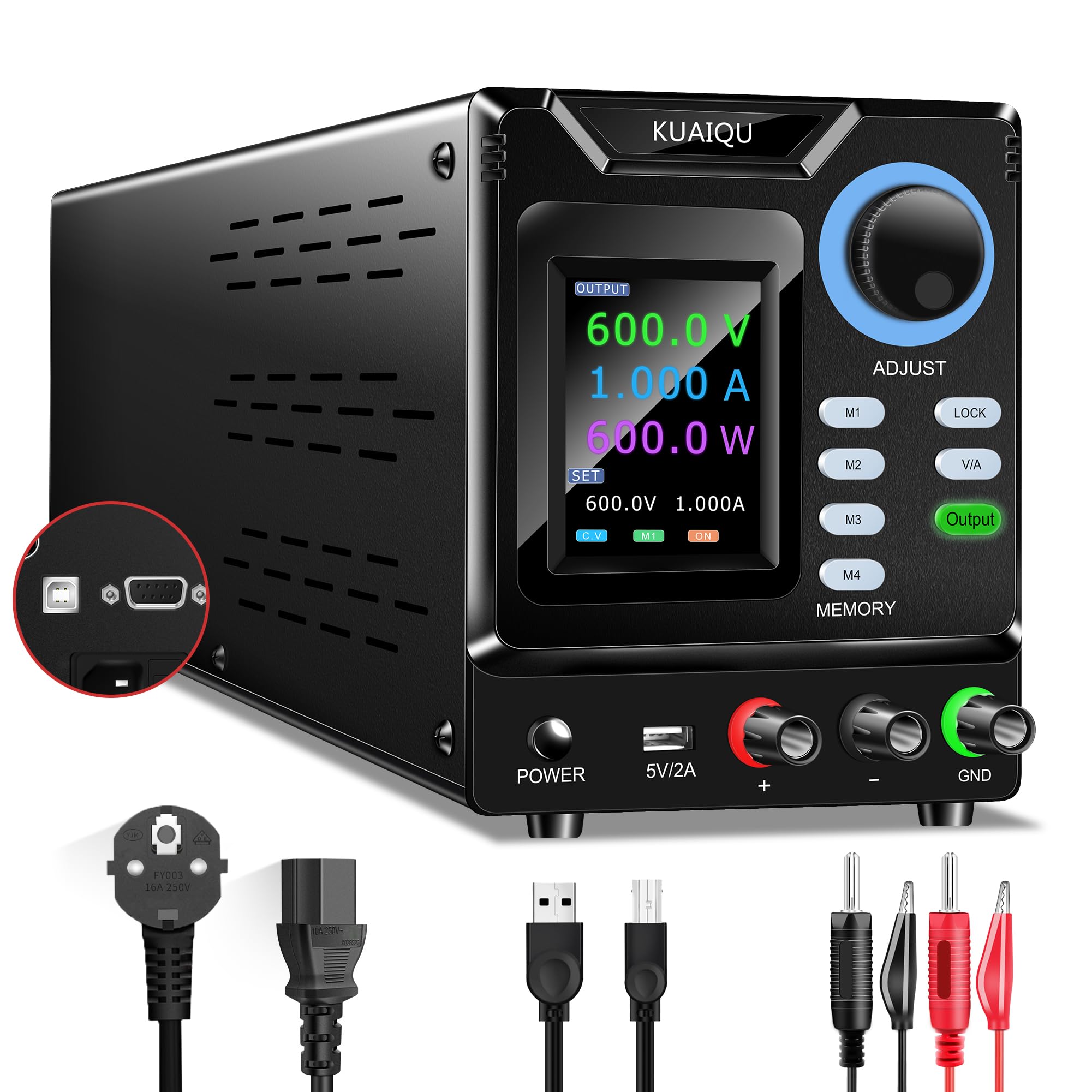
Figure 4.1: Front Panel Layout and Controls
4.1 Front Panel Features
- LCD Display: A 4-digit color backlit LCD shows voltage, current, and power readings with high precision (0.01V, 0.001A resolution). It also displays set values.
- Encoder Knob (ADJUST): Used for precise adjustment of voltage and current values. Press to switch between digits, then rotate to change the value.
- M1-M4 Memory Buttons: Store and recall up to four sets of frequently used voltage and current settings.
- LOCK Button: Prevents accidental changes to settings by locking the controls.
- V/A Button: Toggles between voltage and current adjustment modes.
- Output Button: Enables or disables the power output to the terminals.
- POWER Button: Main power switch for the unit.
- 5V/2A USB Port (Front): Provides a 5V, 2A output for charging mobile devices or powering small USB accessories.
- Output Terminals (+, -): Connect your load here. Red for positive (+), Black for negative (-).
- GND Terminal: Ground connection.
4.2 Rear Panel Features
- Power Input: Connect the provided power cord here.
- USB Port (Rear): Used for connecting the power supply to a computer for programmable control and firmware updates.
- RS232 Port: Alternative serial port for computer connectivity and control.
- Cooling Fan: Automatically activates to dissipate heat and maintain optimal operating temperature.
5. Setup
5.1 Initial Connection
- Ensure the power supply is placed on a stable, level surface with adequate ventilation.
- Connect the provided power cord to the power input on the rear panel of the power supply and then to a grounded AC power outlet.
- Do not connect any load to the output terminals yet.
5.2 Power On
Press the POWER button on the front panel to turn on the unit. The LCD display will illuminate, showing the current voltage, current, and power readings.
6. Operating Instructions
6.1 Adjusting Voltage and Current

Figure 6.1: Encoder Knob Operation
- Ensure the output is OFF (Output button LED is off).
- Press the V/A button to select whether to adjust voltage (V) or current (A). The active parameter will be highlighted on the LCD.
- To adjust the value, press the Encoder Knob (ADJUST). This will highlight a digit on the display.
- Rotate the Encoder Knob to change the value of the highlighted digit (0-9).
- Press the Encoder Knob again to move to the next digit. Repeat until the desired voltage or current is set.
- Once the desired values are set, connect your load to the output terminals.
- Press the Output button to enable the power output. The Output button LED will illuminate.
6.2 Memory Function (M1-M4)

Figure 6.2: Memory Storage Function
The power supply allows you to store and recall up to four sets of voltage and current settings.
6.2.1 Saving Settings
- Set the desired voltage and current values using the Encoder Knob as described above.
- Press and hold one of the M1-M4 buttons for approximately 3 seconds until the display indicates the settings have been saved.
6.2.2 Recalling Settings
To recall a saved setting, simply press the corresponding M1-M4 button. The stored voltage and current values will be loaded.
6.3 Lock Function
Press the LOCK button to prevent accidental changes to the voltage, current, and memory settings. When locked, the controls will not respond to input. Press the LOCK button again to unlock.
6.4 PC Connectivity (USB/RS232)

Figure 6.3: PC Connection via USB/RS232
The power supply can be connected to a computer via the rear USB or RS232 port for precise control and monitoring using dedicated software.
- Connect the power supply to your computer using the provided USB cable (or an RS232 cable, if applicable).
- Install the control software and necessary drivers. Download links and detailed instructions can be found on the product's detail page or by contacting KUAIQU support.
- The software allows for precise adjustment, real-time curve display of current and voltage, and advanced programming features.
6.5 Front USB Charging Port
The 5V 2A USB port on the front panel can be used to charge mobile phones or power other compatible USB devices. Simply connect your device's USB cable to this port.
7. Maintenance
7.1 Cleaning
To clean the exterior of the power supply, use a soft, dry cloth. Do not use abrasive cleaners or solvents. Ensure the unit is powered off and unplugged before cleaning.
7.2 Cooling Fan

Figure 7.1: Smart Cooling Fan
The power supply features an intelligent temperature-controlled cooling fan. Ensure the rear ventilation openings are not obstructed to allow for proper airflow. The fan will operate automatically as needed to maintain optimal internal temperatures.
8. Troubleshooting
8.1 PC Software Issues
IMPORTANT: The control software is compatible only with WINDOWS operating systems.
If you encounter issues with the PC control software, consider the following:
- Language Settings: European language settings may cause conflicts. Try setting your computer's language to English (USA). Ensure decimal points in the software input boxes use "." instead of ",".
- Antivirus Software: Antivirus programs may incorrectly identify the installation files as threats and delete them, preventing the software from functioning. Temporarily disable your antivirus during installation or add the software to its exceptions list.
- Access Permissions: Ensure your computer's access permissions allow the software to interact with the necessary system databases. Run the software as an administrator if necessary.
8.2 General Issues
- No Power: Check the power cord connection and the wall outlet. Ensure the POWER button is pressed.
- No Output: Verify that the Output button is pressed and its LED is illuminated. Check load connections.
- Incorrect Readings: Ensure all connections are secure. If using external meters, compare readings.
9. Specifications
| Feature | Specification |
|---|---|
| Model Number | SPPS-D6001-232 |
| Output Voltage | 0-600V (Adjustable) |
| Output Current | 0-1A (Adjustable) |
| Voltage Resolution | 0.01V |
| Current Resolution | 0.001A |
| Display | 4-digit LCD |
| Memory Functions | 4 sets (M1-M4) |
| Connectivity | Rear USB, RS232 |
| Front USB Output | 5V 2A |
| Protection Features | OUP, OCP, OTP, Short Circuit |
| Dimensions (L x W x H) | 28.5 x 12 x 13 cm |
| Weight | 1.9 kg |
| Manufacturer | KUAIQU |
| Country of Origin | China |
10. Warranty and Support
10.1 Warranty Policy
This KUAIQU power supply comes with a 12-month warranty from the date of purchase, covering manufacturing defects and malfunctions under normal use.
10.2 Technical Support
KUAIQU provides lifetime technical support for this product. If you have any questions, require assistance with setup, operation, or troubleshooting, please do not hesitate to contact us. You can reach our support team through the Amazon backend messaging system, and we will respond within 24 hours.


