
Eonon GA2198J
EONON 10.1-inch 2DIN Car Navigation System User Manual
Model: GA2198J | Brand: Eonon
1. Introduction
This manual provides detailed instructions for the installation, operation, and maintenance of your EONON 10.1-inch 2DIN Car Navigation System, model GA2198J. This advanced system features a Qualcomm processor, Android 13 operating system, and supports wireless CarPlay, Android Auto, and mirroring functions, offering a comprehensive in-car entertainment and navigation experience.

Figure 1.1: Front view of the EONON 10.1-inch Car Navigation System.
2. Key Features
- High-Performance Processor: Equipped with a Qualcomm Snapdragon 6125 8-core CPU, Adreno 610 GPU, and Hexagon 686 DSP for smooth operation. Features 6GB RAM and 64GB ROM for ample storage and multitasking.
- Latest Android 13 OS: Runs on the cutting-edge Android 13 system, providing enhanced performance and compatibility with a wide range of applications.
- 10.1-inch QLED Display: Features a vibrant 10.1-inch QLED screen with 1280x720 resolution, offering excellent color reproduction and clarity. Supports 1080P video playback and a 178° multi-angle viewing experience.
- Customizable User Interface (UI): Allows users to personalize the UI and panel light colors to match their preferences.
- Versatile Connectivity: Built-in Wi-Fi and 4G module (SIM card sold separately) for internet access. Supports online and offline navigation with downloadable map applications.
- Smartphone Integration: Seamlessly integrates with smartphones via wireless CarPlay, Android Auto, and mirroring functions for navigation, calls, and music.
- Advanced Audio Processing: Incorporates DSP (Digital Sound Field Processing) with a 56-bit precision mode and 4x48W maximum output. Features a 15-band equalizer for precise sound tuning.
- Steering Wheel Control: Supports steering wheel control functions for convenient and safe operation while driving.
- Bluetooth 5.0: Equipped with a RELTEK 8761 module for stable Bluetooth 5.0 connectivity, enabling music streaming and hands-free calling.
- Wide FM Support: Features an ST TDA7708 radio module for stable and wide-band FM reception.
- Multi-Window Functionality: Allows simultaneous display and operation of two applications on the screen.
- HDMI Output: Supports full-screen sharing to external monitors via HDMI output (note: some applications may not support video output).
- OTA Software Updates: Supports Over-The-Air (OTA) software updates to keep the device's software current (does not update Android version).

Figure 2.1: Illustration of the Qualcomm processor and Android 13 interface with streaming apps.
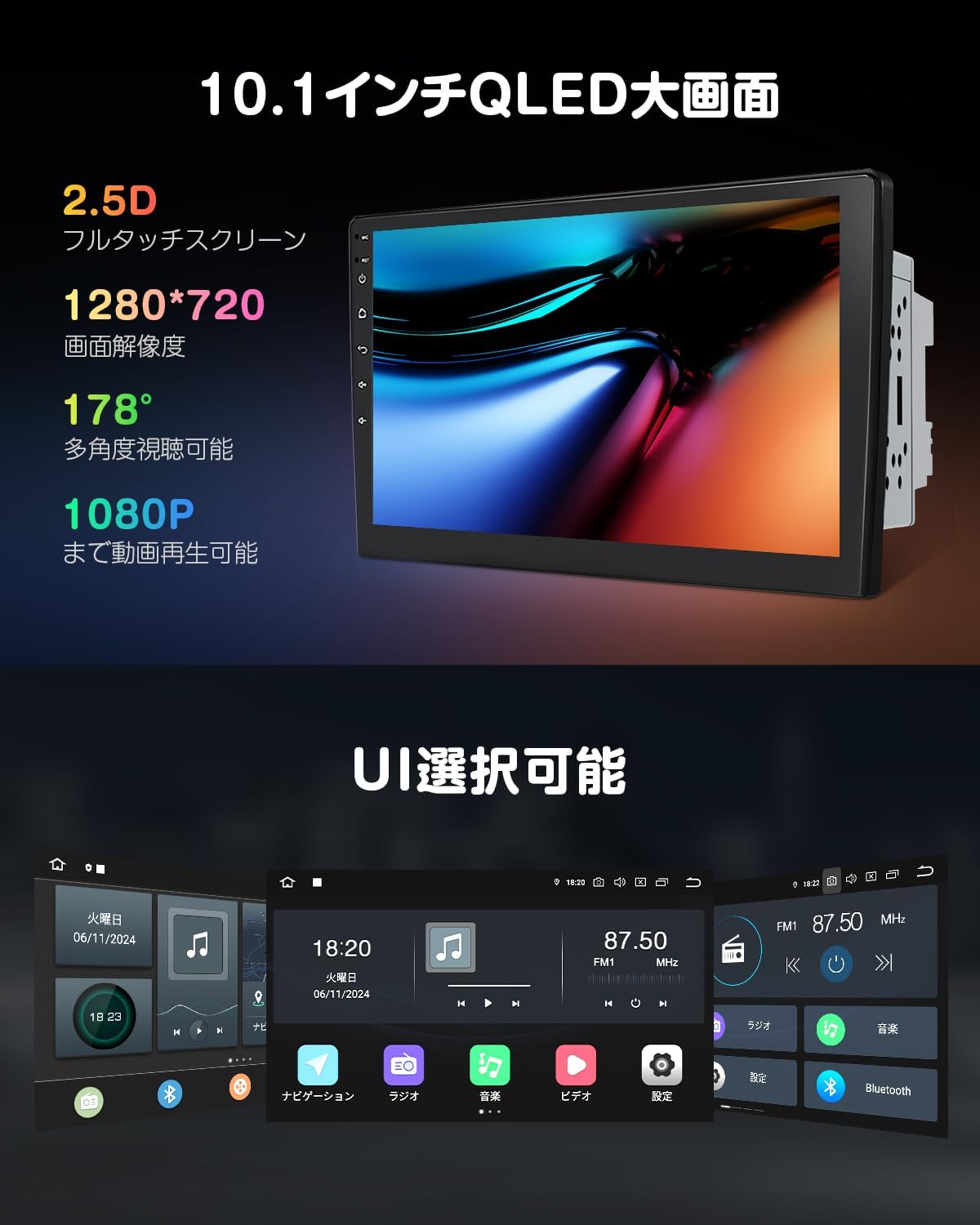
Figure 2.2: Visual representation of the 10.1-inch QLED display and various UI customization options.
3. Installation Guide
3.1. Pre-Installation Considerations
Before installation, ensure the product dimensions are compatible with your vehicle's dashboard. The LCD panel can be adjusted for angle and position to avoid obstructing air vents or hazard switches. The maximum adjustable distance between the LCD panel and the main unit is approximately 35mm.

Figure 3.1: Detailed panel dimensions, installation measurements, included accessories, wiring diagram, and display disassembly steps.
3.2. Wiring Diagram
Refer to the wiring diagram provided in Figure 3.1 for proper connection of all cables. Ensure each harness is inserted into the corresponding port according to the numbers. This ensures the navigation system functions correctly.
- Important Wiring Note: If your vehicle's steering wheel remote control wiring has only one wire, connect it to either wire 26 or 27. Do not use either of these as the (GND) ground wire for the steering wheel remote control. Wire 23 (ground code) can be used as a common ground for both the main unit's power supply and the steering wheel remote control's ground wire.
3.3. LCD Panel Installation
If you need to separate the LCD panel from the main unit for installation, ensure the main unit is completely powered off and disconnected from power before reattaching the LCD panel. Attaching the LCD panel while the main unit is powered on may cause the touch panel to become unresponsive. If the touch panel becomes unresponsive after installation, press the RST (reset) button with a thin object to reset the device.
3.4. Display Disassembly Steps
For display disassembly, refer to the steps illustrated in Figure 3.1. This process typically involves releasing clips and removing screws to detach the display from the main unit.
4. Basic Operation
4.1. Power On/Off
To power on the device, ensure it is properly connected to your vehicle's power supply and turn on the ignition. The system will boot automatically. To power off, turn off the vehicle's ignition. The system will enter standby or shut down.
4.2. User Interface (UI) Customization
The system allows for UI customization. Navigate to the settings menu to change the appearance of the interface and adjust panel light colors according to your preference.
4.3. Multi-Window Functionality
The multi-window feature allows you to run and view two applications simultaneously on the screen. This is useful for multitasking, such as using navigation while playing music.

Figure 4.1: Example of multi-window display showing navigation and music, alongside Bluetooth connectivity features.
5. Connectivity
5.1. Wi-Fi and 4G Network
The system supports internet connectivity via Wi-Fi hotspot from your smartphone or by inserting a direct SIM card (sold separately). Ensure the SIM card's frequency bands are compatible with the device (supported bands: LTE-FDD B1/3/8/18/19/21/26/28, LTE-TDD B41, WCDMA B1/6/8/9/19).
5.2. Online/Offline Maps
Download map applications like Google Maps for online navigation. For offline use, you can download map data or use a dedicated offline map solution like EONON G3048 (sold separately) to get the latest road information without an internet connection.

Figure 5.1: Overview of Wi-Fi and 4G connectivity options, along with various map application icons.
5.3. Bluetooth 5.0
With the integrated RELTEK 8761 module, the system supports Bluetooth 5.0 for high-quality audio streaming and hands-free phone calls. Pair your smartphone to enjoy music and manage calls safely while driving.
5.4. Wireless CarPlay & Android Auto / Mirroring
Connect your smartphone wirelessly or via USB to access CarPlay or Android Auto. This allows you to use your phone's voice assistant, get navigation information, make calls, and enjoy music directly from the car's display. The mirroring function allows you to display your smartphone's screen content directly on the unit's display.

Figure 5.2: Visual demonstration of wireless CarPlay, Android Auto (wired/wireless), and screen mirroring capabilities.
6. Audio and Display Settings
6.1. Digital Sound Field Processing (DSP)
The built-in DSP with a 56-bit precision mode allows for comprehensive adjustment of audio signals from various angles. Achieve a wide and realistic sound experience with the 4x48W maximum output. A 15-band equalizer is available for fine-tuning the audio to your preference.

Figure 6.1: Interface for DSP and 15-band equalizer settings to optimize in-car audio.
6.2. Wide FM Radio
The ST TDA7708 radio module ensures stable reception across a wide frequency range, providing clear and consistent FM radio listening.
6.3. HDMI Output
Utilize the HDMI output to share the entire screen display to external monitors, such as headrest displays. This allows passengers to enjoy content from the main unit on a separate screen. Please note that some applications may not support video output via HDMI.
7. Optional Accessories
The EONON GA2198J system is compatible with several optional accessories (sold separately) to enhance its functionality:
- TV Tuner (EONON A500): Connect an external digital TV tuner to enable TV viewing directly on your navigation system.
- AHD Backup Camera (EONON A0119J / A0126J): Supports AHD cameras up to 1920x1080 resolution. The system automatically switches to the backup camera view when reverse gear is engaged. Note: OEM backup cameras may be compatible if they have RCA output or an RCA conversion terminal.
- Drive Recorder Mode (EONON R0020 / A100): Connect a compatible Android USB HD drive recorder to view recorded footage and monitor traffic conditions on the large screen.
- OBD2 Compatibility (EONON VOO56): Connect an OBD2 device to use applications like Torque to monitor vehicle performance information, such as engine RPM.
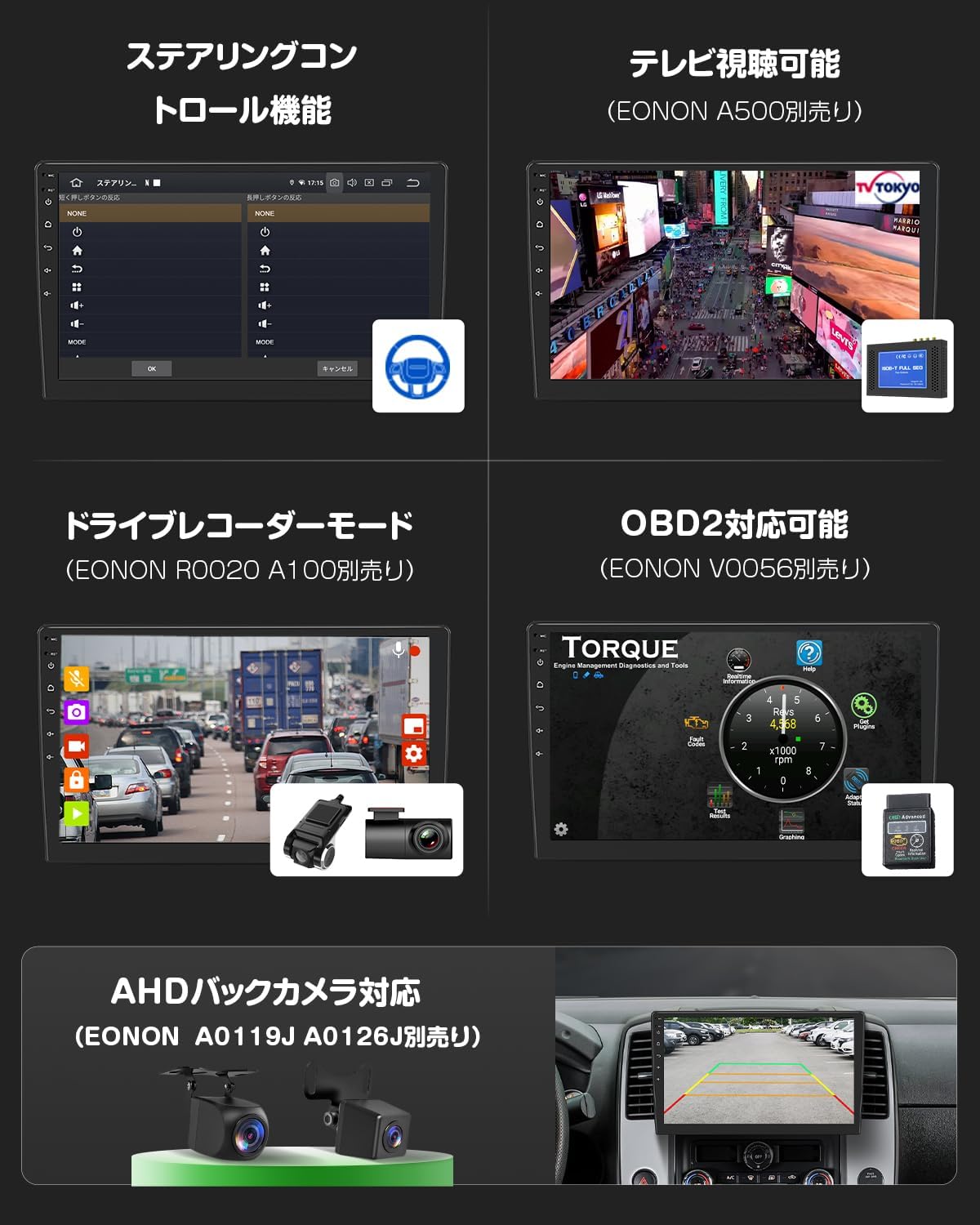
Figure 7.1: Overview of optional accessories including steering wheel control interface, TV tuner, drive recorder, OBD2 scanner, and AHD backup cameras.
8. Maintenance
8.1. General Care and Cleaning
To maintain the performance and appearance of your device, regularly clean the screen and exterior with a soft, dry cloth. Avoid using abrasive cleaners or solvents. Keep the unit free from dust and moisture.
8.2. Software Updates (OTA)
The device supports Over-The-Air (OTA) software updates. Regularly check for updates in the system settings to ensure your device has the latest software version, which can improve stability and performance. Note that these updates are for the device's software and do not upgrade the Android operating system version.

Figure 8.1: Illustration of the OTA software update process.
9. Troubleshooting
If you encounter issues with your EONON GA2198J system, please refer to the following common troubleshooting steps:
- No Power: Check all power connections and fuses. Ensure the vehicle's ignition is on.
- Touch Panel Unresponsive: If the touch panel does not respond, especially after installation, ensure the main unit was not powered on when the LCD panel was connected. If the issue persists, locate the RST (reset) button (usually a small pinhole) and press it gently with a thin, non-sharp object to reset the device.
- No Sound: Verify speaker connections. Check volume settings and ensure the audio source is correctly selected.
- Poor Radio Reception: Check the antenna connection. Ensure you are within a strong signal area.
- Bluetooth Connection Issues: Ensure Bluetooth is enabled on both the device and your smartphone. Try unpairing and re-pairing the devices.
- CarPlay/Android Auto Not Connecting: Check USB cable connection (if wired). Ensure the app is updated on your smartphone. Try restarting both the car unit and your phone.
- System Lag/Freezing: Close unnecessary applications. Perform a system reset using the RST button if needed.
If the problem persists after attempting these steps, please contact Eonon customer support for further assistance.
10. Specifications
| Feature | Specification |
|---|---|
| Model Name | GA2198J |
| Screen Size | 10.1 inches |
| Display Type | QLED |
| Resolution | 1280x720 |
| Operating System | Android 13 |
| Processor | Qualcomm Snapdragon 6125 8-core CPU |
| RAM | 6GB |
| ROM | 64GB |
| Connectivity | Bluetooth 5.0, Wi-Fi, 4G (SIM slot), USB |
| Audio Output Power | 4x48W |
| Equalizer | 15-band |
| Dimensions (Package) | 31 x 22 x 19 cm |
| Weight (Package) | 2.8 kg |
| Mounting Type | Dashboard Mount |
| Country of Origin | China |
11. Warranty and Support
For warranty information, please refer to the documentation included with your purchase or the terms and conditions provided by your retailer. Eonon is committed to providing quality products and customer satisfaction.
If you require technical assistance, have questions about installation, or need support for any issues not covered in this manual, please contact Eonon customer support through their official channels. Provide your product model (GA2198J) and purchase details for efficient service.
Related documentsGA2198J


Ask a question about this manual
Ask about setup, troubleshooting, compatibility, parts, safety, or missing instructions. Manuals+ will review the question and use this page’s manual context to help answer it.