
Product Overview
This manual provides instructions for the ZWP Replacement Remote Control, designed for Samsung NEO QLED Crystal 4K CU7000 and DU7200 Series Smart TVs. This remote offers a seamless replacement experience with easy pairing and dedicated shortcut buttons for popular streaming services.

Figure 1: ZWP Replacement Remote Control. This image shows the full view of the remote control, highlighting its ergonomic design and button layout.
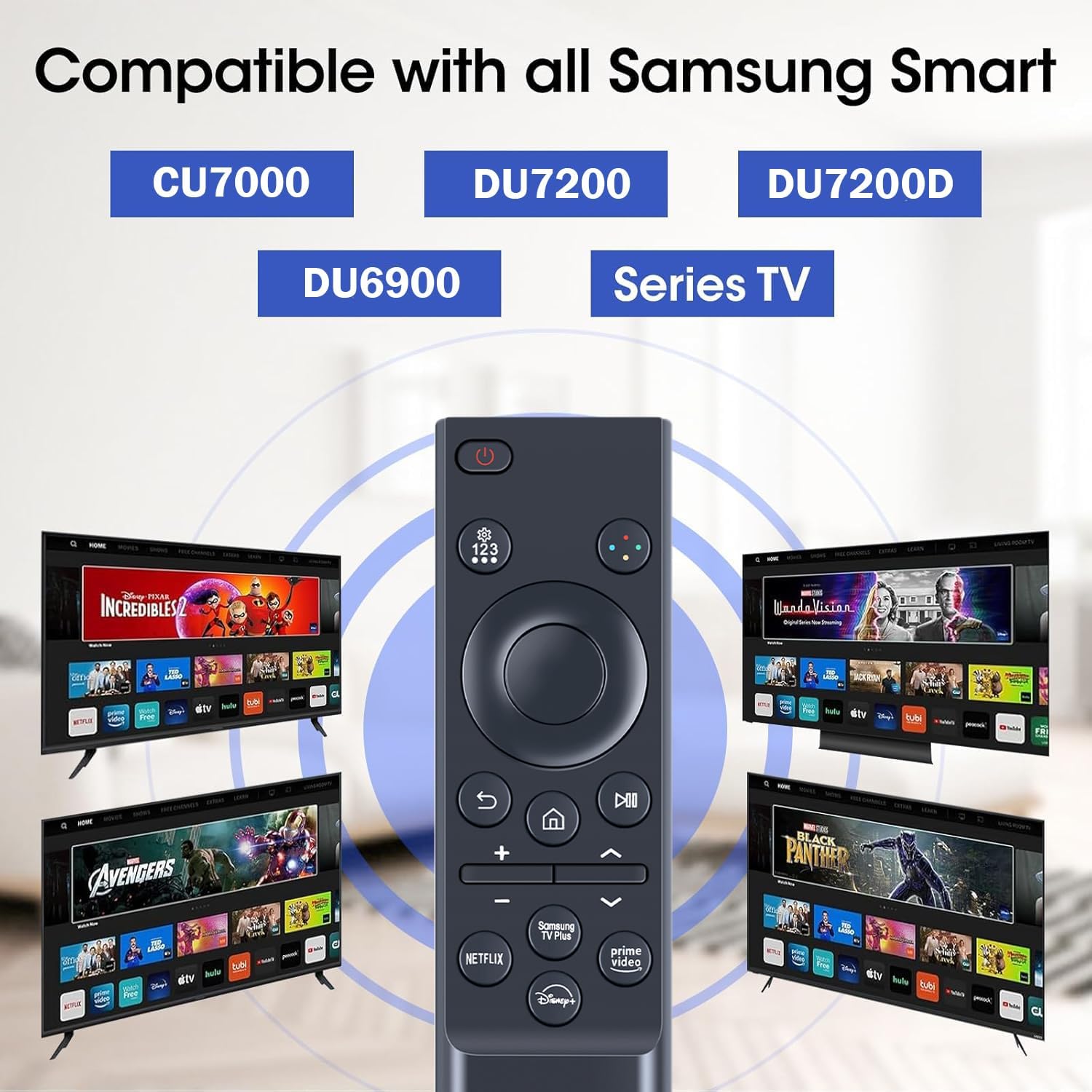
Figure 2: Compatibility with Samsung Smart TV Models. This image illustrates the remote's compatibility with various Samsung Smart TV series, including CU7000, DU7200, and DU6900.
Setup
1. Battery Installation
The remote control requires two AAA batteries (not included). Follow these steps to install them:
- Locate the battery compartment cover on the back of the remote control.
- Slide the cover downwards to open the compartment.
- Insert two AAA batteries, ensuring the positive (+) and negative (-) terminals align correctly with the markings inside the compartment.
- Slide the cover back into place until it clicks securely.

Figure 3: Battery Installation. This image shows the remote control's battery compartment and how to correctly insert two AAA batteries.
2. Pairing the Remote Control
To pair the remote control with your Samsung Smart TV, follow these instructions:
- Ensure your TV is powered on.
- Point the remote control towards the TV.
- Press and hold the "Return" and "Play/Pause" buttons simultaneously for more than 3 seconds.
- A pairing message will appear on your TV screen. Follow the on-screen prompts to complete the pairing process.
- If pairing fails, repeat this step.
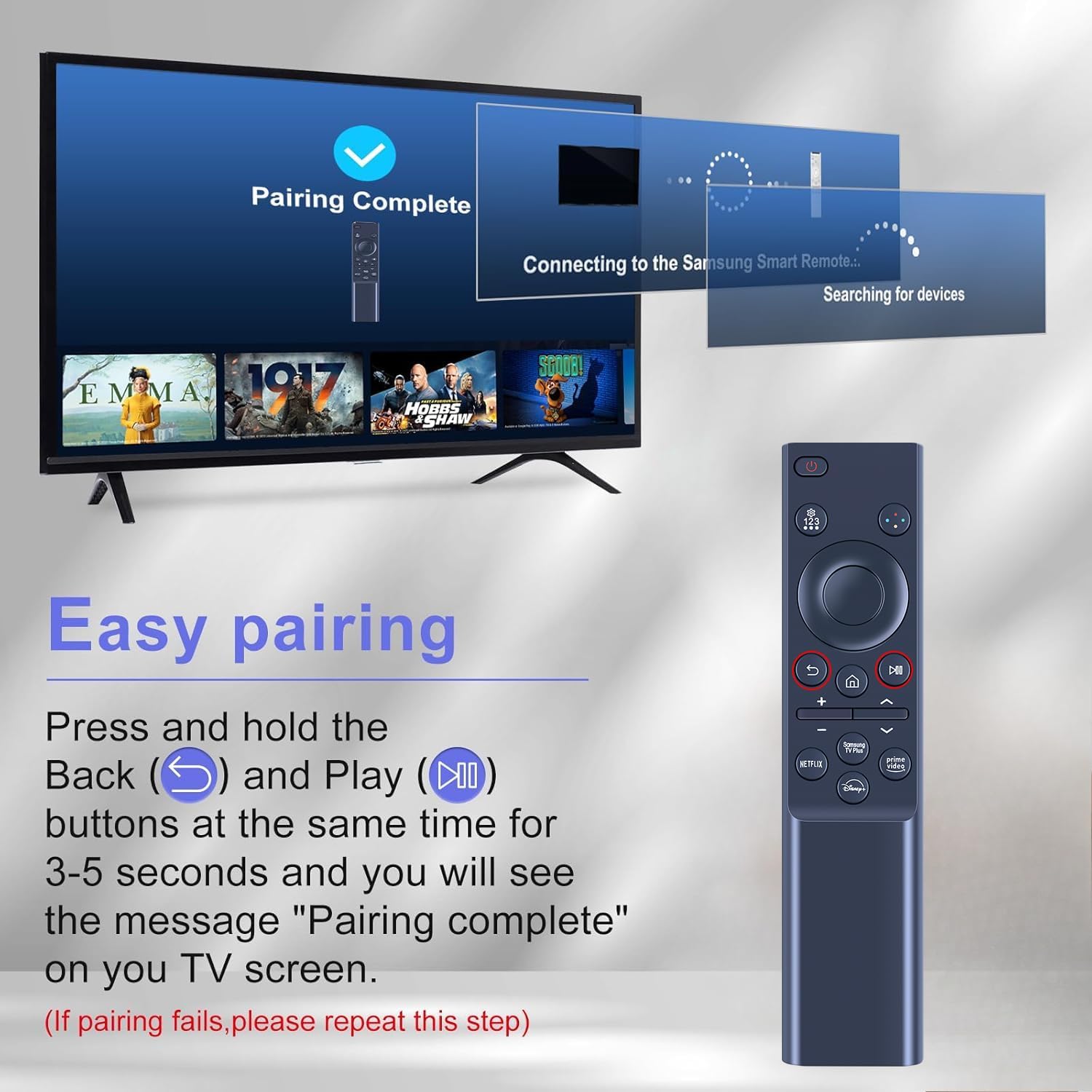
Figure 4: Easy Pairing Process. This image demonstrates the steps to pair the remote control with a Samsung Smart TV, showing the "Return" and "Play/Pause" buttons to hold.
Operating Instructions
Basic Functions
- Power Button: Press to turn the TV on or off.
- Navigation Pad (Directional Buttons and Enter): Use to navigate menus and select options.
- Volume Buttons (+/-): Adjust the TV volume.
- Channel Buttons (Up/Down): Change TV channels.
- Home Button: Access the TV's Smart Hub or main menu.
- Back Button: Return to the previous screen or menu.
- Play/Pause Button: Control media playback.
Shortcut Buttons
The remote control features dedicated shortcut buttons for quick access to popular streaming services:
- Netflix: Direct access to the Netflix application.
- Prime Video: Direct access to the Amazon Prime Video application.
- Disney+: Direct access to the Disney+ application.
- Samsung TV Plus: Direct access to Samsung TV Plus.

Figure 5: Channel Shortcut Keys. This image highlights the dedicated shortcut buttons for Netflix, Prime Video, Samsung TV Plus, and Disney+ on the remote control.
Control Range and Performance
The remote control offers precise control from a distance of up to 40 feet (approximately 12 meters) and supports multi-angle control up to 120 degrees. Its design ensures a stable and quick response for an optimal user experience.

Figure 6: Long Distance Precise Control. This image illustrates the remote's effective operating range of 26 feet and a 120-degree multi-angle control capability.
Maintenance
Battery Replacement
Replace batteries when the remote's responsiveness decreases or it stops functioning. Always use new AAA batteries and dispose of old batteries responsibly according to local regulations.
Cleaning
To clean the remote control, gently wipe its surface with a soft, dry cloth. For stubborn dirt, a slightly damp cloth can be used, followed by a dry cloth. Avoid using abrasive cleaners, solvents, or excessive moisture, as these can damage the remote.
Troubleshooting
| Problem | Possible Cause | Solution |
|---|---|---|
| Remote not responding. | Low or dead batteries; remote not paired. | Replace batteries. Re-pair the remote control following the "Pairing the Remote Control" instructions. |
| Buttons are unresponsive or sticky. | Dirt or debris under buttons; internal malfunction. | Clean the remote surface. If problem persists, contact customer support. |
| Limited range or intermittent control. | Obstructions between remote and TV; interference; low batteries. | Ensure clear line of sight to TV. Check for sources of interference. Replace batteries. |
| Remote does not control TV after pairing. | Incorrect TV model; pairing not successful. | Verify TV model compatibility. Repeat pairing process carefully. |
Specifications
- Model Numbers: BN59-01388A, BN59-01388H, TM2240A
- Compatible Devices: Samsung NEO QLED Crystal 4K CU7000, DU7200 Series Smart TVs (e.g., UN43CU7000, UN50CU7000, UN55CU7000, UN58CU7000, UN65CU7000, UN70CU7000, UN75CU7000, UN85CU7000, UN43DU7200, UN50DU7200, UN55DU7200, UN60DU7200, UN65DU7200, UN70DU7200, UN75DU7200, UN85DU7200)
- Power Source: 2 x AAA Batteries (not included)
- Control Distance: Up to 40 feet (approx. 12 meters)
- Dimensions: 3 x 1.2 x 10 inches (approx. 7.6 x 3 x 25.4 cm)
- Item Weight: 1.58 ounces (approx. 44.79 grams)
- Material: ABS (Environmentally friendly)
- Color: Black
Warranty and Support
ZWP provides up to 1 year of after-sales service for this replacement remote control. For any dissatisfaction or issues during use, please contact ZWP customer support. Your product quality and satisfaction are our basic principles.
For support, please refer to the contact information provided with your purchase or visit the ZWP official website.