
WONNIE W-612D
WONNIE 7.5" Dual Portable DVD Players for Car
Model: W-612D
Introduction
Thank you for choosing the WONNIE 7.5" Dual Portable DVD Players for Car. This manual provides essential information for the proper setup, operation, and maintenance of your new device. Please read this manual thoroughly before use to ensure optimal performance and longevity of the product.
These dual DVD players are specifically designed for in-car use, providing entertainment for passengers during travel. They support playing the same movie on both screens or two different movies simultaneously.
Package Contents
Please verify that all items listed below are included in your package:
- 2 x WONNIE 7.5" Car DVD Players
- 2 x IR Remote Controls
- 2 x Headrest Straps
- 1 x 2-in-1 Car Charger
- 1 x AV Cable
- 1 x User Manual (this document)

Figure 1: Contents included in the product package.
Product Overview
Main Unit (DVD Player)

Figure 2: Side panel connections of the DVD player.
- DC IN: Power input port. Connect the car charger here.
- USB Port: For connecting USB flash drives (up to 32GB).
- SD Card Slot: For inserting SD/MMC cards (up to 32GB).
- AV OUT: Audio/Video output. Connect to the AV IN of the second player for synchronized playback.
- EARPHONE: 3.5mm headphone jack for private listening.
- AV IN: Audio/Video input. Connect from the AV OUT of the main player for synchronized playback.
- Disc Tray: For inserting DVDs and CDs.
- Control Buttons: SOURCE, SETUP, UP, DOWN, OK, LEFT, RIGHT buttons on the front panel for direct control.
- Speakers: Integrated stereo speakers for audio output.
Remote Control

Figure 3: The DVD players and their accompanying remote controls.
The included IR remote controls provide full functionality for navigating menus, controlling playback, and adjusting settings from a distance.
Setup
1. Installation in Car
Use the provided headrest straps to securely attach each DVD player to the back of the car's headrests. Ensure the players are firmly mounted to prevent movement during vehicle operation.

Figure 4: DVD player mounted on a car headrest using the provided strap.
2. Power Connection
These DVD players are designed for car use only and do not have an internal battery. They require continuous power from the car's cigarette lighter socket.
- Connect the 2-in-1 car charger to the DC IN port of both DVD players.
- Plug the car charger into your vehicle's 12V cigarette lighter socket.
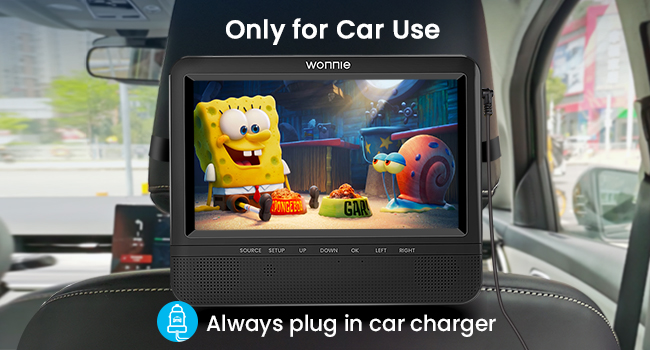
Figure 5: Power connection via car charger, highlighting car-use only.
3. Connecting Dual Screens (Optional)
The players can operate independently or be connected to display the same movie.
Playing Two Different Movies:
Each player can play a separate DVD or media from its own USB/SD card. No AV cable connection is needed between the units for this mode.

Figure 6: Setup for playing two different movies simultaneously.
Playing the Same Movie:
To synchronize playback, one player acts as the main unit and the other as the slave unit.
- Insert the DVD or media into the main DVD player.
- Connect one end of the provided AV cable to the AV OUT port of the main DVD player.
- Connect the other end of the AV cable to the AV IN port of the second DVD player (slave unit).
- Ensure both players are powered on. The slave unit will automatically display the content from the main unit.

Figure 7: Setup for playing the same movie on both screens.
Operating Instructions
1. Power On/Off
Once connected to the car charger, the players will automatically power on. To turn off, disconnect the power or use the power button on the remote control/unit if available.

Figure 8: Powering on and off, demonstrating the last memory function.
2. Disc Playback
- Gently insert a compatible DVD or CD into the disc tray.
- The player will automatically detect and begin playback.
- Use the remote control or front panel buttons (Play/Pause, Stop, Next/Previous, Fast Forward/Rewind) to control playback.
3. USB/SD Card Playback
- Insert a USB flash drive or SD/MMC card (up to 32GB) into the respective slot.
- Press the SOURCE button on the unit or remote to select USB or SD as the input source.
- Navigate through the files using the arrow keys and OK button on the remote or unit.
- Select the desired video, audio, or image file to begin playback.
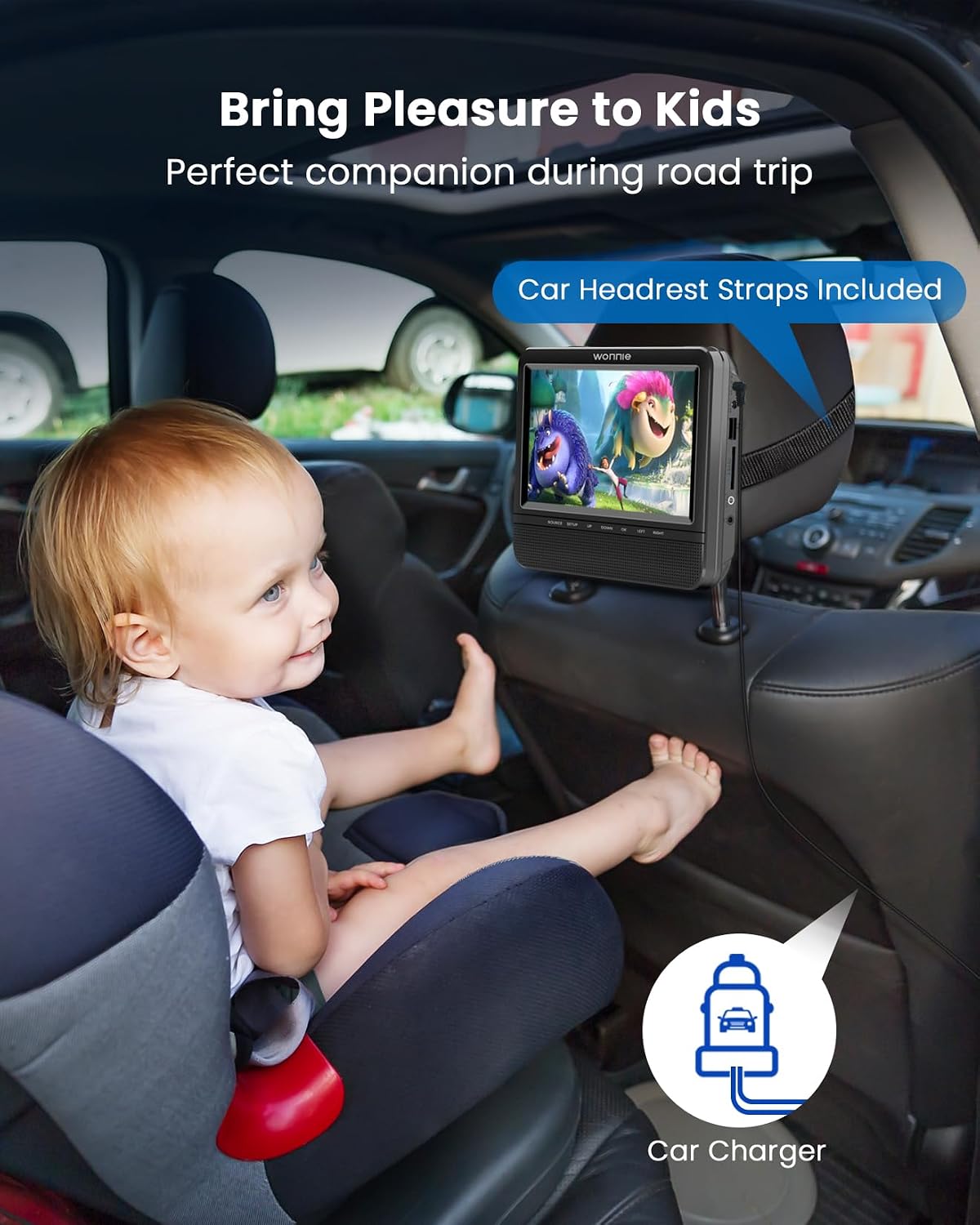
Figure 9: Supported media formats and USB/SD card compatibility.
4. Supported Formats
- DVD Formats: DVD, DVD±R, DVD±RW, CD, CD±R, CD±RW, VCD, SVCD (Blu-Ray discs are not supported).
- Video Formats: VOB, AVI, MPEG1, MPEG2 (MP4 is not supported). Maximum resolution cannot exceed 720*576 pixels.
- Audio Formats: MP3, WMA.
- Image Formats: JPG, JPEG.
- USB/SD/MMC Card: Supports up to 32GB.
5. Last Memory Function
The players feature a break-point memory function. When powered off and then on again, the player will resume playback from where it was last stopped, ensuring a seamless viewing experience.
6. Volume Control & Headphone Use
Volume can be adjusted using the remote control or the dedicated volume buttons on the unit (if present, otherwise via remote). Each player has a headphone jack, allowing individual users to connect wired headphones for private listening.

Figure 10: Illustration of the dual powerful stereo speakers.
Maintenance
- Cleaning: Use a soft, dry cloth to clean the screen and exterior of the players. Do not use liquid cleaners or abrasive materials.
- Disc Care: Handle discs by their edges. Keep discs clean and free of scratches to ensure smooth playback.
- Storage: When not in use, store the players in a cool, dry place away from direct sunlight and extreme temperatures.
- Avoid Liquids: Do not expose the players to water or other liquids.
Troubleshooting
| Problem | Possible Cause | Solution |
|---|---|---|
| No power | Car charger not properly connected or car socket not providing power. | Ensure the car charger is securely plugged into both the player's DC IN port and the car's cigarette lighter socket. Check if the car socket is active. |
| Disc not playing/reading | Disc is dirty, scratched, or incompatible format. | Clean the disc with a soft cloth. Try a different disc. Ensure the disc format (e.g., DVD, CD) is supported. Blu-Ray discs are not supported. |
| No picture/sound on slave unit | AV cable not connected correctly or main unit not playing. | Verify the AV cable is securely connected from the main unit's AV OUT to the slave unit's AV IN. Ensure the main unit is playing content. |
| USB/SD card not recognized | Card/drive is corrupted, incompatible format, or exceeds 32GB. | Ensure the USB drive/SD card is formatted to FAT32. Check if the capacity is within 32GB. Try a different USB drive/SD card. Ensure the media files are supported formats. |
| Remote control not working | Batteries are dead or remote is not pointed at the IR sensor. | Replace the batteries in the remote control. Ensure there are no obstructions between the remote and the player's IR sensor. |
Specifications
| Feature | Detail |
|---|---|
| Brand | WONNIE |
| Model | W-612D |
| Screen Size | 7.5 Inches |
| Display Type | LCD |
| Display Resolution | 1024x600 pixels |
| Supported Disc Formats | DVD, DVD±R, DVD±RW, CD, CD±R, CD±RW, VCD, SVCD (Blu-Ray not supported) |
| Supported Video Formats | VOB, AVI, MPEG1, MPEG2 (MP4 not supported) |
| Supported Audio Formats | MP3, WMA |
| Supported Image Formats | JPG, JPEG |
| USB/SD/MMC Support | Up to 32GB (Max resolution 720*576 pixels) |
| Power Source | Car Charger (12V cigarette lighter) - No built-in battery |
| Connectivity | IR, USB, SD Card, AV In, AV Out, Earphone Jack |
| Dimensions (per player) | Approx. 25.5 x 21.5 x 15.4 cm (Parcel Dimensions) |
| Weight (total parcel) | 1.47 kg |
Warranty and Support
WONNIE provides a comprehensive after-sales service for your product:
- Warranty: Replacement or full refund within 365 days from the date of purchase.
- Technical Support: Lifetime professional technical support is available.
If you encounter any issues, have questions, or require assistance, please contact WONNIE customer support directly. Please refer to the contact information provided on the product packaging or the official WONNIE website.
Related documentsW-612D


Ask a question about this manual
Ask about setup, troubleshooting, compatibility, parts, safety, or missing instructions. Manuals+ will review the question and use this page’s manual context to help answer it.