
Holy Stone HS360E
Holy Stone HS360E GPS Drone User Manual
1. Product Overview
The Holy Stone HS360E is a lightweight, foldable GPS drone designed for both beginners and experienced pilots. It features a 4K EIS camera for stable, high-quality aerial photography and videography, a long 6KM image transmission range, and intelligent flight modes for an enhanced flying experience. Weighing less than 249g, it complies with C0 regulations, making it easy to operate in many regions.
What's in the Box
- Holy Stone HS360E Drone
- Remote Controller
- Intelligent Flight Battery
- Charging Hub
- Propellers (Spare Set)
- USB Charging Cables
- Carrying Case
- User Manual
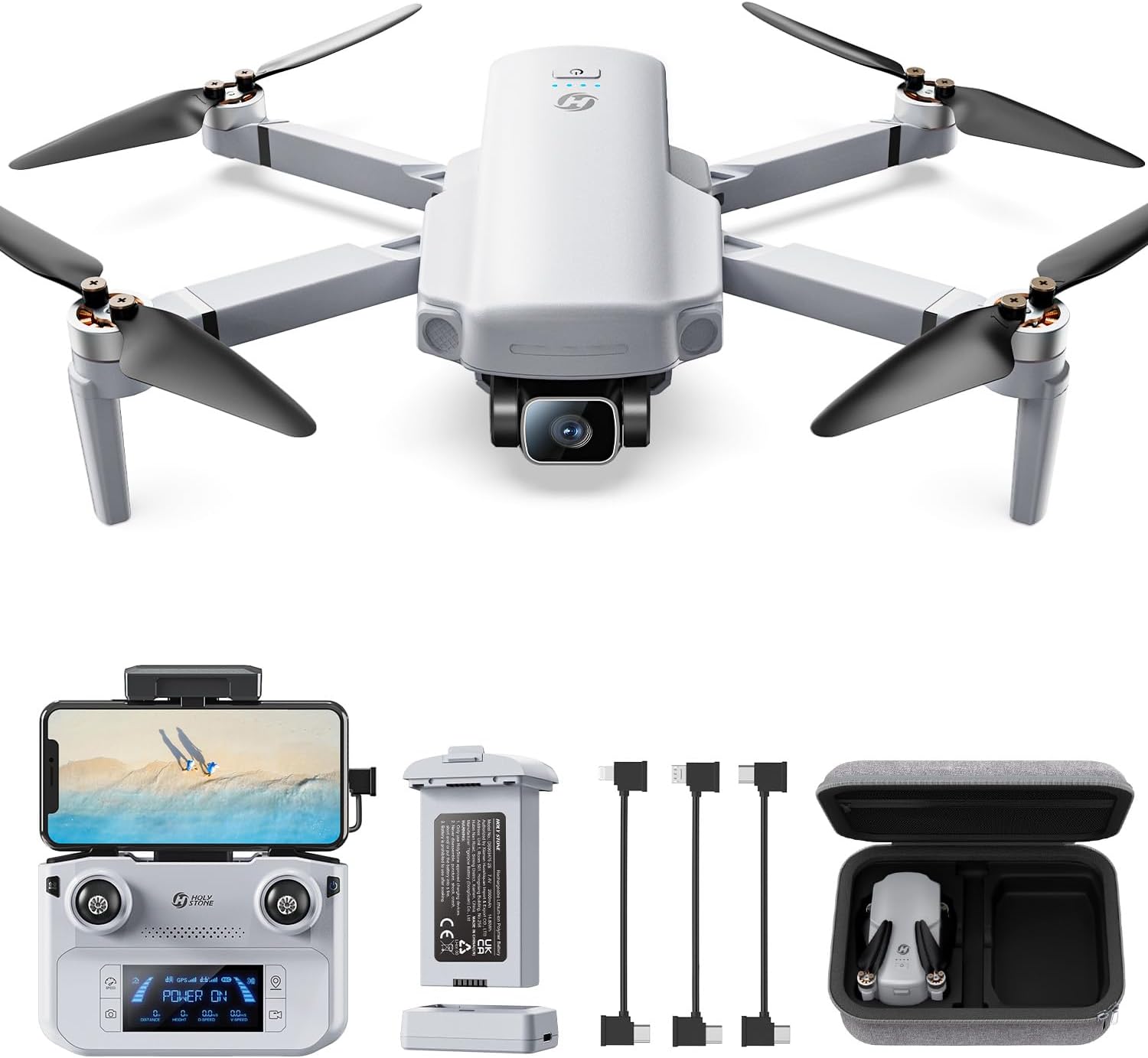
Figure 1.1: Holy Stone HS360E Drone and Accessories
2. Safety Guidelines
Before operating the Holy Stone HS360E drone, please read and understand all safety guidelines to ensure a safe and enjoyable flight. Failure to follow these instructions may result in injury, damage to the drone, or property damage.
- Pre-Flight Check: Always inspect the drone, propellers, and battery before each flight. Ensure all components are securely attached and undamaged.
- Flight Environment: Fly in open areas, away from people, buildings, trees, and power lines. Avoid flying in strong winds, rain, or fog.
- Battery Safety: Use only original Holy Stone batteries and chargers. Do not overcharge or puncture batteries. Store batteries in a cool, dry place.
- Maintain Visual Line of Sight: Always keep the drone within your visual line of sight during flight.
- Respect Local Regulations: Be aware of and comply with all local laws and regulations regarding drone operation.
- Emergency Procedures: Familiarize yourself with the drone's emergency stop and Return to Home (RTH) functions.
3. Setup
3.1 Charging the Battery
The intelligent flight battery should be fully charged before first use. Connect the battery to the charging hub, then connect the charging hub to a USB power adapter (not included) using the provided USB cable. The indicator light on the charging hub will show the charging status.

Figure 3.1: Charging the Intelligent Flight Battery
3.2 Installing Propellers
Attach the propellers to the corresponding motor shafts. Ensure that propellers marked 'A' are installed on 'A' motors and 'B' on 'B' motors. Press down firmly and twist to lock them into place. Double-check that all propellers are securely fastened before flight.
3.3 Remote Controller Setup
Insert a fully charged battery into the remote controller. Extend the phone holder and mount your smartphone. The remote controller supports both wired and wireless connections to your smartphone for live video feed and advanced controls. For optimal performance and stability, a wired connection is recommended.

Figure 3.2: Remote Controller with Smartphone

Figure 3.3: Wired vs. Wireless Connection
3.4 App Installation and Connection
Download the official Holy Stone app from your smartphone's app store. Power on the drone and the remote controller. Follow the in-app instructions to connect your smartphone to the drone via the remote controller. This connection enables access to the live camera feed, flight parameters, and intelligent flight modes.
4. Operating the Drone
4.1 Pre-Flight Checklist
- Ensure drone and remote controller batteries are fully charged.
- Check that propellers are correctly installed and undamaged.
- Verify that the drone's arms are fully unfolded and locked.
- Confirm GPS signal acquisition (for outdoor flight).
- Ensure sufficient space for takeoff and landing.
4.2 Taking Off and Landing
Takeoff: Place the drone on a flat, open surface. Power on the drone and remote controller. Calibrate the compass and gyroscope as per app instructions. Press the one-key takeoff button on the remote controller or in the app, or manually push both joysticks down and out to start the motors, then push the left joystick up to ascend.
Landing: Gently pull the left joystick down to descend slowly. Once the drone touches the ground, hold the left joystick down for a few seconds until the motors stop. Alternatively, use the one-key landing button.
4.3 Flight Modes and Features
The HS360E offers various intelligent flight modes to enhance your flying and filming experience:
- GPS Follow Me: The drone automatically follows your movement, keeping you in the frame.
- Waypoint Flight: Draw a path on the map in the app, and the drone will fly along the designated route.
- Circle Flight: The drone flies in a circular path around a designated point of interest.
- One-Key Return (RTH): The drone automatically returns to its takeoff point when activated, or in case of low battery or signal loss.
- Tap Fly: Tap a point on the map, and the drone will fly to that location.
- Gesture Control: Perform specific hand gestures to trigger photo or video recording.
- One-Key Ascension: Automatically ascends to a preset altitude.
- Spiral Ascension: The drone ascends in a spiral motion.

Figure 4.1: App Flight and Camera Functions

Figure 4.2: GPS Return to Home vs. Optical Flow Positioning
4.4 Camera Operation
The HS360E is equipped with a 4K camera featuring Electronic Image Stabilization (EIS) and a 1200W sensor, ensuring clear and stable footage. You can control the camera's tilt and capture photos/videos directly from the remote controller or through the app.
- Photo Capture: Press the dedicated photo button on the remote controller or tap the photo icon in the app.
- Video Recording: Press the dedicated video button on the remote controller or tap the video icon in the app to start/stop recording.
- EIS Technology: The Electronic Image Stabilization helps reduce blur and shakiness in your footage, providing smoother results.

Figure 4.3: 4K EIS Camera Details
5. Maintenance
Regular maintenance ensures the longevity and optimal performance of your Holy Stone HS360E drone.
- Cleaning: After each flight, gently wipe the drone body with a soft, dry cloth. Avoid using liquids or solvents.
- Propeller Inspection: Regularly check propellers for cracks, bends, or damage. Replace any damaged propellers immediately using the spare set provided.
- Motor Care: Keep motors free from dust and debris. Do not attempt to lubricate the motors.
- Battery Storage: If storing the battery for an extended period, discharge it to about 50-60% capacity. Store in a cool, dry place away from direct sunlight.
- Firmware Updates: Check the Holy Stone official website or app regularly for firmware updates to ensure your drone has the latest features and performance improvements.
6. Troubleshooting
This section addresses common issues you might encounter with your Holy Stone HS360E drone.
| Problem | Possible Cause | Solution |
|---|---|---|
| Drone does not power on | Low battery; Battery not properly inserted | Charge the battery; Reinsert battery firmly |
| No image transmission to phone | App not connected; Loose cable connection; Wi-Fi interference | Ensure app is connected; Check cable connection; Try wired connection; Move to an area with less interference |
| Drone drifts during flight | Improper calibration; Strong winds | Recalibrate the compass and gyroscope; Avoid flying in strong winds |
| Remote controller not connecting | Low remote battery; Pairing issue | Charge remote controller; Re-pair drone and remote controller as per manual |
| GPS signal weak or lost | Flying indoors; Obstructions; Bad weather | Fly in open outdoor areas; Avoid flying near tall buildings or dense foliage; Do not fly in bad weather |
7. Specifications
| Feature | Specification |
|---|---|
| Brand | Holy Stone |
| Model Name | HS360E |
| Item Weight | 249 g |
| Product Dimensions | 29 x 9 x 20.4 cm |
| Battery Type | Lithium Polymer (1 included) |
| Video Recording Resolution | 4K |
| Camera Features | 4K EIS Camera, 1200W Sensor |
| Image Transmission Range | 6 KM |
| Flight Time | Up to 30 minutes (per battery) |
| Connectivity Technology | Wi-Fi |
| Special Features | GPS Auto Return, Multiple Flight Modes (Follow Me, Waypoint, Circle Flight), C0 Compliant |
| Recommended Age | Adult |
8. Warranty and Support
8.1 Warranty Information
Holy Stone products typically come with a limited warranty. Please refer to the warranty card included in your product packaging for specific terms, conditions, and duration. Keep your proof of purchase for warranty claims.
8.2 Customer Support
For any questions, technical assistance, or support, please contact Holy Stone customer service. They offer online chat, email support, and phone support to assist you with your product.
- Online Chat: Visit the Holy Stone official website for live chat support.
- Email Support: Send your inquiries via email to the address provided on the official website or in your product documentation.
- Phone Support: Contact the Holy Stone customer service hotline during business hours.

Figure 8.1: Holy Stone Support Resources

Figure 8.2: Holy Stone Customer Support
Related documentsHS360E


Ask a question about this manual
Ask about setup, troubleshooting, compatibility, parts, safety, or missing instructions. Manuals+ will review the question and use this page’s manual context to help answer it.