
1. Product Overview
The Leopold FC900RBT V2 is a full-size Bluetooth mechanical keyboard designed for enhanced typing experience and versatility. It features Cherry MX2A switches, durable double-shot PBT keycaps, and sound-absorbing components for improved acoustics. This keyboard supports both wired USB-C and wireless Bluetooth 5.1 connectivity, making it compatible with various Windows devices.
Key Features:
- Dual Connectivity: Wired via USB-C cable or wireless via Bluetooth 5.1.
- Premium Keycaps: Double Shot PBT keycaps for durability and a premium feel.
- Cherry MX2A Switches: Equipped with the latest Cherry MX2A Red switches for a smooth and linear typing experience.
- Enhanced Acoustics: Integrated sound-absorbing pad and foam to reduce typing noise.
- Robust Design: FR4 dual-layer PCB for improved stability and longevity.
- Windows Compatibility: Fully compatible with Windows operating systems.
- Battery Powered: Bluetooth functionality powered by three AAA batteries (included).

Image 1.1: Top-down view of the Leopold FC900RBT V2 Mechanical Keyboard, showcasing its full layout and keycap design.

Image 1.2: Side view of the Leopold FC900RBT V2 Mechanical Keyboard, highlighting the profile and Leopold branding.
2. Setup
2.1 Package Contents
Verify that all items are present in the package:
- Leopold FC900RBT V2 Mechanical Keyboard
- USB-C Cable
- 3x AAA Batteries
- User Manual (this document)
2.2 Battery Installation
- Locate the battery compartment on the underside of the keyboard.
- Open the battery compartment cover.
- Insert the three AAA batteries, ensuring correct polarity (+/-).
- Close the battery compartment cover securely.
2.3 Wired Connection
- Connect the provided USB-C cable to the USB-C port on the keyboard.
- Connect the other end of the USB-C cable to an available USB port on your computer.
- The keyboard will be automatically detected and ready for use.
2.4 Bluetooth Connection
- Ensure the keyboard has batteries installed and is powered on.
- On your computer or device, navigate to Bluetooth settings.
- Put the keyboard into pairing mode (refer to Section 3.2 for detailed instructions).
- Select "Leopold FC900RBT V2" from the list of available Bluetooth devices on your computer.
- Follow any on-screen prompts to complete the pairing process.
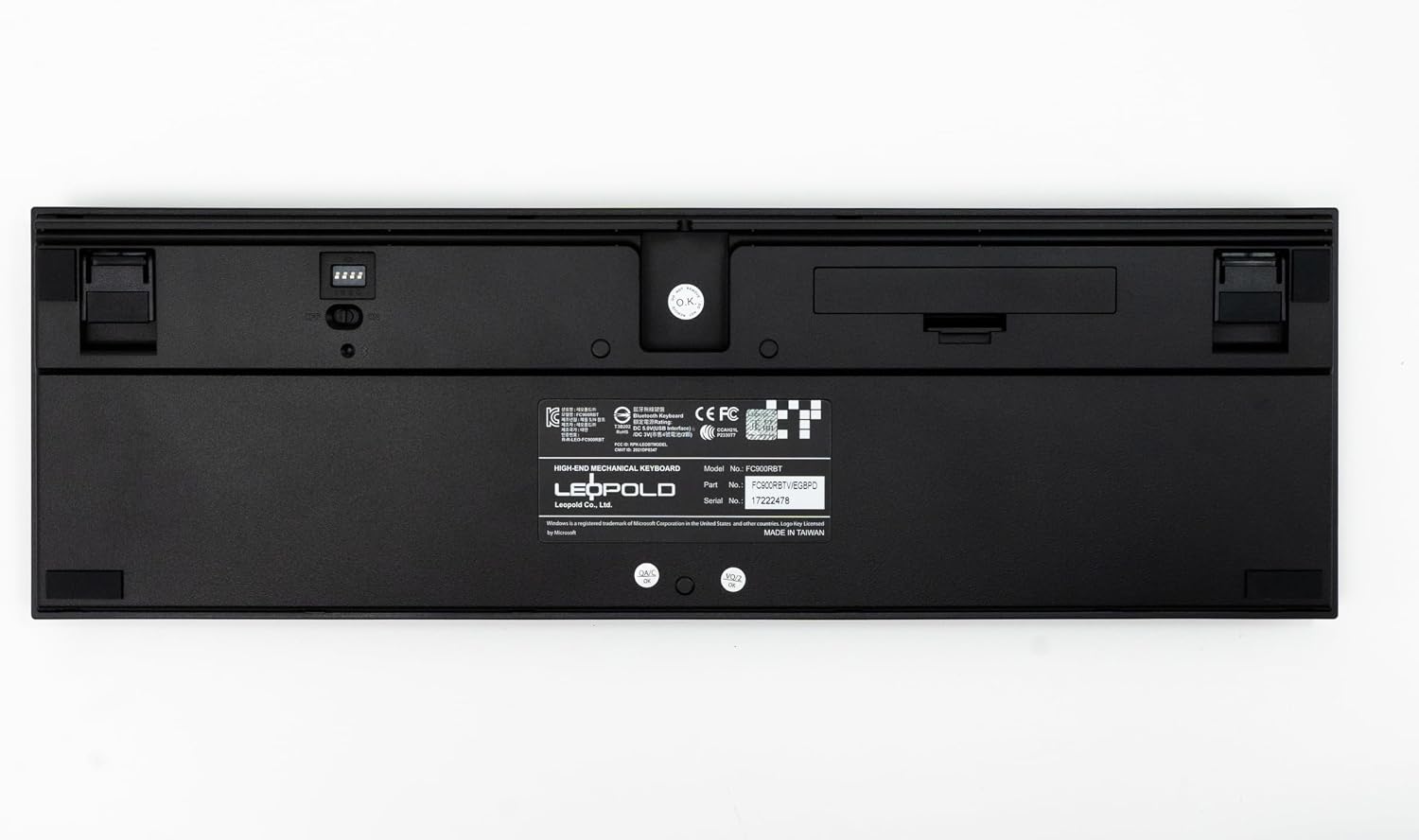
Image 2.1: Underside of the keyboard, illustrating the battery compartment and DIP switch locations.
3. Operating Instructions
3.1 Basic Keyboard Functions
The FC900RBT V2 functions as a standard full-size keyboard. All keys perform their labeled functions. For special characters and symbols, use the Shift key in combination with the relevant key.
3.2 Bluetooth Pairing and Device Switching
The keyboard can store up to four Bluetooth profiles. Use the function keys to manage connections:
- Fn + F1: Pair with Device 1 / Switch to Device 1
- Fn + F2: Pair with Device 2 / Switch to Device 2
- Fn + F3: Pair with Device 3 / Switch to Device 3
- Fn + F4: Pair with Device 4 / Switch to Device 4
To enter pairing mode for a specific slot, hold Fn + F[1-4] for 3 seconds until the LED indicator flashes, then connect from your device's Bluetooth settings. To switch between paired devices, press Fn + F[1-4] briefly.
3.3 Switching Connection Modes (Wired/Bluetooth)
The keyboard automatically prioritizes the wired USB-C connection when connected. To use Bluetooth, ensure the USB-C cable is disconnected.
3.4 DIP Switch Functions
The DIP switches on the underside of the keyboard allow for advanced key remapping and function changes. Refer to the diagram below and the included quick guide for specific configurations. Ensure the keyboard is disconnected from power before adjusting DIP switches.
| DIP Switch | Function (ON Position) |
|---|---|
| 1 | Caps Lock and Left Ctrl Swap |
| 2 | Alt and Windows Key Swap |
| 3 | Fn and Right Ctrl Swap |
| 4 | Windows Key Lock |
4. Maintenance
4.1 Cleaning the Keyboard
To maintain optimal performance and appearance:
- Disconnect the keyboard from your computer before cleaning.
- Use a soft, lint-free cloth slightly dampened with water or a mild cleaning solution to wipe the keycaps and case.
- Avoid spraying liquids directly onto the keyboard.
- For dust and debris between keycaps, use compressed air.
4.2 Keycap Removal and Replacement
The FC900RBT V2 features removable keycaps for cleaning or customization. Use a keycap puller (not included) to safely remove keycaps. Gently pull straight up on the keycap. When replacing, align the keycap with the switch stem and press down firmly until it clicks into place.
5. Troubleshooting
If you encounter issues with your keyboard, refer to the following common solutions:
- Keyboard not responding (Wired): Ensure the USB-C cable is securely connected to both the keyboard and the computer. Try a different USB port or cable. Restart your computer.
- Keyboard not responding (Bluetooth): Check if the batteries are correctly installed and have sufficient charge. Ensure Bluetooth is enabled on your device. Re-pair the keyboard with your device (refer to Section 3.2). Ensure the keyboard is not connected via USB-C.
- Keys not registering or double-typing: Clean around the affected keycap. If the issue persists, it may indicate a switch problem.
- Bluetooth connection drops frequently: Ensure the keyboard is within range of your device. Minimize interference from other wireless devices. Replace batteries if they are low.
- Incorrect key output: Check the DIP switch settings on the underside of the keyboard (refer to Section 3.4). Ensure no software remapping is active on your computer.
6. Specifications
| Feature | Detail |
|---|---|
| Brand | Leopold |
| Model | FC900RBT V2 |
| Keyboard Description | Mechanical |
| Switch Type | Cherry MX2A Red |
| Keycap Material | Double Shot PBT (Polybutylene Terephthalate) |
| Connectivity Technology | USB-C (Wired), Bluetooth 5.1 (Wireless) |
| Compatible Devices | Laptop, PC (Windows compatible) |
| Power Source | USB-C (Wired), 3x AAA Batteries (Bluetooth) |
| Included Components | USB-C Cable, 3x AAA Batteries |
| Special Feature | Bluetooth, Sound Absorbing Pad and Foam, FR4 Dual-Layer PCB |
7. Warranty and Support
Leopold products are manufactured to high-quality standards. For specific warranty terms and conditions, please refer to the warranty card included with your product or visit the official Leopold website. For technical support, product inquiries, or service, please contact Leopold customer support through their official channels.


