
Leopold FC900RBT V2
Leopold FC900RBT V2 Bluetooth Mechanical Keyboard User Manual
Model: FC900RBT V2 | Brand: Leopold
Introduction
Thank you for choosing the Leopold FC900RBT V2 Bluetooth Mechanical Keyboard. This manual provides detailed instructions for setting up, operating, and maintaining your new keyboard. The FC900RBT V2 features Cherry MX2A switches, double shot PBT keycaps, and advanced sound-absorbing technology for a superior typing experience. It supports both wired USB-C and wireless Bluetooth 5.1 connectivity.

Figure 1: Leopold FC900RBT V2 Bluetooth Mechanical Keyboard (Cherry MX2A Brown)
This image displays the full layout of the Leopold FC900RBT V2 keyboard from a top-down perspective. It highlights the standard 104-key layout, including the numeric keypad, function row, and navigation cluster. The keycaps are a combination of dark grey for most alphanumeric keys and a distinct blue for modifier keys and the escape key, providing a clear visual contrast. The overall design is clean and functional, emphasizing the mechanical nature of the keyboard.
Setup
Package Contents
- Leopold FC900RBT V2 Mechanical Keyboard
- USB-C to USB-A Cable
- 3 x AAA Batteries (pre-installed or included separately)
- User Manual (this document)
Battery Installation
The FC900RBT V2 is powered by three (3) AAA batteries for wireless operation. The battery compartment is located on the underside of the keyboard.
- Carefully flip the keyboard over to access the bottom panel.
- Locate the battery compartment cover.
- Slide or lift the cover to open the compartment.
- Insert three AAA batteries, ensuring correct polarity (+/-) as indicated inside the compartment.
- Replace the battery compartment cover securely.
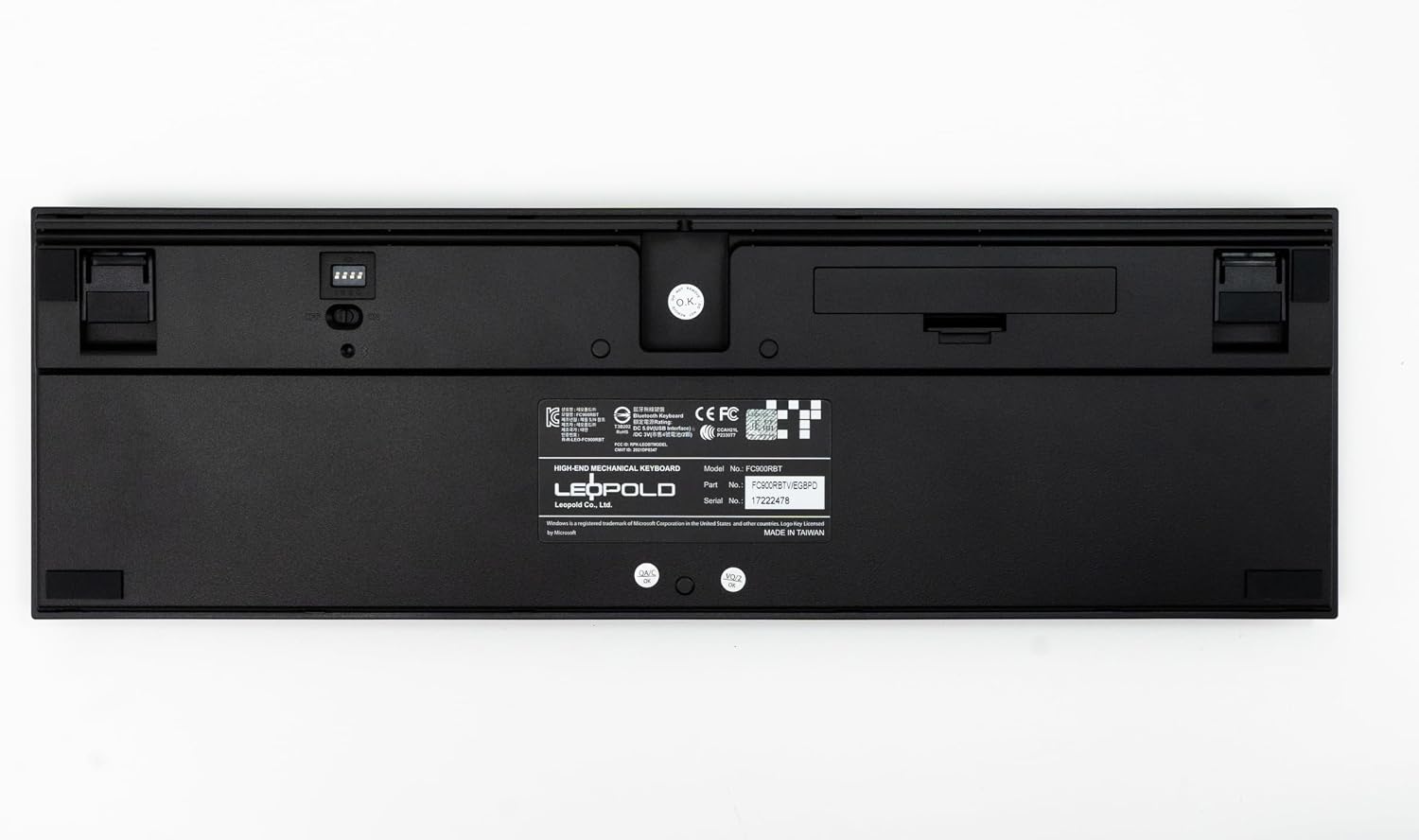
Figure 2: Underside of the Keyboard with Battery Compartment and DIP Switches
This image shows the bottom of the Leopold FC900RBT V2 keyboard. Prominently visible are the battery compartment, which houses three AAA batteries, and a set of DIP switches. These switches allow for hardware-level configuration changes, such as modifying key functions or operating modes. The overall design of the underside is clean, with rubber feet for stability and channels for cable management if used in wired mode.
Connectivity Options
The keyboard supports two primary connection methods:
- Wired Connection (USB-C): Connect the provided USB-C cable to the keyboard's USB-C port and the other end to an available USB-A port on your computer. The keyboard will be recognized automatically.
- Wireless Connection (Bluetooth 5.1): For wireless use, ensure batteries are installed and the keyboard's power switch (located on the underside, near the battery compartment) is turned ON.
Operating Instructions
Bluetooth Pairing
The FC900RBT V2 can store up to four Bluetooth profiles, allowing quick switching between devices.
- Ensure the keyboard is powered on (switch on the underside).
- Press and hold the Fn key + one of the Bluetooth profile keys (F1, F2, F3, or F4) for approximately 3 seconds until the LED indicator above the numeric keypad starts blinking rapidly. This indicates pairing mode.
- On your device (computer, laptop, etc.), navigate to Bluetooth settings.
- Search for new devices. The keyboard should appear as "Leopold FC900RBT V2" or similar.
- Select the keyboard and follow any on-screen prompts to complete the pairing process. You may be asked to type a code on the keyboard and press Enter.
- Once successfully paired, the LED indicator will stop blinking and remain solid for a few seconds before turning off.
To switch between paired devices, simply press Fn + the corresponding Bluetooth profile key (F1-F4) briefly. The keyboard will connect to the last paired device on that profile.
Key Features and Functions
- Cherry MX2A Brown Switches: Provides a tactile bump without an audible click, ideal for typing and gaming.
- Double Shot PBT Keycaps: Durable keycaps with legends that will not fade over time, offering a premium feel.
- Sound Absorbing Pads and Foam: Enhances acoustics by reducing typing noise and improving sound profile.
- FR4 Dual-Layer PCB Design: Ensures stability and longevity of the keyboard's internal components.
- Windows Compatibility: Fully compatible with Windows operating systems.

Figure 3: Angled View of the Keyboard
This image presents an angled view of the Leopold FC900RBT V2 keyboard, showcasing its ergonomic profile and the texture of the PBT keycaps. The contrast between the dark grey and blue keycaps is clearly visible, emphasizing the aesthetic design. The image also provides a good perspective on the overall build quality and the slight incline of the key rows, designed for comfortable typing.

Figure 4: Side Profile with Leopold Branding
This close-up side view of the Leopold FC900RBT V2 keyboard highlights the subtle yet distinct Leopold brand engraving on the side of the keyboard casing. The image also provides a clear look at the profile of the keycaps and the robust construction of the keyboard's frame, demonstrating attention to detail in its design.
Maintenance
Cleaning Your Keyboard
Regular cleaning helps maintain the performance and appearance of your keyboard.
- Disconnect the keyboard from your computer (if wired) or turn off the power (if wireless).
- Use a can of compressed air to blow away dust and debris from between the keycaps.
- Wipe the surface of the keycaps and casing with a soft, slightly damp, lint-free cloth. Avoid excessive moisture.
- For stubborn stains, a small amount of isopropyl alcohol on a cloth can be used, but avoid direct application to the keyboard.
- Do not use harsh chemicals, abrasive cleaners, or immerse the keyboard in liquid.
Keycap Removal (Optional)
If you need to clean under the keycaps or replace them, use a keycap puller (not included) to gently remove them. Pull straight up to avoid damaging the switch stem. When reattaching, align the keycap with the switch stem and press down gently until it clicks into place.
Troubleshooting
| Problem | Possible Cause | Solution |
|---|---|---|
| Keyboard not responding (Wired) | Loose cable connection, faulty USB port, driver issue. |
|
| Keyboard not connecting (Bluetooth) | Keyboard off, low batteries, not in pairing mode, device Bluetooth off, interference. |
|
| Specific keys not working | Debris under keycap, faulty switch. |
|
Resetting the Keyboard
If you experience persistent issues, a factory reset may resolve them. Consult the official Leopold website or support for specific reset procedures, as these can vary.
Specifications
| Feature | Detail |
|---|---|
| Model | FC900RBT V2 |
| Brand | Leopold |
| Connectivity Technology | USB-C (Wired), Bluetooth 5.1 (Wireless) |
| Keyboard Description | Mechanical |
| Switch Type | Cherry MX2A Brown |
| Keycap Material | Double Shot PBT (Polybutylene Terephthalate) |
| Power Source | 3 x AAA Batteries (for Bluetooth), USB-C (for Wired) |
| Compatible Devices | Laptop, PC (Windows compatible) |
| Special Features | Bluetooth, Sound Absorbing Pad and Foam, FR4 Dual-Layer PCB |
| Color | Blue/Grey (Cherry MX2A Brown variant) |
Warranty and Support
Warranty Information
Leopold products are manufactured to high quality standards. For specific warranty terms and conditions, please refer to the warranty card included with your product or visit the official Leopold website. Keep your proof of purchase for warranty claims.
Customer Support
If you encounter any issues not covered in this manual or require further assistance, please contact Leopold customer support. You can find contact information on the official Leopold website or through your retailer.
Official Leopold Store: Leopold Store on Amazon
Related documentsFC900RBT V2


Ask a question about this manual
Ask about setup, troubleshooting, compatibility, parts, safety, or missing instructions. Manuals+ will review the question and use this page’s manual context to help answer it.