
1. Introduction
Thank you for choosing the Tobo Mobile Game Controller (TD-1280GA). This wireless gamepad is designed to enhance your mobile gaming experience across multiple platforms, including iOS, Android, PC, PS4, and Nintendo Switch. It features responsive analog triggers, Hall effect joysticks, clickable thumbsticks, turbo functionality, dual vibration (on supported platforms), 6-axis gyro (on supported platforms), and two programmable back buttons. Please read this manual carefully to ensure proper setup and operation.

Image 1.1: Tobo Mobile Game Controller with a smartphone.
2. Product Overview
Familiarize yourself with the various components of your Tobo Mobile Game Controller.

Image 2.1: Detailed view of the controller with labeled components.
- Left Joystick (L3): For directional control and clickable input.
- Right Joystick (R3): For camera control/aiming and clickable input.
- D-Pad: Directional pad for precise movement.
- A/B/X/Y Buttons: Standard action buttons.
- L1/L2 (LT) Triggers: Left shoulder and trigger buttons.
- R1/R2 (RT) Triggers: Right shoulder and trigger buttons.
- HOME Button: Power on/off and mode switching.
- SELECT Button: Function button.
- START Button: Function button.
- M1/M2 Buttons: Programmable back buttons.
- Indicator Lights: Show connection status and battery level.
- Type-C Charging Port: For charging the controller.
- Reset Button: Located near the charging port, requires an ejection pin to press.
3. Setup
3.1 Initial Charging
Before first use, fully charge the controller. Connect the provided Type-C charging cable to the controller's charging port and a suitable USB power source. The charging indicator light will stay on during charging. If the controller does not power on after charging, press the reset key to reboot it.
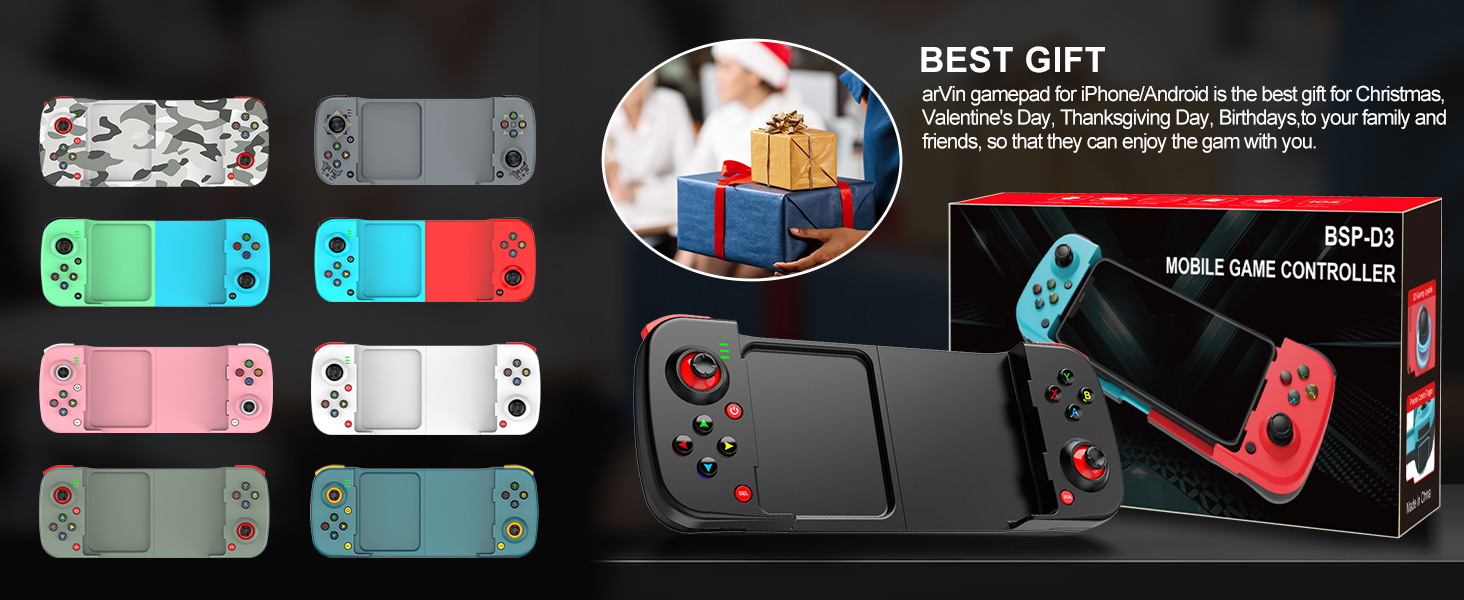
Image 3.1: Controller connected for Type-C charging.
3.2 Power On/Off
- To Power On: Press and hold the HOME button for 2 seconds.
- To Power Off: Press and hold the HOME button for 5 seconds until the indicator lights turn off.
3.3 Bluetooth Connection
The controller supports various connection modes for different operating systems. Select the appropriate mode before pairing.

Image 3.2: Bluetooth boot modes for different platforms.
- iOS Devices (iPhone, iPad):
Press and hold B + HOME buttons simultaneously. The controller will appear as "Wireless Controller" in your device's Bluetooth settings. - PC (Windows):
Press and hold RB + HOME buttons simultaneously. The controller will appear as "Xbox Wireless Controller" in your PC's Bluetooth settings. - Android Devices (General):
Press and hold X + HOME buttons simultaneously. The controller will appear as "D3" in your device's Bluetooth settings. - Android Devices (for COD Mobile, Apex Legends Mobile, Diablo Immortal):
Press and hold RB + HOME buttons simultaneously. The controller will appear as "Xbox Wireless Controller" in your device's Bluetooth settings. Note: In COD gaming interface, if prompted to choose a controller model, please select 'XBOX'.
4. Operating Instructions
4.1 Supported Devices and Platforms
This controller is compatible with:
- Most Android devices (version 6.0 and up)
- Most iOS devices (version 13.0 and up), including iPhone 15/14/13/12/11/X/8/7/6/SE series, iPad/Pro/Air/mini.
- Windows devices (version 10.0 and up)
- PS4 and Nintendo Switch (vibration and 6-axis gyro supported on these platforms and PC only).
4.2 Turbo Function
The controller features a 3-speed adjustable turbo function to adapt to different games:
- 8 shoots/s
- 15 shoots/s
- 25 shoots/s
Refer to the controller's specific button combinations for activating and adjusting turbo speeds.
4.3 Macro Programming
The two back keys (M1 and M2) are programmable. You can assign them to A/B/X/Y/L1/L2/R1/R2/D-Pad functions to customize your gameplay experience. Consult the controller's specific instructions for programming these buttons.
4.4 Supported Games and Streaming
The TD-1280GA supports direct play for many controller-supported games on iOS/Android/PC, such as Call of Duty Mobile, Genshin Impact, and Grand Theft Auto. It also supports cloud gaming services like Xbox Cloud Gaming (Game Pass) and streaming to consoles via apps like PS Remote Play, Xbox mobile app, and Steam Link.
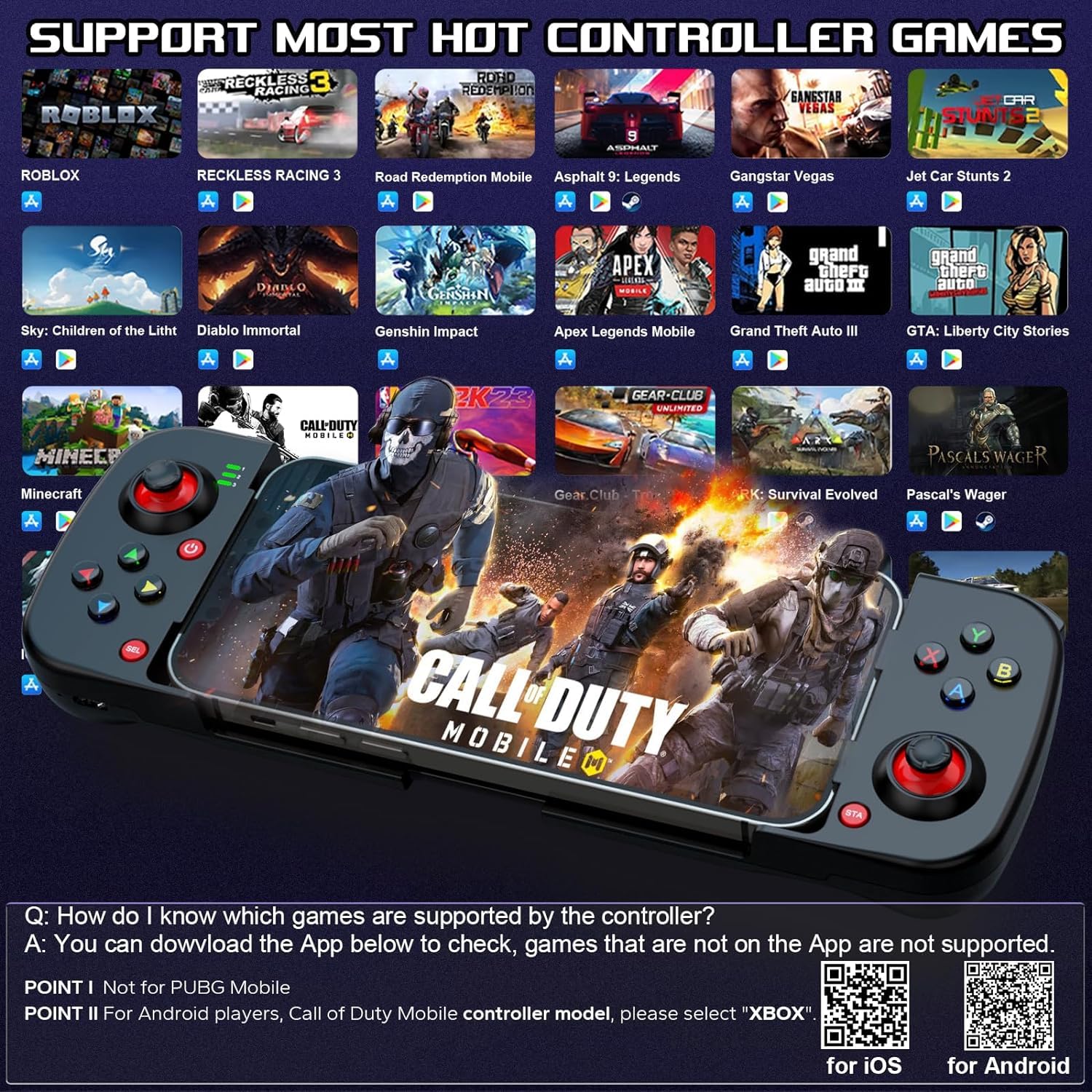
Image 4.1: Examples of supported games.
To check for supported games, you can download the Ludu Mapp application:
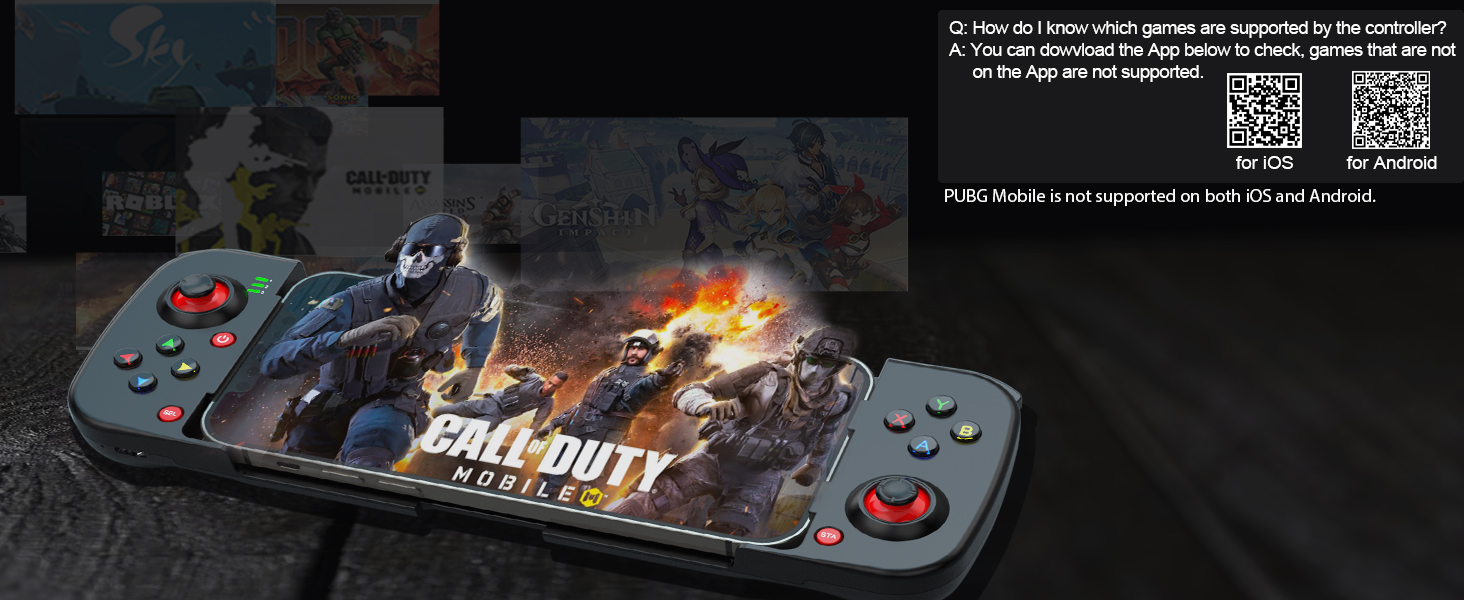
Image 4.2: QR codes for Ludu Mapp application.
- For iOS: Ludu Mapp on Apple App Store
- For Android: Ludu Mapp on Google Play Store
Note: PUBG Mobile is not supported on both iOS and Android with this controller.
4.5 Phone Case Compatibility
The controller features a sunken design to accommodate most phone cases, protecting your device's camera from scratches.
4.6 Stretchable Design
The controller's stretchable design can accommodate smartphones ranging from 4.9 to 6.9 inches (128-175mm) in length.
5. Maintenance
To ensure the longevity and optimal performance of your controller:
- Keep the controller clean by wiping it with a soft, dry cloth.
- Avoid exposing the controller to extreme temperatures, humidity, or direct sunlight.
- Do not disassemble the controller, as this may void the warranty.
- Store the controller in a safe place when not in use to prevent damage.
6. Troubleshooting
6.1 Controller Not Turning On
If your game controller does not turn on:
- Ensure the controller is fully charged.
- Restart the controller by gently pressing the reset button with an ejection pin (not included). The reset button is a small pinhole located near the Type-C charging port.
- Verify you are selecting the correct Bluetooth connection mode for your phone's operating system (refer to Section 3.3).

Image 6.1: Location of the reset button and Type-C port.
6.2 Connection Issues
- Ensure Bluetooth is enabled on your device.
- Delete previous pairings from your device's Bluetooth list and try pairing again.
- Move the controller closer to your device to ensure a strong Bluetooth signal.
- Restart both your device and the controller.
7. Specifications
| Feature | Detail |
|---|---|
| Model Number | TD-1280GA |
| Product Dimensions | 25.1 x 11.2 x 4.6 cm |
| Item Weight | 60 g |
| Battery | 1 Lithium Ion battery (included) |
| Battery Capacity | 400 mAh (approx. 15-18 hours working time, 2-3 hours charging time) |
| Connectivity | Bluetooth 5.0 (10m wireless connection) |
| Country of Origin | China |
| Manufacturer | Tobo Digital |
8. Warranty and Support
For warranty information, please refer to the documentation provided with your purchase. For technical support or inquiries, you may contact Tobo Digital at the following helpline number:
Helpline: +91-22-49722666
Please retain your proof of purchase for any warranty claims.