
1. Introduction
This manual provides detailed instructions for the installation, operation, and maintenance of your ELUTENG 4-Port PCI Express USB 3.2 Gen1 Expansion Card. This card is designed to add four high-speed USB ports (two USB-A and two USB-C) to your desktop computer, enhancing connectivity for various peripherals. Please read this manual carefully before installation and use to ensure proper function and safety.

Image 1.1: ELUTENG 4-Port PCI Express USB 3.2 Gen1 Expansion Card
2. Safety Information
- Always power off your computer and disconnect it from the power source before opening the case or installing any internal components.
- Discharge any static electricity from your body by touching a grounded metal object (e.g., the computer chassis) before handling the expansion card.
- Handle the card by its edges to avoid touching the components or gold connectors.
- Ensure the card is correctly seated in the PCIe slot to prevent damage.
- Do not attempt to modify the card or use it for purposes other than its intended design.
3. Package Contents
Please verify that all items are present in your package:
- ELUTENG 4-Port PCI Express USB 3.2 Gen1 Expansion Card
- Mounting Screws
- Low-profile bracket (for small form factor cases)
- Driver CD (for older Windows versions)
4. Setup and Installation
Follow these steps to install the ELUTENG USB Expansion Card into your desktop PC:
- Prepare Your Computer: Power off your computer completely and unplug the power cord. Open the computer case.
- Locate an Available PCIe Slot: Identify an available PCI Express slot (X1, X4, X8, or X16) on your motherboard. Remove the metal bracket cover from the corresponding slot on the back of your computer case.
- Install the Expansion Card: Carefully align the expansion card with the chosen PCIe slot and press it down firmly until it is securely seated. Ensure the metal bracket of the card aligns with the opening in the case.
- Secure the Card: Use a screw to secure the card's metal bracket to the computer case.
- Close the Case: Replace the computer case cover and reconnect the power cord.
- Driver Installation:
- Windows 11/10/8: The card is typically plug-and-play. Drivers should install automatically upon system startup.
- Windows 7/XP/Vista: You may need to install drivers manually from the provided CD or download them from the ELUTENG official website.
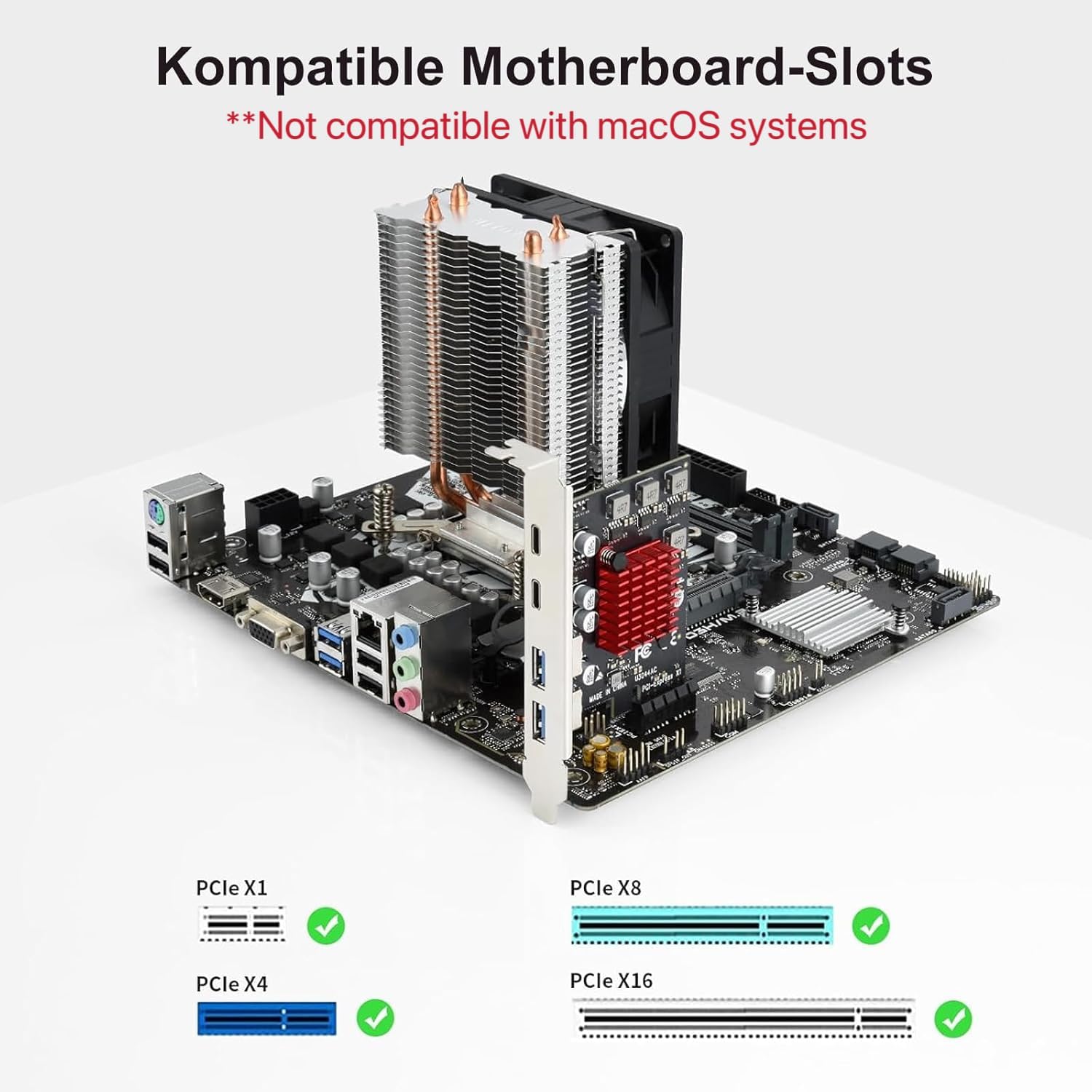
Image 4.1: Compatible PCIe Slots (X1, X4, X8, X16)
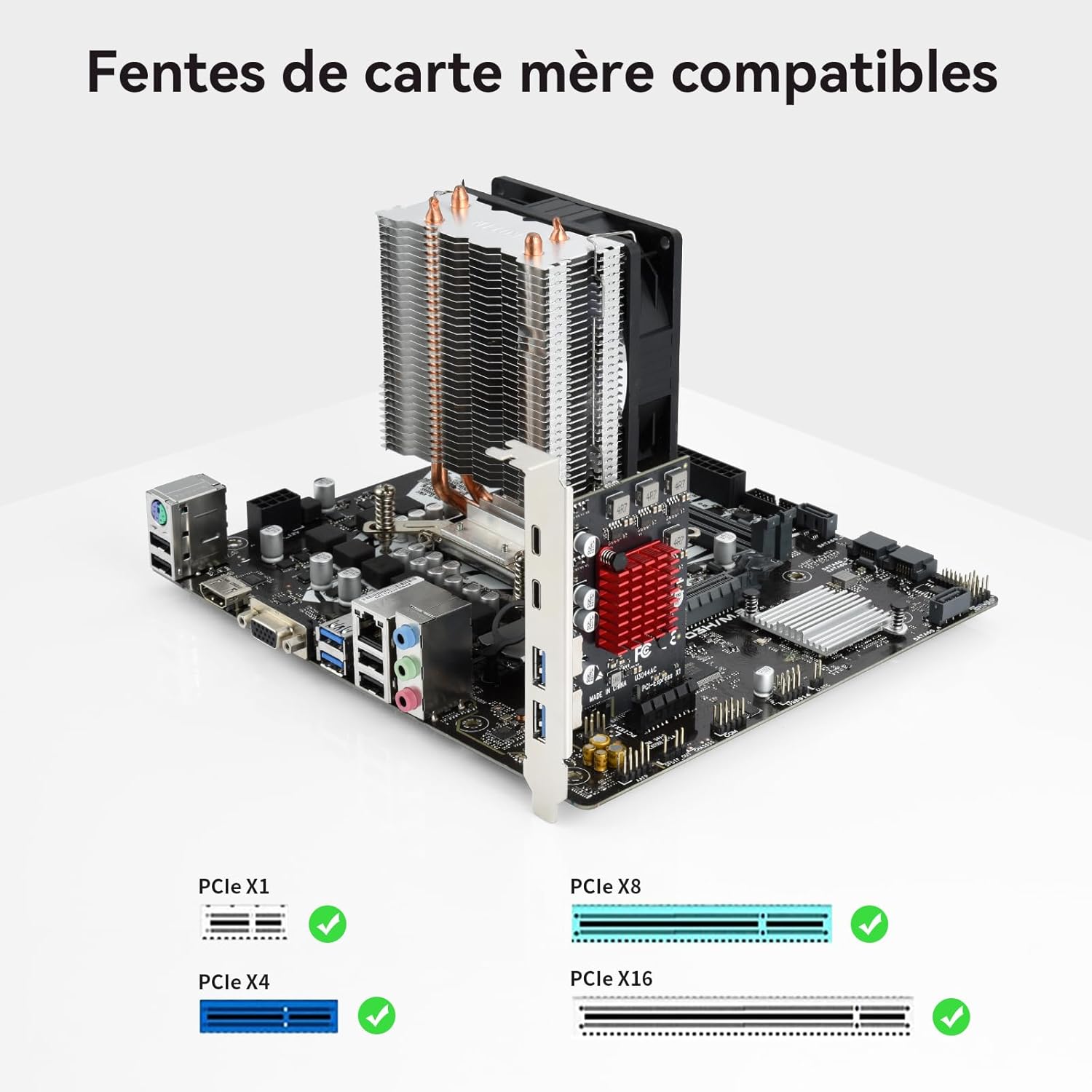
Image 4.2: Installation Steps
5. Operating Instructions
Once installed and drivers are recognized, your ELUTENG expansion card is ready for use. It provides two USB-A ports and two USB-C ports.
- Connecting Devices: Simply plug your USB 3.2 Gen1 (or older compatible) devices into the available USB-A or USB-C ports.
- Data Transfer Speed: The card supports data transfer speeds of up to 5Gbps (USB 3.2 Gen1 theoretical value). Actual transfer speeds may vary depending on the connected device, cable quality, and system performance.
- Power Supply: The card draws power directly from the PCIe slot and does not require an external power adapter. Each port operates independently for stable power delivery.
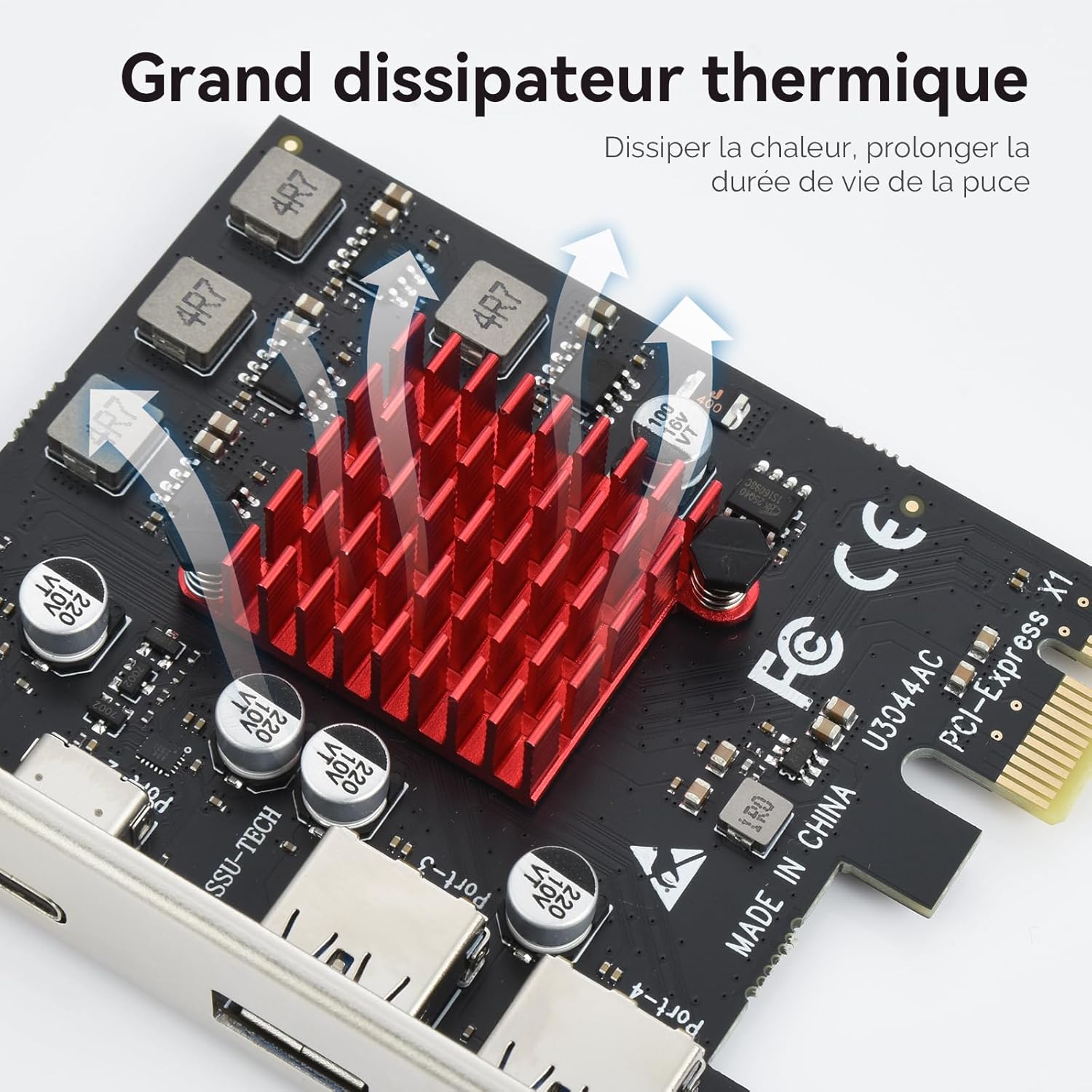
Image 5.1: USB-A and USB-C Ports with 5Gbps Speed
6. Maintenance
The ELUTENG expansion card is designed for durability and requires minimal maintenance. To ensure optimal performance and longevity:
- Keep Your PC Clean: Regularly clean the interior of your computer case to prevent dust buildup, which can hinder heat dissipation and affect component performance.
- Ensure Proper Airflow: Make sure your computer case has adequate ventilation to prevent overheating of internal components, including the expansion card. The card features an aluminum alloy heatsink for efficient heat dissipation.
- Avoid Physical Damage: Do not subject the card to physical shock or excessive force.

Image 6.1: Efficient Heat Dissipation with Aluminum Heatsink
7. Troubleshooting
If you encounter issues with your ELUTENG expansion card, refer to the following troubleshooting tips:
- Card Not Detected:
- Ensure the card is fully and securely seated in the PCIe slot.
- Try installing the card in a different PCIe slot if available.
- Verify that your motherboard's BIOS/UEFI settings are configured to enable PCIe slots.
- Devices Not Recognized or No Power:
- Check if the connected USB device requires external power.
- Ensure the card is receiving sufficient power from the PCIe slot. While no external power is needed, a faulty PCIe slot could cause issues.
- Test with different USB devices and cables to rule out device-specific problems.
- Slow Data Transfer Speeds:
- Ensure you are using USB 3.2 Gen1 compatible devices and cables. Older USB 2.0 devices will operate at their native slower speeds.
- Verify that the drivers are correctly installed, especially for Windows 7/XP/Vista.
- Driver Installation Issues (Windows 7/XP/Vista):
- Use the provided driver CD or download the latest drivers from the ELUTENG support website.
- Disable antivirus software temporarily during driver installation if it interferes.
- Incompatibility with macOS: Please note that this expansion card is not compatible with macOS systems, as stated in the product specifications.
8. Specifications
| Feature | Specification |
|---|---|
| Model Number | E10E68 |
| Interface | PCI Express X1 (Compatible with X4, X8, X16 slots) |
| Ports | 2 x USB-A, 2 x USB Type-C |
| Data Transfer Speed | Up to 5Gbps (USB 3.2 Gen1) |
| Chipset | NEC720201 |
| Operating System Compatibility | Windows 11/10/8/7/XP/Vista, Linux (Not compatible with macOS) |
| Dimensions | 15.5 x 13.1 x 2.6 cm |
| Weight | 100 g |
| Power Supply | PCIe Bus Power (No external power required) |

Image 8.1: Operating System Compatibility (Note: macOS is not supported despite image showing it)
9. Warranty and Support
ELUTENG products are designed for reliability and performance. For specific warranty details, please refer to the warranty information provided with your purchase or visit the official ELUTENG website.
If you require technical assistance or have questions not covered in this manual, please contact ELUTENG customer support through the retailer where you purchased the product or via the official ELUTENG support channels.