
1. Introduction
Thank you for choosing the VEVSHAO V30 Mini Projector. This portable DLP projector offers a 1920x1080P resolution, smart Android 9.0 system, built-in 15000mAh battery, auto-focus, and 3D support. This manual provides detailed instructions to help you set up, operate, and maintain your projector for optimal performance.
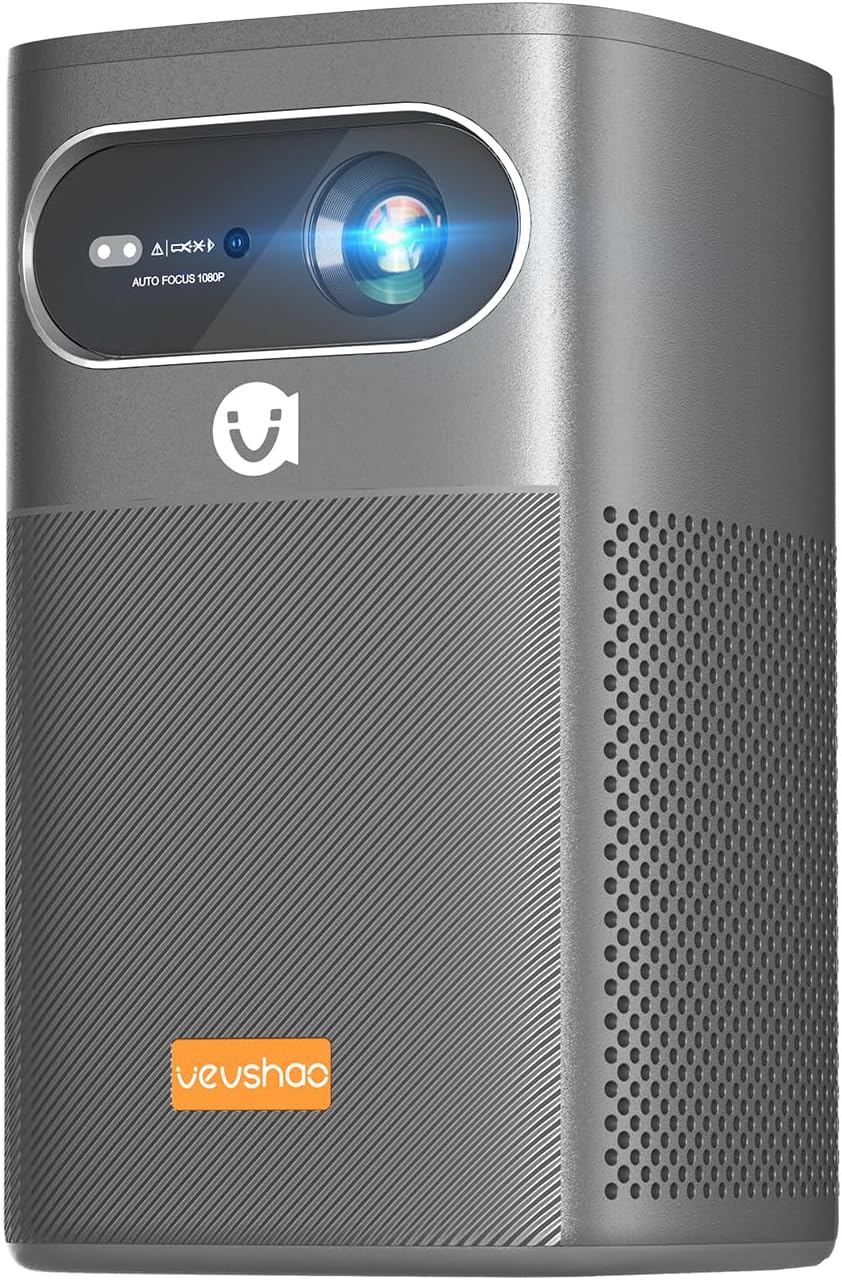
Image 1.1: VEVSHAO V30 Mini Projector front view.
2. Safety Information
Please read all safety instructions carefully before using the projector. Keep this manual for future reference.
- Do not look directly into the projector lens when the lamp is on, as it may cause eye damage.
- Do not place the projector in unstable locations.
- Avoid exposing the projector to rain, moisture, or extreme temperatures.
- Ensure proper ventilation to prevent overheating. Do not block ventilation openings.
- Use only accessories specified by the manufacturer.
- Do not attempt to repair the projector yourself. Refer all servicing to qualified personnel.
- Keep the projector away from heat sources and open flames.
3. Package Contents
Verify that all items are present in the package:
- VEVSHAO V30 Mini Projector
- Power Adapter/Charger
- Remote Control
- Storage Bag
- User Manual (this document)
- (Optional: HDMI Cable, USB Cable, Tripod - check your specific package)
4. Setup
4.1 Powering On and Charging
The VEVSHAO V30 features a built-in 15000mAh rechargeable battery, providing 2 to 3 hours of usage on a single charge.
- To Power On: Press and hold the power button on the projector or remote control.
- To Charge: Connect the power adapter to the projector's DC input port and plug it into a power outlet. The battery indicator will show charging status.

Image 4.1: Projector showing battery and charging capabilities.
4.2 Placement and Positioning
Position the projector on a stable, flat surface or mount it on a tripod. Ensure the projection path is clear of obstructions. The V30's compact size (9.5 x 9.5 x 16.2 cm, 0.87 Kg) makes it highly portable.

Image 4.2: The VEVSHAO V30's portable design.
4.3 Auto-Focus and Keystone Correction
The VEVSHAO V30 features ultra-fast TOF autofocus and automatic all-round keystone correction. This eliminates the need for manual adjustments, ensuring a clear and rectangular image automatically.

Image 4.3: Automatic focus and keystone correction in action.
4.4 Connectivity
The projector supports various input methods:
- Wi-Fi: For wireless screen projection from smartphones, tablets, and laptops.
- HDMI: Connect external devices like laptops, gaming consoles, or TV boxes.
- USB: Play media directly from USB flash drives.
- DC Input: For power and charging.

Image 4.4: Available connectivity ports on the VEVSHAO V30.
5. Operating Instructions
5.1 Smart System Navigation
The VEVSHAO V30 runs on Android 9.0, providing access to various applications. Pre-installed apps include YouTube and Netflix.
- Use the remote control to navigate the Android interface.
- You can download additional applications from the app store.
- Important: Do not upgrade pre-installed programs, as this may cause errors.
5.2 Wireless Screen Projection
Connect your iPhone, Android smartphone, tablet, or laptop wirelessly to the projector via Wi-Fi for screen mirroring.
- Ensure both the projector and your device are connected to the same Wi-Fi network.
- Select the screen mirroring/wireless display function on the projector's menu.
- On your mobile device, activate screen mirroring (e.g., AirPlay for iOS, Smart View/Cast for Android) and select the VEVSHAO V30 from the list of available devices.

Image 5.1: Wireless screen projection from a smartphone.
5.3 3D Functionality
The VEVSHAO V30 supports shutter 3D function, allowing for an immersive cinematic experience.
- To enjoy 3D content, you will need compatible active shutter 3D glasses (sold separately).
- Ensure your media content is in a supported 3D format.
- Activate the 3D mode in the projector settings if it doesn't automatically detect 3D content.

Image 5.2: Immersive 3D viewing experience.
5.4 Audio Output
The projector includes built-in stereo speakers for audio playback. You can also connect external audio devices via Bluetooth or the audio output port (if available).

Image 5.3: Projector with integrated stereo speakers.
6. Maintenance
6.1 Cleaning the Projector
- Lens: Use a soft, lint-free cloth specifically designed for optical lenses. Do not use abrasive cleaners.
- Body: Wipe the projector's exterior with a soft, dry cloth. For stubborn marks, slightly dampen the cloth with water.
- Ventilation: Periodically check and gently clean the ventilation openings to ensure proper airflow and prevent dust buildup.
6.2 Storage
When not in use for extended periods, store the projector in its included storage bag in a cool, dry, and dust-free environment.
7. Troubleshooting
If you encounter issues with your VEVSHAO V30 projector, refer to the following common problems and solutions:
| Problem | Possible Cause / Solution |
|---|---|
| No Power / Projector Not Turning On |
|
| Image is Blurry / Out of Focus |
|
| Image is Distorted / Not Rectangular (Keystone) |
|
| No Signal / No Picture from Input Source |
|
| Wi-Fi Connectivity Issues |
|
| Volume Glitch (Volume changes unexpectedly) |
|
| Pre-installed Apps Not Working After Update |
|
8. Specifications
Key technical specifications for the VEVSHAO V30 Mini Projector:
| Feature | Detail |
|---|---|
| Brand | VEVSHAO |
| Model Number | V30 |
| Display Technology | DLP |
| Native Resolution | 1920 x 1080 Pixels (1080P Full HD) |
| Operating System | Android 9.0 |
| Battery Capacity | 15000mAh (approx. 2-3 hours usage) |
| Connectivity | Wi-Fi, HDMI, USB |
| Special Features | 3D-Ready, Auto Focus, Built-In 3D, Built-In Speaker, Wi-Fi Ready |
| Product Dimensions | 9.5 x 9.5 x 16.2 cm |
| Item Weight | 1.91 Kilograms |
| Voltage | 5 Volts |
| Wattage | 18 watts |
| Form Factor | Portable |
| Mounting Type | Tripod Mount |

Image 8.1: Visual representation of 1080P Full HD resolution.
9. Warranty and Support
The VEVSHAO V30 projector comes with a 1-year warranty.
For any questions, technical assistance, or warranty claims, please contact VEVSHAO customer support. Refer to the contact information provided with your purchase or visit the official VEVSHAO website for support details.
VEVSHAO - Light Every Dream.