
TECKNET EKB005
TECKNET Wireless Keyboard User Manual
Model: EKB005 | Brand: TECKNET
1. Product Overview
The TECKNET Wireless Keyboard (Model EKB005) offers versatile connectivity and an ergonomic design for enhanced productivity across multiple devices. This full-size UK layout keyboard features a rechargeable battery, quiet typing experience, and multi-device switching capabilities.

Figure 1.1: TECKNET Wireless Keyboard (White) with USB receiver.
2. Setup and Connection
This keyboard supports four distinct connection modes, allowing seamless switching between up to four devices.
2.1 Charging the Keyboard
Before initial use, fully charge the keyboard using the provided USB-C cable. Connect the USB-C end to the keyboard's charging port and the USB-A end to a power source (e.g., computer USB port, USB wall adapter).
- A full charge takes approximately 2 hours.
- A fully charged battery can last up to 180 days with estimated 2 hours of daily use.
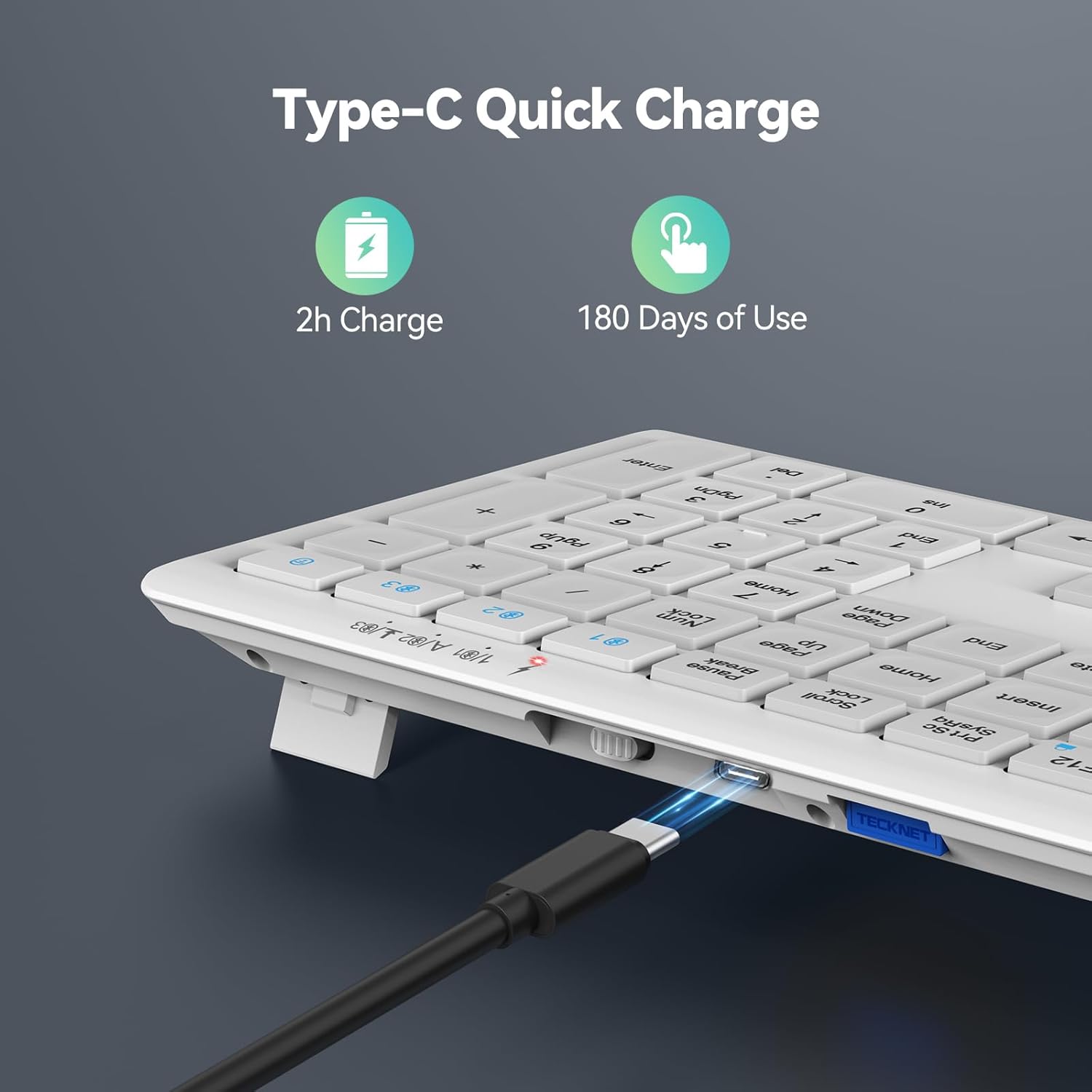
Figure 2.1: Keyboard connected for charging via its Type-C port.
2.2 Connection Modes
The keyboard offers three Bluetooth 5.0 channels and one 2.4GHz wireless channel.

Figure 2.2: The keyboard supports connection to four different devices simultaneously.
2.2.1 2.4GHz Wireless Connection (USB Receiver)
- Locate the USB receiver, typically stored in a compartment on the back of the keyboard.
- Plug the USB receiver into an available USB port on your computer or device.
- Turn on the keyboard using the power switch located on the back.
- The keyboard should automatically connect to the device via the 2.4GHz channel (indicated by the '4' LED).
2.2.2 Bluetooth Connection (BT1, BT2, BT3)
- Turn on the keyboard.
- Press and hold the desired Bluetooth channel key (BT1, BT2, or BT3) for 3-5 seconds until its indicator light flashes rapidly. This indicates pairing mode.
- On your device (computer, tablet, phone), enable Bluetooth and search for new devices.
- Select "TECKNET Keyboard" or a similar name from the list of available devices to complete the pairing process. The indicator light will stop flashing once connected.
- Repeat for other Bluetooth channels to connect to additional devices.
3. Operating Instructions
Understand the key functions and features for optimal use of your TECKNET keyboard.
3.1 Switching Between Devices
To switch between connected devices, simply press the corresponding channel key (BT1, BT2, BT3, or 2.4G) once. The keyboard will quickly switch to the selected device.
- BT1, BT2, BT3: For Bluetooth-connected devices.
- 2.4G (often labeled '4' or with a wireless icon): For the device connected via the USB receiver.

Figure 3.1: Multi-function keys and device switching buttons.
3.2 Function Keys (Fn)
The keyboard features multimedia and shortcut keys accessible by pressing the Fn key in combination with the F1-F12 keys. Refer to the key legends for specific functions (e.g., volume control, media playback, brightness adjustment).
3.3 Typing Experience
The keyboard utilizes an upgraded scissor-structure design for a quiet and comfortable typing experience, reducing noise by over 90% compared to traditional keyboards. The keycaps feature silk screen + matte UV design for durability.

Figure 3.2: The keyboard's design significantly reduces typing noise.
3.4 Ergonomic Design
The ultra-thin profile, low-profile keys, adjustable support buckles, and five anti-slip pads contribute to an ergonomic design that minimizes hand fatigue during extended typing sessions.

Figure 3.3: Adjustable support feet for comfortable typing angle.
4. Maintenance
Proper care ensures the longevity and performance of your keyboard.
4.1 Battery Management
The keyboard is equipped with a 500mAh rechargeable lithium battery. To maximize battery life:
- Charge the keyboard fully when the battery indicator is low.
- The keyboard features an auto-sleep mode that activates after 30 minutes of inactivity to conserve power. It wakes instantly with any key press.
- For prolonged storage, turn off the keyboard using the power switch on the back.

Figure 4.1: The 500mAh rechargeable battery supports auto-sleep for power saving.
4.2 Cleaning
To clean the keyboard:
- Turn off the keyboard before cleaning.
- Use a soft, lint-free cloth slightly dampened with water or a mild cleaning solution.
- Avoid excessive moisture and do not spray cleaners directly onto the keyboard.
- For debris between keys, use compressed air.
5. Troubleshooting
Common issues and their solutions.
5.1 Connection Issues
- Keyboard not connecting:
- Ensure the keyboard is turned on and fully charged.
- For Bluetooth, ensure your device's Bluetooth is enabled and the keyboard is in pairing mode (rapidly flashing LED).
- For 2.4GHz, ensure the USB receiver is securely plugged into a working USB port.
- Try pressing Fn + Spacebar to confirm the current connection channel.
- Remove previous pairings from your device's Bluetooth settings and try pairing again.
- Lag or dropped connection:
- Ensure the keyboard is within the effective range of your device (typically up to 10 meters for Bluetooth).
- Minimize interference from other wireless devices (e.g., Wi-Fi routers, other Bluetooth devices).
- Recharge the keyboard if the battery is low.
5.2 Keys Not Responding
- Check battery level and charge if necessary.
- Ensure the keyboard is connected to the correct device channel.
- Restart your device and reconnect the keyboard.
- Clean any debris that might be under the non-responsive keys.
6. Specifications
| Attribute | Detail |
|---|---|
| Brand | TECKNET |
| Model Number | EKB005 |
| Connectivity Technology | Bluetooth 5.0 (x3), 2.4GHz Wireless (USB-A) |
| Compatible Devices | Laptop, PC, Desktop, Tablet, Smartphone |
| Compatible Operating Systems | Windows, iOS, macOS, Android, Chrome OS, Linux |
| Battery Capacity | 500mAh Rechargeable Lithium Battery |
| Charging Time | Approx. 2 hours |
| Battery Life | Up to 180 days (2 hours daily use) |
| Number of Keys | 110 |
| Key Life | Up to 10 million clicks |
| Dimensions (L x W x H) | 42.5 x 12 x 1.5 cm |
| Item Weight | 640 g |
| Special Features | Spill Proof, Round Key, Ergonomic, Low-Profile Key, Rechargeable, Auto-Sleep |

Figure 6.1: Wide compatibility across various operating systems.
7. Warranty and Support
TECKNET products are designed for reliability and performance. For warranty information and customer support, please refer to the details below.
7.1 Warranty Information
This product typically comes with a standard manufacturer's warranty. Customers may be eligible to extend their warranty by registering for membership. Please refer to the product packaging or the official TECKNET website for the most current and detailed warranty terms and conditions, including information on how to register for an extended warranty (e.g., 36 months upon registration).
7.2 Customer Support
For technical assistance, troubleshooting, or warranty claims, please contact TECKNET customer support through their official website or the contact information provided in your product packaging. When contacting support, please have your product model number (EKB005) and purchase details ready.
Visit the official TECKNET Store for more information: TECKNET Store on Amazon
Related documentsEKB005


Ask a question about this manual
Ask about setup, troubleshooting, compatibility, parts, safety, or missing instructions. Manuals+ will review the question and use this page’s manual context to help answer it.