
Introduction
This manual provides comprehensive instructions for the installation, operation, and maintenance of your upHere E240KC 240mm AIO Liquid CPU Cooler. Please read this manual thoroughly before installation and retain it for future reference. Proper installation and care will ensure optimal performance and longevity of your cooling system.

Image: The upHere E240KC 240mm AIO Liquid CPU Cooler, showcasing its radiator, fans, and pump unit with illuminated ARGB lighting.
What's in the Box
Carefully unpack the contents and ensure all items are present:
- Water Cooling Unit (Radiator, Fans, Pump, Tubing)
- Mounting Hardware for Intel (LGA 1851/1700/115x/1200/2011/2066)
- Mounting Hardware for AMD (AM5/AM4)
- Thermal Paste

Image: A visual representation of the included components, including thermal paste and various mounting brackets for different CPU sockets.
Specifications
| Feature | Specification |
|---|---|
| Product Dimensions | 11"L x 5.5"W x 5.5"H (277mm L x 120mm W x 62mm H) |
| Weight | 3.5 Pounds |
| TDP Support | Up to 280W |
| Pump Speed | 800-2500 RPM ±10% |
| Fan Speed | 600-1800 RPM ±10% (PWM controlled) |
| Airflow | 71 CFM |
| Static Pressure | 2.67mm/H2O |
| Noise Level | ≤ 27dB(A) (Fans), ≤ 30dB (Pump) |
| Compatibility | Intel LGA 1851/1700/115x/1200/2011/2066, AMD AM5/AM4 |
| Power Connector Type | 4-Pin |
| Material | Aluminum, Copper, Plastic |
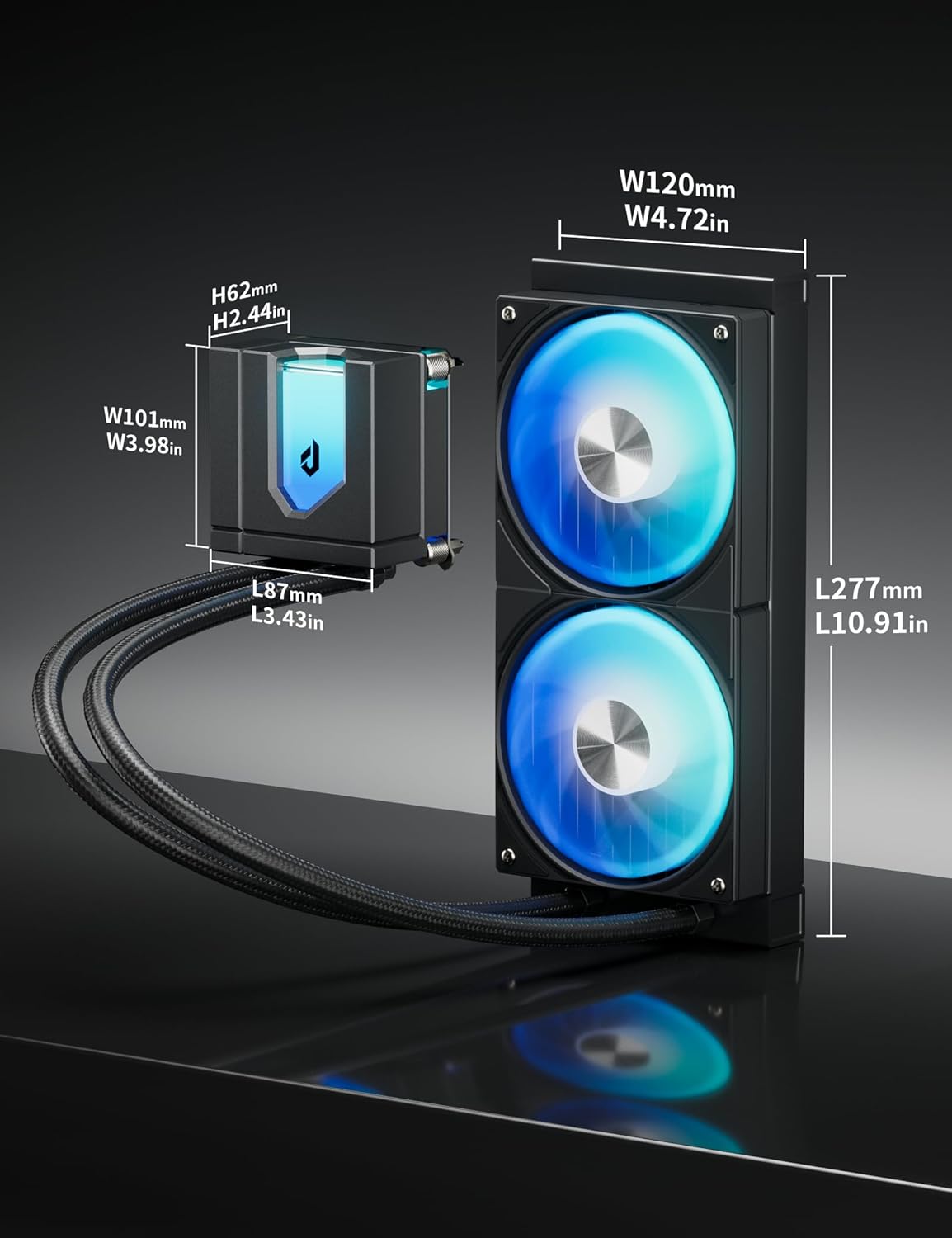
Image: Technical drawing illustrating the dimensions of the cooler's components.
Setup and Installation
Follow these steps carefully to install your upHere E240KC AIO Liquid CPU Cooler. Refer to the video for a visual guide.
Installation Video Guide
Video: A detailed installation guide for the upHere E360 Series AIO CPU Cooler, which shares similar installation steps with the E240KC model.
General Installation Steps:
- Prepare the Motherboard: Identify your CPU socket type (Intel or AMD) and select the appropriate mounting hardware. For Intel, assemble the backplate and secure it to the motherboard. For AMD, utilize the existing AM4/AM5 backplate.
- Apply Thermal Paste: Clean the CPU surface. Apply a small amount of the included thermal paste to the center of the CPU. Use the spreader to create a thin, even layer, or apply a pea-sized dot if the cooler will spread it automatically.
- Mount the Pump/Cold Plate: Carefully place the pump/cold plate assembly onto the CPU, aligning the mounting holes. Secure it with the appropriate screws and standoffs, tightening them in a diagonal pattern until snug. Do not overtighten.
- Install the Radiator: Mount the radiator to an available fan mounting location in your PC case (e.g., top, front, or rear). Ensure the fans are oriented to provide optimal airflow (intake or exhaust) based on your case's cooling strategy. Secure the radiator with the provided screws.
- Connect Cables:
- Connect the pump's 4-pin PWM cable to the CPU_FAN or AIO_PUMP header on your motherboard.
- Connect the fan's 4-pin PWM cables to available fan headers on your motherboard or a fan controller.
- Connect the 5V ARGB cables from the pump and fans to a compatible 3-pin 5V ARGB header on your motherboard or an ARGB controller for lighting synchronization.

Image: The upHere E240KC cooler fully installed within a PC case, demonstrating its aesthetic integration and lighting.
Operating Instructions
The upHere E240KC AIO Liquid CPU Cooler is designed for efficient and quiet operation. Once installed, the system will automatically manage fan and pump speeds based on CPU temperature, provided it is connected to PWM headers.
ARGB Lighting Synchronization
The cooler features 15 ARGB LED beads in the pump head and ARGB-equipped fans. To customize lighting effects:
- Ensure the 5V ARGB cables are connected to a compatible 3-pin 5V ARGB header on your motherboard.
- Use your motherboard's RGB software (e.g., ASUS Aura Sync, MSI Mystic Light Sync, Gigabyte RGB Fusion, ASRock Polychrome Sync) to control and synchronize the lighting.
- If using an external ARGB controller, refer to the controller's manual for specific instructions.
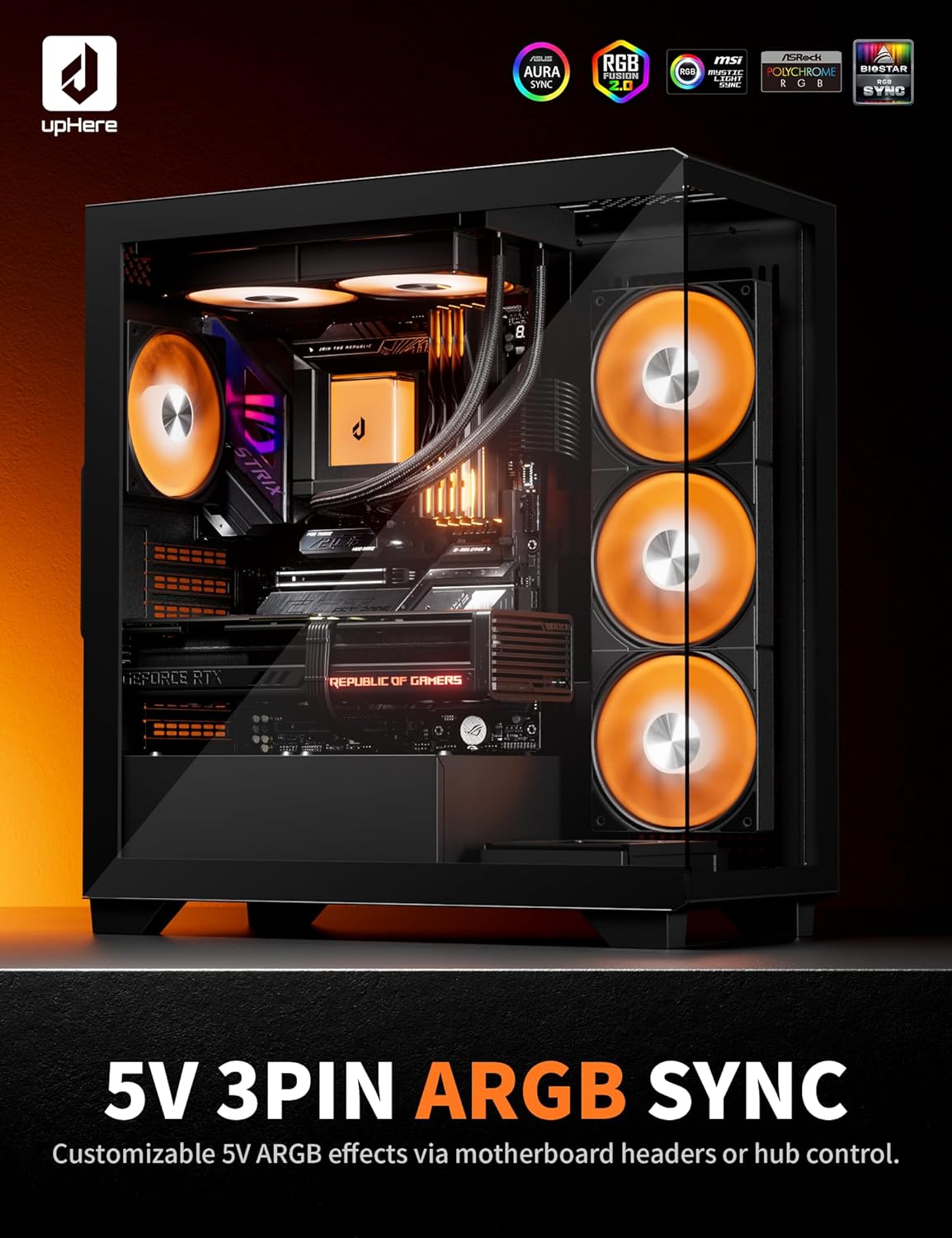
Image: A computer system with the upHere AIO cooler installed, demonstrating synchronized ARGB lighting across multiple components.
Magnetic Pump Cover
The pump head features a magnetically attached cover, allowing for easy removal and customization. This design provides dual-view aesthetic options.

Image: A close-up view of the magnetic pump cover, highlighting its removable design for aesthetic customization.
Maintenance
Regular maintenance helps ensure the optimal performance and longevity of your AIO cooler.
- Dust Cleaning: Periodically clean the radiator fins and fan blades to prevent dust buildup, which can impede airflow and cooling performance. Use compressed air or a soft brush.
- Check Tubing and Connections: Inspect the tubing for any kinks, leaks, or damage. Ensure all connections are secure.
- Pump Inspection: The magnetic pump cover can be easily removed for visual inspection of the pump unit.
Troubleshooting
If you encounter issues with your upHere E240KC AIO cooler, refer to the following common troubleshooting tips:
- No Power/No Lights:
- Check all power connections (SATA power for pump, fan headers for fans, ARGB headers for lighting).
- Ensure the motherboard's ARGB header is enabled in the BIOS/UEFI or software.
- High CPU Temperatures:
- Verify the pump is running (you might feel a slight vibration or hear a faint hum).
- Ensure the cold plate is making proper contact with the CPU. Re-seat if necessary, applying fresh thermal paste.
- Check fan orientation and ensure they are spinning. Clean any dust buildup on the radiator.
- Confirm fan and pump speeds are set correctly in BIOS/UEFI or fan control software.
- Unusual Noises:
- A gurgling sound might indicate air bubbles in the loop. Gently tilt your PC case to help move air bubbles to the radiator.
- Rattling or grinding noises could indicate a faulty fan or pump. Contact support if the noise persists.
Product Overview Video
Watch this video for a general overview of the upHere E360 Series CPU Liquid Cooler, highlighting its features and design. Note that the E240KC model shares similar characteristics.
Video: An overview of the upHere E360 Series CPU Liquid Cooler, demonstrating its features, ARGB lighting, and overall design.
Warranty and Support
upHere products are manufactured to high-quality standards. For warranty information, technical support, or service inquiries, please refer to the official upHere website or contact their customer service directly. Keep your proof of purchase for warranty claims.