
ZTE ZTEU10sPro
ZTE U10S PRO 4G Mobile WiFi6 Hotspot User Manual
Model: ZTEU10sPro | Brand: ZTE
Introduction
This manual provides detailed instructions for the setup, operation, maintenance, and troubleshooting of your ZTE U10S PRO 4G Mobile WiFi6 Hotspot. Please read this manual carefully before using the device to ensure proper functionality and to maximize its performance.

Figure 1: Front view of the ZTE U10S PRO 4G Mobile WiFi6 Hotspot, displaying its screen and compact design.

Figure 2: The ZTE U10S PRO hotspot held in a hand, illustrating its compact size and portability for on-the-go use.
Setup Guide
Follow these steps to set up your ZTE U10S PRO hotspot for the first time.
1. Inserting the SIM Card and Battery
- Carefully remove the back cover of the device.
- Locate the SIM card slot. Ensure the SIM card is of the correct size (usually Nano-SIM) and insert it with the gold contacts facing down, following the diagram near the slot.
- Insert the provided Lithium-ion battery into its compartment, ensuring the contacts align correctly.
- Replace the back cover until it clicks into place.
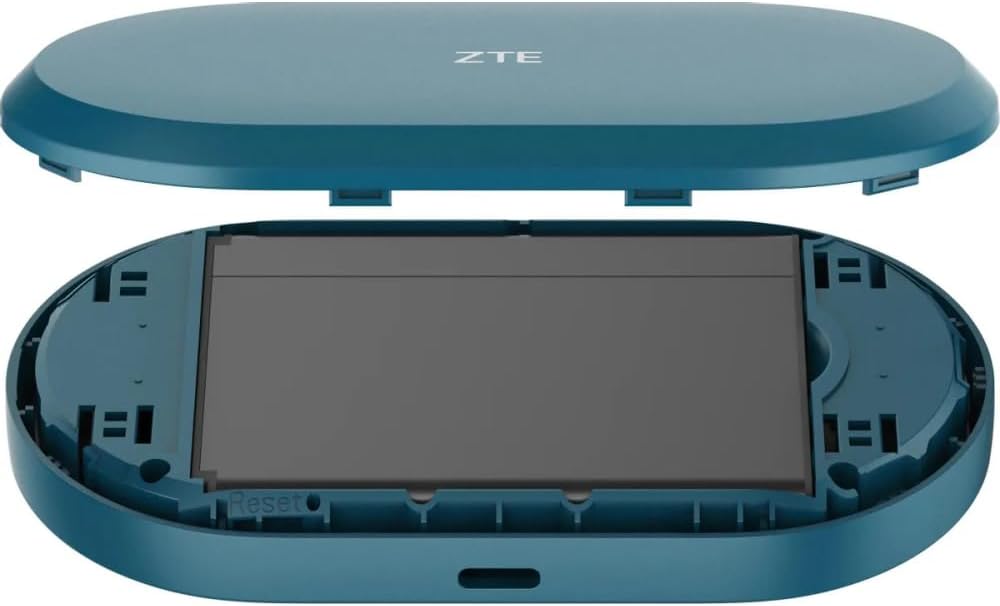
Figure 3: View of the ZTE U10S PRO with the back cover removed, illustrating the battery compartment and SIM card slot for easy installation.
2. Initial Power On and Configuration
- Press and hold the power button (located on the side/top) until the screen illuminates.
- The device will boot up and attempt to connect to the 4G network. The screen will display network status, signal strength, and battery level.
- Note the default Wi-Fi network name (SSID) and password displayed on the device's screen or on a sticker inside the battery compartment.
- Important: If your SIM card has a PIN lock enabled, the device may not connect to the network. You will need to disable the PIN lock using a mobile phone or by accessing the hotspot's web management interface (refer to the Operating section for details).
Operating Instructions
Learn how to use your ZTE U10S PRO hotspot effectively.
1. Connecting Devices to the Hotspot
- Ensure the ZTE U10S PRO is powered on.
- On your Wi-Fi enabled device (smartphone, tablet, laptop, game console), search for available Wi-Fi networks.
- Select the network name (SSID) that matches your hotspot's default or customized name.
- Enter the Wi-Fi password when prompted.
- Once connected, your device will have internet access via the hotspot's 4G connection. The hotspot supports connection for up to 32 Wi-Fi devices simultaneously.

Figure 4: The ZTE U10S PRO Mobile Broadband Hotspot in use, demonstrating its ability to connect multiple Wi-Fi devices such as tablets, mobile phones, and laptops.
2. Understanding the Display and Indicators
The device's screen provides real-time information:
- Signal Strength: Bars indicating the strength of the 4G network signal.
- Battery Level: Icon showing the remaining battery charge.
- Wi-Fi Status: Indicates if Wi-Fi is active and if devices are connected.
- Messages/Notifications: Icons for new messages or system alerts.
- Data Usage: May display current data usage (check settings for configuration).
3. Charging the Device
To charge the ZTE U10S PRO, connect the provided USB cable to the device's charging port and plug the other end into a USB power adapter or a computer's USB port. The battery indicator on the screen will show charging status. Ensure the device is fully charged before first use for optimal battery life.

Figure 5: The ZTE U10S PRO hotspot connected to a power source via a USB cable, indicating its charging capability.
Maintenance
Proper maintenance ensures the longevity and optimal performance of your hotspot.
- Cleaning: Use a soft, dry cloth to clean the device. Avoid using liquid cleaners or aerosols.
- Battery Care:
- Avoid exposing the battery to extreme temperatures.
- Do not leave the device uncharged for extended periods.
- If storing the device for a long time, charge the battery to about 50% before storage.
- Software Updates: Periodically check the manufacturer's website or the device's web management interface for available firmware updates to ensure the best performance and security.
Troubleshooting
Here are solutions to common issues you might encounter.
No Internet Connection
- Check SIM Card: Ensure the SIM card is correctly inserted and activated with a data plan.
- PIN Lock: If your SIM card has a PIN lock, you must disable it. This can often be done by inserting the SIM into a smartphone and disabling the PIN via phone settings, or by accessing the hotspot's web management interface (usually 192.168.0.1 or 192.168.1.1 in a web browser while connected to the hotspot's Wi-Fi).
- Signal Strength: Check the signal indicator on the hotspot's screen. Move to an area with better 4G coverage if the signal is weak.
- Data Limit: Verify if your data plan has been exhausted.
- Reboot: Turn off the hotspot, wait a few seconds, and then turn it back on.
Slow Connection Speed
- Network Congestion: Speed can vary based on network traffic in your area.
- Distance from Hotspot: Ensure your connected devices are within optimal Wi-Fi range.
- Number of Connected Devices: Too many devices connected simultaneously can reduce speed.
- Interference: Other electronic devices might cause Wi-Fi interference.
Device Not Powering On
- Battery Charge: Ensure the battery is charged. Connect the device to a power source and try again.
- Battery Insertion: Verify the battery is correctly inserted.
Factory Reset
If issues persist, you may need to perform a factory reset. This will erase all custom settings and restore the device to its original factory defaults. Locate the small reset button (often recessed) near the SIM card slot or battery compartment. Use a paperclip to press and hold the button for about 5-10 seconds until the device restarts.
Figure 6: The internal view of the ZTE U10S PRO, highlighting the location of the reset button, typically found near the SIM card slot or battery.
Specifications
| Feature | Detail |
|---|---|
| Brand | ZTE |
| Model Number | ZTEU10sPro |
| Color | Black |
| Connections | LTE (4G) |
| Battery Composition | Lithium-ion |
| Rechargeable Battery | Yes |
| Wi-Fi Standard | WiFi6 (802.11ax compatible) |
| Max Connected Devices | Up to 32 |
Warranty and Support
For warranty information and technical support, please refer to the documentation included with your purchase or visit the official ZTE website. Specific warranty terms and support contact details may vary by region.
Ask a question about this manual
Ask about setup, troubleshooting, compatibility, parts, safety, or missing instructions. Manuals+ will review the question and use this page’s manual context to help answer it.