
1. Product Overview
The STUDIOFINIX 4-Channel Mini Bluetooth Amplifier is designed to power passive speakers, offering versatile connectivity options including Bluetooth 5.1, TWS, AUX, MIC, and USB. Its compact design allows for easy integration into various audio setups, from home entertainment to marine applications.
Key Features
- Universal Compatibility: Suitable for wall-mounted, ceiling-mounted, marine, bookshelf, and other passive speakers.
- Bluetooth 5.1: Ensures faster transmission speed, longer distance, and stable performance for wireless audio streaming.
- Easy Installation: Small and lightweight design for convenient placement on flat surfaces or within pre-cut speaker openings.
- Multi-Functional: Supports Bluetooth, TWS (True Wireless Stereo), AUX, MIC, and USB inputs, along with MONO output.
What's in the Box
- 4-Channel Bluetooth Amplifier Box (x1)
- 24V5A Power Adapter (x1)
- User Manual (x1)
- Screwdriver (x1)
- Screws (x2)
- Power Cord (x1)

Image: Contents of the package, including the amplifier, power adapter, power cord, screwdriver, screws, and user manual.
2. Product Diagram and Controls
Familiarize yourself with the amplifier's layout and control functions.
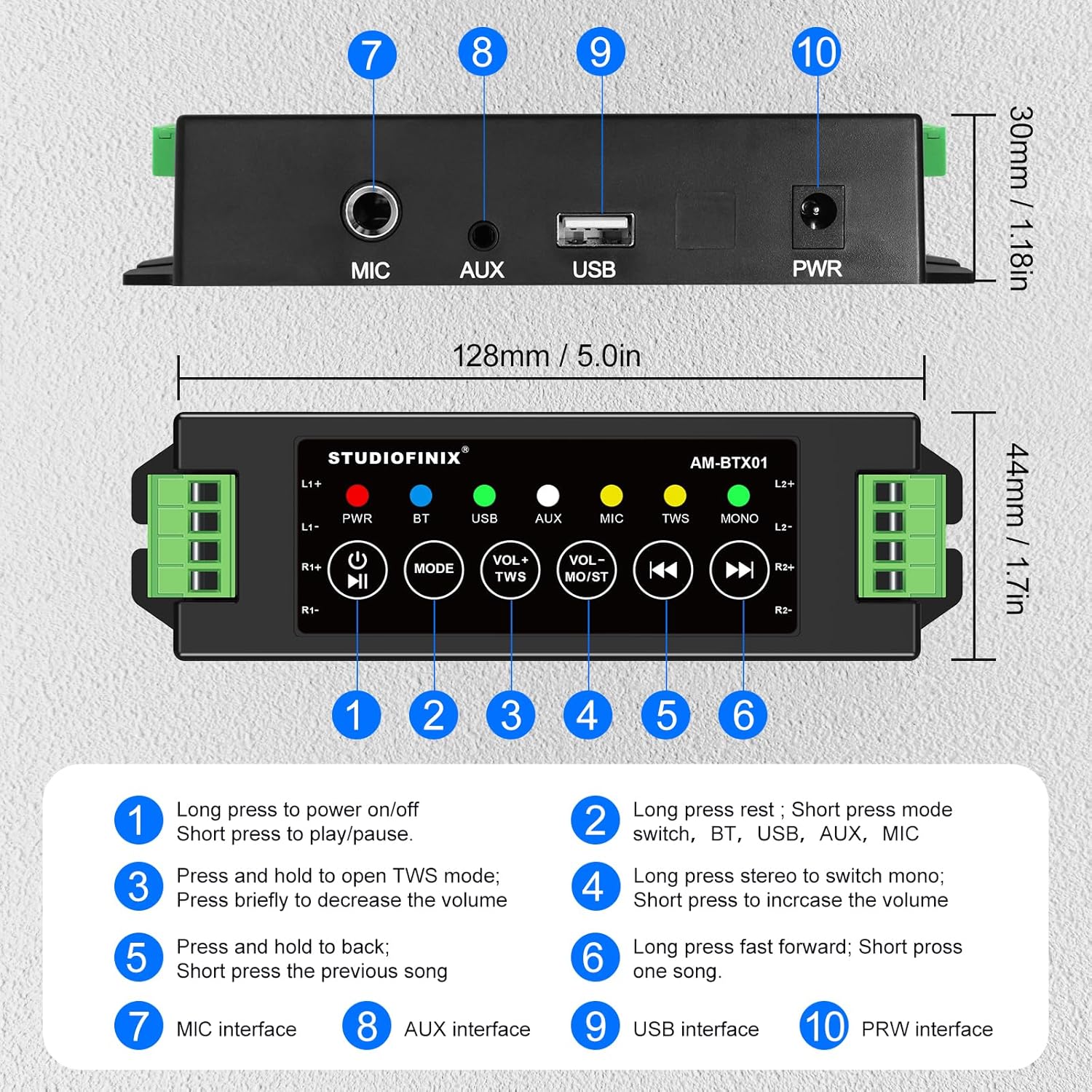
Image: Top and rear view of the amplifier, highlighting numbered controls and interfaces.
Control Functions
| No. | Control/Interface | Function |
|---|---|---|
| 1 | Power Button / Play/Pause | Long press to power on/off. Short press to play/pause audio. |
| 2 | Mode Button | Long press to reset. Short press to switch between BT, USB, AUX, and MIC modes. |
| 3 | VOL- / TWS Button | Press and hold to open TWS mode. Briefly press to decrease the volume. |
| 4 | VOL+ / MONO Button | Long press to switch between stereo and mono output. Briefly press to increase the volume. |
| 5 | Previous Track Button | Press and hold to fast backward. Short press for the previous song. |
| 6 | Next Track Button | Long press to fast forward. Short press for the next song. |
| 7 | MIC Interface | Input for microphone connection. |
| 8 | AUX Interface | Input for auxiliary audio devices. |
| 9 | USB Interface | Input for USB audio sources. |
| 10 | PWR Interface | Power input for the 24V5A adapter. |
3. Setup and Installation
Connecting Passive Speakers
The amplifier supports up to four passive speakers. Ensure proper polarity when connecting speaker wires.
- Identify the positive (+) and negative (-) terminals on your passive speakers.
- Connect the positive (+) wire from each speaker to the corresponding L1+, L2+, R1+, R2+ terminals on the amplifier.
- Connect the negative (-) wire from each speaker to the corresponding L1-, L2-, R1-, R2- terminals on the amplifier.
- Use the included screwdriver to secure the speaker wires in the terminal blocks.
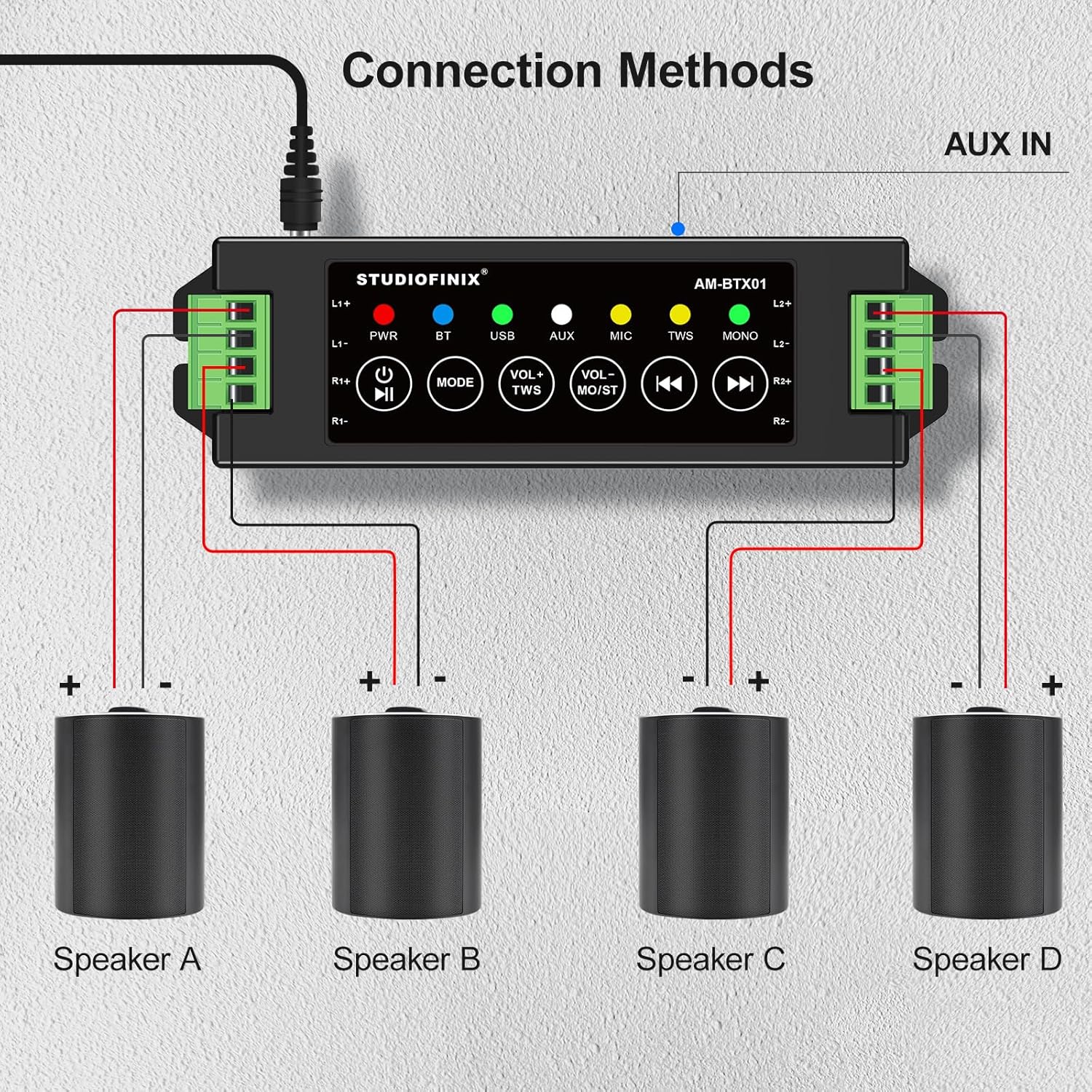
Image: Visual guide for connecting four speakers to the amplifier's output terminals.
Power Connection
Connect the provided 24V5A power adapter to the PWR interface (10) on the amplifier, then plug the adapter into a suitable power outlet.

Image: Detail of the amplifier's power input (PWR) and auxiliary input (AUX) ports.
4. Operation
Power On/Off
Long press the Power Button (1) to turn the amplifier on or off. The PWR indicator light will illuminate when the device is powered on.
Bluetooth Pairing
- Ensure the amplifier is powered on and in Bluetooth (BT) mode. The BT indicator light will flash, indicating it's ready for pairing.
- On your mobile device (smartphone, tablet, etc.), enable Bluetooth and search for available devices.
- Select "STUDIOFINIX" or a similar name from the list of devices to pair.
- Once paired, the BT indicator light will become solid, and you will hear a confirmation tone.
TWS (True Wireless Stereo) Mode
TWS mode allows you to pair two STUDIOFINIX amplifiers for a true wireless stereo experience.
- Ensure both amplifiers are powered on and not connected to any Bluetooth device.
- On one amplifier, press and hold the VOL- / TWS Button (3) until you hear a confirmation tone, indicating TWS pairing mode.
- The two amplifiers will automatically search and pair with each other. Once paired, one amplifier will act as the master and the other as the slave.
- Now, connect your mobile device to the master amplifier via Bluetooth as described above. Audio will play through both amplifiers in stereo.

Image: Visual representation of two amplifiers being paired using the TWS function.
Input Mode Selection (AUX, USB, MIC)
Short press the Mode Button (2) to cycle through the available input modes: Bluetooth (BT), USB, AUX, and MIC. The corresponding indicator light will illuminate for the active mode.
Volume Control and Playback
- Volume Adjustment: Briefly press the VOL- / TWS Button (3) to decrease volume, and the VOL+ / MONO Button (4) to increase volume.
- Play/Pause: Short press the Power Button (1) to play or pause audio.
- Previous/Next Track: Short press the Previous Track Button (5) for the previous song, and the Next Track Button (6) for the next song.
- Fast Forward/Backward: Long press the Previous Track Button (5) to fast backward, and the Next Track Button (6) to fast forward.
Mono/Stereo Switching
Long press the VOL+ / MONO Button (4) to switch the audio output between stereo and mono modes. The MONO indicator light will show the current setting.
5. Troubleshooting
| Problem | Possible Cause | Solution |
|---|---|---|
| No power | Power adapter not connected or faulty. | Ensure the power adapter is securely connected to the amplifier and a working power outlet. Check if the power adapter is functional. |
| No sound from speakers | Incorrect speaker wiring; volume too low; wrong input mode selected; device not paired. | Verify speaker wire connections for correct polarity. Increase volume. Ensure the correct input mode (BT, AUX, USB, MIC) is selected. Confirm Bluetooth device is paired. |
| Bluetooth not connecting | Amplifier not in pairing mode; device too far; interference. | Ensure the amplifier is in BT mode and the BT indicator is flashing. Move your device closer to the amplifier. Avoid strong electromagnetic interference. Try resetting Bluetooth on both devices. |
| TWS pairing failed | One or both amplifiers already paired; incorrect TWS activation. | Ensure both amplifiers are unpaired from other Bluetooth devices. Follow TWS pairing instructions carefully, initiating TWS mode on only one amplifier first. |
| Poor sound quality | Low quality audio source; speaker impedance mismatch; loose connections. | Use high-quality audio files. Ensure speakers are compatible with the amplifier's output. Check all cable connections. |
6. Specifications
| Feature | Detail |
|---|---|
| Brand | STUDIOFINIX |
| Model Number | RM |
| Speaker Maximum Output Power | 120 Watts |
| Connectivity Technology | Bluetooth |
| Audio Output Mode | Stereo |
| Mounting Type | Wall Mount, Ceiling Mount |
| Enclosure Material | Plastic Or Metal |
| Number of Audio Channels | 4.0 |
| Wireless Technology | Bluetooth |
| Connectivity Protocol | AUX, Bluetooth |
| Control Method | Touch |
| Item Weight | 0.53 Kilograms |
| Compatible Devices | Laptop, Smartphone, Tablet |
| Power Source | Corded Electric |
7. Safety Information
- Do not expose the amplifier to water or excessive moisture.
- Avoid placing the device near heat sources or in direct sunlight.
- Use only the provided power adapter to prevent damage.
- Do not attempt to open or repair the device yourself. Refer to qualified service personnel.
- Keep out of reach of children.
8. Product Video
Video: An official product video from Studiofinix Direct demonstrating the 4-Channel Mini Bluetooth Amplifier for Passive Speakers, showcasing its features and functionality.
9. Warranty and Support
This STUDIOFINIX product comes with a limited warranty. For detailed warranty information or technical support, please refer to the contact information provided in your product packaging or visit the official STUDIOFINIX website.

