Introduction
The KEYCOOL K19 Wireless Numeric Keyboard is a versatile and ergonomic peripheral designed for enhanced productivity across various operating systems. Featuring triple mode connectivity, hot-swappable switches, and a multi-function knob, this keypad offers a customizable and efficient user experience. This manual provides detailed instructions for setup, operation, maintenance, and troubleshooting to ensure optimal performance of your K19 numeric keyboard.
Key Features
- Triple Mode Connectivity: Seamlessly switch between wired (USB-C), Bluetooth 5.0, and 2.4GHz wireless connections for maximum flexibility.
- Hot-Swappable Switches: Customize your typing experience by easily changing 3-pin or 5-pin mechanical switches without soldering.
- Multi-Function Knob: Control RGB lighting effects, adjust volume, and manage media functions with a versatile rotary knob.
- RGB Backlighting: Enjoy dynamic and customizable RGB lighting modes to personalize your setup.
- Gasket Mounted Structure: Designed with imported PORON foam tape for a pleasant and satisfying typing sound.
- Ergonomic Design: Features a sloped keyboard and durable PBT keycaps for comfortable and long-lasting use.
- Wide Compatibility: Compatible with Windows, Mac, Linux, Android, and iOS systems.

Image: Overview of the K19 Mechanical Numeric Keypad's core features.
Package Contents
Upon opening your KEYCOOL K19 package, please verify that all the following items are included:
- K19 Wireless Numeric Keyboard
- USB-C Cable
- Keycap Puller
- Switch Puller
- Additional Keycaps (e.g., Esc, Fan icon)
- Additional Switches
- User Manual / Quick Start Guide
Video: Unboxing the Keycool K19 numeric keyboard and its included accessories.
Setup
Charging the Keyboard
Before initial use, ensure the K19 numeric keyboard is fully charged. Connect the provided USB-C cable to the keyboard's USB-C port and the other end to a power source (e.g., computer USB port, wall adapter). The charging indicator light will show the charging status.
Connectivity Modes
The K19 supports three connection modes: Wired, 2.4GHz Wireless, and Bluetooth. Use the switch located on the keyboard to select your desired mode.
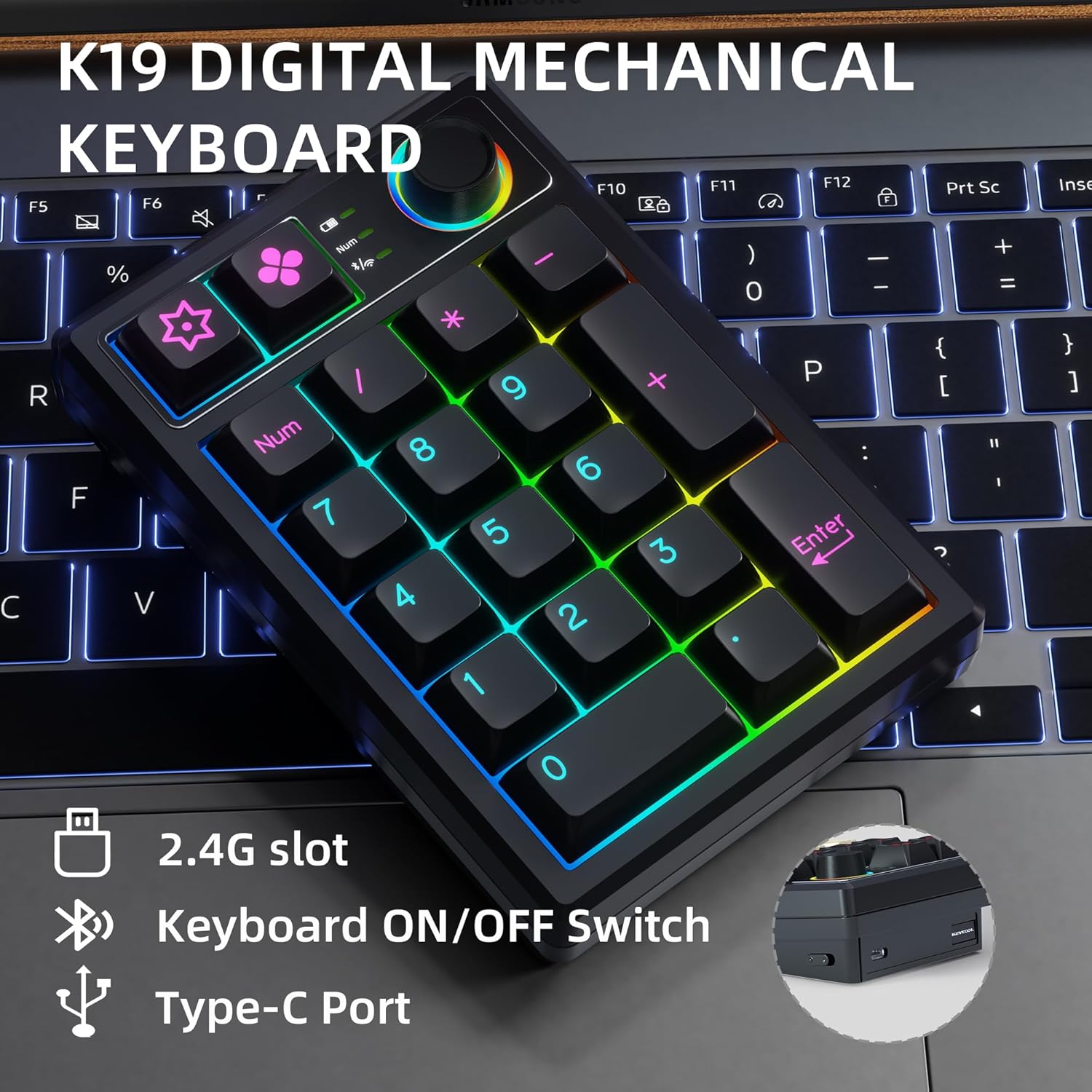
Image: Key connection points on the K19 numeric keyboard.
1. Wired Connection
- Ensure the keyboard's mode switch is set to the wired (USB) position.
- Connect the USB-C cable from the keyboard to your computer's USB port.
- The keyboard will be automatically recognized and ready for use.
2. 2.4GHz Wireless Connection
- Locate the 2.4G USB receiver, usually stored in a slot on the keyboard.
- Plug the USB receiver into an available USB port on your computer.
- Set the keyboard's mode switch to the 2.4G wireless position.
- The keyboard should connect automatically.
3. Bluetooth Connection
- Set the keyboard's mode switch to the Bluetooth position.
- On your device (computer, tablet, smartphone), enable Bluetooth and search for new devices.
- Select "KEYCOOL K19" from the list of available devices to pair.
- Follow any on-screen prompts to complete the pairing process.
Driver and Software Installation
For advanced customization, including key remapping and macro settings, you may download the official driver software from the KEYCOOL website: www.kc-keycool.com. Install the software according to the instructions provided on the website.

Image: Driver download site for KEYCOOL products.
Operating Instructions
Multi-Function Knob
The rotary knob on the K19 numeric keyboard provides quick access to various functions:
- RGB Lighting Adjustment: Rotate the knob to cycle through different RGB lighting effects or adjust brightness. Press the knob to switch between lighting modes or turn lighting on/off.
- Media Control: The knob can also be configured via software to control media functions such as volume adjustment (rotate) or play/pause (press).
RGB Backlighting
The K19 features vibrant RGB backlighting with multiple effects. Use the multi-function knob or specific key combinations (refer to the Quick Start Guide or software) to customize the lighting to your preference.
Video: Demonstration of the RGB backlit effects on the K19 numeric keyboard.

Image: The K19 numeric keyboard showcasing its RGB lighting.
Hot-Swappable Switches
The K19 allows you to easily change mechanical switches without soldering. This feature enables you to customize the feel and sound of your keypad. Use the included switch puller to carefully remove existing switches and insert new 3-pin or 5-pin compatible switches.

Image: Close-up view of the K19's hot-swappable switch sockets.
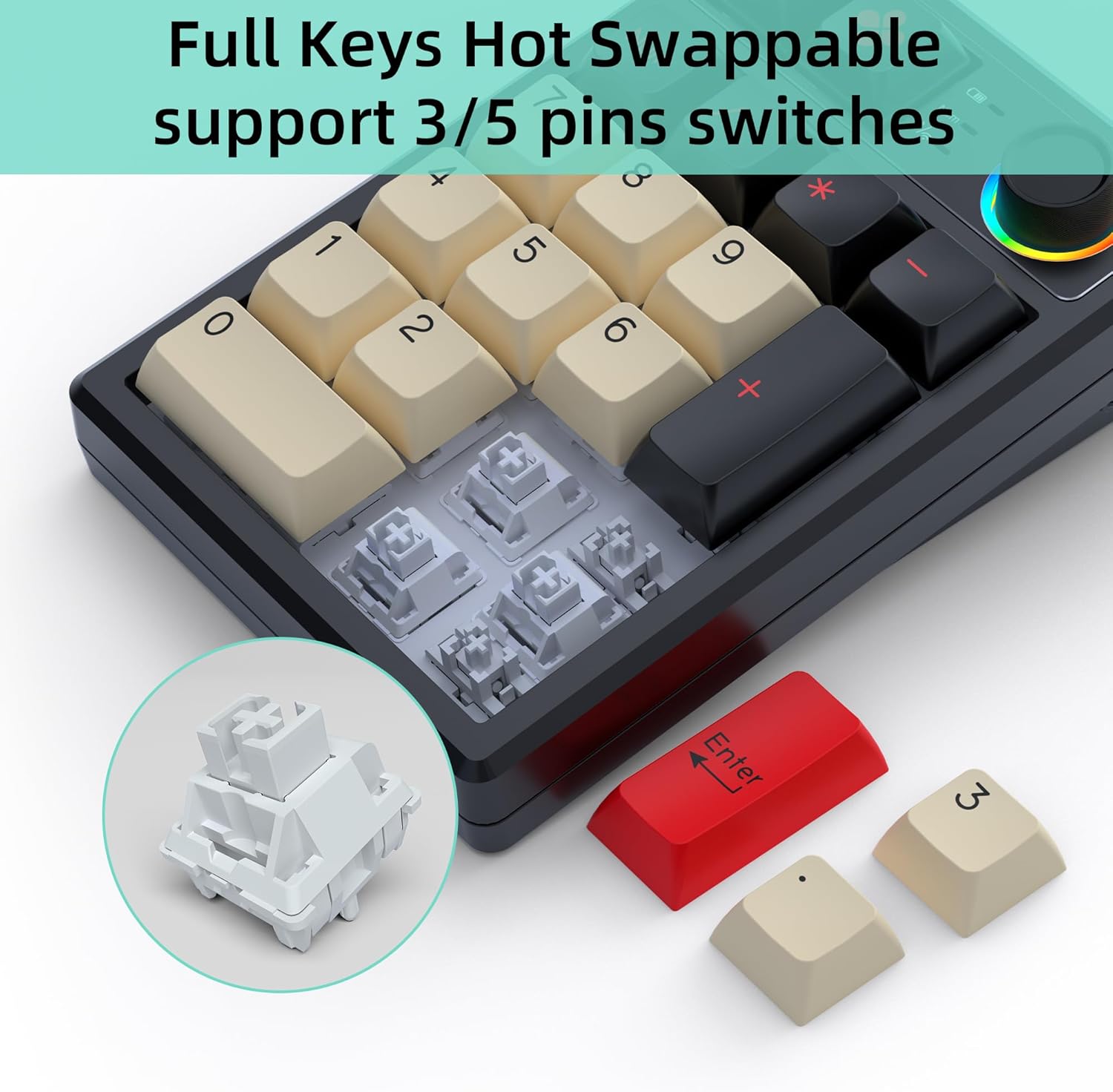
Image: Illustration of replacing keycaps and switches on the K19.
Personalized Programmable Keys
Utilize the dedicated software (downloadable from www.kc-keycool.com) to customize key functions, create macros, and fine-tune lighting effects according to your workflow and preferences. The custom settings are stored directly on the keypad, allowing you to use your personalized layout across different devices without needing the software running in the background.

Image: Software interface for customizing the K19 numeric keyboard.
Maintenance
- Cleaning: Use a soft, dry cloth to wipe the surface of the keyboard. For deeper cleaning, gently remove keycaps with the provided keycap puller and use compressed air to clear dust and debris from between the switches.
- Avoid Liquids: Do not expose the keyboard to liquids. In case of spills, immediately disconnect the keyboard and allow it to dry completely before reconnecting.
- Storage: Store the keyboard in a cool, dry place away from direct sunlight and extreme temperatures.
Troubleshooting
| Problem | Possible Solution |
|---|---|
| Keyboard not responding in wireless mode. | Ensure the keyboard is charged, the mode switch is set correctly (2.4G or Bluetooth), and the receiver is properly plugged in (for 2.4G) or Bluetooth is paired (for Bluetooth). Try re-pairing or reconnecting. |
| Keys not registering or double-typing. | This may indicate a loose or faulty switch. Use the switch puller to remove the affected switch and re-insert it firmly. If the issue persists, try replacing the switch with one of the spares. |
| RGB lighting not working or stuck. | Check the multi-function knob settings. Ensure the keyboard is not in power-saving mode. Refer to the user manual or software for specific lighting control key combinations. |
| Bluetooth connection unstable. | Ensure no strong interference sources are nearby. Try moving the keyboard closer to your device. Disconnect and re-pair the Bluetooth connection. |
| Software not recognizing the keyboard. | Ensure the keyboard is connected via wired mode when using the software. Reinstall the software if necessary. |
Specifications
| Attribute | Detail |
|---|---|
| Model Number | K19+1Knob |
| Product Dimensions | 5.2 x 3.5 x 1.25 inches (13.2 x 8.9 x 3.2 cm) |
| Item Weight | 11.7 ounces (331.7 g) |
| Connectivity Technology | Bluetooth, Wi-Fi 2.4G, USB-C (Triple Mode) |
| Keyboard Description | Mechanical |
| Number of Keys | 21 (19 keys + 1 knob) |
| Special Features | Portable, Volume Roller, Backlit, Hot-Swappable |
| Compatible Devices | Laptop, PC, Gaming Console, Tablet, Smartphone |
| Color | Black |
| Battery Capacity | 1500mAh (as per feature bullets) |
| Country of Origin | China |
Warranty and Support
KEYCOOL products are manufactured to high-quality standards. For warranty information, technical support, or any inquiries regarding your K19 Wireless Numeric Keyboard, please refer to the contact details provided on the official KEYCOOL website (www.kc-keycool.com) or contact your retailer.


