1. Introduction
Thank you for choosing the JIUGEDPF 10.1-inch WiFi Digital Picture Frame. This device allows you to display your cherished photos and videos with ease, offering a vibrant 1280x800 IPS touch screen. Share moments instantly with family and friends from anywhere using the dedicated mobile application. This manual provides comprehensive instructions for setup, operation, and maintenance to ensure optimal use of your digital picture frame.
2. Setup
2.1 Unboxing and Components
Carefully remove all components from the packaging. Ensure you have the digital picture frame, power adapter, and user manual. The frame is designed for easy setup and immediate use.

Figure 1: JIUGEDPF 10.1-inch WiFi Digital Picture Frame with a family photo displayed.
2.2 Powering On and Initial Configuration
- Connect the power adapter to the DC port on the back of the frame and plug it into a power outlet.
- Press the Power On/Off button located on the back of the frame to turn it on.
- Follow the on-screen prompts to select your preferred language, set the time zone, and connect to your Wi-Fi network (supports 2.4GHz Wi-Fi).
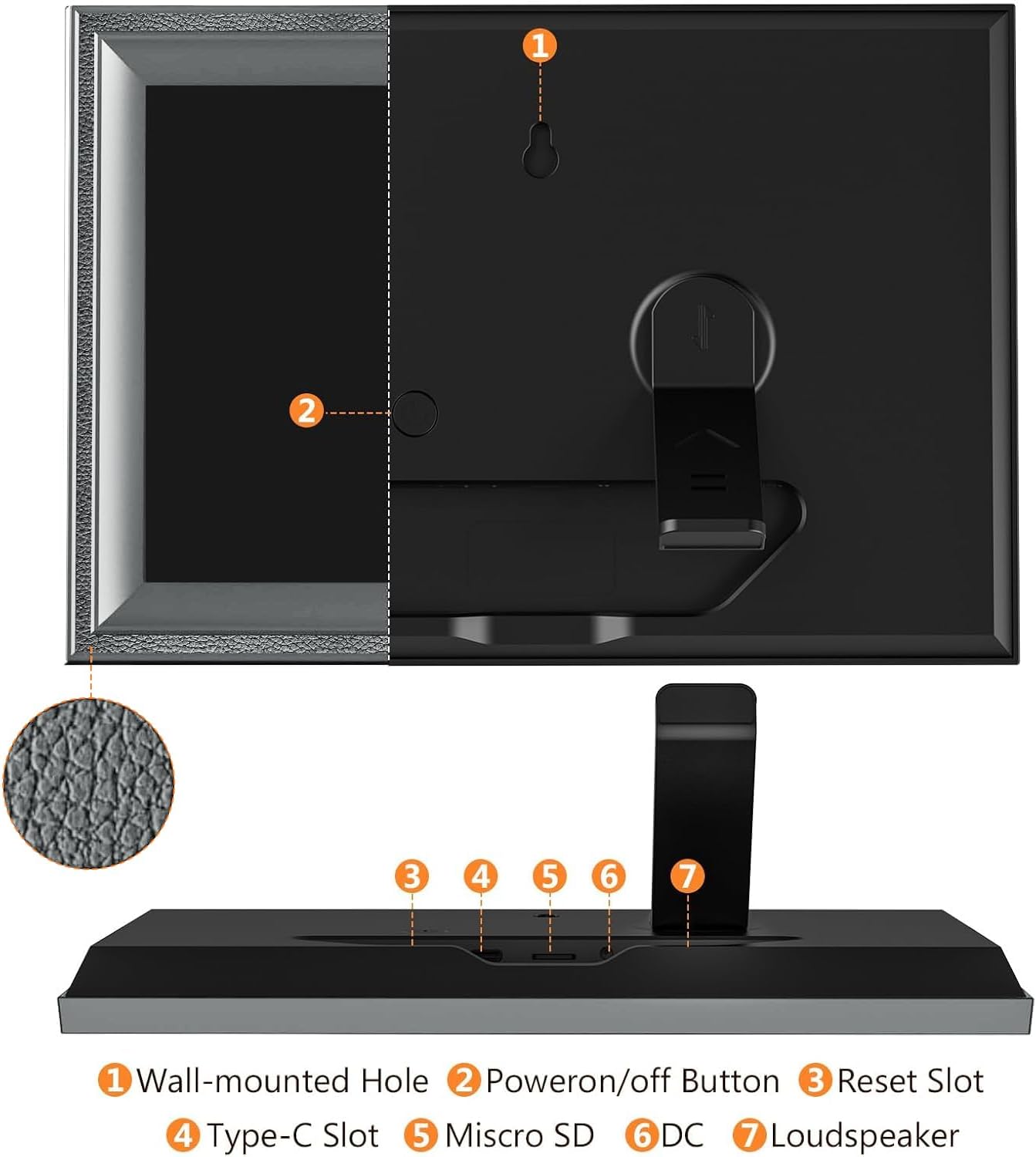
Figure 2: Rear view of the digital picture frame, highlighting the wall-mounted hole, power button, reset slot, Type-C slot, Micro SD slot, DC port, and loudspeaker.
2.3 Installing the Uhale App and Pairing
The Uhale app is essential for managing and sharing content with your frame. It is available for both iOS and Android devices.
- Download the "Uhale" app from the App Store (iOS) or Google Play Store (Android).
- Open the app and create an account.
- On your digital picture frame, navigate to the "Add Friend" section to find your unique frame ID or QR code.
- In the Uhale app, select "Add Frame" and either scan the QR code or enter the frame ID to pair your device.
- Once paired, you can name your frame and set its location within the app.

Figure 3: Visual guide showing the four steps to set up the frame and share content using the Uhale app.

Figure 4: Simplified three-step process for initial setup and adding friends via QR code or unique frame ID.
3. Operating the Digital Picture Frame
3.1 Sending Photos and Videos
You can send photos and videos to your frame using several methods:
- Uhale App: Select photos/videos from your phone's gallery within the app and send them directly to your paired frame. You can invite multiple users to share content securely.
- PC Web Transfer: Log in to the Uhale web portal on your computer to upload up to 500 photos at a time without needing to download additional software.
- Micro SD Card/USB Drive: The frame supports external storage (Micro SD card up to 32GB) for direct playback of photos and videos.

Figure 5: Overview of wireless instant sharing methods, including the Uhale app for iOS and Android, PC web, USB, and SD card.

Figure 6: Illustration of transferring photos from a computer to the digital picture frame via the Uhale web interface.
3.2 Touch Screen Functions
The 10.1-inch IPS touch screen allows for intuitive navigation and control:
- Swiping: Swipe left or right to browse through photos and videos.
- Tapping: Tap on a photo to access options like favorite, lock, hide, delete, fit to frame, adjust photo, rotate photo, and slideshow settings.
- Zooming: Pinch to zoom in or out on photos.
3.3 Display Settings
Customize your viewing experience through the settings menu:
- Slideshow: Adjust slideshow intervals, transition effects, and playback order.
- Auto-Rotate: The frame automatically adjusts image orientation (horizontal or vertical) based on its physical position.
- Time & Weather: Enable or disable the display of current time and weather information on the screen.
- Brightness: Adjust screen brightness for optimal viewing in different lighting conditions.

Figure 7: The frame's adaptive orientation feature, allowing seamless switching between horizontal and vertical display modes.
3.4 Memory Management
The frame comes with 16GB of built-in memory, capable of storing over 40,000 photos. You can expand storage using a Micro SD card (up to 32GB).

Figure 8: Information on the frame's 16GB built-in storage, capable of holding over 40,000 photos, with options for image and video formats.
4. Maintenance
4.1 Cleaning
To clean the screen, gently wipe it with a soft, lint-free cloth. Avoid using abrasive cleaners or solvents that may damage the screen or frame finish.
4.2 Software Updates
Periodically check the settings menu for available software updates to ensure your frame has the latest features and performance improvements. Follow the on-screen instructions for any updates.
5. Troubleshooting
- Frame not turning on: Ensure the power adapter is securely connected to both the frame and a working power outlet.
- Cannot connect to Wi-Fi: Verify your Wi-Fi password and ensure the frame is within range of a 2.4GHz network. Restarting both the frame and your router may resolve the issue.
- Photos not appearing: Check your internet connection and ensure the Uhale app is correctly paired with the frame. Confirm that photos were successfully uploaded through the app or other methods.
- Screen unresponsive: Try restarting the frame by pressing and holding the power button. If the issue persists, use a small pin to press the reset button on the back of the frame.
6. Specifications
| Feature | Detail |
|---|---|
| Product Dimensions | 13 x 8.2 x 0.99 inches |
| Item Weight | 11.2 ounces |
| Screen Size | 10.1 Inches |
| Resolution | 1280x800 |
| Display Type | IPS Touch Screen |
| Internal Storage | 16GB (stores 40,000+ photos) |
| Expandable Storage | Micro SD card (max. 32GB) |
| Connectivity | WiFi (2.4GHz) |
| Compatible Devices | Smartphone |
| Mounting Options | Auto-Rotate, Wall Mountable |
7. Warranty and Support
For warranty information and customer support, please refer to the contact details provided with your product packaging or visit the official JIUGEDPF website. Keep your purchase receipt for warranty claims.


