Introduction
This manual provides detailed instructions for the setup, operation, and maintenance of your micfuns M4pro Audio Mixer. Please read this manual thoroughly before using the product to ensure proper functionality and longevity.
What's Included
Your micfuns M4pro Audio Mixer package includes the following components:
- Audio Mixer (1 unit)
- Wireless Microphones (2 units)
- 24V Power Cable (1 unit)
- One-to-two Charging Cable (1 unit)
- Type-C to USB Cable (1 unit)
- Anti-slip Rings (2 units)
- Microphone Covers (2 units)

Image: The M4pro Audio Mixer unit shown with its two accompanying wireless microphones.
Setup
1. Power Connection
To power on the M4pro Audio Mixer, connect the provided 24V power cable to the DC IN port on the rear of the mixer. Ensure the power source is stable before turning on the unit.
Video: Demonstrates connecting the power cable to the M4pro Audio Mixer and powering on the unit.
2. Microphone Setup
The M4pro mixer comes with two wireless microphones. Insert batteries into the microphones and power them on. The microphones will automatically pair with the mixer upon activation.

Image: Illustrates the automatic frequency pairing connection between the mixer and wireless microphones.
Video: Shows how to power on the wireless microphones and their automatic connection to the mixer.
3. Connecting Other Devices
The M4pro mixer supports various input and output devices. Use the appropriate ports for your setup:
- Microphones/Line Inputs: Use the XLR/TRS combo jacks for wired microphones or line-level instruments (e.g., guitar, electronic keyboard).
- REC Output: Connect to recording devices.
- Main Out: Connect to speakers or amplifiers.
- Phones: Connect headphones for monitoring.
- USB Audio: Connect to a computer for recording or playback.

Image: A visual guide demonstrating how to connect various audio devices such as microphones, guitars, keyboards, computers, and speakers to the mixer.
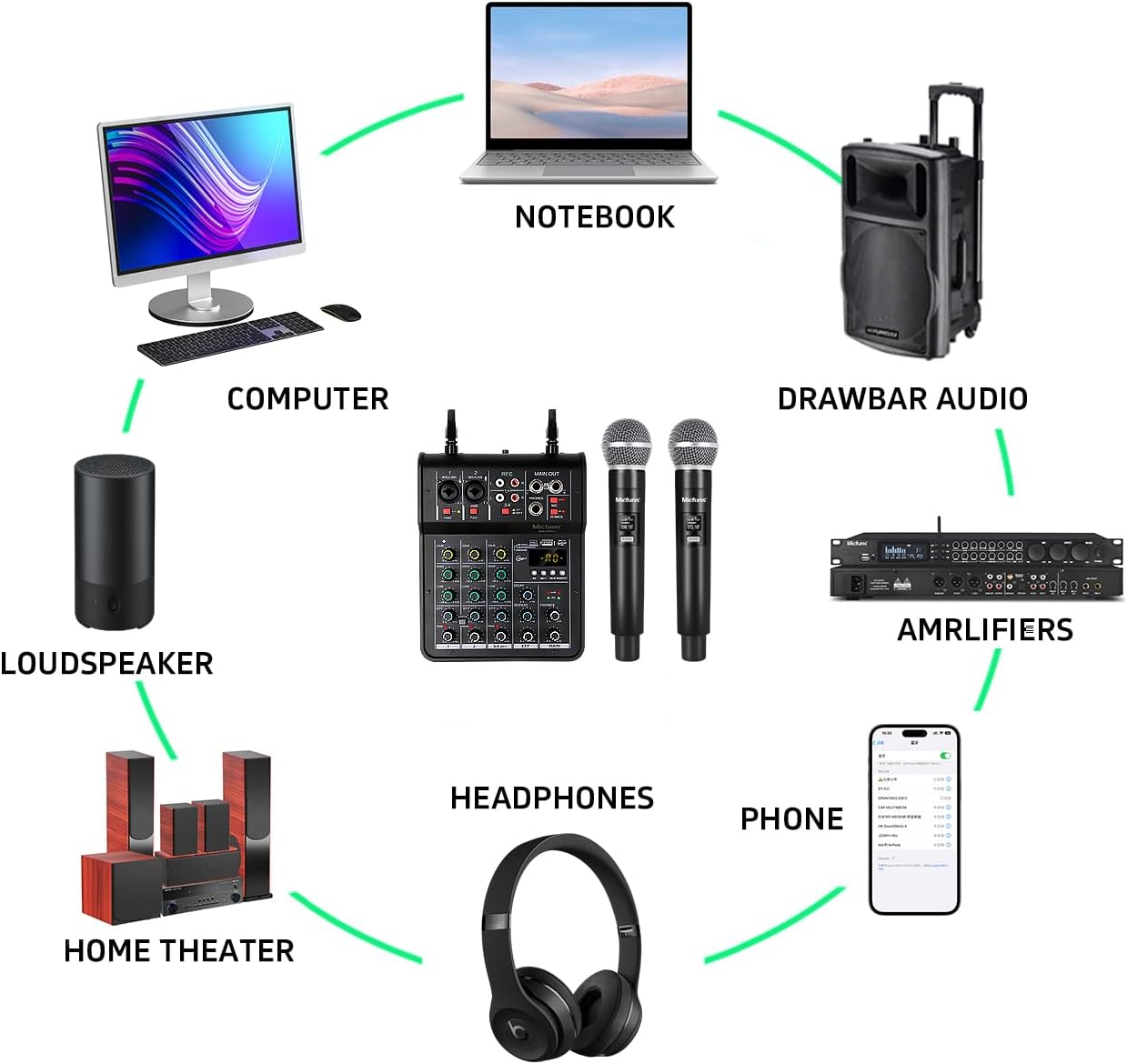
Image: An overview of the M4pro Audio Mixer's connectivity within a typical audio setup, including computers, loudspeakers, amplifiers, headphones, and phones.
Operating Instructions
1. Bluetooth Connection
To connect a Bluetooth device (e.g., smartphone, tablet) to the mixer:
- Press the "MODE/BT" button on the mixer until "BLUE" appears on the display.
- On your device, enable Bluetooth and search for "BT-5.0".
- Select "BT-5.0" to pair. Once connected, you can play audio from your device through the mixer.

Image: Step-by-step visual guide for connecting a mobile device via Bluetooth to the mixer.
Video: Demonstrates the Bluetooth pairing process and audio playback from a smartphone.
2. USB Playback and Recording
The mixer supports USB playback from a flash drive and USB audio connection to a computer for recording or playback.
- USB Playback: Insert a USB flash drive into the USB port. The mixer will automatically detect and play compatible audio files. Use the control buttons (play/pause, next/previous) to manage playback.
- USB Audio (PC/Smartphone): Connect the mixer to your computer or smartphone using the Type-C to USB cable. The mixer will function as an external sound card, allowing for high-quality audio recording and playback.

Image: Shows the USB plug-and-play functionality for connecting to a PC or smartphone, highlighting intelligent noise reduction.
Video: Demonstrates USB flash drive playback on the mixer.
3. Phantom Power (+48V)
The M4pro mixer provides +48V phantom power for condenser microphones. To activate phantom power, press the "+48V" button located near the microphone input jacks. The indicator light will illuminate when active.

Image: Highlights the +48V phantom power switch and its suitability for various condenser microphones.
4. Control Knobs and Buttons
Familiarize yourself with the various controls on the mixer:
- GAIN: Adjusts the input sensitivity for each channel.
- HIGH/LOW: Equalizer controls for high and low frequencies on each channel.
- EFF (Effect): Controls the level of the built-in effects (e.g., delay, repeat).
- DELAY/REPEAT: Adjusts parameters for the delay and repeat effects.
- PEAK: Indicates when the input signal is too high, potentially causing distortion. Adjust GAIN to prevent peaking.
- MAIN: Master volume control for the main output.
- PHONES: Headphone volume control.

Image: A detailed front view of the mixer, showcasing all gain, EQ, effect, and volume controls.
Maintenance
- Keep the mixer clean by wiping it with a soft, dry cloth.
- Avoid exposing the unit to excessive moisture, dust, or extreme temperatures.
- Do not use abrasive cleaners or solvents.
- Store the mixer in a cool, dry place when not in use.
- Regularly check cables for damage and ensure secure connections.
Troubleshooting
- No Power: Ensure the power cable is securely connected and the power button is pressed. Check the power source.
- No Sound Output: Verify all cables are correctly connected to the main output and speakers. Check volume levels on the mixer and connected devices.
- Microphone Not Working: Ensure microphones are powered on and paired. Check battery levels. If using a condenser mic, ensure +48V phantom power is enabled.
- Distorted Sound: Reduce the GAIN level for the input channel. Check for PEAK indicators. Ensure connected devices are not sending an overly strong signal.
- Bluetooth Connection Issues: Ensure the mixer is in Bluetooth mode ("BLUE" displayed). Turn off and on Bluetooth on your device and the mixer, then try pairing again.
- USB Playback Issues: Ensure the USB flash drive is formatted correctly (FAT32) and contains compatible audio files.
Specifications
| Feature | Detail |
|---|---|
| Brand | micfuns |
| Model Number | M4pro |
| Number of Channels | 4 |
| Connectivity Technology | USB, Bluetooth |
| Power Source | Corded Electric |
| Voltage | 5 Volts (AC) |
| Item Weight | 1.5 Kilograms (3.3 pounds) |
| Product Dimensions | 13"D x 4"W x 14"H (13 x 4 x 14 inches) |
| Country of Origin | China |
| First Available Date | April 30, 2024 |
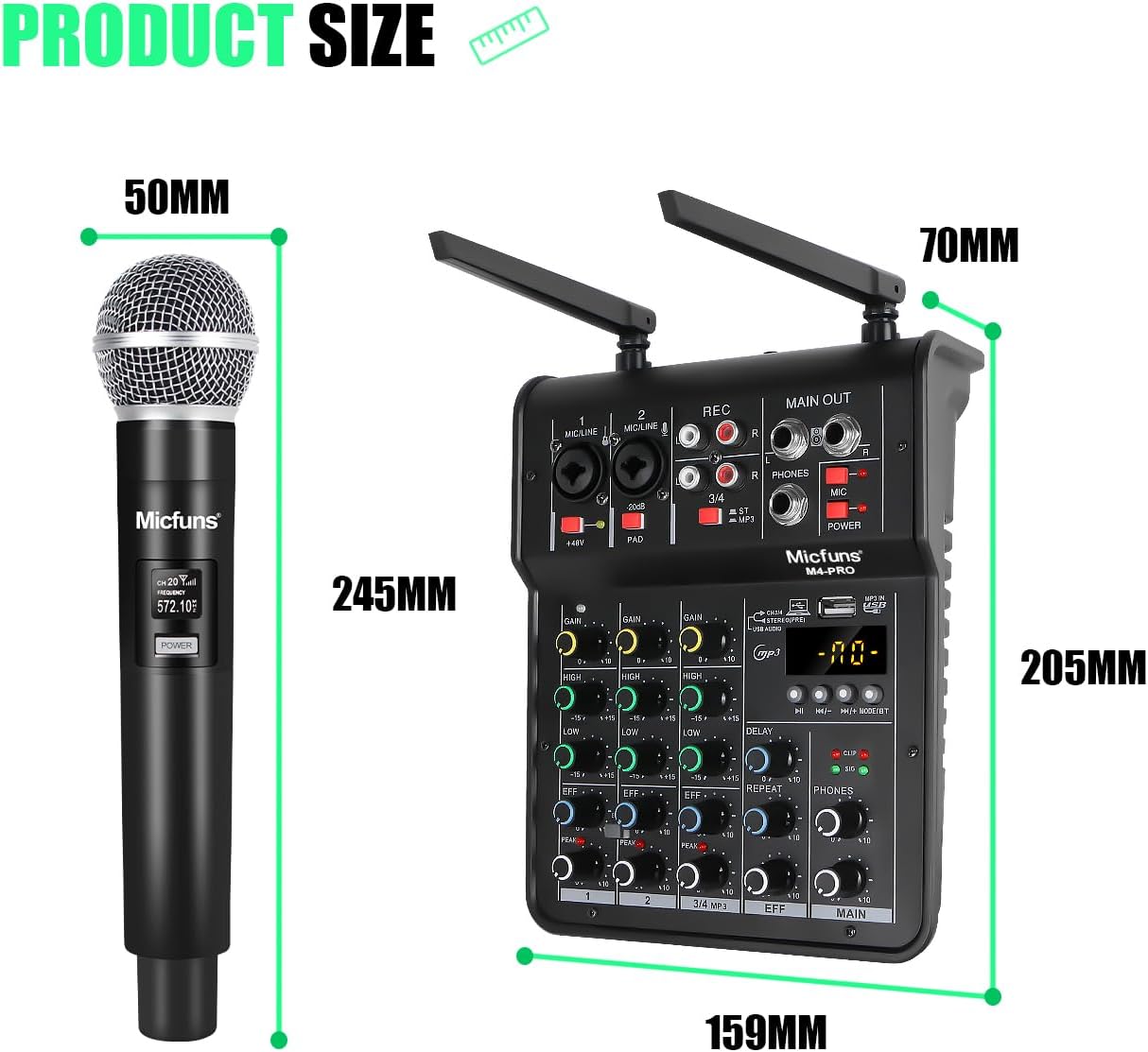
Image: Visual representation of the product dimensions for both the mixer and the wireless microphone.
Warranty and Support
Warranty information for the micfuns M4pro Audio Mixer is typically provided with your purchase documentation or can be found on the manufacturer's official website. Please refer to these resources for details regarding warranty coverage, terms, and conditions.
For technical support, product inquiries, or service requests, please contact micfuns customer support through their official channels. Contact information is usually available on the product packaging or the manufacturer's website.


