
1. Introduction
Thank you for choosing the KIDYWOLF KIDYMICPARENT Bluetooth Microphone. This all-in-one microphone features a built-in speaker, light effects, and Bluetooth connectivity, designed to provide an engaging music experience. This manual provides essential information for the safe and effective use of your device. Please read it thoroughly before use and retain it for future reference.
2. Safety Information
- Keep the microphone away from water and moisture.
- Do not expose the device to extreme temperatures or direct sunlight.
- Avoid dropping or subjecting the microphone to strong impacts.
- Do not attempt to disassemble or repair the device yourself. Contact qualified service personnel.
- Use only the provided USB-C charging cable or a certified equivalent.
- This product contains a rechargeable battery. Do not dispose of it in fire.
- Ensure children use the microphone under adult supervision.
3. Package Contents
Please check the package for the following items:
- 1 x KIDYWOLF KIDYMICPARENT Bluetooth Microphone
- 1 x USB-C Charging Cable
4. Product Overview
The KIDYWOLF KIDYMICPARENT is a versatile microphone designed for entertainment. It integrates a 5W speaker, dynamic light effects, and various voice modulation features.
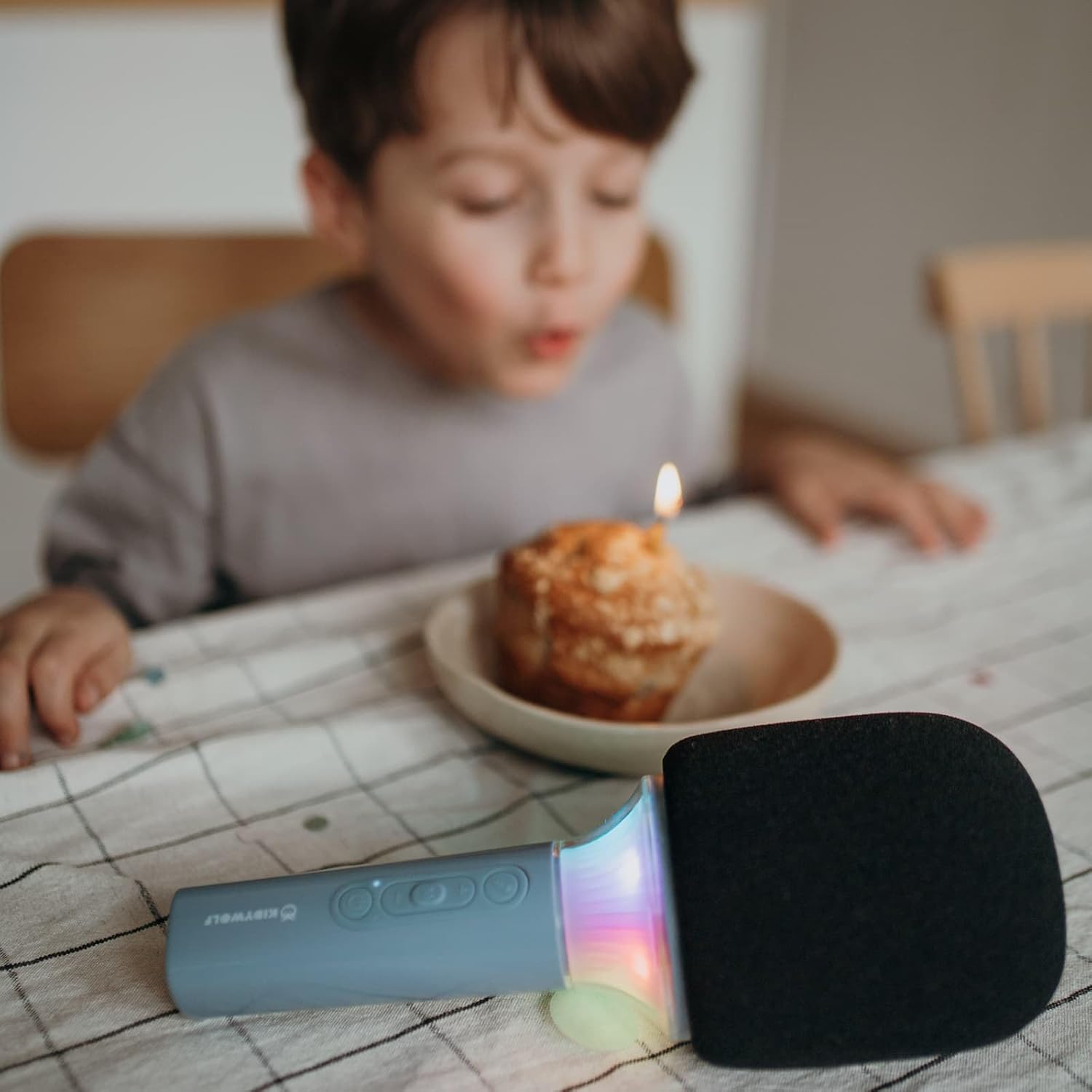
Figure 4.1: Front view of the KIDYWOLF KIDYMICPARENT Bluetooth Microphone. This image shows the microphone head with its foam cover and the main body with control buttons.
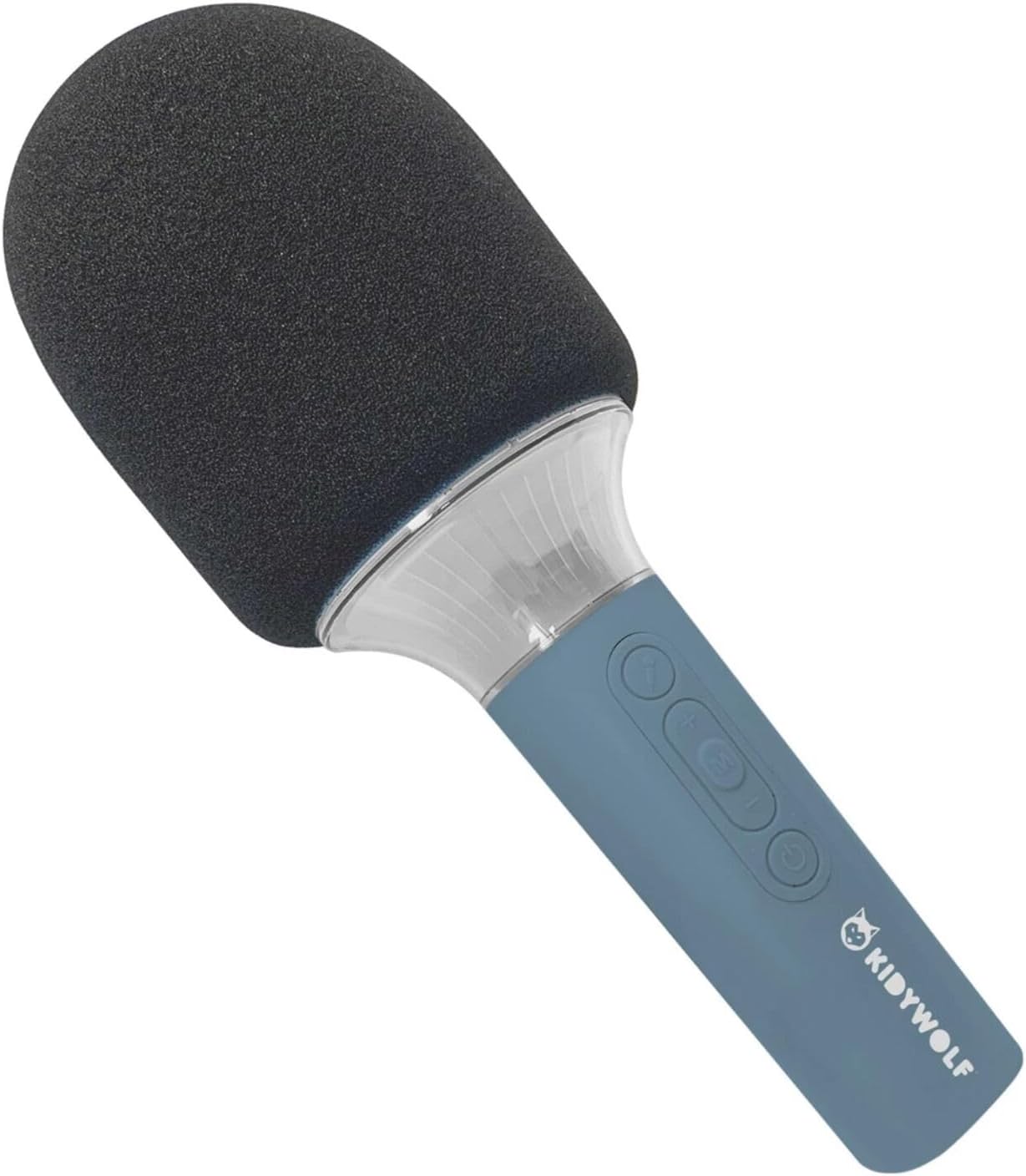
Figure 4.2: Angled view of the KIDYWOLF KIDYMICPARENT Bluetooth Microphone. This perspective highlights the ergonomic design of the handle and the placement of the control buttons.

Figure 4.3: The KIDYWOLF KIDYMICPARENT Bluetooth Microphone with its integrated light effects active, showcasing the illuminated section below the microphone head.
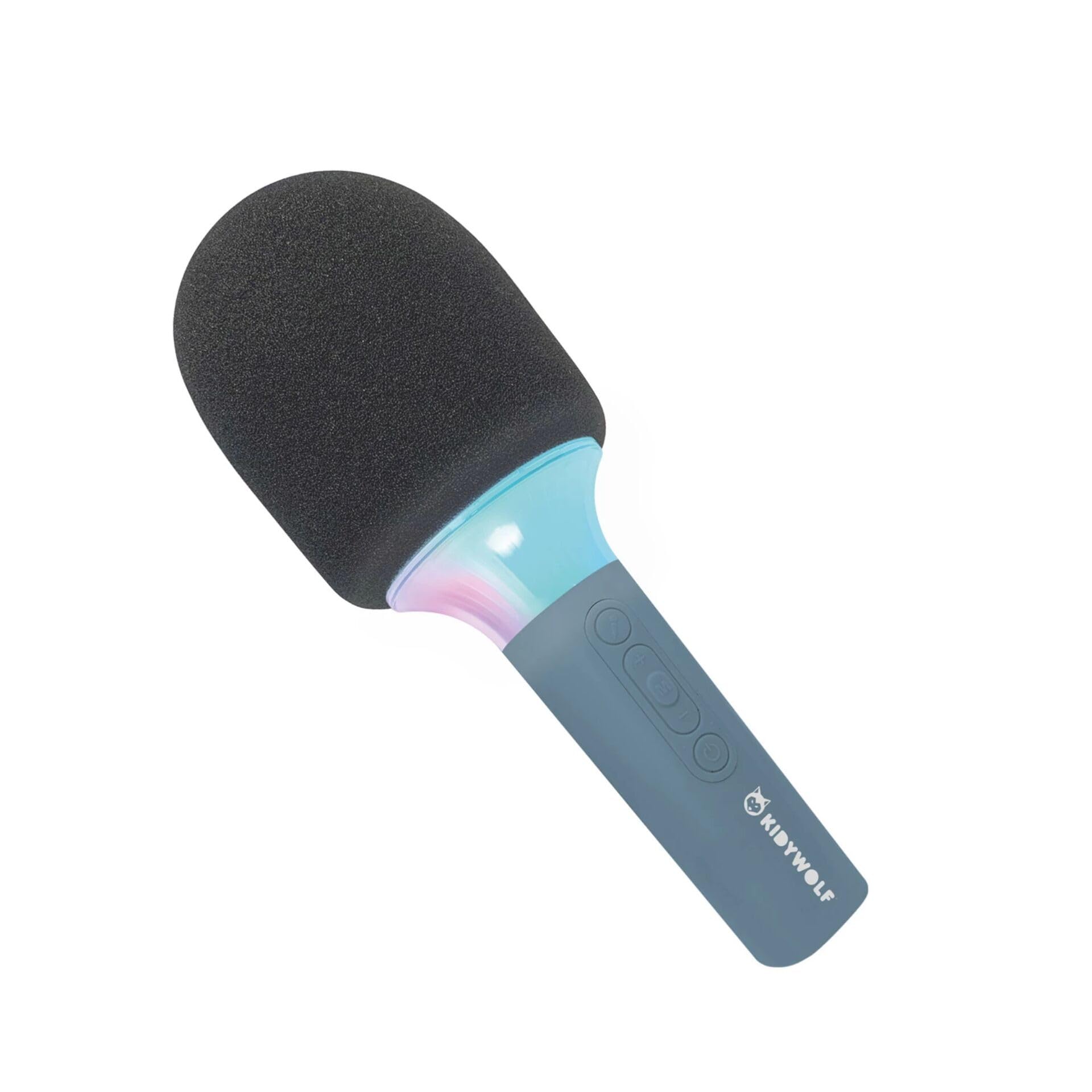
Figure 4.4: A child using the KIDYWOLF KIDYMICPARENT Bluetooth Microphone, demonstrating its intended use for entertainment.
5. Setup
5.1 Charging the Microphone
- Locate the USB-C charging port on the microphone.
- Connect the provided USB-C cable to the microphone's charging port.
- Connect the other end of the USB-C cable to a compatible USB power adapter (not included) or a computer's USB port.
- The charging indicator light will illuminate during charging and turn off or change color when fully charged.
- A full charge typically takes approximately 2-3 hours.
5.2 Bluetooth Pairing
- Power On: Press and hold the Power button (usually marked with a power symbol) on the microphone until the indicator light turns on and you hear an audible prompt.
- Activate Bluetooth: The microphone will automatically enter Bluetooth pairing mode, indicated by a flashing light or an audible prompt.
- Enable Bluetooth on Your Device: On your smartphone, tablet, or other Bluetooth-enabled device, go to the Bluetooth settings and ensure Bluetooth is turned on.
- Select Device: Look for "KIDYMICPARENT" or a similar name in the list of available Bluetooth devices and select it to pair.
- Confirmation: Once successfully paired, you will hear a confirmation sound from the microphone, and the indicator light will stop flashing and remain solid.
Note: If pairing fails, turn off the microphone and your device's Bluetooth, then repeat the steps. The microphone will automatically attempt to reconnect to the last paired device when powered on.
6. Operating Instructions
6.1 Power On/Off
- To Power On: Press and hold the Power button for approximately 3 seconds.
- To Power Off: Press and hold the Power button for approximately 3 seconds.
6.2 Volume Control
- Use the '+' button to increase the microphone and speaker volume.
- Use the '-' button to decrease the microphone and speaker volume.
6.3 Music Playback
Once paired via Bluetooth, you can play music from your connected device. The microphone's built-in speaker will output the audio. Use your connected device to control music playback (play, pause, skip tracks).
6.4 Light Effects
The microphone features integrated light effects. Refer to the specific button (if available, often marked with a light bulb symbol or integrated with another function) to cycle through different light modes or turn them on/off. If no dedicated button is present, the lights may activate automatically with sound or be controlled via a multi-function button.
7. Voice Effects
The KIDYWOLF KIDYMICPARENT microphone offers 6 different voice settings to enhance your singing experience. To change voice effects:
- Locate the dedicated voice effect button (often marked with a microphone icon or "FX").
- Press the button repeatedly to cycle through the available voice effects.
- Listen to the audio output to select your desired voice effect.
8. Maintenance
8.1 Cleaning
- Wipe the microphone's exterior with a soft, dry, or slightly damp cloth.
- Do not use harsh chemicals, abrasive cleaners, or solvents.
- Ensure no liquid enters the microphone's openings.
8.2 Storage
- Store the microphone in a cool, dry place away from direct sunlight.
- Keep it away from dust and extreme temperatures.
9. Troubleshooting
| Problem | Possible Cause | Solution |
|---|---|---|
| Microphone does not power on. | Battery is depleted. | Charge the microphone using the USB-C cable. |
| Cannot connect via Bluetooth. | Bluetooth is off on the device; microphone is not in pairing mode; device is too far. | Ensure Bluetooth is enabled on your device. Put the microphone into pairing mode. Move the device closer to the microphone (within 10 meters). |
| No sound from the speaker. | Volume is too low; microphone is muted; device is not playing audio. | Increase volume using the '+' button. Check if the microphone is muted. Ensure audio is playing on the connected device. |
| Voice effects are not changing. | Incorrect button pressed; feature not active. | Ensure you are pressing the correct voice effect button. |
10. Specifications
| Model Name | KIDYMICPARENT |
| Brand | KIDYWOLF |
| Form Factor | Handheld |
| Dimensions (LxWxH) | 24 x 9 x 9 cm |
| Weight | 414 g |
| Power Source | Rechargeable Battery |
| Material | Plastic |
| Number of Channels | 1 |
| Connectivity Technology | Bluetooth |
| Connection Type | USB Type-C |
| Special Features | Volume Control, Light Effects, Voice Modulation (6 settings) |
| Included Components | Microphone, USB-C Charging Cable |
| Recommended Use | Karaoke |
11. Warranty and Support
For warranty information and customer support, please refer to the documentation provided at the time of purchase or contact your retailer. You may also visit the official KIDYWOLF website for the latest support resources and contact details.
