
EvoFox Deck - White
EvoFox Deck Smartphone Gamepad User Manual
Model: Deck - White
1. Introduction
Welcome to the EvoFox Deck Smartphone Gamepad user manual. This guide provides detailed instructions on how to set up, operate, and maintain your new gamepad, ensuring an optimal gaming experience across various mobile platforms.

The EvoFox Deck Smartphone Gamepad, designed for mobile gaming.

Introducing the EvoFox Deck, praised for its design, materials, and broad compatibility.
2. Key Features
The EvoFox Deck is engineered to provide a console-like gaming experience on your smartphone, packed with advanced features:
- Native Support for Android and iOS: Seamless compatibility for a wide range of mobile devices and games.
- Keymap Mode: Allows mapping touch points to controller buttons for non-gamepad supported titles.
- Magnetic Hall Joysticks: Provides precise and durable control.
- RGB Halo Effect & Backlit Buttons: Enhances aesthetics and visibility in low light.
- Bluetooth 5.0: Ensures a lag-free wireless connection.
- Long Battery Life: Up to 8 hours of continuous gameplay.
- Premium Materials: Crafted with durable ABS materials and silicone pads for phone protection.

Detailed view of the EvoFox Deck's premium ergonomics and craftsmanship, highlighting key components.

Visual representation of the customizable RGB lighting, Hall magnetic joysticks, digital microswitches, backlit buttons, and 600 mAh battery.

The gamepad utilizes Bluetooth 5.0 for a stable and lag-free connection.
3. Setup Guide
3.1 Initial Charging
Before first use, fully charge your EvoFox Deck Gamepad. Connect the provided USB-C cable to the gamepad's charging port and the other end to a USB power source (e.g., computer, wall adapter). The LED indicators will show charging status and turn off when fully charged.
3.2 Pairing with Your Device
- Ensure your EvoFox Deck is sufficiently charged.
- Turn on the gamepad by pressing the power button.
- Activate Bluetooth on your smartphone (Android or iOS).
- Search for available Bluetooth devices. The gamepad should appear as "EvoFox Deck" or similar.
- Select the gamepad to pair. Once paired, the LED indicator will show a stable light.

The EvoFox Deck offers an easy-to-follow setup process for seamless connection.
3.3 Inserting Your Smartphone
Gently extend the gamepad's arms and carefully place your smartphone into the central slot. The silicone pads will securely hold your device in place while protecting it from scratches.
4. Operating Instructions
4.1 Basic Controls
The EvoFox Deck features standard gamepad controls:
- Left Analog Stick: Movement/Navigation
- Right Analog Stick: Camera/Aiming
- D-Pad: Directional input, menu navigation
- Action Buttons (A, B, X, Y): In-game actions
- Shoulder Buttons (L1, R1) & Triggers (L2, R2): Additional in-game actions
- SELECT/START Buttons: Menu, pause, options
- KEY MAP Button: Activates Keymap mode (Android only).
- DOJO Button: Quick access to the EvoFox Dojo App.
5. Keymap Mode (Android Only)
The Keymap Mode allows you to play touch-only games by mapping on-screen touch points to the physical buttons of your EvoFox Deck. This feature is currently available for Android devices only.
5.1 How to Use Keymap Mode
- Download and install the dedicated Key Mapping App (details in the product box or EvoFox Dojo App).
- Launch the game you wish to play.
- Activate the Keymap overlay through the app or by pressing the dedicated KEY MAP button on the gamepad.
- Drag and drop virtual buttons from the overlay onto the desired touch points on your screen.
- Assign these virtual buttons to the physical buttons on your EvoFox Deck.
- Save your configuration and start playing.
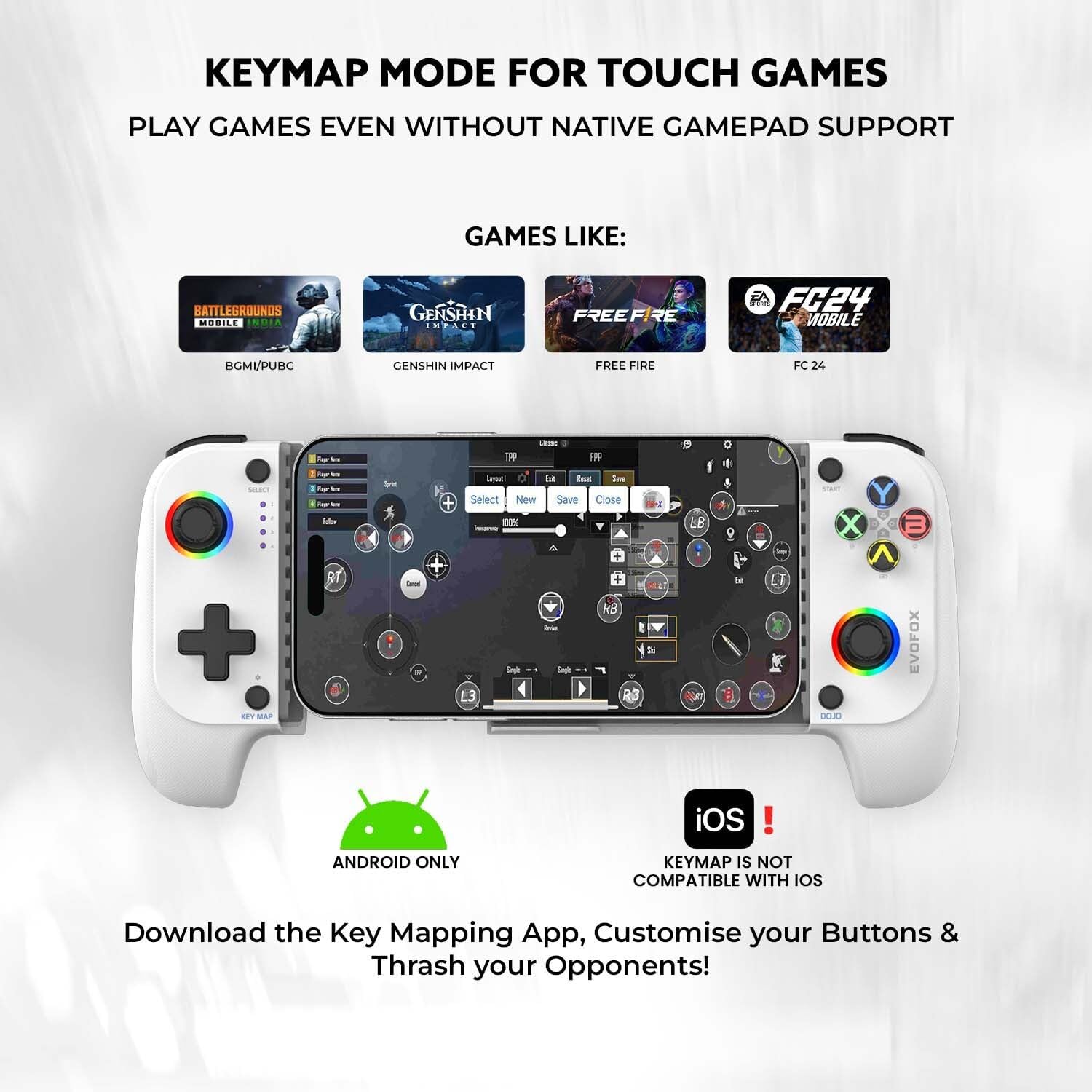
Keymap mode allows playing touch-based games by mapping controls to the gamepad, specifically for Android.
6. EvoFox Dojo App
The EvoFox Dojo App is your companion for an enhanced gaming experience, offering a vast library of games and useful features.
6.1 App Features
- Game Library: Access to over 1000+ iOS games and 450+ Android games.
- Game Discovery: Discover new and recommended titles.
- Game Centre: Organize all your installed games in one place.
- Guides and Tutorials: Comprehensive guides for setup, gameplay, and emulator support.

The EvoFox Dojo App provides a centralized hub for game discovery and management.

Discover new and exciting games tailored for you through the app's game discovery feature.

Organize all your installed games perfectly in one convenient hub within the Dojo App.

Master your gameplay with comprehensive guides and tutorials available in the app.
7. Compatibility and Supported Games
The EvoFox Deck offers broad compatibility across various platforms and game types:
- Android Official: Native gamepad support for titles like Call of Duty Mobile, Sky: Children of Light, Diablo Immortal, Asphalt, and hundreds more via the EvoFox Dojo App.
- iPhone and iPad Official: MFi controller support for games such as Genshin Impact, Minecraft, Contra Returns, Grand Theft Auto, and over 900 games through the EvoFox Dojo App.
- Keymap Mode (Android): Play non-native gamepad games like BGMI/PUBG, Genshin Impact (Android), Free Fire, FC 24 by mapping controls.
- PC & Console Remote Play: Supports XInput for Windows, PlayStation/Xbox Remote Play, and Steam Link.
- Retro Gaming: Compatible with various retro gaming emulators.

The EvoFox Deck supports a wide variety of games across Android, iOS, PC, and retro gaming platforms.

Explore thousands of titles across various platforms with the EvoFox Deck.
8. Care and Maintenance
- Cleaning: Use a soft, dry cloth to wipe the gamepad. For stubborn dirt, slightly dampen the cloth with water. Avoid harsh chemicals or abrasive cleaners.
- Storage: Store the gamepad in a cool, dry place away from direct sunlight and extreme temperatures.
- Battery Care: To prolong battery life, avoid fully discharging the gamepad frequently. Charge it regularly, even if not in use for extended periods.
- Handling: Do not drop or expose the gamepad to excessive force or impact.

The gamepad is constructed with highly durable ABS materials for longevity.

The rugged texturized surface provides a better grip during gameplay.

Thick layers of silicone ensure your phone is safely secured and protected.
9. Troubleshooting
| Problem | Possible Cause | Solution |
|---|---|---|
| Gamepad does not turn on. | Low battery. | Charge the gamepad fully. |
| Cannot pair with smartphone. | Bluetooth not enabled; gamepad not in pairing mode; device too far. | Ensure Bluetooth is on. Put gamepad in pairing mode (refer to setup). Move gamepad closer to device. |
| Buttons/Joysticks unresponsive. | Connection issue; software glitch. | Reconnect the gamepad. Restart the gamepad and your smartphone. Update gamepad firmware if available via Dojo App. |
| Keymap mode not working (Android). | Key mapping app not installed/configured correctly. | Ensure the Key Mapping App is installed and permissions are granted. Follow in-app instructions for mapping. |
If you encounter issues not listed here, please refer to the EvoFox Dojo App for more detailed guides or contact customer support.
10. Specifications
| Feature | Detail |
|---|---|
| Model Number | Deck - White |
| Connectivity | Bluetooth v5.0 |
| Joysticks | Magnetic Hall 3D Joysticks |
| Vibration | Dual Vibration motors |
| Lighting | RGB Lighting, Backlit Controls |
| Battery | 1 Lithium Ion battery (included) |
| Battery Life | Up to 8 Hours of Gameplay |
| Product Dimensions | 18.4 x 10.8 x 4.6 cm |
| Item Weight | 240 g |
| Country of Origin | China |
| Manufacturer | Allied Electronics & Magnetics Private Limited |
11. Warranty and Support
The EvoFox Deck Smartphone Gamepad comes with a comprehensive warranty, ensuring peace of mind with your purchase.
11.1 Warranty Information
For detailed warranty terms and conditions, please refer to the documentation included with your product or visit the official EvoFox website. Keep your purchase receipt as proof of purchase for warranty claims.
11.2 Customer Support
For any queries, concerns, or technical assistance, you can:
- Scan the QR Code: A QR code is provided on the product packaging for quick access to support resources.
- EvoFox Dojo App: The app contains detailed guides and tutorials that can help resolve common issues.
- Contact Manufacturer: Reach out to Allied Electronics & Magnetics Pvt. Ltd. for direct support. Contact details can typically be found on the product packaging or official website.
Related documentsDeck - White

Ask a question about this manual
Ask about setup, troubleshooting, compatibility, parts, safety, or missing instructions. Manuals+ will review the question and use this page’s manual context to help answer it.