
LifeBasis HAQ66
LifeBasis 10-in-1 Indoor Air Quality Monitor User Manual
Model: HAQ66 | Brand: LifeBasis
1. Introduction
Thank you for choosing the LifeBasis 10-in-1 Indoor Air Quality Monitor. This device is designed to provide real-time monitoring of various air quality parameters, helping you maintain a healthy environment in your home, office, or school. Please read this manual thoroughly before use to ensure proper operation and to maximize the device's lifespan.

Image: The LifeBasis 10-in-1 Air Quality Monitor, showing its comprehensive monitoring capabilities for AQI, Temperature, Humidity, CO2, PM2.5, PM10, TVOC, PM1.0, HCHO, and Particle Count.
2. Safety Information
To ensure safe and effective use of your air quality monitor, please observe the following precautions:
- Avoid Immersion: Do not place the device in a bathroom or any location where it might be submerged in water.
- Prevent Strong Shocks: Avoid strong impacts or vibrations, such as dropping the device.
- Keep Away from Volatile Substances: Do not place the product near volatile substances that could interfere with measurements, such as perfumes, alcohol, cooking fumes, or mosquito coils.
- Do Not Insert Objects: Do not insert sharp, flammable, or metallic objects into the monitor or its air sampling ports to prevent short circuits, electrical discharges, or burns.

Image: Visual representation of safety guidelines for the air quality monitor, including warnings against water, impact, volatile chemicals, and foreign objects.
3. Product Overview
3.1. Package Contents
Upon unpacking, ensure all items are present:
- 1 x Air Quality Monitor
- 1 x Instruction Manual
- 1 x Type-C Cable
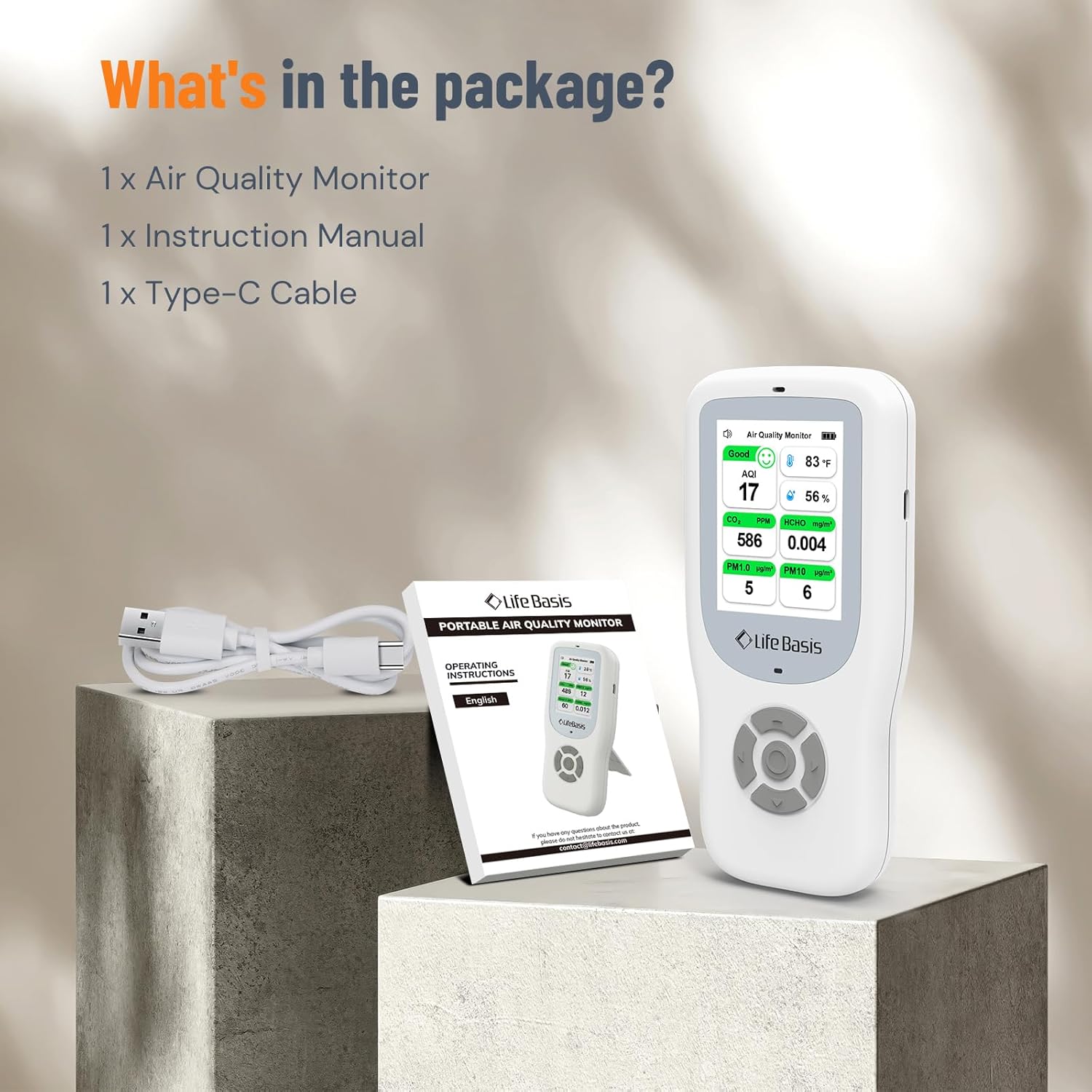
Image: The air quality monitor, its instruction manual, and a USB-C charging cable, as included in the product package.
3.2. Device Components and Display
Familiarize yourself with the device's layout and display indicators:

Image: A detailed diagram showing the various elements of the monitor's display, including AQI, CO2, PM2.5, PM1.0, PM10, TVOC, HCHO, Temperature, Humidity, Battery Indicator, Sound On Icon, and the Up, Down, Left, Right, and Multi-Function buttons.
- Temperature and Humidity Sensor: Located at the top of the device.
- Battery Indicator: Shows current battery level.
- Temperature (°C/°F): Displays ambient temperature.
- Humidity: Displays ambient humidity percentage.
- PM2.5: Particulate Matter 2.5 micrometers.
- TVOC: Total Volatile Organic Compounds.
- Alarm Indicator: Blinks when charging.
- Up Button: Navigation and function selection.
- Multi-Function Button (on/off, c/f, ok): Power, temperature unit toggle, confirmation.
- Left Button: Navigation and function selection.
- Right Button: Navigation and function selection.
- Down Button: Navigation and function selection.
- Sound On Icon: Indicates if sound is active.
- AQI: Air Quality Index.
- CO2: Carbon Dioxide concentration.
- HCHO: Formaldehyde concentration.
- Particles: General particle count.
- PM1.0: Particulate Matter 1.0 micrometers.
- PM10: Particulate Matter 10 micrometers.
4. Setup
4.1. Initial Charging
Before first use, fully charge the device using the provided USB-C cable. A full charge takes approximately 6 hours and provides 11-12 hours of standby time or up to 12 hours of continuous monitoring.

Image: The air quality monitor being charged via its USB-C port, highlighting its 2500 mAh integrated battery, 6-hour charging time, and 11-12 hour standby time.
4.2. Powering On/Off
To power on or off the device, press and hold the Multi-Function button.
5. Operation
5.1. Basic Controls
- Power ON/OFF: Press and hold the Multi-Function button.
- Change Temperature Units (°C/°F) or Confirm: Single press the Multi-Function button.
- Select Function or Adjust Brightness: Single press the Up/Down button.
- Sound ON/OFF: Press and hold the Left button.
- Enter Settings Interface: Press and hold the Left and Right buttons simultaneously.

Image: Instructions for using the multi-function button for power, temperature unit selection, and accessing settings, along with the up/down buttons for function selection and brightness adjustment.
5.2. Real-Time Monitoring
The device continuously monitors 10 essential air quality parameters. The display will show readings for AQI, CO2, PM1.0, PM2.5, PM10, TVOC, HCHO, Particles, Temperature, and Humidity.
To cycle through different display modes for PM2.5, Particles, and TVOC, press the Left or Right button once. These values will alternate with HCHO, PM1.0, and PM10.

Image: The monitor's screen showing real-time data for CO2, HCHO, PM1.0, PM10, PM2.5, and TVOC, demonstrating the ability to switch between different displayed metrics.
5.3. Alarms and Indicators
The monitor features intuitive visual and audible alarms. The display uses color-coded icons (Green to Red) to indicate air quality levels. If safety thresholds are exceeded, an audible alarm will sound, the indicator light will flash, and the interface color may change.
Default alarm values are:
- AQI: 100
- CO2: 1500 PPM
- PM1.0: 75 µg/m³
- PM2.5: 75 µg/m³
- PM10: 150 µg/m³
- HCHO: 0.1 mg/m³
- TVOC: 0.5 mg/m³

Image: The monitor's display showing PM2.5 readings and corresponding color indicators (Green for Good, Yellow for Moderate, Orange for Poor, Red for Unhealthy), along with an alarm icon.
6. Calibration
For optimal accuracy, especially for CO2, HCHO, and TVOC sensors, calibration is recommended upon first use and periodically thereafter. Perform calibration in a fresh air environment.
6.1. CO2 Calibration Procedure
- Charge the device for 5 minutes before its first use.
- With the power on, place the device in a well-ventilated area for more than 10 minutes.
- Select "Yes" in the calibration interface to proceed with calibration. The calibration will be completed with a long beep.

Image: A visual guide to the CO2 calibration process, showing the device's screen with step-by-step instructions for charging, placing in fresh air, and confirming calibration.
Expert Tip: If there is a significant variation in readings due to strong odors (e.g., perfumes, cooking fumes), a simple restart in fresh air can help restore laboratory-level precision.
7. Understanding Air Quality Readings
The device measures various parameters. Refer to the table below for a general understanding of air quality levels based on common pollutants.
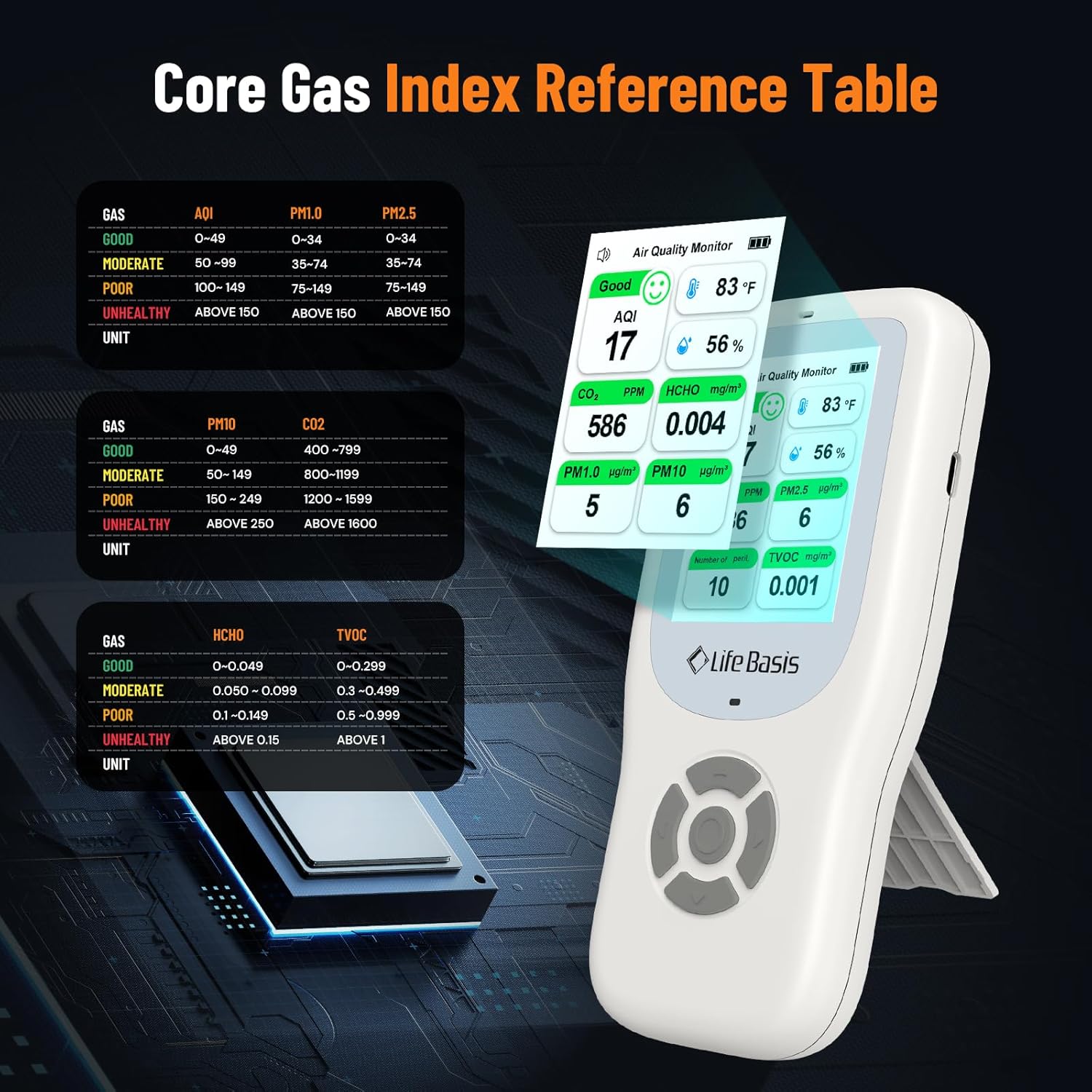
Image: A comprehensive table outlining the different air quality levels (Good, Moderate, Poor, Unhealthy) for various gases and particulate matter, including their respective measurement units and value ranges.
| Gas | AQI | PM1.0 (µg/m³) | PM2.5 (µg/m³) | PM10 (µg/m³) | CO2 (PPM) | HCHO (mg/m³) | TVOC (mg/m³) |
|---|---|---|---|---|---|---|---|
| Good | 0-49 | 0-34 | 0-34 | 0-49 | 400-799 | 0-0.049 | 0-0.299 |
| Moderate | 50-99 | 35-74 | 35-74 | 50-149 | 800-1199 | 0.050-0.099 | 0.3-0.499 |
| Poor | 100-149 | 75-149 | 75-149 | 150-249 | 1200-1599 | 0.1-0.149 | 0.5-0.999 |
| Unhealthy | Above 150 | Above 150 | Above 150 | Above 250 | Above 1600 | Above 0.15 | Above 1 |
8. Maintenance
- Keep the device clean by wiping it with a soft, dry cloth. Do not use abrasive cleaners or solvents.
- Ensure the air intake and exhaust ports are free from dust and obstructions.
- Store the device in a cool, dry place when not in use.
- Regularly charge the device to maintain battery health, even if not used frequently.
9. Troubleshooting
| Problem | Possible Cause | Solution |
|---|---|---|
| Device does not power on. | Low battery or device is off. | Charge the device fully. Press and hold the Multi-Function button to power on. |
| Inaccurate readings (especially HCHO/TVOC). | Device needs calibration or is affected by strong odors. | Perform calibration in fresh air. If affected by odors, restart the device in a well-ventilated area. |
| Audible alarm sounds frequently. | Air quality parameters exceed default thresholds. | Check the readings and ventilate the area. You may adjust alarm thresholds in settings if available. |
| Screen is dim or unreadable. | Brightness setting is too low. | Use the Up/Down buttons to adjust screen brightness. |
10. Specifications
- Brand: LifeBasis
- Model: HAQ66
- Power Source: Battery Powered (2500 mAh integrated battery)
- Charging: USB-C, approx. 6 hours for full charge
- Battery Life: Up to 12 hours continuous monitoring
- Color: White
- Alarm Type: Audible, Visual
- Monitored Parameters: AQI, CO2, PM1.0, PM2.5, PM10, TVOC, HCHO, Particles, Temperature, Humidity
- Sensors: NDIR infrared (CO2), Laser particle, Semiconductor, Photoelectric, Temperature/Humidity
- Country of Origin: China
11. Warranty and Support
LifeBasis products are designed for reliability and performance. For any questions, technical support, or warranty claims, please contact LifeBasis customer service through your purchase platform or the official LifeBasis website. Please retain your proof of purchase for warranty purposes.
For more information, visit the official LifeBasis Store.
Related documentsHAQ66


Ask a question about this manual
Ask about setup, troubleshooting, compatibility, parts, safety, or missing instructions. Manuals+ will review the question and use this page’s manual context to help answer it.