
Ctronics CTIPC-850C-4MP-EU4G
Ctronics 4MP 3G/4G LTE Indoor Surveillance Camera User Manual
Model: CTIPC-850C-4MP-EU4G
1. Introduction
This manual provides comprehensive instructions for the setup, operation, and maintenance of your Ctronics 4MP 3G/4G LTE Indoor Surveillance Camera. Designed for indoor use, this camera offers high-definition monitoring, advanced detection features, and flexible connectivity options, making it ideal for monitoring pets, babies, or general home security in areas without Wi-Fi access.

Figure 1.1: Ctronics 4MP 3G/4G LTE Indoor Surveillance Camera in a home setting.
2. Product Overview and Package Contents
Before you begin, please ensure all components are present and in good condition. The package typically includes the following items:
- Ctronics 4MP 3G/4G LTE Indoor Surveillance Camera
- Power Adapter
- USB Cable
- Mounting Bracket and Screws
- User Manual
- Quick Installation Guide
- Pre-installed Nano SIM card (with 300MB trial cellular data)

Figure 2.1: Unboxing the Ctronics 4MP 3G/4G LTE Camera and its accessories.
Product Unboxing Video
Video 2.1: A detailed unboxing of the Ctronics 850C-4MP-4G camera, showing all included components.
3. Setup Guide
Follow these steps to set up your Ctronics camera for the first time.
3.1 SIM Card and TF Card Installation
The camera comes with a pre-installed Nano SIM card. If you need to install your own SIM card or a TF (microSD) card for local storage, follow these instructions:
- Gently push the camera lens upwards to reveal the SIM card and TF card slots.
- Insert the Nano SIM card into the designated slot. Ensure the card is correctly oriented.
- Insert a TF card (up to 128GB, not included) into its slot if you plan to use local storage.
- Return the camera lens to its original position.

Figure 3.1: Location of SIM and TF card slots on the camera.

Figure 3.2: Detailed view of the SIM card slot and optional RJ45 network port.
3.2 Power Connection
Connect the camera to a power source using the provided USB cable and power adapter. The camera will power on automatically.
3.3 App Installation and Initial Setup
The Ctronics Pro app is essential for controlling and monitoring your camera. This camera primarily uses 3G/4G LTE for connectivity and does not rely on Wi-Fi for its main operation, but initial setup might benefit from a temporary wired connection or ensuring your phone has internet access.
- Download the "Ctronics Pro" app from your device's app store (iOS/Android).
- Register an account and log in.
- In the app, tap the "+" icon to add a new device.
- Select "4G Camera" or "Camera (WiFi/Wired)" if using the RJ45 port for initial setup.
- Scan the QR code located on the camera's body.
- Follow the on-screen prompts to complete the device addition. You may need to set a new password for the camera.

Figure 3.3: App setup process for the Ctronics camera.
App Connection Video Guide
Video 3.1: Detailed instructions on adding the Ctronics camera to the Ctronics Pro APP.
3.4 Mounting Options
The camera supports both surface mounting (e.g., on a table) and wall mounting. Choose a location that provides the best viewing angle for your monitoring needs.
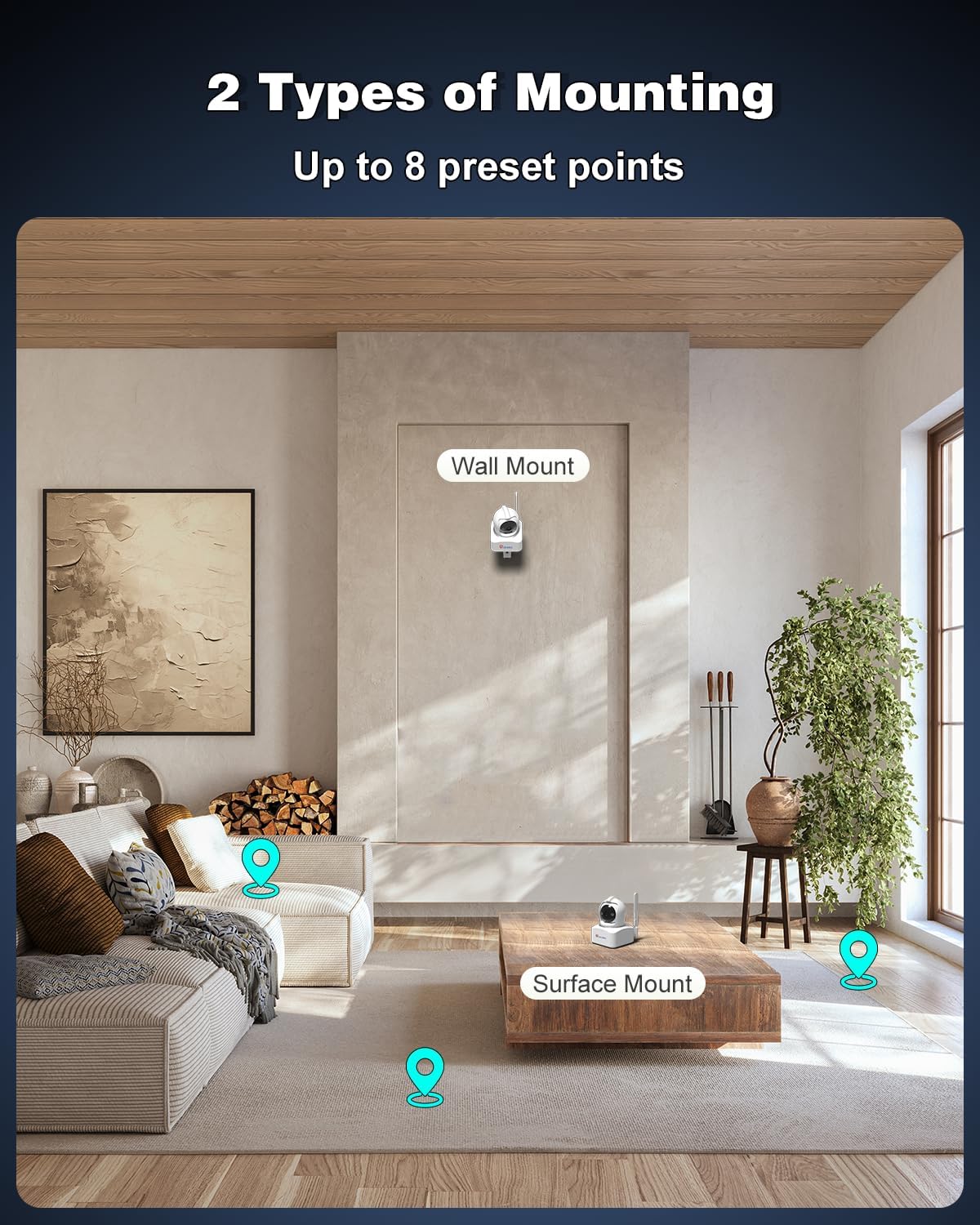
Figure 3.4: Examples of surface and wall mounting for the camera.

Figure 3.5: Visual guide for wall and surface mounting.
4. Operating Instructions
This section details the various functions and features of your Ctronics camera.
4.1 Live View and PTZ Control
Access the live feed from your camera via the Ctronics Pro app. The camera features 355° pan and 90° tilt capabilities, allowing for a full 360° surveillance of your indoor space. Use the directional controls within the app to adjust the camera's view.
- Pan (Horizontal Rotation): 355°
- Tilt (Vertical Rotation): 90°
- Digital Zoom: Up to 4x digital zoom for closer inspection.
- Preset Positions: Customize and save up to 8 preset monitoring positions for quick access.

Figure 4.1: The camera's broad compatibility with various operating systems.

Figure 4.2: Pan and Tilt functionality with preset zones.
Product Overview Video
Video 4.1: An overview of the Ctronics 850C-4MP-4G camera's features.
4.2 Human/Motion Detection & Auto-Tracking
Leveraging deep learning and AI algorithms, the camera intelligently recognizes human and animal movement. When motion is detected, the camera can automatically lock onto the target, track its movement, and trigger alarms. You will receive alarm notifications via the app and email.

Figure 4.3: Human and pet detection with auto-tracking capabilities.

Figure 4.4: Visual representation of human detection and automatic tracking.
4.3 Two-Way Audio
The camera supports two-way audio communication, allowing you to listen in and speak through the camera using the Ctronics Pro app. This feature is useful for interacting with family members, pets, or deterring intruders.

Figure 4.5: Demonstrating clear two-way audio communication.

Figure 4.6: Two-way audio functionality for real-time communication.
4.4 Night Vision
The 4MP camera provides QHD 2.5K resolution day and night. It supports color night vision up to 15-20 meters, offering clear and detailed images even in low-light conditions.

Figure 4.7: High-resolution 2.5K image quality and effective color night vision.

Figure 4.8: Image quality comparison highlighting 2.5K resolution.
4.5 Recording and Storage
The camera offers flexible recording options and storage solutions:
- 24/7 Continuous Recording: Record continuously to a TF card.
- Scheduled Recording: Set specific times for recording.
- TF Card Storage: Supports up to 128GB TF card (not included).
- Ctronics Cloud Storage: Subscription-based cloud service for secure video storage.

Figure 4.9: Flexible storage options: local TF card and Ctronics Cloud.

Figure 4.10: Cloud storage integration with the mobile app.
4.6 Multi-Screen View
The Ctronics Pro app allows you to view multiple camera feeds simultaneously, supporting up to a 4-in-1 screen display for comprehensive monitoring.

Figure 4.11: Multi-screen viewing capability on a tablet.
5. Specifications
| Feature | Detail |
|---|---|
| Model Number | CTIPC-850C-4MP-EU4G |
| Wireless Communication Technology | Cellular (3G/4G LTE) |
| Fixed Effective Resolution | 4 Megapixels (2.5K QHD) |
| Pan Angle | 355 degrees |
| Tilt Angle | 90 degrees |
| Night Vision Range | 20 Meters (Color Night Vision) |
| Special Features | Local Recording, Night Vision, Two-Way Audio, HD Resolution, PTZ Technology, Human/Motion Detection, Auto-Tracking |
| Storage Options | TF Card (up to 128GB), Ctronics Cloud (subscription required) |
| Power Source | Electric Cable (5 Volts, 5 Watts) |
| Dimensions (L x W x H) | 14.2 x 18.4 x 12 centimeters |
| Recommended Uses | Indoor Security, Pet Monitoring, Baby Monitoring |
| Compatible Devices | Computer, Laptop, Tablet, Smartphone (iOS/Android/Windows/Mac OS) |
6. Troubleshooting
If you encounter issues with your Ctronics camera, please refer to the following common troubleshooting steps:
- Camera Not Connecting:
- Ensure the camera is powered on and the indicator light is active.
- Verify that the SIM card is correctly inserted and has an active data plan.
- If using an RJ45 cable for initial setup, ensure the cable is securely connected and your network is active.
- Restart the camera by unplugging and re-plugging the power cable.
- Check your phone's internet connection.
- Poor Image Quality:
- Ensure the camera lens is clean and free from dust or smudges.
- Check the network signal strength for the 3G/4G LTE connection. A weak signal can affect streaming quality.
- Adjust the camera's position to avoid direct glare or extreme backlighting.
- Motion Detection Not Working:
- Verify that motion detection is enabled in the Ctronics Pro app settings.
- Adjust the detection sensitivity settings.
- Ensure there are no obstructions blocking the camera's view in the detection zone.
- Two-Way Audio Issues:
- Check the microphone and speaker settings in the app.
- Ensure your phone's volume is up.
- Minimize background noise near the camera and your phone during communication.
- Cannot Access Recordings:
- If using a TF card, ensure it is properly inserted and not full. Format the card if necessary (this will erase data).
- If using cloud storage, verify your subscription is active and your internet connection is stable.
For further assistance, please contact Ctronics customer support.
7. Warranty and Support
Ctronics is committed to providing high-quality products and excellent customer service. For warranty information, technical support, or any inquiries regarding your camera, please refer to the contact details provided in your product packaging or visit the official Ctronics website.

Figure 7.1: Ctronics commitment to quality and support.
Thank you for choosing Ctronics.
Related documentsCTIPC-850C-4MP-EU4G


Ask a question about this manual
Ask about setup, troubleshooting, compatibility, parts, safety, or missing instructions. Manuals+ will review the question and use this page’s manual context to help answer it.