
XP-Pen ACK08
XP-Pen ACK08 Smart Keyboard User Manual
Model: ACK08
Introduction
This manual provides detailed instructions for the setup, operation, maintenance, and troubleshooting of your XP-Pen ACK08 Smart Keyboard. This keyboard is designed to enhance your experience with the XP-Pen Magic Drawing Pad, offering a PC-like typing and control interface.
Please read this manual thoroughly before using the product to ensure proper functionality and to prevent damage.
Package Contents
Verify that all items are present in the package:
- XP-Pen ACK08 Smart Keyboard
- USB Cable
- Integrated Support
Compatibility
The XP-Pen ACK08 Smart Keyboard is exclusively compatible with the XPPen Magic Drawing Pad (Standalone Graphic Tablet). It requires a minimum operating system version of Android 12.0.
Setup
Connecting the Keyboard
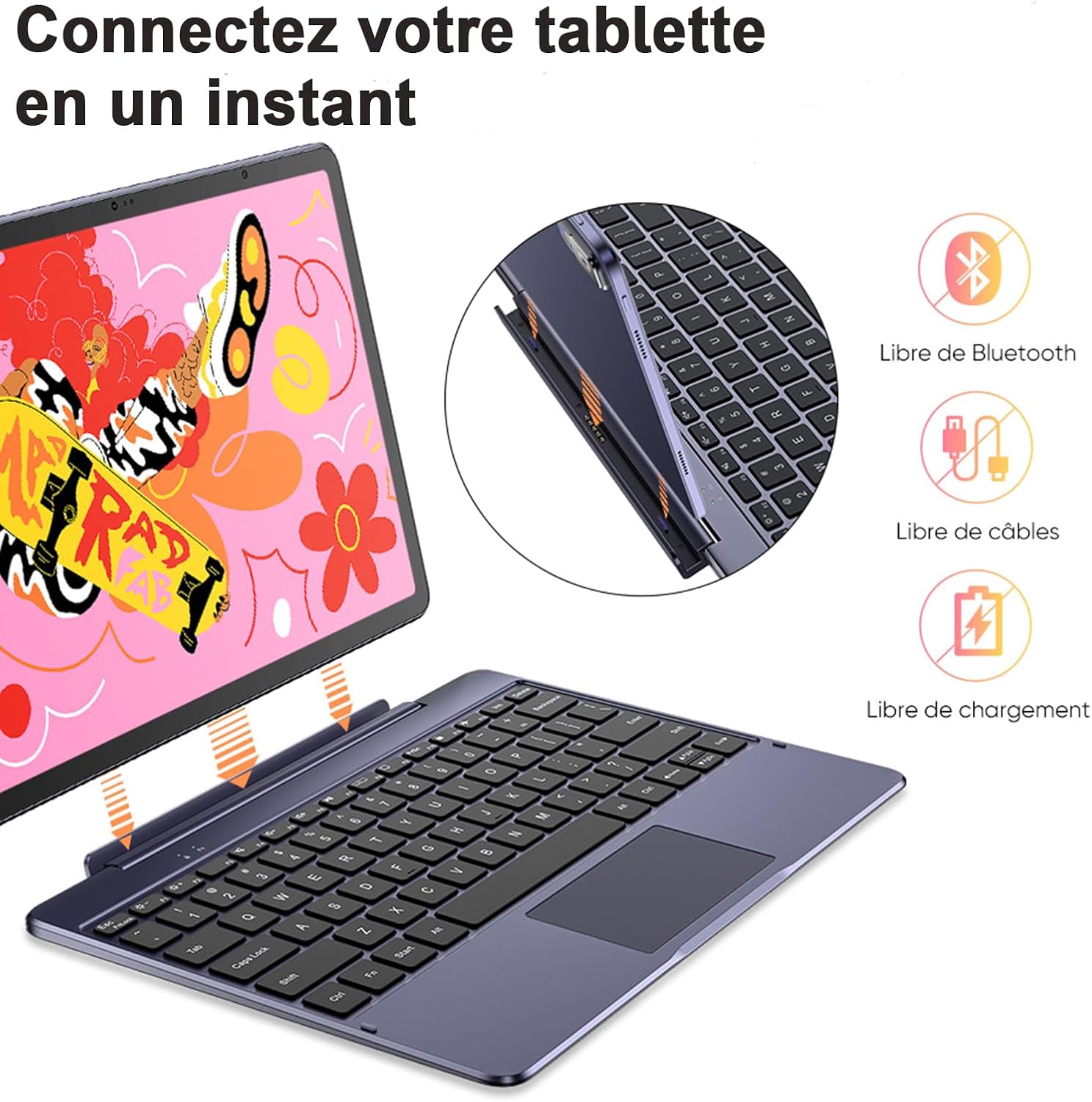
The ACK08 Smart Keyboard connects to your Magic Drawing Pad via a POGO pin interface. This provides a stable and instant connection without the need for Bluetooth pairing, additional cables, or separate charging.
- Align the POGO pins on the keyboard with the corresponding connectors on your XPPen Magic Drawing Pad.
- Gently press the Magic Drawing Pad onto the keyboard until it securely clicks into place.
- The keyboard will be instantly recognized and ready for use.

Operating Instructions
Typing and Touchpad Use
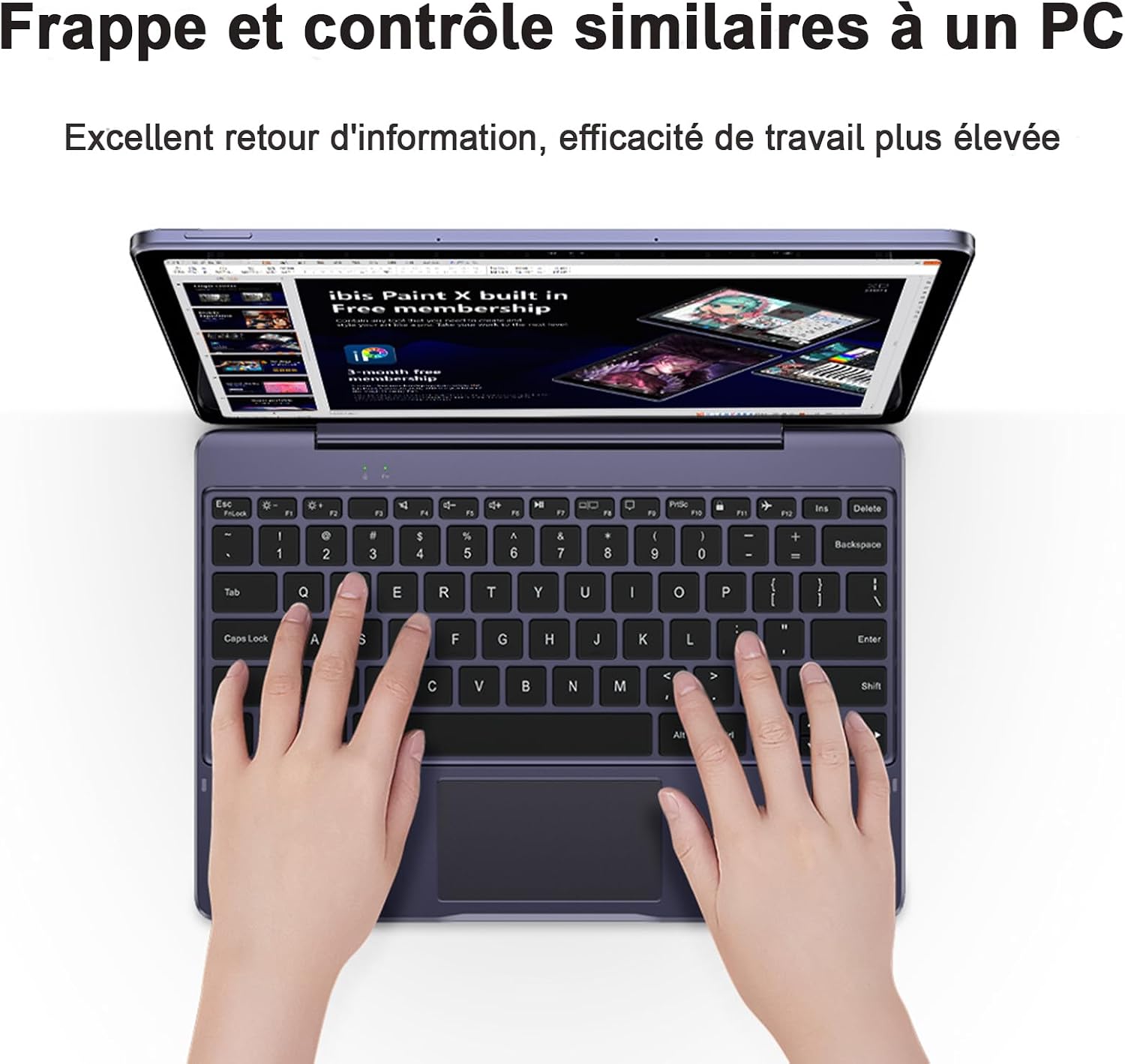
The full-size keyboard provides a comfortable typing experience similar to a PC. The integrated touchpad, measuring 41.5 cm², allows for precise cursor control.
- Typing: Use the keys as you would on a standard QWERTY keyboard.
- Touchpad: Move your finger across the touchpad surface to control the cursor. Click the left or right side of the touchpad for corresponding mouse clicks.
- Note: The touchpad does not support two-finger gestures.
Adjusting Viewing Angles
The keyboard's design allows for flexible angle adjustments from 0° to 175°, enabling you to find the most comfortable position for various tasks, including drawing, typing, or viewing content.
- Gently adjust the angle of your Magic Drawing Pad relative to the keyboard base.
- The integrated hinge mechanism will hold the desired angle securely.


Maintenance
Cleaning
- To clean the keyboard surface, use a soft, lint-free cloth.
- For stubborn marks, slightly dampen the cloth with water or a mild, non-abrasive cleaning solution.
- Avoid using harsh chemicals, solvents, or abrasive materials, as these can damage the keyboard's finish.
- Ensure no liquid enters the POGO pin connectors or other openings.
Storage
- When not in use, store the keyboard in a cool, dry place away from direct sunlight and extreme temperatures.
- Keep the keyboard closed to protect the keys and touchpad from dust and debris.
- Its lightweight design (615g) makes it easy to transport in a bag or sleeve.


Troubleshooting
Keyboard Not Responding
- Check Connection: Ensure the Magic Drawing Pad is securely attached to the keyboard via the POGO pins. Detach and reattach to confirm a proper connection.
- Compatibility: Verify that you are using the keyboard with a compatible XPPen Magic Drawing Pad running Android 12.0 or higher.
- Restart Device: Disconnect the keyboard and restart your Magic Drawing Pad. Reconnect the keyboard after the device has fully rebooted.
- Clean Connectors: Inspect the POGO pins on both the keyboard and the Magic Drawing Pad for any dust or debris. Gently clean with a dry, soft cloth if necessary.
Touchpad Issues
- No Two-Finger Gestures: Remember that the touchpad does not support two-finger gestures.
- Unresponsive Touchpad: If the touchpad is not responding, follow the steps for "Keyboard Not Responding" above, as the connection is shared.
- Erratic Cursor Movement: Ensure the touchpad surface is clean and dry. Avoid using the touchpad with wet or oily fingers.
Physical Damage
- If you notice any physical damage to the keyboard, especially around the hinge or POGO pins, discontinue use and contact customer support.
- The keyboard is not water-resistant. Avoid exposure to liquids.
Specifications
| Feature | Detail |
|---|---|
| Brand | XP-Pen |
| Model Number | ACK08 |
| Product Name | Smart Keyboard |
| Connectivity Technology | POGO Pin |
| Compatible Devices | XPPen Magic Drawing Pad (Android 12.0+) |
| Keyboard Description | Full-size, PC-like typing experience, large trackpad, portable |
| Special Feature | Integrated Touchpad |
| Color | Violet |
| Product Dimensions (L x W x H) | 28L x 19.5W x 0.3H cm |
| Material | Acrylonitrile Butadiene Styrene |
| Power Source | Electric Cable (powered by Magic Drawing Pad) |
| Keyboard Layout | QWERTY |
| Number of Keys | 79 |
| Water Resistance Level | Not Water Resistant |
| Item Weight | 615 Grams |
| Minimum OS Requirement | Android 12.0 |
Warranty and Support
For warranty information and technical support, please refer to the official XP-Pen website or contact their customer service directly. Keep your purchase receipt as proof of purchase for warranty claims.
Official XP-Pen Website: www.xp-pen.com
Related documentsACK08


Ask a question about this manual
Ask about setup, troubleshooting, compatibility, parts, safety, or missing instructions. Manuals+ will review the question and use this page’s manual context to help answer it.