
1. Product Overview
The Fujifilm INSTAX Mini LIPLAY is a hybrid instant camera and smartphone printer designed for capturing and printing instant photos. It integrates digital imaging capabilities with instant film output. The camera allows users to take photos, review them on an LCD screen, and print them directly. Additionally, it functions as a portable printer for images stored on a smartphone, connecting via Bluetooth through the dedicated INSTAX MINI LIPLAY App. This manual provides essential instructions for setting up, operating, and maintaining your camera.
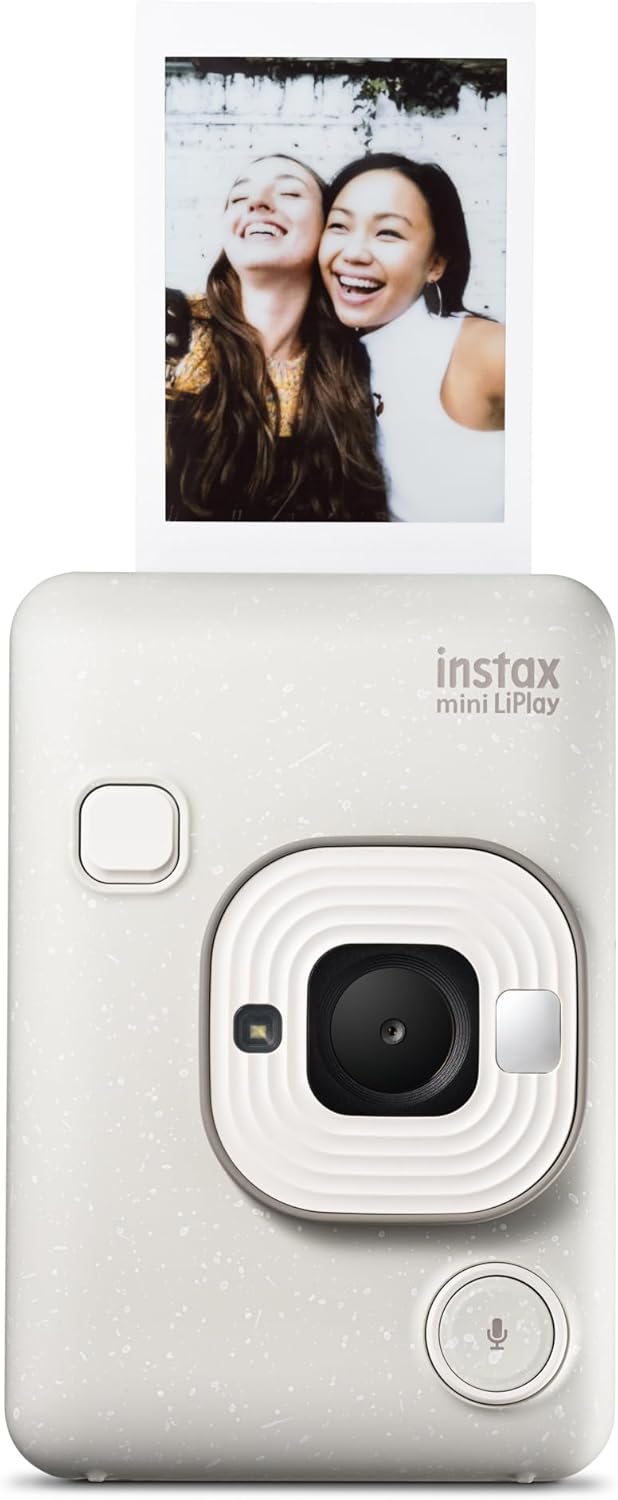
Image 1.1: Front view of the INSTAX Mini LIPLAY camera in Misty White, with a printed photo emerging from the top.
Key Features:
- Hybrid Functionality: Capture digital images and print them instantly, or print photos from your smartphone.
- LCD Screen: Features an LCD screen on the back for reviewing and editing photos before printing.
- Sound Mode: Record a short audio clip with your photo. A QR code is printed on the photo, which can be scanned with a smartphone to play the sound.
- Smartphone Printer: Connect via Bluetooth to the INSTAX MINI LIPLAY App to print photos from your smartphone.
- Creative Options: Access various in-app and in-camera frames and filters to customize your photos.
- Remote Shooting: Control the camera remotely from your smartphone using the INSTAX MINI LIPLAY App.
2. Setup
2.1 Unboxing and Initial Charge
Upon opening the package, ensure all components are present:
- INSTAX Mini LIPLAY Camera
- Hand Strap
- USB Type C Cable
- User's Guide (this document)

Image 2.1: The camera, hand strap, USB Type C cable, and user guide as included in the product packaging.
Before first use, fully charge the camera using the provided USB Type C cable. Connect the cable to the camera's USB-C port and a compatible USB power adapter (not included). A full charge typically takes approximately 3 hours.

Image 2.2: Close-up of the camera's bottom, highlighting the USB Type C charging port.
2.2 Installing INSTAX Mini Film
Open the film compartment door located on the back of the camera. Insert a new pack of INSTAX Mini film, aligning the yellow marks on the film cartridge with the yellow marks inside the camera. Close the door firmly until it clicks. The dark slide will eject automatically.

Image 2.3: The rear of the camera showing the LCD screen and the film compartment door.
2.3 Installing the INSTAX MINI LIPLAY App
To unlock the full potential of your camera, download the free INSTAX MINI LIPLAY App from your smartphone's app store. The app allows for Bluetooth printing, remote shooting, and access to additional features.
3. Operation
3.1 Powering On/Off
Press and hold the power button located on the side of the camera to turn it on or off.
3.2 Taking a Photo
- Frame your shot using the LCD screen on the back of the camera.
- Press the shutter button to capture the image.
- Review the image on the LCD screen. You can apply filters or frames before printing.
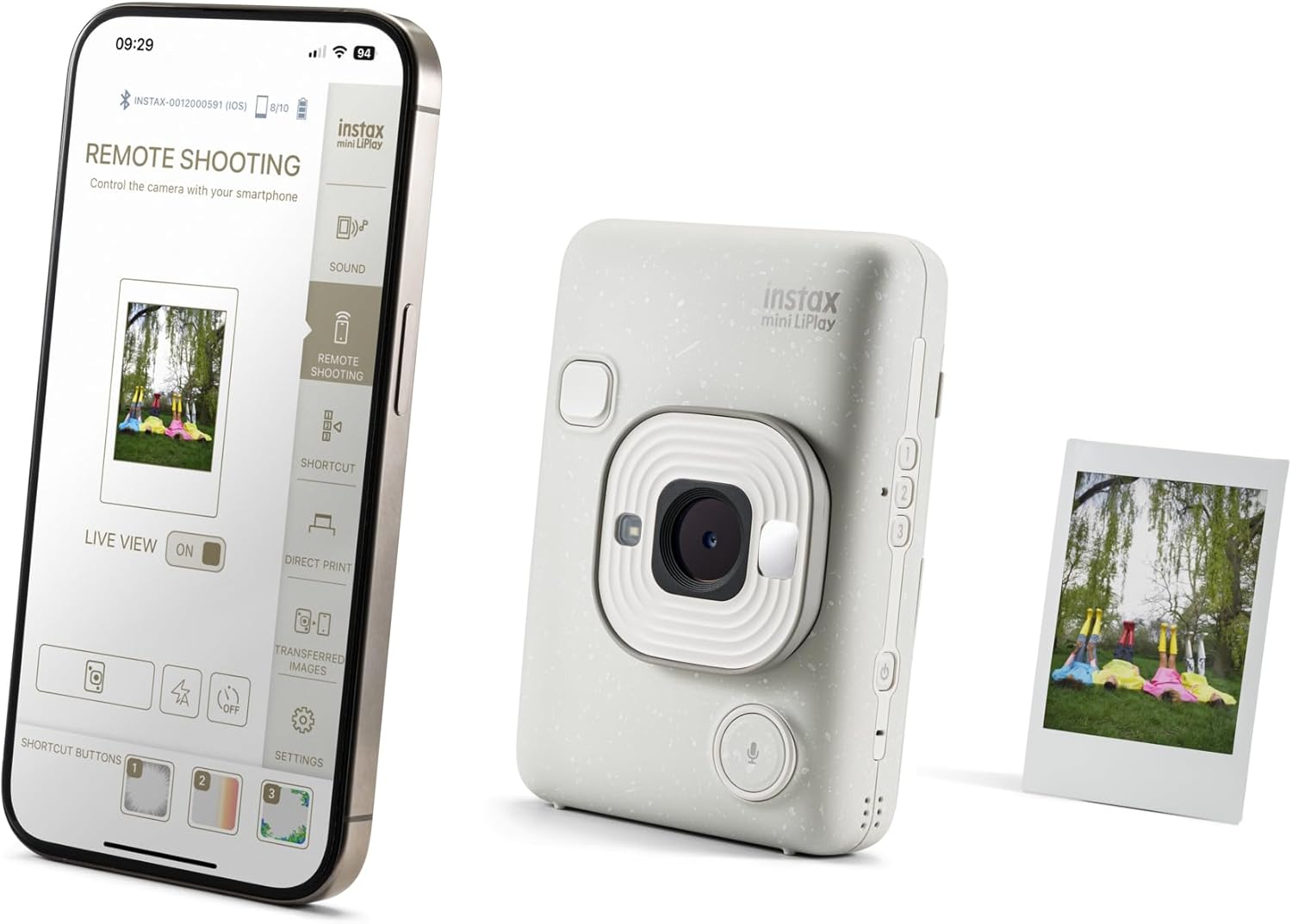
Image 3.1: A user holding the camera and viewing a captured image on its LCD display.
3.3 Printing Photos
After capturing or selecting an image, you have two primary printing methods:
- Direct from Camera: Select the desired image on the LCD screen and press the print button.
- From Smartphone (via App):
- Ensure your camera is connected to your smartphone via Bluetooth through the INSTAX MINI LIPLAY App.
- Select a photo from your smartphone's gallery within the app.
- Tap the print option in the app to send the image to the camera for printing.

Image 3.2: A close-up of the camera as an INSTAX Mini photo is being ejected after printing.

Image 3.3: The camera and a smartphone displaying the INSTAX app, illustrating the smartphone printing function.
3.4 Using Sound Mode
The Sound mode feature allows you to record a short audio message that is linked to your printed photo via a QR code.
- After taking a photo, select the Sound mode option on the camera or within the app.
- Record your desired sound or phrase.
- Print the photo. A QR code will be embedded on the print.
- To listen, scan the QR code on the printed photo using your smartphone's camera or a QR code scanner app.

Image 3.4: A smartphone scanning the QR code on a printed INSTAX photo to access the embedded sound clip.
3.5 Remote Shooting
Control your camera from a distance using the Remote Shooting feature in the INSTAX MINI LIPLAY App.
- Connect your camera to the app via Bluetooth.
- Open the Remote Shooting function in the app.
- Use your smartphone as a remote viewfinder and shutter release.

Image 3.5: The camera positioned next to a smartphone showing the remote shooting feature of the INSTAX app.
4. Maintenance
4.1 Cleaning the Camera
- Gently wipe the camera body with a soft, dry cloth.
- For the lens and LCD screen, use a lens cleaning cloth specifically designed for optical surfaces. Avoid abrasive materials or harsh chemicals.
4.2 Battery Care
- Charge the camera regularly, even if not in frequent use, to maintain battery health.
- Avoid exposing the camera to extreme temperatures, which can affect battery performance.
4.3 Film Storage
Store INSTAX Mini film in a cool, dry place away from direct sunlight and high temperatures to ensure optimal print quality.
5. Troubleshooting
| Problem | Possible Cause | Solution |
|---|---|---|
| Camera does not power on. | Low or depleted battery. | Charge the camera fully using the USB Type C cable. |
| Photos are not printing. | No film loaded or film compartment open. | Ensure a fresh pack of INSTAX Mini film is correctly loaded and the film door is closed. |
| Printed photos appear too bright/dark. | Exposure settings or lighting conditions. | Adjust exposure compensation settings on the camera or use appropriate lighting. Note that print brightness may vary slightly from screen preview. |
| Cannot connect to smartphone via Bluetooth. | Bluetooth is off or pairing issue. | Ensure Bluetooth is enabled on both devices. Restart both the camera and smartphone, then attempt to pair again through the INSTAX MINI LIPLAY App. |
6. Specifications
| Feature | Detail |
|---|---|
| Brand | instax (Fujifilm) |
| Model Name | INSTAX MINI LIPLAY |
| Item Model Number | 16835196 |
| Product Dimensions (L x W x H) | 1.54 x 3.15 x 4.72 inches |
| Item Weight | 9.1 ounces (0.57 Pounds) |
| Film Format Type | Instax Mini |
| Batteries | 1 C battery required (included) |
| Minimum Shutter Speed | 1/4 sec |
| Included Components | Camera Body & Accessories (Hand Strap, USB Type C Cable, User’s Guide) |
7. Warranty & Support
7.1 Limited Warranty
The Fujifilm INSTAX Mini LIPLAY Hybrid Instant Camera comes with a 1 Year Limited Warranty. Please retain your proof of purchase for warranty claims. For detailed terms and conditions, refer to the warranty card included in your product packaging or visit the official Fujifilm INSTAX website.
7.2 Customer Support
For technical assistance, troubleshooting beyond this manual, or warranty service, please contact Fujifilm customer support. Contact information can typically be found on the official Fujifilm website or on the product packaging.


