
UOGIC USI 2.0 Stylus Pen
Uogic USI 2.0 Stylus Pen Instruction Manual
Model: USI 2.0 Stylus Pen
Introduction
This manual provides comprehensive instructions for the Uogic USI 2.0 Stylus Pen. Please read this manual carefully before using the product to ensure proper operation and to maximize its lifespan. This stylus is designed for use with compatible USI 2.0 protocol touch screens, including Amazon Fire Max 11 and Fire HD 10 (2023 Release).
Product Overview
The Uogic USI 2.0 Stylus Pen features a sleek design with essential controls for an intuitive user experience. Familiarize yourself with the components below.
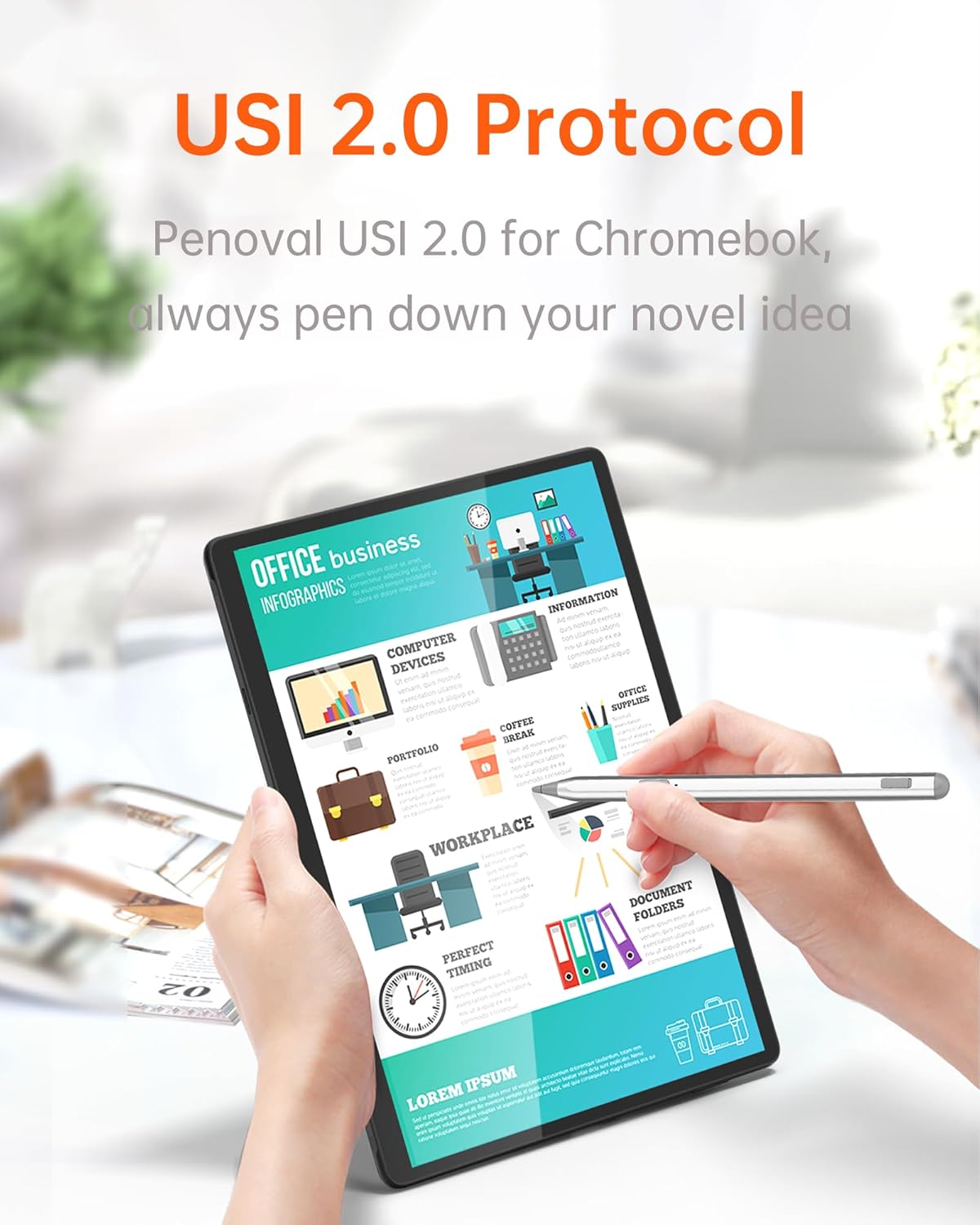
Image: Uogic USI 2.0 Stylus Pen showing the function button (eraser), dust plug/charging port, indicator light, power button (select function), and replaceable nib.
- Function Button: Located near the tail, this button typically functions as an eraser.
- Dust Plug / Charging Port: A hidden Type-C charging port protected by a dust plug.
- Indicator Light: Provides visual feedback on battery status and power state.
- Power Button: Located on the side, this button typically functions as a select tool.
- Replaceable Nib: The pen tip, designed for durability and easy replacement.
Setup
1. Charging the Stylus
Before initial use, charge the stylus for at least 10 minutes. A full charge takes approximately 1 hour and provides up to 110 hours of use.
- Locate the hidden Type-C charging port by removing the dust plug.
- Connect the stylus to a power source using a USB-C cable.
- The indicator light will blink red during charging or when the battery is low.
- The indicator light will turn solid green when fully charged.

Image: The stylus charging port, protected by a dust plug, connected to a Type-C charger.
2. Initial Use (No Pairing Required)
The Uogic USI 2.0 Stylus Pen does not require Bluetooth pairing or app installation. Simply charge it and it will automatically wake up when picked up for use with a compatible device.
- After charging, pick up the stylus. It will automatically power on.
- The green indicator light will illuminate for 3 seconds, then turn off, indicating it is ready for use.
Operating Instructions
Power Management
- Smart Standby: The stylus automatically wakes up when picked up.
- Auto Sleep: If inactive for 5 minutes, the stylus enters sleep mode. Press any button to wake it.
- Auto Shutdown: If inactive for 45 minutes, the stylus will shut down. Press the power button to restart.
Using the Stylus
The stylus offers advanced features for a natural writing and drawing experience.
- Pressure Sensitivity: With 4096 levels of pressure sensitivity, the stylus provides precise control for varying line thickness and shading.
- Palm Rejection: Rest your hand naturally on the screen while writing or drawing without causing unintended marks.

Image: Illustration of the stylus's 4096 pressure levels, allowing for varied line thickness.

Image: The stylus demonstrating tilt sensitivity, enabling different shading effects based on angle.
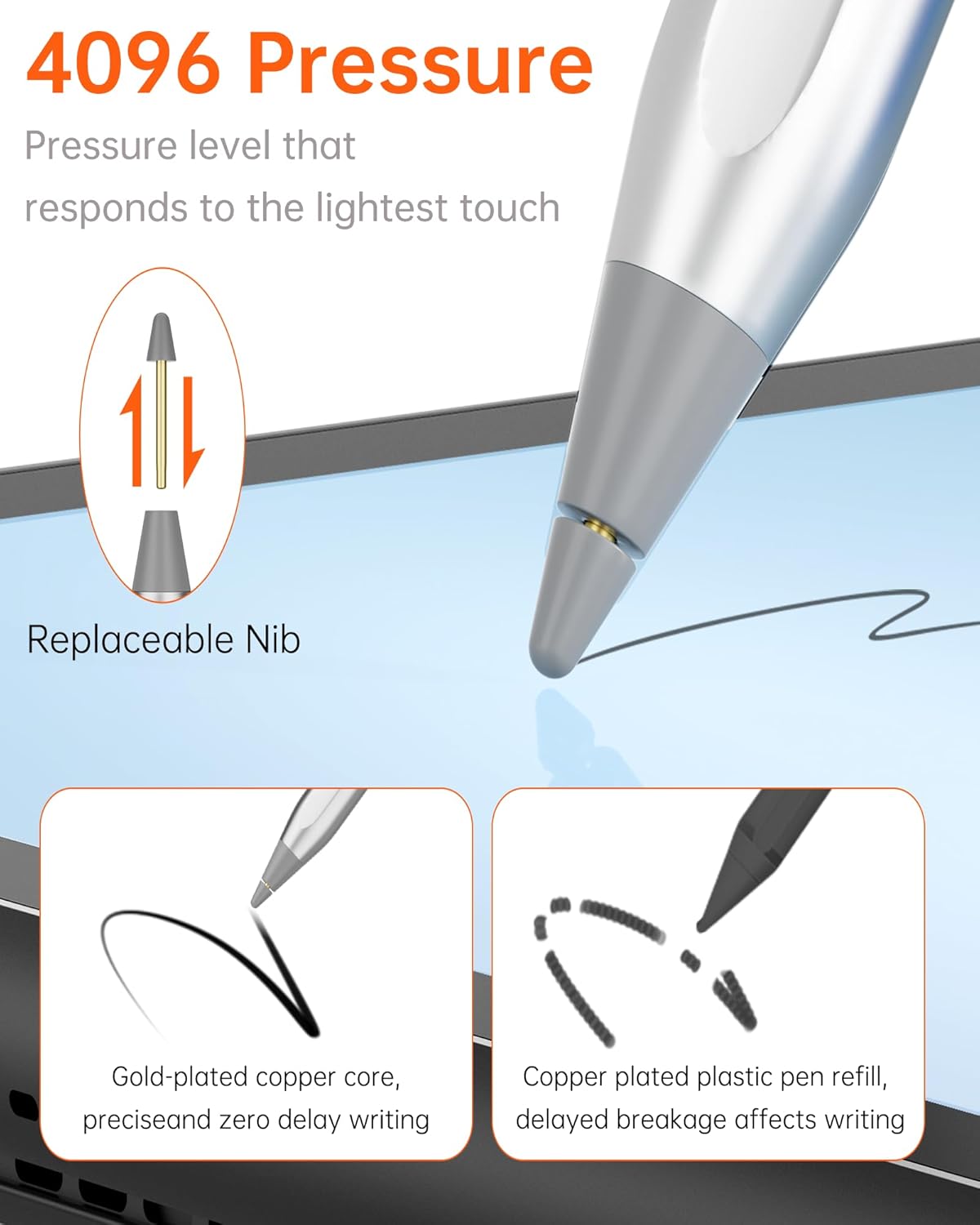
Image: A user writing on a tablet with the stylus, showing how palm rejection allows the hand to rest comfortably on the screen.
Magnetic Attachment
The stylus can be magnetically attached to compatible Chromebooks for convenient storage and portability. Please note that not all Chromebook models support magnetic attachment.

Image: The stylus demonstrating magnetic adsorption, attaching securely to a tablet.
Maintenance
Replacing the Nib
The stylus features a durable, cone-shaped tip that is replaceable. If the nib becomes worn or damaged, follow these steps for replacement:
- Gently pull the old nib straight out from the stylus body.
- Insert the new nib firmly into the stylus until it clicks into place.

Image: Diagram illustrating the process of replacing the stylus nib.
Troubleshooting
If you encounter issues with your Uogic USI 2.0 Stylus Pen, refer to the following common problems and solutions:
| Problem | Possible Cause | Solution |
|---|---|---|
| Stylus not responding | Low battery or stylus is in shutdown mode. | Charge the stylus. If it was in shutdown mode (inactive for 45 minutes), press the power button to restart it. |
| Inaccurate writing/drawing | Worn-out nib or incompatible screen protector. | Replace the nib. Ensure your screen protector is thin and compatible with stylus use. |
| Magnetic attachment not working | Device does not support magnetic attachment. | Verify your device's specifications for magnetic stylus support. This feature is not universal. |
| Indicator light not working | Stylus is fully charged and off, or a malfunction. | Check if the stylus is powered on. If issues persist after charging, contact customer support. |
Specifications
- Product Dimensions: 6.2 x 0.35 x 0.33 inches
- Item Weight: 0.45 ounces
- Material: Aviation Aluminum Alloy
- Battery Type: 1 Lithium Polymer battery (required)
- Battery Life (Standby): Up to 110 Hours
- Pressure Sensitivity: 4096 Levels
- Compatibility: USI 2.0 protocol devices, including Amazon Fire Max 11, Fire HD 10 (2023 release), Google Pixel Tablet, Lenovo Duet, HP Chromebook 360, ASUS Chromebook Flip, and more.

Image: A detailed list of compatible models for the Uogic USI 2.0 Stylus Pen, including various Chromebooks and Amazon Fire tablets.
Warranty and Support
The Uogic USI 2.0 Stylus Pen is backed by a 12-month warranty. For any questions, technical assistance, or warranty claims, please contact our customer support team. We offer 24/7 online customer support to ensure prompt assistance.
For support, please visit the official Uogic website or refer to the contact information provided with your product packaging.
Ask a question about this manual
Ask about setup, troubleshooting, compatibility, parts, safety, or missing instructions. Manuals+ will review the question and use this page’s manual context to help answer it.