
1. Introduction
The SofaBaton X1 is an advanced universal remote control system designed to simplify your home entertainment and smart home experience. It combines an ergonomic remote with a powerful hub to control a wide range of devices using IR, Bluetooth, and Wi-Fi technologies. This manual provides detailed instructions for setting up, operating, and maintaining your SofaBaton X1 system.
Key Features:
- All-in-One Control: Manages over 500,000 entertainment and smart home devices from over 6,000 brands, including TVs, DVD/Blu-ray players, projectors, AV receivers, soundbars, streaming boxes, and smart lighting.
- Custom One-Click Activities: Create personalized activities to control multiple devices simultaneously with a single button press, such as "Watch TV" or "Play Game."
- Powerful Hub: The SofaBaton Hub sends strong signals, even to devices in closed cabinets, and includes two infrared blasters for extended coverage.
- Voice Control Integration: Compatible with Amazon Alexa and Google Assistant for convenient voice commands to manage your devices and activities.
- Customizable Remote: Add single-command or multi-command virtual buttons and macro commands via the SofaBaton app.
- Flexible API: Integrate with other smart applications like IFTTT or iOS Shortcuts using activity URLs.
- Ergonomic Design: Features a comfortable grip, reasonable button layout, and backlit buttons for visibility in low-light conditions.
- Remote Finder: Locate your remote by triggering a beep sound from the app.
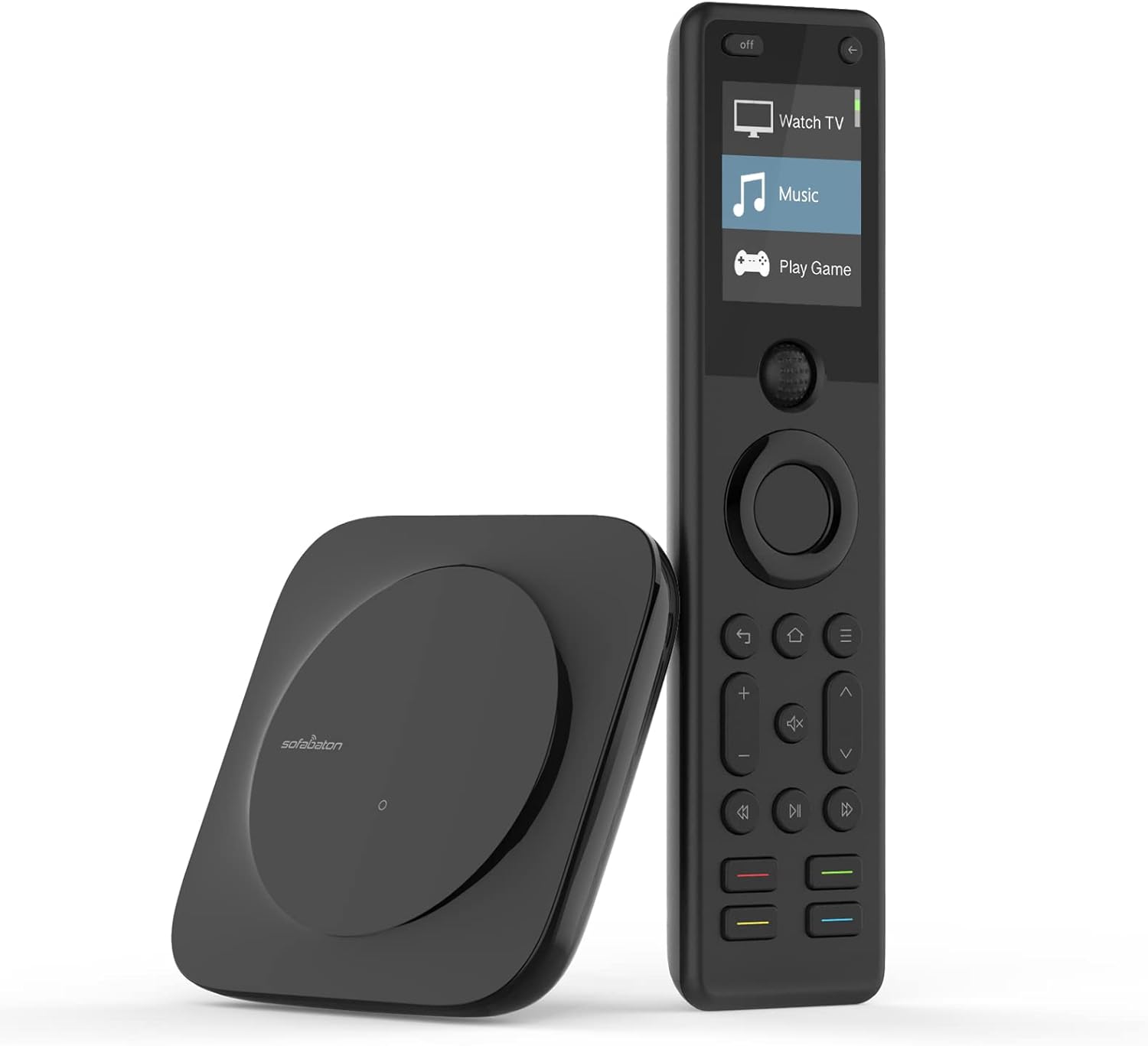
Image 1.1: The SofaBaton X1 Universal Remote Control and its accompanying Hub.
2. Setup
Setting up your SofaBaton X1 involves pairing the remote and hub, and then adding your various devices through the SofaBaton mobile application.
2.1 Initial Setup and App Installation
- Download the SofaBaton app from your device's app store (available for iOS and Android).
- Ensure the SofaBaton Hub is powered on and connected to your home Wi-Fi network.
- Open the app and follow the on-screen instructions to pair your SofaBaton X1 remote with the hub.
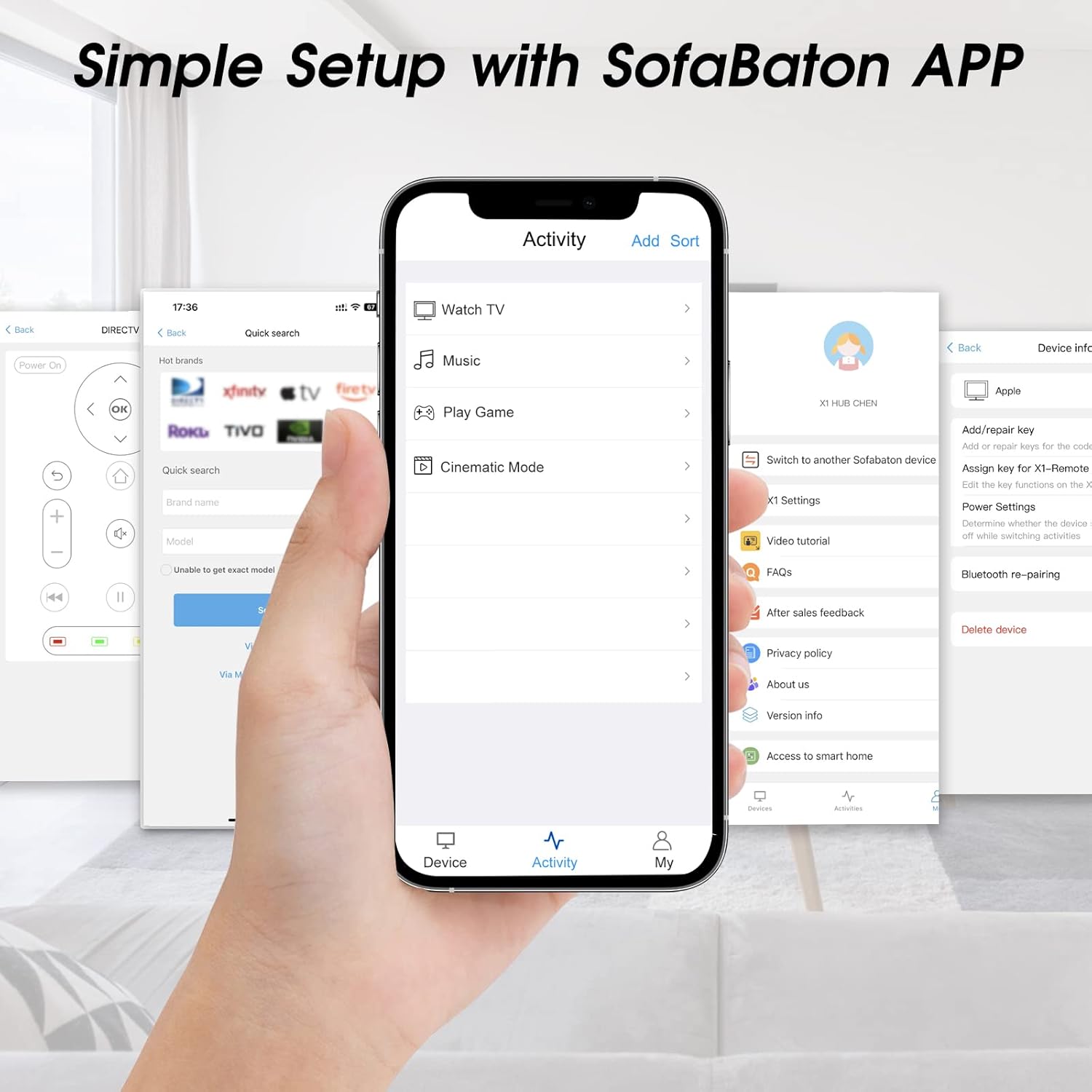
Image 2.1: The SofaBaton mobile application interface, showing device setup options.
2.2 Adding Devices
The SofaBaton X1 supports IR, Bluetooth, and Wi-Fi devices. Follow the specific instructions below for each type:
- For IR Devices: In the SofaBaton app, navigate to the 'Devices' section. Select 'Add Device' and enter the brand and model of your IR device (e.g., TV, DVD player, AV receiver). The app will attempt to find a matching code.
- For Bluetooth Devices: Select your Bluetooth device type within the app. Ensure your Bluetooth device is in pairing mode. The app will guide you through the pairing process.
- For Wi-Fi Devices: Ensure your Wi-Fi device is powered on and connected to the same Wi-Fi network as the SofaBaton Hub. In the app, initiate a scan for Wi-Fi devices. Select the detected device from the list to add it.
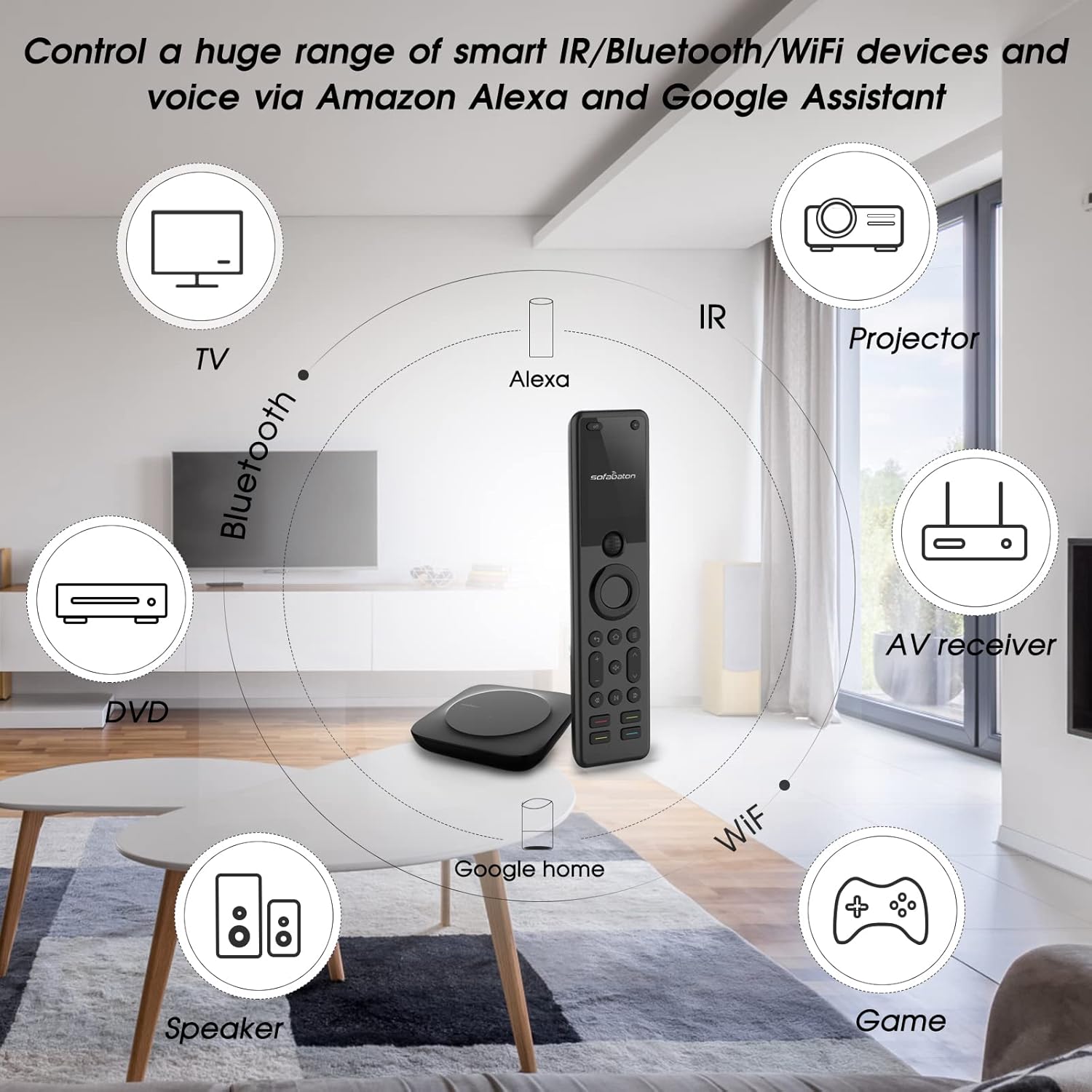
Image 2.2: The SofaBaton X1 system's capability to control IR, Bluetooth, and Wi-Fi devices, including TVs, projectors, AV receivers, and speakers.
2.3 Infrared Blaster Placement
The SofaBaton Hub comes with two infrared blasters. These can be positioned to extend the IR signal to devices that are out of direct line-of-sight from the hub, such as those inside cabinets. Place the blasters near the IR receiver of the devices you wish to control.
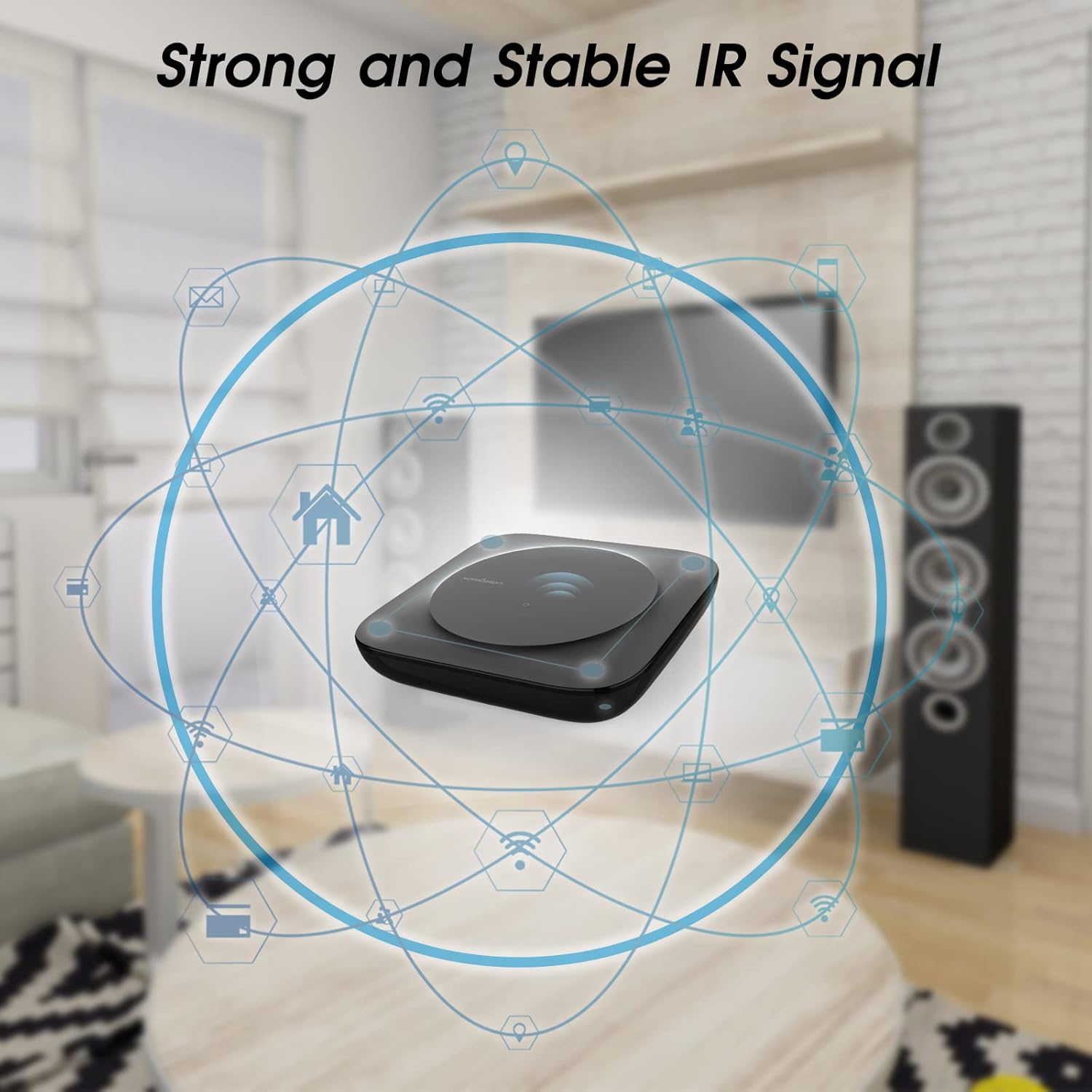
Image 2.3: The SofaBaton Hub providing a strong and stable IR signal to control devices.
3. Operating Instructions
Once your devices are added, you can begin using your SofaBaton X1 remote to control your home entertainment system.
3.1 Creating and Using Activities
Activities allow you to execute a sequence of commands across multiple devices with a single button press.
- In the SofaBaton app, navigate to the 'Activities' section.
- Select 'Add Activity' and choose the devices involved (e.g., TV, soundbar, streaming box).
- Define the actions for each device (e.g., turn on TV, switch input to HDMI 1, turn on soundbar).
- Save the activity. It will then appear on your X1 remote's screen.
- To activate, select the desired activity on the remote's screen.

Image 3.1: The SofaBaton X1 remote displaying a 'One-Click Activity' to trigger multiple devices simultaneously.
3.2 Customizing Remote Buttons
You can customize the functions of buttons on your X1 remote or add virtual buttons via the app.
- Single Commands: Assign specific functions (e.g., channel up/down, volume control) to any button.
- Macro Commands: Create a sequence of commands (e.g., "Home-Down-Right-Right-OK" to open a specific app) and assign it to a single button.
- Virtual Buttons: Add additional buttons to the remote's screen through the app for functions not covered by physical buttons.
3.3 Voice Control
Integrate your SofaBaton X1 with Amazon Alexa or Google Assistant for hands-free control.
- Enable the SofaBaton skill/action in your Alexa or Google Home app.
- Link your SofaBaton account.
- Use voice commands such as "Alexa, turn on the TV" or "Hey Google, turn up the volume."

Image 3.2: Smart Voice Control functionality with Amazon Alexa and Google Assistant.
3.4 Backlight Function
The SofaBaton X1 remote features backlit buttons for improved visibility in dark environments. The backlight activates automatically when the remote is in use.
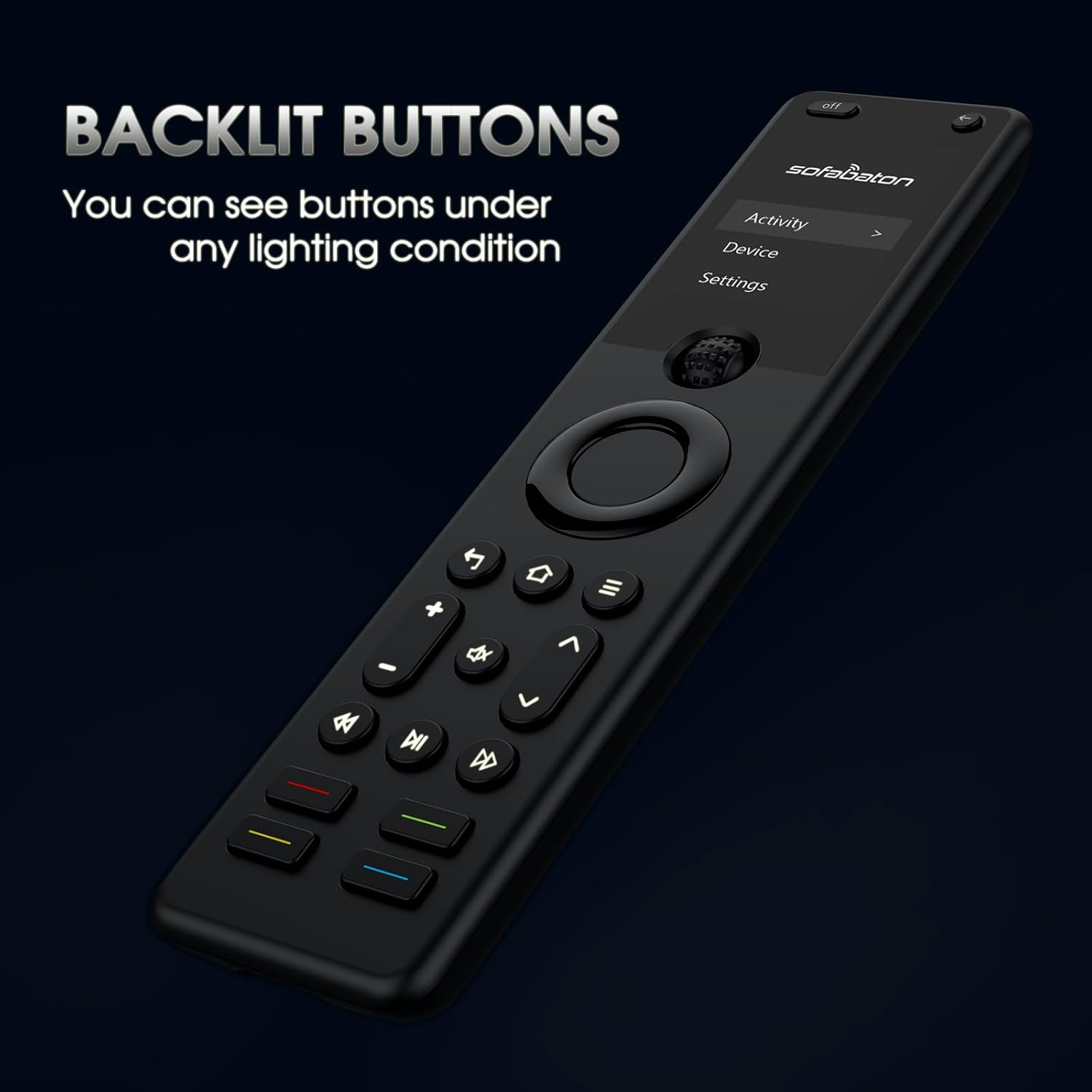
Image 3.3: The SofaBaton X1 remote with its backlit buttons illuminated for use in low-light conditions.
3.5 Finding Your Remote
If you misplace your SofaBaton X1 remote, you can use the app to locate it.
- Open the SofaBaton app on your smartphone.
- Navigate to the 'My' section or a similar option to find the 'Find my remote' feature.
- Tap the 'Find my remote' button. The X1 remote will emit a beep sound, helping you locate it.
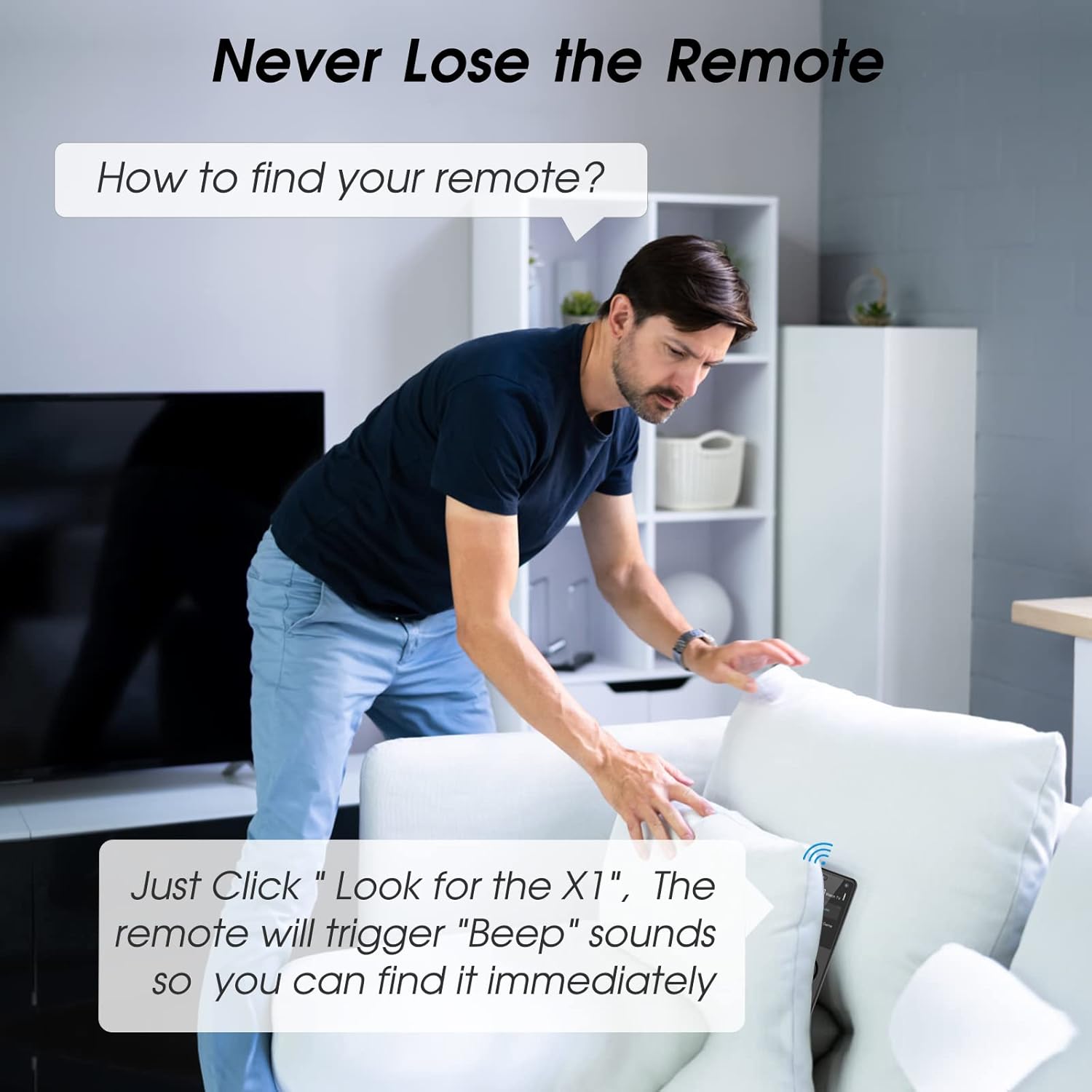
Image 3.4: Illustration of using the app to locate a misplaced SofaBaton X1 remote by triggering an audible beep.
4. Maintenance
Proper care and maintenance will ensure the longevity and optimal performance of your SofaBaton X1 system.
4.1 Cleaning
- Use a soft, dry, lint-free cloth to clean the remote and hub.
- Do not use abrasive cleaners, solvents, or aerosol sprays, as these may damage the surfaces.
- Avoid getting moisture into any openings.
4.2 Battery Information
The SofaBaton X1 remote uses a rechargeable battery. Ensure regular charging to maintain functionality. The hub requires a constant power supply.
- The remote is powered by 1 AAA battery (included), which is rechargeable.
- Charge the remote using the provided charging cable.
- Avoid exposing the remote or hub to extreme temperatures.
5. Troubleshooting
If you encounter issues with your SofaBaton X1, refer to the following common problems and solutions.
| Problem | Possible Cause / Solution |
|---|---|
| Remote or Hub unresponsive |
|
| Devices not responding to commands |
|
| Activities not functioning correctly |
|
| Voice control not working |
|
| Remote not found by app's 'Find my remote' feature |
|
If these steps do not resolve your issue, please refer to the support section for further assistance.
6. Specifications
| Feature | Detail |
|---|---|
| Model Number | X1 |
| Brand | SofaBaton |
| Package Dimensions | 9.02 x 5.51 x 2.72 inches |
| Item Weight | 0.018 ounces |
| Batteries | 1 AAA battery required (included, rechargeable) |
| Max Number of Supported Devices | 60 |
| Compatible Devices | DVD/Blu-ray Player, Home Theater, Set Top Box, Stereo System, Television, Projectors, Soundbars, Streaming Boxes, Smart Home Devices |
| Special Features | Backlit, Ergonomic, Lightweight, Rechargeable, Voice Search |
| Color | Black |
| Connectivity | IR, Bluetooth, Wi-Fi |
7. Warranty and Support
7.1 Warranty Information
For detailed warranty information regarding your SofaBaton X1 Universal Remote Control, please refer to the warranty card included with your product or visit the official SofaBaton website. Warranty terms typically cover manufacturing defects for a specified period from the date of purchase.
7.2 Customer Support
If you require technical assistance, have questions about your product, or need to report an issue, please contact SofaBaton customer support through the following channels:
- SofaBaton App: The app often includes a 'Feedback' or 'Support' section.
- Official Website: Visit the SofaBaton official website for support resources, FAQs, and contact information.
- Amazon Store: You can also visit the SofaBaton Store on Amazon for product information and seller contact options.


