
1. Introduction
Thank you for choosing the energeeks Scout EG-CIP005 Indoor WiFi Security Camera. This manual provides essential information for setting up, operating, and maintaining your camera. Please read these instructions carefully before use to ensure optimal performance and safety.
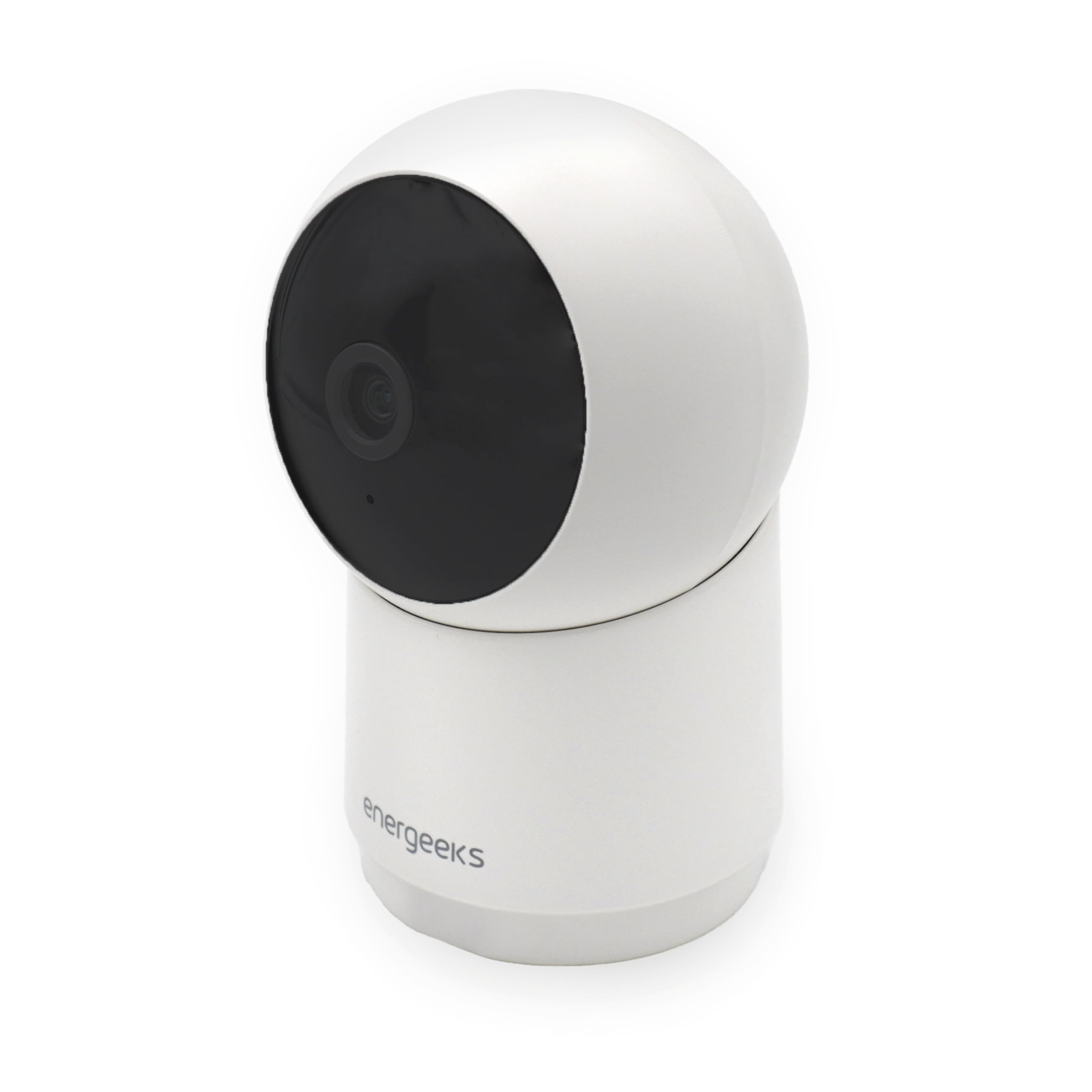
Image: The energeeks Scout EG-CIP005 camera, a compact white dome-shaped indoor security camera.
2. Product Overview
The energeeks Scout EG-CIP005 is a versatile indoor security camera designed to provide comprehensive surveillance for your home or office. Key features include:
- Full HD 1080p Resolution: Captures clear and detailed video footage.
- 360° Panoramic View: Motorized pan (355° horizontal) and tilt (90° vertical) for complete room coverage without blind spots.
- Motion and Sound Detection: Advanced detection with human filtering to reduce false alarms, and intelligent sound detection for alerts on abnormal noises.
- Two-Way Audio: Built-in microphone and speaker allow for real-time communication.
- Infrared Night Vision: Provides clear visibility up to 10 meters in complete darkness.
- Flexible Storage Options: Supports local storage via microSD card (up to 128GB, not included) and secure cloud storage.
- Smart Home Integration: Compatible with the Energeeks app (Android/iOS), SmartLife by Tuya, Amazon Alexa, and Google Home for voice control and remote access.

Image: Visual representation of the camera's core features including WiFi connectivity, Bluetooth setup, notification alerts, two-way audio, human detection, and multiple recording options.

Image: Illustration of the camera's advanced capabilities such as automatic tracking, motorized pan and tilt, infrared night vision, and 1080p Full HD resolution, with a child and cat in the foreground.
3. Package Contents
Upon unpacking, please ensure all items are present and in good condition:
- energeeks Scout EG-CIP005 Camera
- Power Adapter
- USB Cable
- Mounting Accessories (screws, wall plugs)
- User Manual (this document)
If any items are missing or damaged, please contact customer support.

Image: The retail box for the energeeks Scout camera, showing the product image and key features in multiple languages.
4. Setup
4.1 Physical Installation
- Choose a Location: Select an indoor location with a clear view of the area you wish to monitor and within range of your 2.4GHz Wi-Fi network. The camera can be placed on a flat surface or mounted to a wall or ceiling.
- Mounting (Optional): If mounting, use the provided screws and wall plugs to secure the mounting bracket. Attach the camera to the bracket.
- Power On: Connect the USB cable to the camera's power port and plug the power adapter into an electrical outlet. The camera will power on and initiate its startup sequence.

Image: The energeeks Scout camera displaying its dimensions (10 cm height, 7 cm width) and motorized rotation angles (355° horizontal, 90° vertical).
4.2 App Installation and Pairing
- Download the App: Search for "Energeeks" or "SmartLife" in your smartphone's app store (iOS or Android) and download the application.
- Register/Log In: Open the app and create a new account or log in if you already have one.
- Add Device: Follow the in-app instructions to add a new device. Select "Security Camera" or a similar option.
- Connect to Wi-Fi: Ensure your phone is connected to a 2.4GHz Wi-Fi network. The app will guide you through connecting the camera to your Wi-Fi network, often using a QR code scan or Bluetooth pairing.
- Complete Setup: Once the camera is successfully paired, you can name it and begin using its features.
5. Operating Instructions
5.1 Live View and Control
From the app's main screen, select your camera to access the live video feed. You can:
- Pan/Tilt: Use the on-screen controls to remotely adjust the camera's viewing angle (355° horizontal, 90° vertical).
- Two-Way Audio: Tap the microphone icon to speak through the camera's speaker, and listen to audio from the camera's environment.
- Snapshot/Record: Capture still images or record video clips directly from the live view.
5.2 Motion and Sound Detection
Configure detection settings in the app:
- Sensitivity: Adjust the sensitivity level for motion and sound detection.
- Alerts: Enable push notifications to receive instant alerts on your smartphone when activity is detected.
- Auto-Tracking: Activate auto-tracking for the camera to automatically follow detected movement.

Image: A smartphone screen showing a notification, indicating the camera's ability to send alerts to your mobile device.
5.3 Recording and Playback
- MicroSD Card: Insert a microSD card (up to 128GB) into the camera's slot for continuous or event-based recording. Access recordings via the app's playback feature.
- Cloud Storage: Subscribe to cloud storage services (if available through the app) for secure, off-site video backup.
- NVR Compatibility: The camera can be integrated with compatible Network Video Recorders (NVRs) for centralized recording and management.

Image: The energeeks Scout camera shown alongside an NVR device and a laptop displaying multiple camera feeds, highlighting its compatibility with NVR systems and multi-device viewing.
5.4 Smart Home Integration
To connect with Alexa or Google Home:
- Ensure your camera is set up and working with the Energeeks or SmartLife app.
- Open the Alexa or Google Home app.
- Enable the "Energeeks" or "SmartLife" skill/service.
- Follow the prompts to link your accounts and discover devices.
- You can now use voice commands to view your camera feed on compatible smart displays.
6. Maintenance
- Cleaning: Use a soft, dry cloth to clean the camera lens and body. Avoid harsh chemicals or abrasive materials.
- Firmware Updates: Regularly check the Energeeks app for available firmware updates to ensure your camera has the latest features and security enhancements.
- SD Card Management: If using a microSD card, periodically review and delete old footage to free up space, or enable loop recording if supported.
7. Troubleshooting
If you encounter issues with your energeeks Scout camera, refer to the following common problems and solutions:
| Problem | Possible Solution |
|---|---|
| Camera does not power on. | Ensure the power adapter is securely connected to both the camera and a working electrical outlet. Try a different outlet. |
| Cannot connect to Wi-Fi. | Verify your Wi-Fi network is 2.4GHz. Ensure the camera is within Wi-Fi range. Restart your router and the camera. Re-attempt the pairing process in the app. |
| Poor video quality. | Check your Wi-Fi signal strength. Ensure the camera lens is clean. Adjust video resolution settings in the app if available. |
| Motion detection not working. | Check detection settings in the app (sensitivity, detection zones). Ensure notifications are enabled. |
| Two-way audio issues. | Ensure microphone and speaker permissions are granted to the app on your phone. Check volume settings in the app and on your phone. |
| Camera is noisy when rotating. | Some mechanical noise during pan/tilt operations is normal. If the noise is excessive or indicates a malfunction, contact support. |
For further assistance, please consult the full PDF manual or contact energeeks customer support.
8. Specifications
| Feature | Detail |
|---|---|
| Brand | energeeks |
| Model Name | EG-CIP005 |
| Connectivity Technology | Wireless (Wi-Fi 2.4GHz, Bluetooth) |
| Special Features | Two-way audio, HD Resolution, Motion Sensor |
| Indoor/Outdoor Use | Indoor |
| Compatible Devices | Digital video recorder, Smartphone |
| Mounting Type | Wall mount, Freestanding |
| Video Capture Resolution | 1080p |
| Effective Still Image Resolution | 2 MP |
| Material | Plastic |
| Dimensions | 6.5 x 6.5 x 10.7 cm |
| Video Format | MP4 |
| Focus Type | Autofocus |
| Alert Type | Audio and Motion |
| Lamp Type | Infrared |
9. Warranty and Support
The energeeks Scout EG-CIP005 camera comes with a standard manufacturer's warranty. Please refer to the warranty card included in your product packaging or visit the official energeeks website for detailed warranty terms and conditions.
For technical support, troubleshooting assistance, or any product-related inquiries, please contact energeeks customer service through their official website or the contact information provided in your product documentation.


