
Introduction
This manual provides essential information for the safe and efficient use of your HP Envy 2-in-1 Laptop, 16-inch model. Please read these instructions carefully before using your device to ensure optimal performance and longevity. This laptop combines the power of a traditional laptop with the flexibility of a tablet, featuring an Intel Core Ultra 5 processor, a 16-inch Wide Ultra XGA touchscreen, and Windows 11.
1. Setup
1.1 Unboxing and Initial Inspection
Carefully remove all components from the packaging. Verify that all items are present: the HP Envy 2-in-1 Laptop, power adapter, and stylus pen. Inspect the laptop for any physical damage before proceeding.

Image: The HP Envy 2-in-1 Laptop displayed open, showcasing its 16-inch screen with the Windows desktop interface. The keyboard and touchpad are visible below the screen.
1.2 Connecting the Power Adapter
Connect the power adapter to the laptop's power port (USB-C with Power Delivery) and then plug it into a wall outlet. It is recommended to fully charge the battery before initial use.
1.3 Initial Power-On and Windows Setup
Press the power button to turn on the laptop. Follow the on-screen instructions to complete the Windows 11 setup process, including language selection, network connection, and user account creation.
2. Operating Instructions
2.1 Power Management
- Power On/Off: Press the power button located on the side of the laptop.
- Sleep Mode: Close the lid or select "Sleep" from the Windows Start menu. The laptop automatically detects when placed in a carrying bag and enters hibernation to conserve battery.
- HP Fast Charge: This feature allows the battery to charge from 0% to 50% in approximately 45 minutes.
2.2 Using the 2-in-1 Functionality
The 360-degree hinge allows the laptop to transform into multiple modes:
- Laptop Mode: Traditional laptop use for typing and productivity.
- Tent Mode: Ideal for watching videos or presentations in a compact space.
- Stand Mode: Perfect for touch-based applications and media consumption.
- Tablet Mode: Fully folded back for use as a tablet, leveraging the touchscreen and stylus.

Image: Four views of the HP Envy 2-in-1 Laptop demonstrating its versatility in laptop, tent, stand, and tablet configurations.
2.3 Touchscreen and Stylus
The 16-inch Wide Ultra XGA (1920 x 1200) touchscreen supports multi-touch gestures. Use the included stylus for precise input, drawing, and note-taking, especially in tablet or stand modes.
2.4 Connectivity
Your laptop features a range of ports and wireless connectivity options:
- Ports: 1 x HDMI 2.1, 1 x Thunderbolt 4 with USB Type-C (40Gbps signaling rate, Power Delivery, DisplayPort 2.1, HP Sleep and Charge), 1 x USB-C 3.1 (10Gbps signaling rate, Power Delivery, DisplayPort 1.4, HP Sleep and Charge), 2 x USB-A 3.1 (10Gbps signaling rate, one with HP Sleep and Charge), 1 x Headphone/microphone combo.
- Wireless: Wi-Fi 6E for high-speed internet and Bluetooth 5.3 for connecting wireless accessories.

Image: A detailed diagram illustrating the placement and types of ports on both sides of the HP Envy 2-in-1 Laptop, including USB-A, USB-C, Thunderbolt 4, HDMI, and headphone/microphone combo.
2.5 AI Features and Productivity
Leverage the Intel Core Ultra 5 processor's AI capabilities and Windows Copilot for enhanced productivity:
- Intel Unison: Connect your PC and phone for seamless file transfer, notifications, and calls.
- Windows Copilot: Access this AI-powered intelligent assistant with a dedicated key for quick assistance and task automation.

Image: A composite image showing two scenarios of a user engaging with the HP Envy 2-in-1 Laptop, highlighting its role in boosting productivity with built-in AI features.
3. Maintenance
3.1 Cleaning the Laptop
- Screen: Use a soft, lint-free cloth lightly dampened with water or a screen cleaner. Avoid harsh chemicals.
- Chassis and Keyboard: Use a soft, dry cloth. For stubborn dirt, a slightly damp cloth can be used. Ensure no liquid enters openings.
3.2 Battery Care
To prolong battery life, avoid extreme temperatures and allow the battery to discharge partially before recharging. The laptop's automatic hibernation feature helps prevent battery drain when not in use.
3.3 Software Updates
Regularly check for and install Windows updates and HP driver updates to ensure system stability, security, and optimal performance.
4. Troubleshooting
If you encounter issues with your HP Envy 2-in-1 Laptop, refer to the following common solutions:
- No Power: Ensure the power adapter is securely connected to both the laptop and a working power outlet. Try a different outlet.
- Display Issues: If the screen is blank, try connecting an external monitor to verify if the laptop is functioning. Adjust display settings in Windows.
- Connectivity Problems: For Wi-Fi or Bluetooth issues, ensure wireless features are enabled. Restart your router for Wi-Fi problems.
- Slow Performance: Close unnecessary applications, check for malware, and ensure sufficient free storage space.
For more detailed troubleshooting or persistent issues, please visit the official HP support website or contact customer service.
5. Specifications
| Feature | Detail |
|---|---|
| Brand | HP |
| Model Name | HP - Envy |
| Model Number | Intel Core Ultra 5 Series 1 125U |
| Screen Size | 16 Inches |
| Resolution | 1920 x 1200 (Wide Ultra XGA) |
| Processor | Intel Core Ultra 5 (12-core, up to 4.3 GHz) |
| RAM | 16 GB LPDDR5 (6400 MHz) |
| Storage | 512 GB PCIe NVMe SSD |
| Operating System | Windows 11 |
| Graphics | Integrated Intel Graphics |
| Ports | 1x HDMI 2.1, 1x Thunderbolt 4 (USB-C), 1x USB-C 3.1, 2x USB-A 3.1, 1x Headphone/Mic Combo |
| Wireless Connectivity | Wi-Fi 6E, Bluetooth 5.3 |
| Camera | 5MP IR Camera |
| Dimensions (L x W x H) | 14.04" x 9.68" x 0.72" |
| Weight | 2.97 Kilograms (approx. 6.55 lbs) |
| Special Features | Backlit Keyboard, Touchscreen, Stylus Support, 360-degree hinge, AI-powered features |
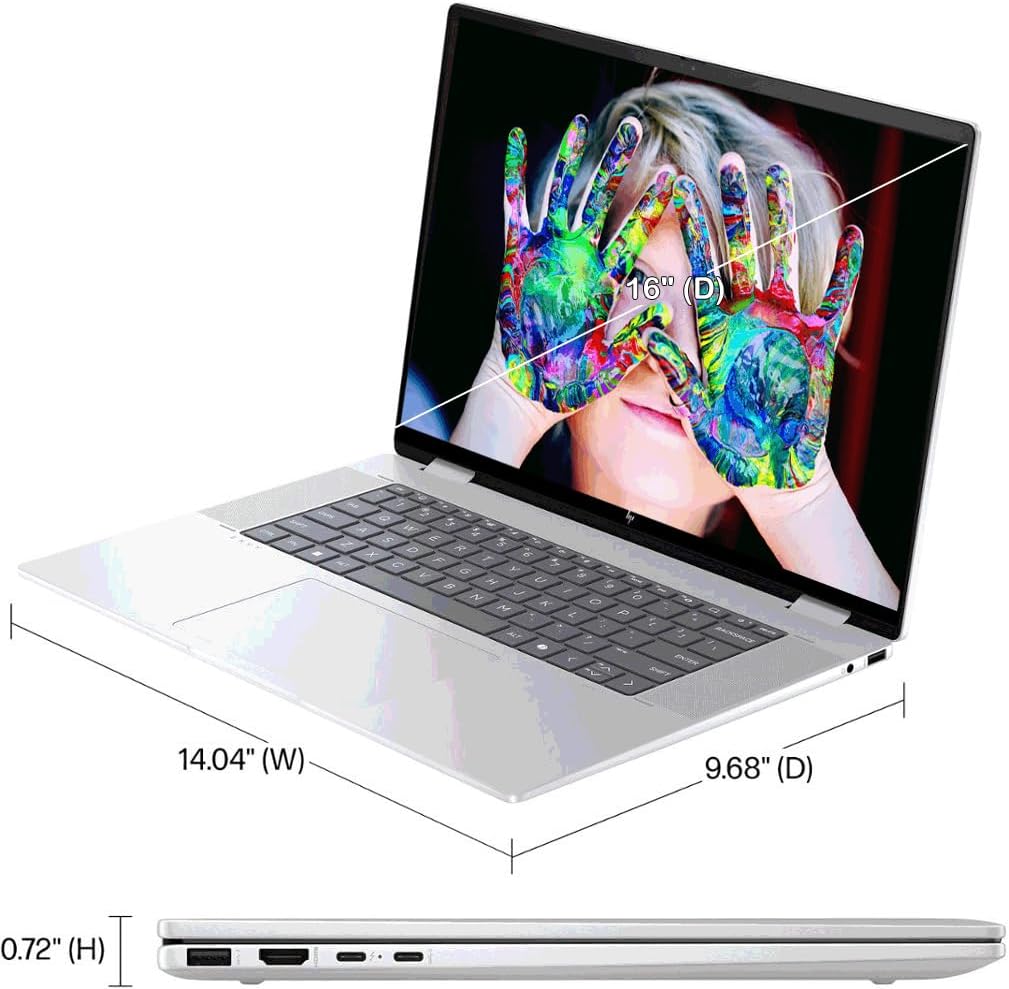
Image: A visual representation of the HP Envy 2-in-1 Laptop's physical dimensions, indicating its length, width, and thickness.
6. Warranty Information
This HP Envy 2-in-1 Laptop comes with a 1 Year manufacturer warranty. For specific terms and conditions, please refer to the warranty documentation included with your product or visit the official HP website.
7. Customer Support
For technical assistance, driver downloads, or further information regarding your HP Envy 2-in-1 Laptop, please visit the official HP Support website. You can find comprehensive resources, FAQs, and contact options there.
HP Official Support Website: support.hp.com