
1. Introduction
The IROK MT87 is an 80% TKL (Tenkeyless) mechanical keyboard designed for versatility and performance. It features a durable CNC aluminum alloy frame, tri-mode connectivity, hot-swappable switches, and customizable RGB lighting. This manual provides essential information for setting up, operating, and maintaining your keyboard.
2. Package Contents
- IROK MT87 Tri-Mode Mechanical Keyboard
- USB-C Cable
- Keycap Puller
- User Manual (this document)
3. Product Features
- CNC Full Aluminum Alloy Body: Precision-engraved aluminum alloy with high mesh anodic oxidation for a lustrous metallic feel and smooth touch.
- Comfortable Liquid Silicone Keycaps: Skin-like material, gentle to the touch, resistant to oil, and protective for knuckles.
- High Performance Yellow Switches: Full POM switches for enhanced oxidation resistance, sensitivity, and a longer mechanical life (50 million cycles). Features a linear feel with 45g pressure and 1.7mm trigger stroke.
- Tri-Mode Connection: Supports USB-C wired, Bluetooth 5.0, and 2.4GHz wireless modes. Can memorize up to 5 devices.
- Large 10000 mAh Battery: More than double the capacity of conventional keyboards for extended wireless use.
- 5-Layer Sound Optimization: Padded structure design reduces chamber noise, enhancing sound quality for a cleaner, quieter typing sensation.
- Compact 87-Key TKL Design: Streamlined layout saves 20% desktop space compared to full-size keyboards.
- Hot-Swappable PCB: Allows for easy customization and replacement of switches without soldering.
- RGB Backlighting: Customizable RGB lighting with multiple effects.
4. Setup and Connection
4.1 Connection Modes
The MT87 keyboard supports three connection modes: Wired (USB-C), 2.4GHz Wireless, and Bluetooth 5.0.

Image: Diagram illustrating the three connection modes: 2.4GHz wireless, USB-C wired, and low power BT 5.0. It also highlights Win/Mac dual system compatibility.
4.1.1 Wired Connection
- Connect the provided USB-C cable to the keyboard's USB-C port.
- Connect the other end of the USB-C cable to an available USB port on your computer.
- The keyboard will automatically be recognized and ready for use.
4.1.2 2.4GHz Wireless Connection
- Locate the 2.4GHz USB receiver, typically stored in a compartment on the keyboard.
- Plug the 2.4GHz USB receiver into an available USB port on your computer.
- Switch the keyboard to 2.4GHz mode using the mode switch (refer to the keyboard's physical layout for exact location, often on the side or bottom).
- The keyboard should connect automatically.
4.1.3 Bluetooth 5.0 Connection
The keyboard can memorize up to 3 Bluetooth devices.
- Switch the keyboard to Bluetooth mode using the mode switch.
- On your computer or device, enable Bluetooth and search for new devices.
- Select "IROK MT87" (or similar name) from the list of available devices to pair.
- Follow any on-screen prompts to complete the pairing process.
- To switch between memorized Bluetooth devices, use the designated function key combinations (e.g., Fn + 1, Fn + 2, Fn + 3).
4.2 System Compatibility
The IROK MT87 is compatible with both Windows and Mac operating systems.
- To switch to Mac mode: Press Fn + P
- To switch back to Windows mode: Press Fn + 0
5. Operation
5.1 Key Functions and Combinations
The MT87 keyboard features an 87-key TKL layout. Many keys have secondary functions accessible via the Fn key.

Image: Overhead view of the IROK MT87 keyboard, highlighting its compact 87-key TKL layout which saves desktop space.
Refer to the keycap legends for specific Fn combinations for multimedia control, lighting adjustments, and other functions.
5.2 RGB Lighting Control
The keyboard offers customizable RGB backlighting with various effects.
- Change Lighting Mode: Use specific Fn key combinations (e.g., Fn + Right Arrow, Fn + Left Arrow) to cycle through different lighting effects.
- Adjust Brightness: Use Fn key combinations (e.g., Fn + Up Arrow, Fn + Down Arrow) to increase or decrease brightness.
- Adjust Speed: Use Fn key combinations to change the speed of dynamic lighting effects.
5.3 Liquid Silicone Keycaps and Yellow Switches
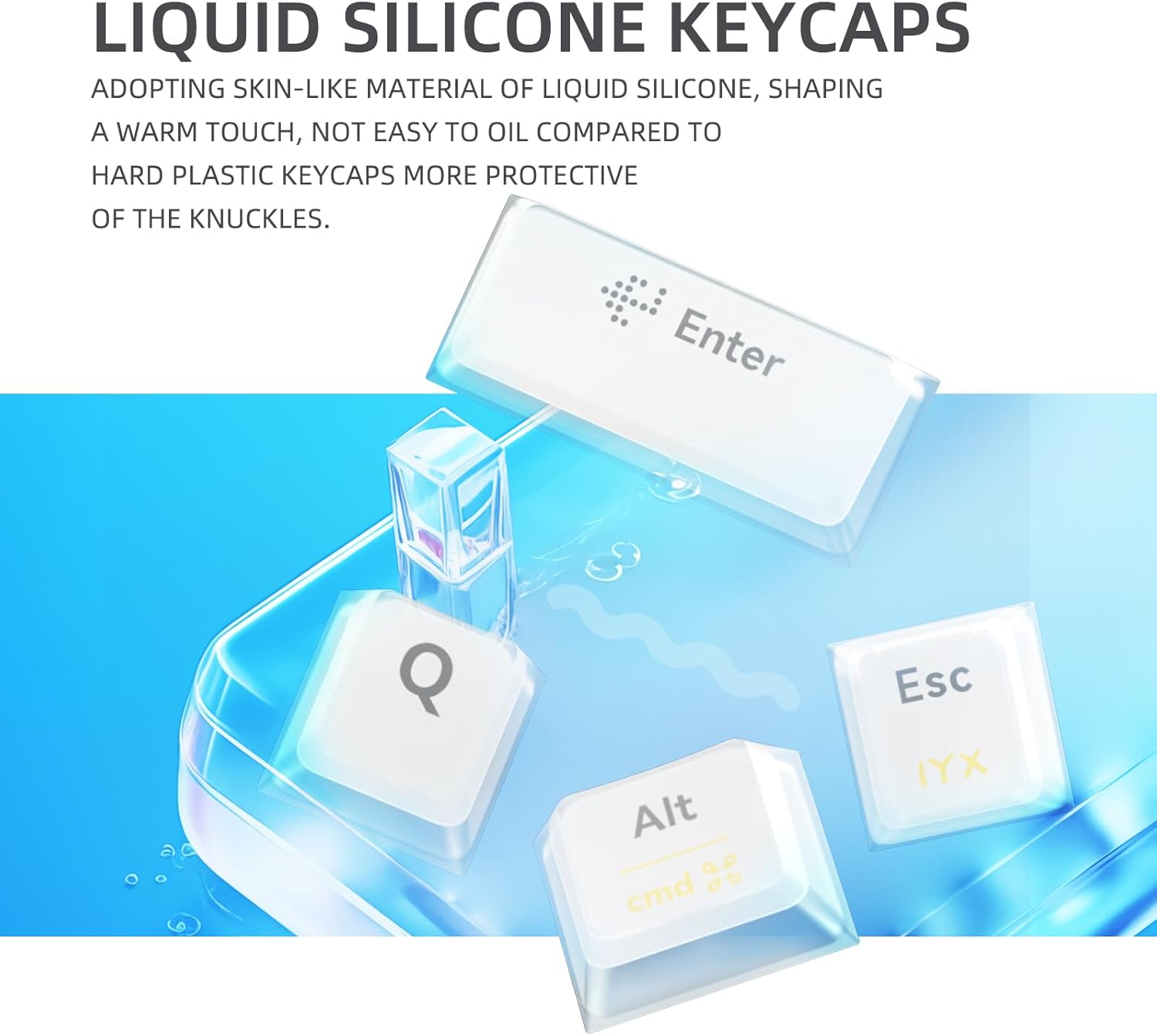
Image: Close-up view of the liquid silicone keycaps, emphasizing their skin-like material and gentle touch.

Image: Close-up of the yellow switches, highlighting their linear feel, 45g pressure, 1.7mm trigger stroke, and 50 million cycle mechanical life.
6. Maintenance
6.1 Cleaning the Keyboard
- Disconnect the keyboard from your computer before cleaning.
- Use a soft, lint-free cloth slightly dampened with water or a mild cleaning solution to wipe the keycaps and frame.
- Avoid spraying liquids directly onto the keyboard.
- For deeper cleaning, use the provided keycap puller to remove keycaps and clean underneath with compressed air.
6.2 Battery Care
The MT87 features a 10000 mAh battery.
- Charge the keyboard using the provided USB-C cable connected to a standard USB power source.
- Avoid fully discharging the battery frequently to prolong its lifespan.
- Store the keyboard in a cool, dry place when not in use for extended periods.
7. Troubleshooting
7.1 Keyboard Not Responding
- Wired Mode: Ensure the USB-C cable is securely connected to both the keyboard and the computer. Try a different USB port or cable.
- 2.4GHz Wireless Mode: Ensure the 2.4GHz receiver is plugged in and the keyboard is switched to 2.4GHz mode. Try re-pairing by unplugging and re-plugging the receiver.
- Bluetooth Mode: Ensure Bluetooth is enabled on your device and the keyboard is in Bluetooth mode. Re-pair the device if necessary. Check battery level.
7.2 Input Lag or Disconnections
- Wireless Modes: Ensure there are no strong interferences (e.g., other wireless devices, large metal objects) between the keyboard and the receiver/device. Move closer to the receiver/device.
- Battery: Low battery can affect wireless performance. Charge the keyboard fully.
7.3 RGB Lighting Not Working
- Ensure the keyboard is powered on.
- Check if the lighting is turned off or set to minimum brightness using the Fn key combinations.
8. Specifications
| Feature | Detail |
|---|---|
| Model Number | MT87 |
| Layout | 87-key TKL |
| Frame Material | CNC Aluminum Alloy |
| Keycaps | Liquid Silicone |
| Switches | Yellow Switches (Full POM) |
| Connectivity | USB-C Wired, Bluetooth 5.0, 2.4GHz Wireless |
| Battery Capacity | 10000 mAh |
| Backlighting | RGB (16.8 million colors) |
| Compatible Devices | Laptop, PC |
| Product Dimensions | 15.75 x 7.87 x 1.18 inches |
| Item Weight | 5.95 pounds |

Image: Detailed view of the keyboard's features including metal swivel foot support, metal textured logo, 2.4GHz receiver compartment with physical switch, and air plug connection cord.
9. Warranty and Support
For warranty information and technical support, please refer to the official IROK website or contact your retailer. Keep your purchase receipt for warranty claims.