Introduction
This manual provides essential information for the proper setup, operation, and maintenance of your Samsung HW-Q990D 11.1.4ch Soundbar. Please read this manual thoroughly before using the product to ensure optimal performance and safety.

Figure 1: Samsung HW-Q990D 11.1.4ch Soundbar System
What's in the Box
Verify that all components are present in the packaging:
- Soundbar (HW-Q990D)
- Subwoofer
- Rear Speaker Kit (2 rear speakers)
- HDMI Cable
- Wall Mount Kit
- Rubber Feet
- Remote Controller with Batteries
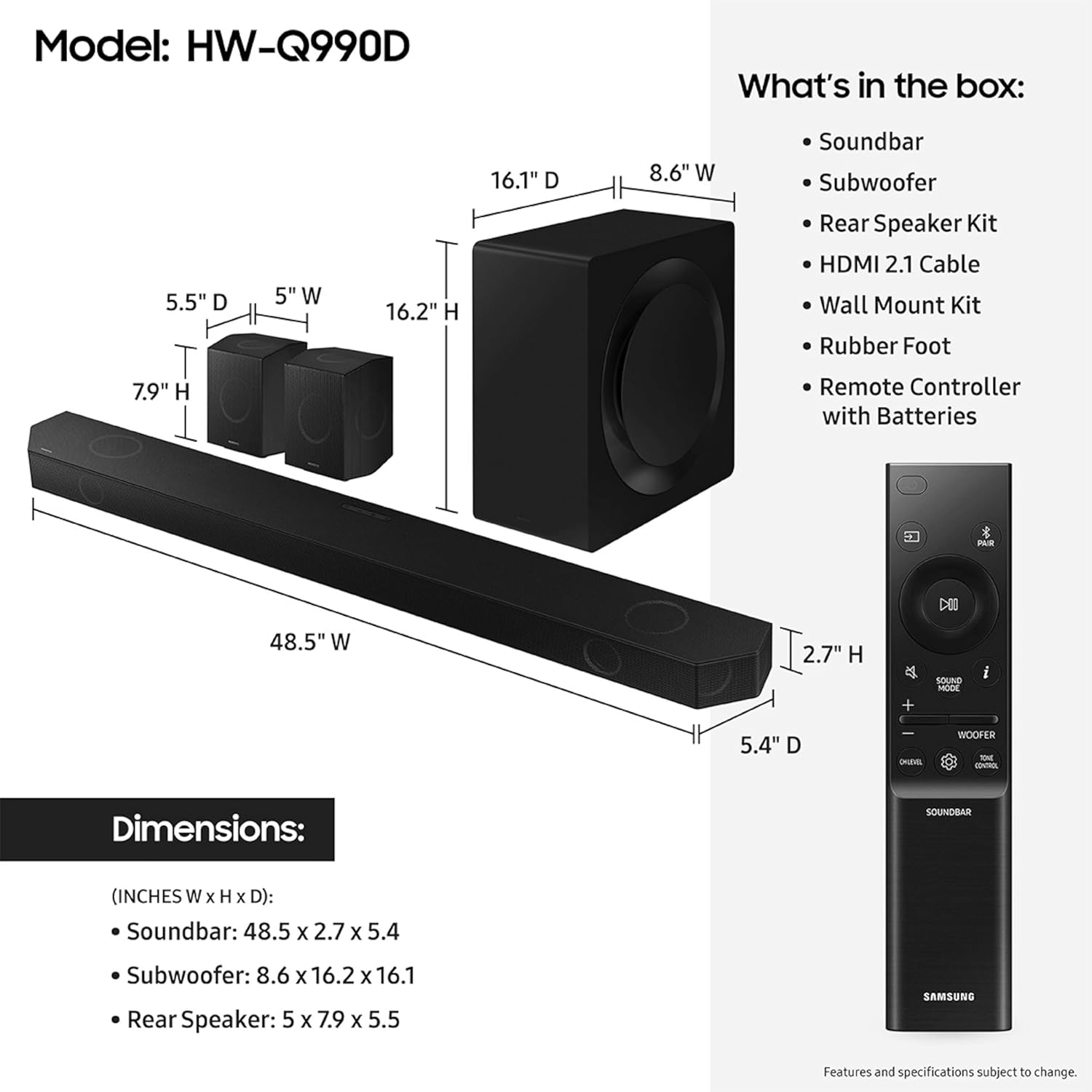
Figure 2: Package Contents and Dimensions
Product Overview
The Samsung HW-Q990D is an 11.1.4 channel soundbar system designed to deliver immersive audio. It features 11 front-facing speakers, 1 subwoofer, and 4 up-firing channels for a comprehensive home theater experience.
Key Features:
- 11.1.4ch Sound: Experience audio from multiple directions, including overhead, with dedicated up-firing speakers.
- Wireless Dolby Atmos: Enjoy object-based surround sound without the need for HDMI cables to connect to your TV.
- Q-Symphony: Synchronize your Samsung TV speakers with the soundbar for an enhanced and optimized audio experience.
- Adaptive Sound: The soundbar analyzes content in real-time and adjusts sound settings automatically for clear dialogue and impactful action scenes.
- Multiple Connectivity Options: Supports AirPlay, Chromecast built-in, and works with Google Home and Alexa.
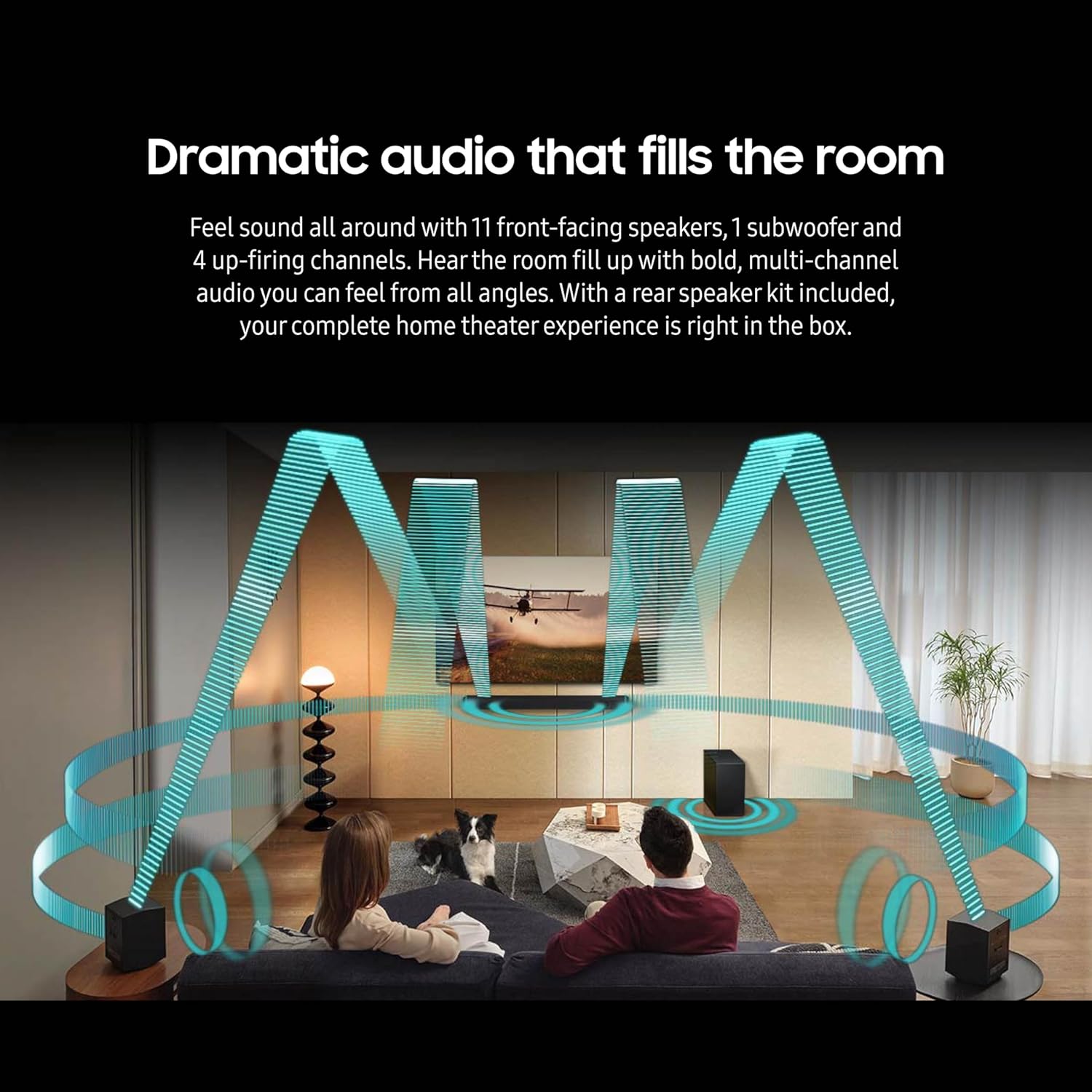
Figure 3: Dramatic Audio Experience

Figure 4: Smart Connectivity Options
Setup
1. Placement
Position the soundbar centrally below your television. Place the subwoofer in a suitable location, typically near the soundbar or a corner of the room for optimal bass distribution. The rear speakers should be placed behind your primary listening position, ensuring they are powered and within wireless range of the soundbar.
2. Connections
Connect the soundbar to your TV using the provided HDMI cable. For optimal audio quality, use the HDMI eARC/ARC port on your TV. Ensure all components (soundbar, subwoofer, rear speakers) are connected to a power outlet.
3. Wireless Speaker Pairing
The subwoofer and rear speakers are designed to connect wirelessly to the soundbar automatically upon powering on. If a connection is not established, refer to the troubleshooting section or the quick start guide for manual pairing instructions.
4. Q-Symphony (for compatible Samsung TVs)
If you have a compatible Samsung TV, Q-Symphony allows the TV's speakers to work in conjunction with the soundbar. This feature is typically enabled through your TV's sound settings once the soundbar is connected via HDMI eARC/ARC.
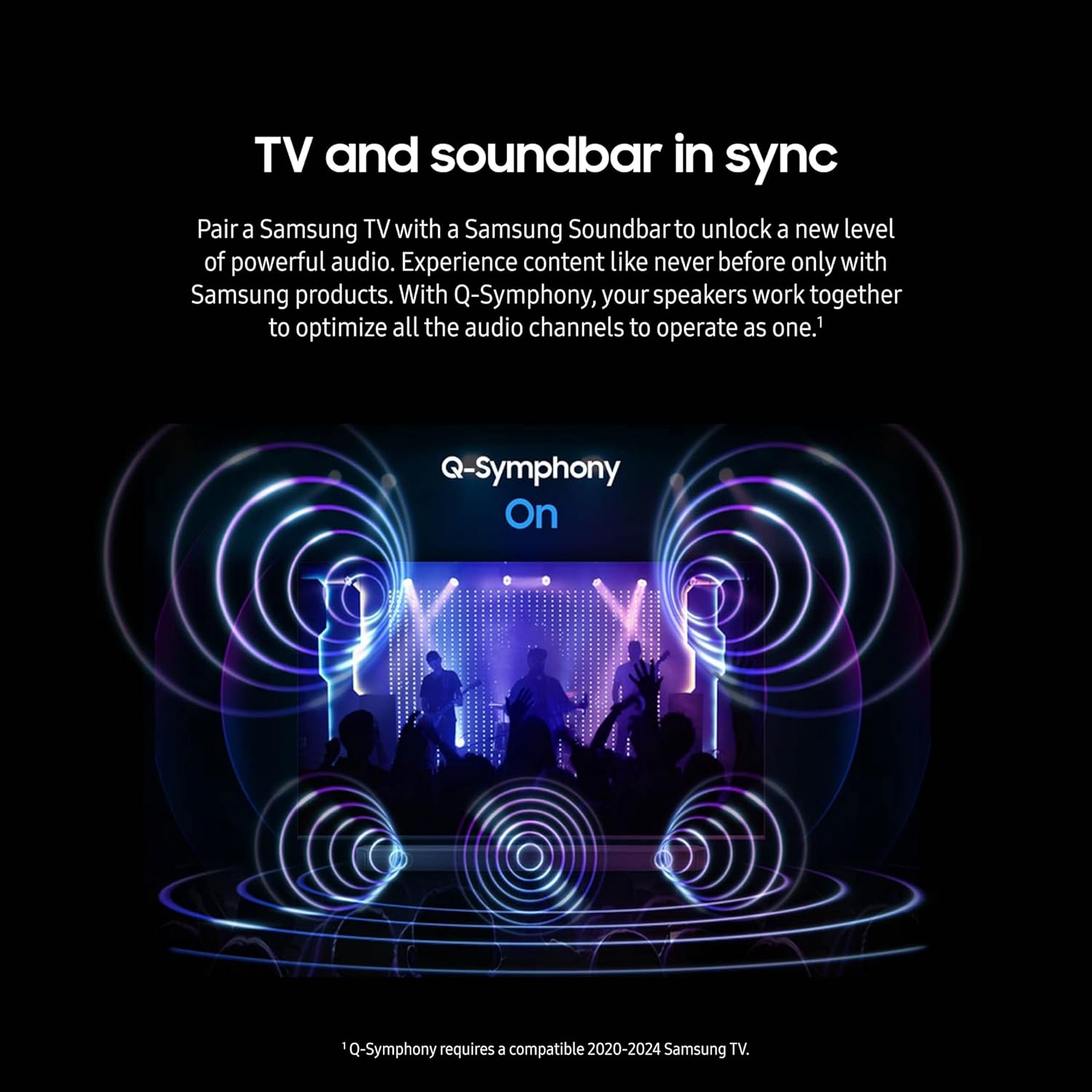
Figure 5: Q-Symphony in Action
Video 1: Samsung Q-Symphony Feature Overview
Operating
1. Basic Controls
Use the included remote control to power on/off, adjust volume, select input sources, and change sound modes. The soundbar also features on-device controls for basic functions.
2. Sound Modes
The HW-Q990D offers various sound modes to optimize your listening experience:
- Standard: Delivers original sound without enhancement.
- Adaptive Sound: Automatically optimizes sound based on content and room acoustics.
- Game Pro: Enhances gaming audio for a more dynamic experience.
- Surround Sound: Expands the soundstage for a more enveloping experience.
3. Connectivity
The soundbar supports multiple wireless connectivity options:
- Bluetooth: Pair your mobile device to stream audio wirelessly.
- Wi-Fi: Connect to your home network for streaming services and smart home integration.
- Apple AirPlay: Stream audio directly from Apple devices.
- Chromecast built-in: Cast audio from compatible apps.
Maintenance
To ensure the longevity and performance of your soundbar system, follow these general maintenance guidelines:
- Cleaning: Use a soft, dry cloth to clean the surfaces of the soundbar, subwoofer, and speakers. Avoid using liquid cleaners or abrasive materials.
- Ventilation: Ensure adequate ventilation around all components to prevent overheating. Do not block any ventilation openings.
- Placement: Avoid placing the system in direct sunlight, near heat sources, or in areas with high humidity.
- Cables: Periodically check all cables for damage and ensure they are securely connected.
Troubleshooting
If you encounter issues with your Samsung HW-Q990D Soundbar, try the following basic troubleshooting steps:
- No Power: Check if all power cables are securely plugged into the components and the wall outlet.
- No Sound: Verify the correct input source is selected on the soundbar and your TV. Check volume levels on both devices. Ensure HDMI cables are properly connected.
- No Wireless Connection (Subwoofer/Rear Speakers): Ensure the subwoofer and rear speakers are powered on. If they do not automatically pair, consult the quick start guide for manual pairing instructions, which usually involves pressing a pairing button on the back of the units.
- Distorted Sound: Check for loose cable connections. Try adjusting the sound mode or EQ settings. Ensure the soundbar is not placed too close to other electronic devices that may cause interference.
- Remote Control Not Working: Replace the batteries in the remote control. Ensure there are no obstructions between the remote and the soundbar.
For more detailed troubleshooting or persistent issues, refer to the full user manual available on the Samsung support website or contact customer support.
Specifications
| Feature | Specification |
|---|---|
| Model Name | Q990 |
| Speaker Type | Soundbar |
| Surround Sound Channel Configuration | 11.1.4 |
| Special Feature | Hi Res Audio, auto speaker setup, Dolby TrueHD |
| Recommended Uses For Product | For Televisions |
| Compatible Devices | Television |
| Product Dimensions | 5.4"D x 48.5"W x 2.7"H |
| Item Weight | 50 Pounds |
| Color | Black |
| Control Method | App |
| Wireless Communication Technology | Airplay, Bluetooth |
| Subwoofer Connectivity Technology | Wireless |
| Speaker Maximum Output Power | 656 Watts |
| Frequency Response | 24 Hz |
| Audio Output Mode | Surround |
Warranty and Support
The Samsung HW-Q990D Soundbar comes with a limited warranty. For specific warranty terms and conditions, please refer to the warranty card included in your product packaging or visit the official Samsung support website.
For customer support, technical assistance, or service inquiries, please visit the Samsung Store or contact Samsung customer service directly.


