
1. Product Overview
The TECPHILE Keyboard Case is designed to enhance the functionality and protection of your compatible tablet. It features a magnetically detachable Bluetooth keyboard with a precision trackpad, RGB backlighting, and a protective folio case with a built-in pen holder and multiple viewing angles.
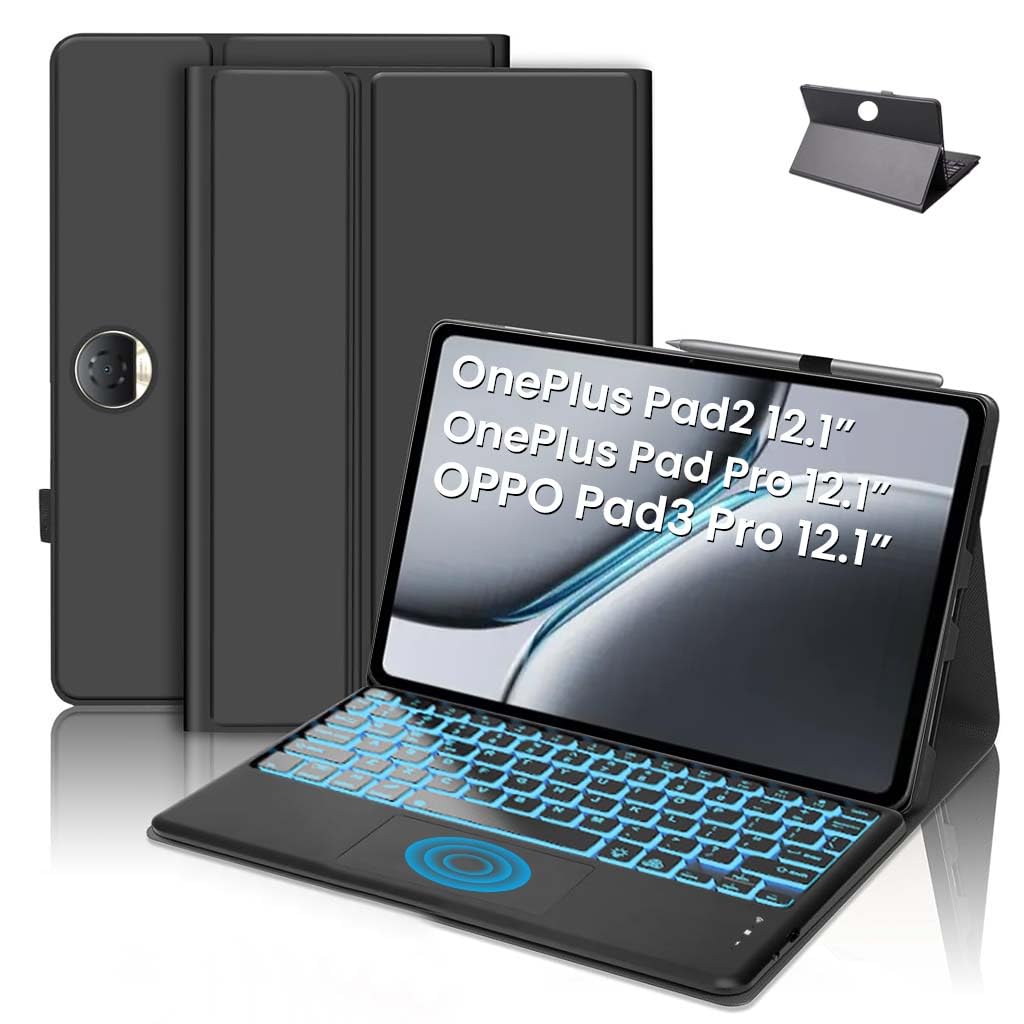
Image: TECPHILE Keyboard Case with a tablet inserted, showcasing the backlit keyboard and pen holder.
2. Package Contents
Please check the box for the following items:
- 1 x TECPHILE Keyboard Case
- 1 x USB-C Charging Cable
- 1 x User Manual (this document)
3. Compatibility
This keyboard case is compatible with the following 12.1-inch tablet models (2024 models):
- OnePlus Pad 2
- OnePlus Pad Pro (Model OPD2404)
- Oppo Pad 3 Pro (Model OPD2401)
Important: Please verify your tablet model number in your tablet settings (e.g., "SM-Xxxx") to ensure a perfect fit. This case is not compatible with other tablet models.

Image: Visual representation of compatible tablet models: OnePlus Pad 2 12.1 inch 2024, OnePlus Pad Pro 12.1 inch 2024 (Model OPD2404), Oppo Pad 3 Pro 12.1 inch 2024 (Model OPD2401).
4. Setup Instructions
4.1. Charging the Keyboard
Before initial use, fully charge the keyboard. Connect the provided USB-C charging cable to the keyboard's charging port and a suitable USB power adapter (not included). The charging indicator light will show the charging status.
- Charging Time: Approximately 2-3 hours for a full charge.
- Battery Life: Up to 80 hours of continuous use without backlighting; 5 hours with backlighting enabled.
- Standby Time: Up to 100 days.
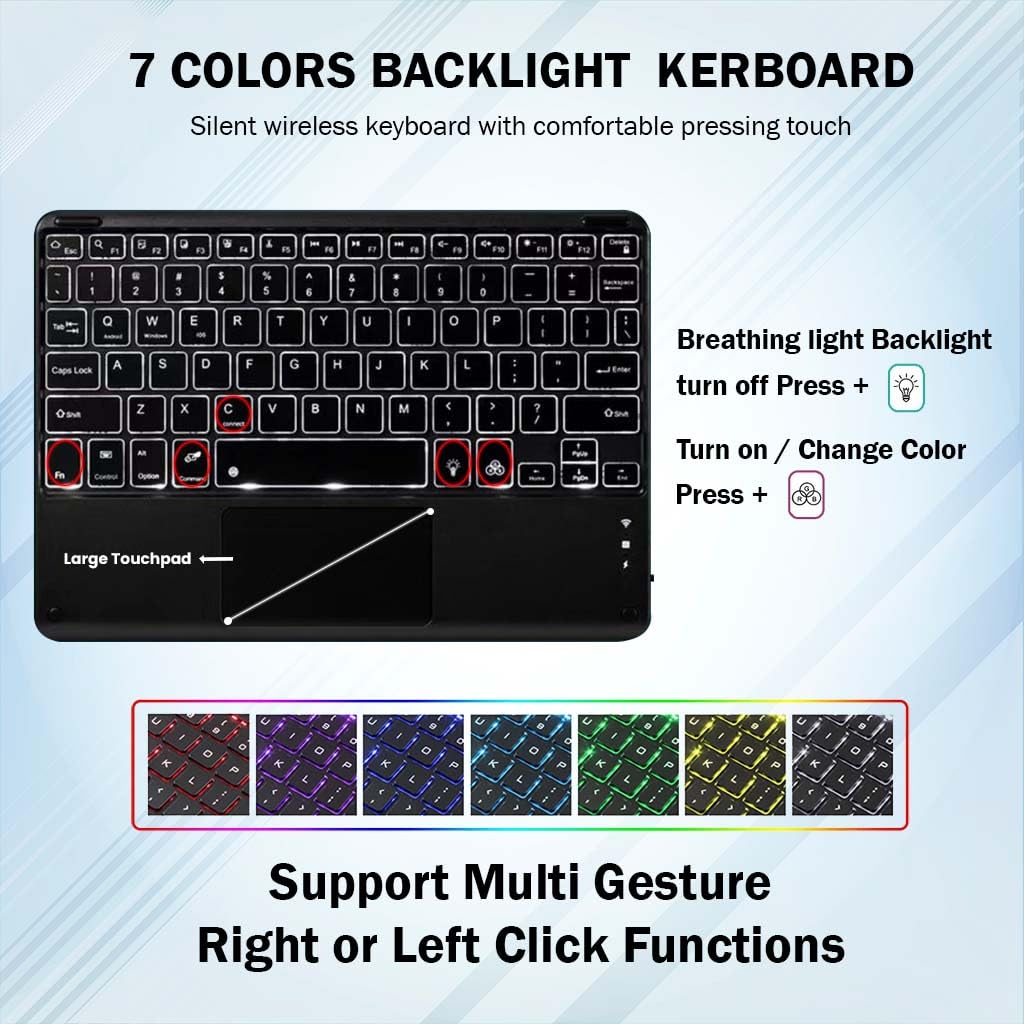
Image: Close-up of the keyboard's USB-C charging port and battery specifications.
4.2. Connecting the Keyboard via Bluetooth
- Ensure the keyboard is charged and powered on.
- Press the Fn + C keys simultaneously on the keyboard. The Bluetooth indicator light will start blinking blue, indicating it's in pairing mode.
- On your tablet, go to Settings > Bluetooth.
- Turn on Bluetooth and search for available devices.
- Select "Bluetooth Keyboard" (or similar name) from the list of found devices to connect.
- Once connected, the Bluetooth indicator light on the keyboard will stop blinking.

Image: The detachable Bluetooth keyboard, highlighting its magnetic attachment and scissor-key structure.
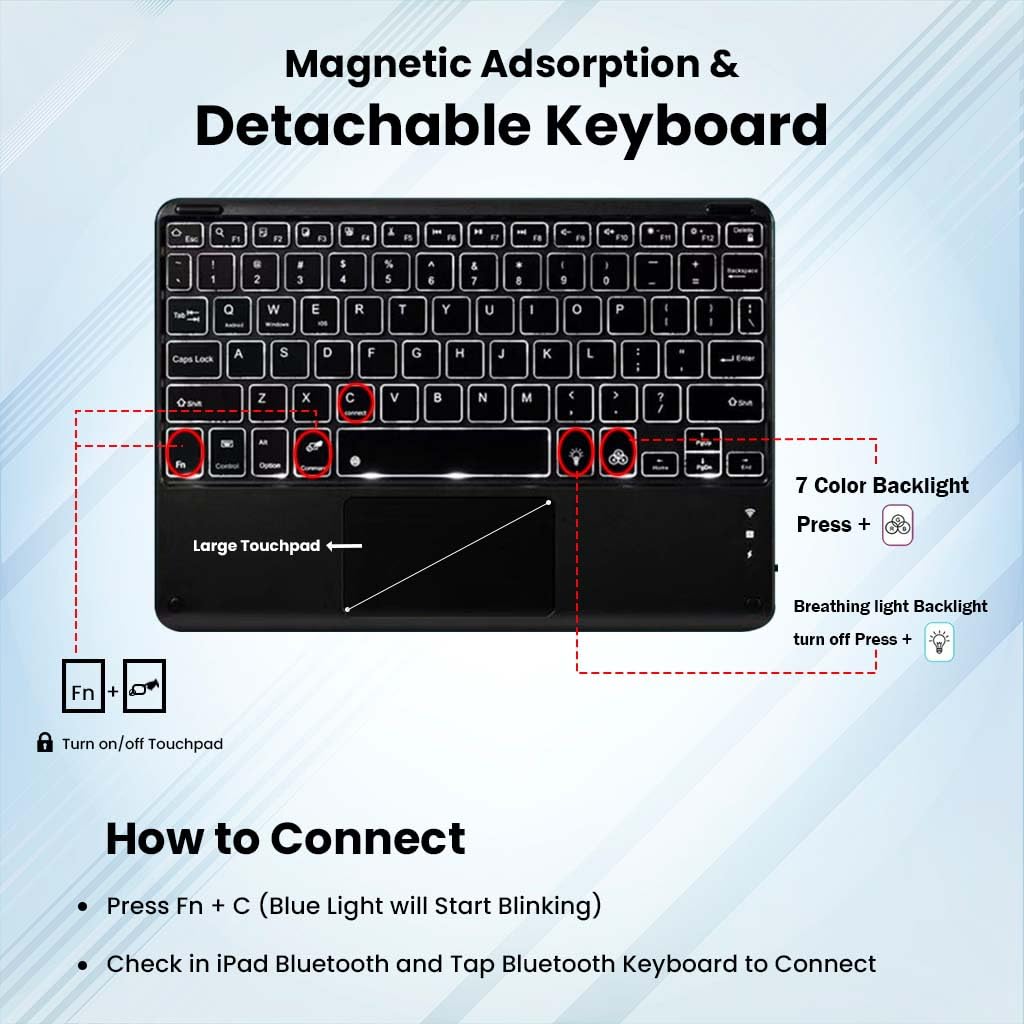
Image: Diagram showing how to connect the keyboard via Bluetooth (Fn+C) and controls for backlight and trackpad.
5. Operating Instructions
5.1. Keyboard Functions
- Hotkeys and Media Keys: The keyboard includes dedicated hotkeys and media keys for quick access to functions like volume control, playback, and screen brightness. Refer to the key labels for specific functions.
- Auto Sleep/Wake: To conserve battery, the keyboard will automatically enter sleep mode after 10 minutes of inactivity. Press any key to wake it up.
5.2. Trackpad Usage
The integrated trackpad supports smart gestures for intuitive navigation and control.
- Basic Navigation: Use single-finger gestures for pointing and clicking.
- Multi-Gesture Support: The trackpad supports various multi-finger gestures for scrolling, zooming, and other tablet functions. Refer to your tablet's operating system for specific gesture controls.
- Turn On/Off Trackpad: Press Fn + Spacebar (or the designated trackpad icon key) to enable or disable the trackpad.
5.3. Backlight Control
The keyboard features 7-color RGB backlighting with adjustable brightness levels.
- Turn On/Off Backlight: Press the light bulb icon key to turn the backlight on or off.
- Adjust Brightness: Press the light bulb icon key repeatedly to cycle through 3 brightness levels.
- Change Backlight Color: Press Fn + light bulb icon key to cycle through the 7 available backlight colors.
- Breathing Light Mode: Some models may feature a breathing light effect. Press Fn + light bulb icon key (or a dedicated breathing light key) to activate or deactivate this mode.

Image: Keyboard layout showing backlight color options and trackpad functionality.

Image: Dynamic display of the keyboard's 7-color backlight switching feature.
5.4. Case Features
- Multi-Angle Tri-Fold Stand: The case features a built-in anti-slip design that supports three viewing angles. Adjust the stand to your preferred angle for typing, viewing, reading, or sketching.
- Built-in Pen Holder: A dedicated holder is integrated into the case to securely store your stylus pen.
- Precise Cutouts: The case provides precise cutouts for all ports, sensors, speakers, and buttons, ensuring full access without removing the case.
- Protective Design: Crafted from premium soft silicone and microfiber leather, the case offers protection against drops, bumps, and scratches.

Image: Detailed view of the case's precise cutouts for tablet features and raised edges for protection.
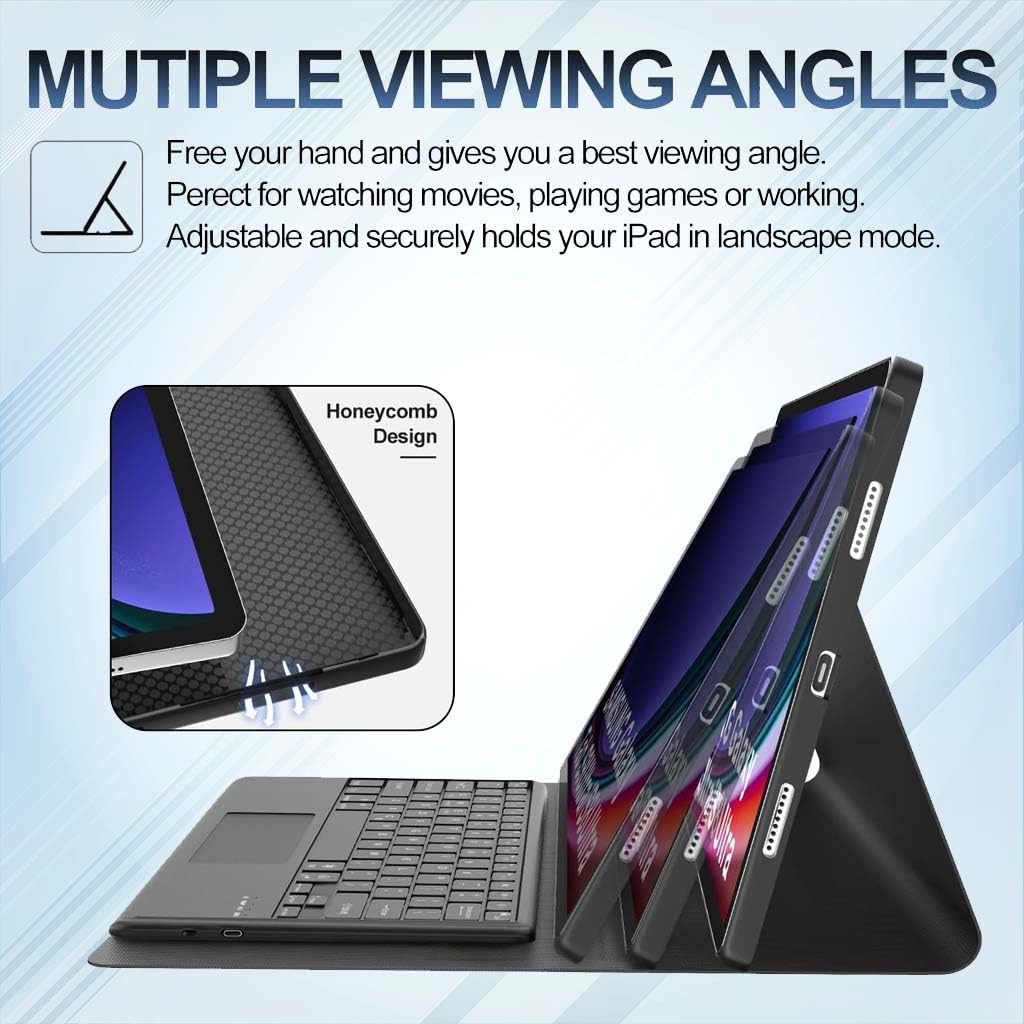
Image: Illustration of the case supporting various viewing angles for different activities.
6. Maintenance
To ensure the longevity and optimal performance of your TECPHILE Keyboard Case, follow these maintenance guidelines:
- Cleaning: Use a soft, dry, lint-free cloth to clean the keyboard and case. For stubborn dirt, slightly dampen the cloth with water or a mild, non-abrasive cleaner. Avoid excessive moisture.
- Storage: When not in use, store the keyboard case in a cool, dry place away from direct sunlight and extreme temperatures.
- Avoid Liquids: Do not expose the keyboard to liquids. While the case offers some protection, the keyboard itself is not waterproof.
- Handle with Care: Avoid dropping the case or applying excessive force to the keyboard keys or trackpad.
7. Troubleshooting
If you encounter issues with your TECPHILE Keyboard Case, refer to the following common solutions:
- Keyboard Not Connecting:
- Ensure the keyboard is charged and powered on.
- Verify Bluetooth is enabled on your tablet.
- Re-enter pairing mode on the keyboard (Fn + C) and re-scan for devices on your tablet.
- Forget the device in your tablet's Bluetooth settings and try pairing again.
- Keys Not Responding:
- Check if the keyboard is connected via Bluetooth.
- Ensure the keyboard battery is not depleted.
- Restart both the keyboard and your tablet.
- Trackpad Not Working:
- Ensure the trackpad is enabled (Fn + Spacebar).
- Check Bluetooth connection.
- Clean the trackpad surface.
- Backlight Not Working/Changing:
- Ensure the keyboard is powered on and charged.
- Use the correct key combinations (light bulb icon key for on/off/brightness, Fn + light bulb icon key for color).
- Charging Issues:
- Ensure the USB-C cable is securely connected to both the keyboard and the power source.
- Try a different USB-C cable or power adapter.
8. Specifications
| Feature | Specification |
|---|---|
| Brand | TECPHILE |
| Model | OP121 |
| Product Dimensions | 12 x 2 x 27 cm |
| Item Weight | 675 g |
| Compatible Devices | OnePlus Pad 2, OnePlus Pad Pro (OPD2404), Oppo Pad 3 Pro (OPD2401) 12.1 inch |
| Connectivity Technology | Bluetooth |
| Power Source | Battery Powered |
| Battery Capacity | 500mAh |
| Charging Time | 2-3 Hours |
| Operating Time (No Backlight) | Up to 80 Hours |
| Operating Time (With Backlight) | Up to 5 Hours |
| Standby Time | Up to 100 Days |
| Special Features | Backlit, Hotkeys and Media Keys, Rechargeable, Trackpad, Magnetically Detachable |
| Material | Plastic, Soft Silicone, Microfiber Leather |
| Country of Origin | China |
9. Warranty and Support
For warranty information or technical support, please contact TECPHILE customer service. Details can typically be found on the product packaging or the official TECPHILE website.
Manufacturer/Importer Contact:
TECPHILE
A36 2nd Floor Naraina Industrial Area Phase-2,
Delhi 110028, India
Email: customercare@conceptkart.com