
Netzu 6210PB
Netzu Projection Clock User Manual
Model: 6210PB | Brand: Netzu
Introduction
Thank you for choosing the Netzu Projection Clock. This manual provides comprehensive instructions for the setup, operation, maintenance, and troubleshooting of your new alarm clock. Designed for convenience and clarity, this clock features a 180° rotatable projector, a 4-in-1 display showing time, temperature, date, and weekday, adjustable brightness levels, and multiple alarm tones. Please read this manual thoroughly to ensure optimal performance and longevity of your device.

Figure 1: Netzu Projection Clock with its main display and projection arm, alongside a smartphone connected for charging.
Product Features
- Projection Alarm Clock: Projects time onto your wall or ceiling with a 1.6-11.4 feet clear distance and a 350° rotating arm. The projected image offers 4 brightness levels and can be flipped 180°.

Figure 2: The clock projecting time onto a wall, demonstrating its rotatable projector and clear display.
- 4-in-1 Display: Shows temperature, date, day of the week, and time simultaneously.

Figure 3: The clock's main display, highlighting the simultaneous display of time, temperature, date, and day of the week.
- Adjustable Volume and Sound Choices: Features 10 alarm tones and four adjustable volume levels.

Figure 4: Visual representation of the 10 selectable alarm tones and adjustable volume range.
- Manual DST Adjustment Feature: Easily adjust for Daylight Saving Time with a dedicated button.
- 5 Brightness Levels: Customize the main display brightness for any lighting condition.
- Battery Backup: Uses 2 AAA batteries (not included) to memorize time settings during power outages.

Figure 5: The rear view of the clock, illustrating the battery compartment for backup power.
Setup
1. Power Connection
Connect the provided power adapter to the clock's power input port and then plug it into a standard wall outlet. For time memory during power outages, insert 2 AAA batteries (not included) into the battery compartment located at the bottom of the clock.

Figure 6: The clock connected to power, demonstrating its plug-in functionality and USB charging port.
Operating Instructions
Setting the Time
- Long press the [SET] button to enter time setting mode. The hour display will start blinking.
- Press the [+] or [-] button to adjust the hour.
- Press the [SET] button again to save the hour and move to minute adjustment. The minute display will start blinking.
- Press the [+] or [-] button to adjust the minute.
- Press the [SET] button again to save the minute and move to year adjustment. The year display will start blinking.
- Press the [+] or [-] button to adjust the year.
- Press the [SET] button again to save the year and move to month adjustment. The month display will start blinking.
- Press the [+] or [-] button to adjust the month.
- Press the [SET] button again to save the month and move to day adjustment. The day display will start blinking.
- Press the [+] or [-] button to adjust the day.
- Press the [SET] button one last time to save all settings and exit time setting mode.
Video 1: A demonstration of how to set the time on the Netzu Projection Clock, including adjusting hours, minutes, year, month, and day.
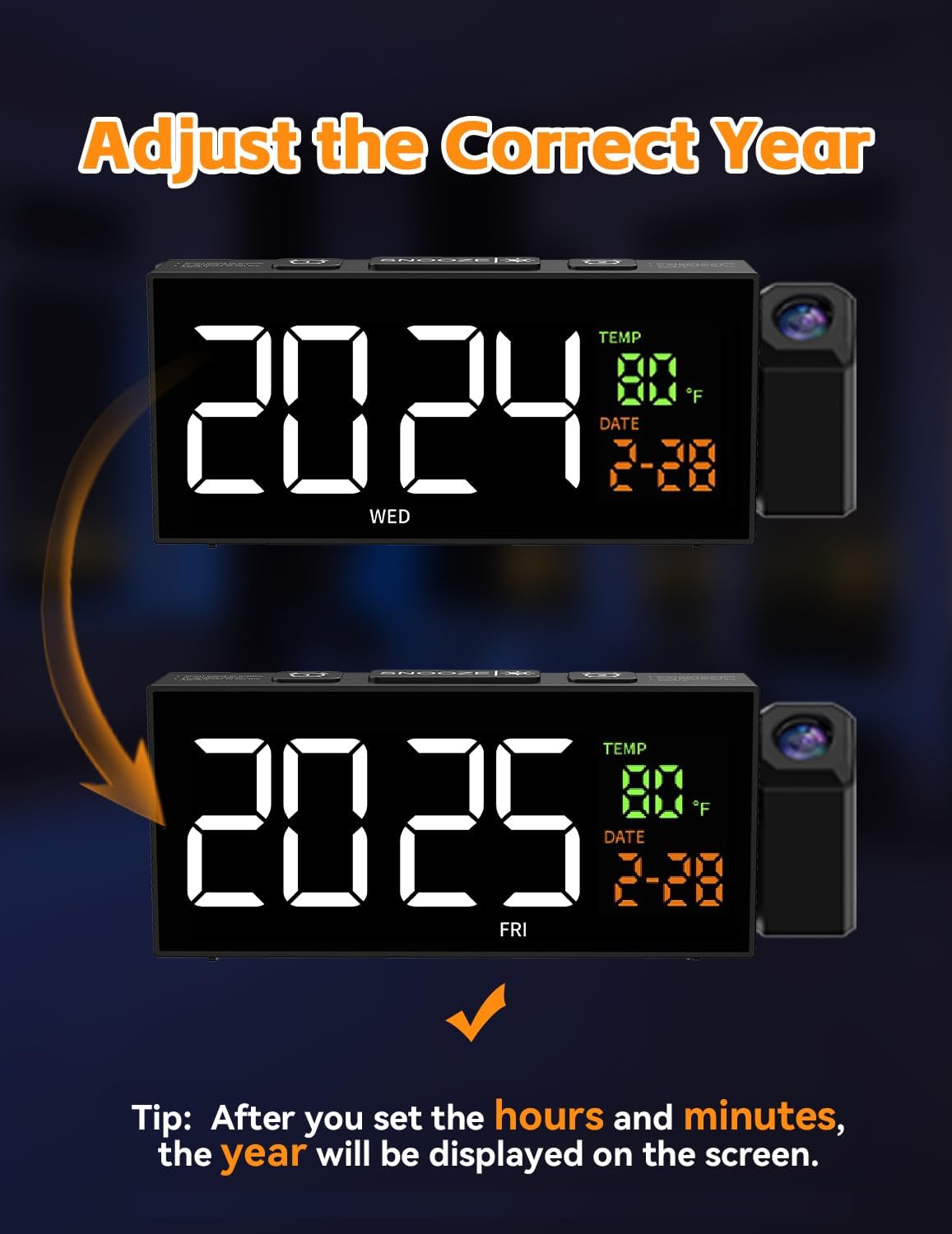
Figure 7: The clock display illustrating the process of adjusting the year during time setup.
Setting the Alarm
- Long press the [ALARM SETTING] button (usually marked with an alarm clock icon) to enter alarm setting mode. The alarm hour will start blinking.
- Press the [+] or [-] button to adjust the alarm hour.
- Press the [ALARM SETTING] button again to save the alarm hour and move to alarm minute adjustment. The alarm minute will start blinking.
- Press the [+] or [-] button to adjust the alarm minute.
- Press the [ALARM SETTING] button again to save the alarm minute and move to alarm mode selection.
- Press the [+] or [-] button to switch between 3 alarm modes:
- 1-7: Alarm rings from Monday to Sunday (Daily Mode).
- 1-5: Alarm rings from Monday to Friday (Weekday Mode).
- 6-7: Alarm rings from Saturday to Sunday (Weekend Mode).
- Press the [ALARM SETTING] button one last time to save all alarm settings and exit alarm setting mode.
Video 2: A step-by-step guide on setting the alarm on the Netzu Projection Clock, including hour, minute, and alarm mode selection.
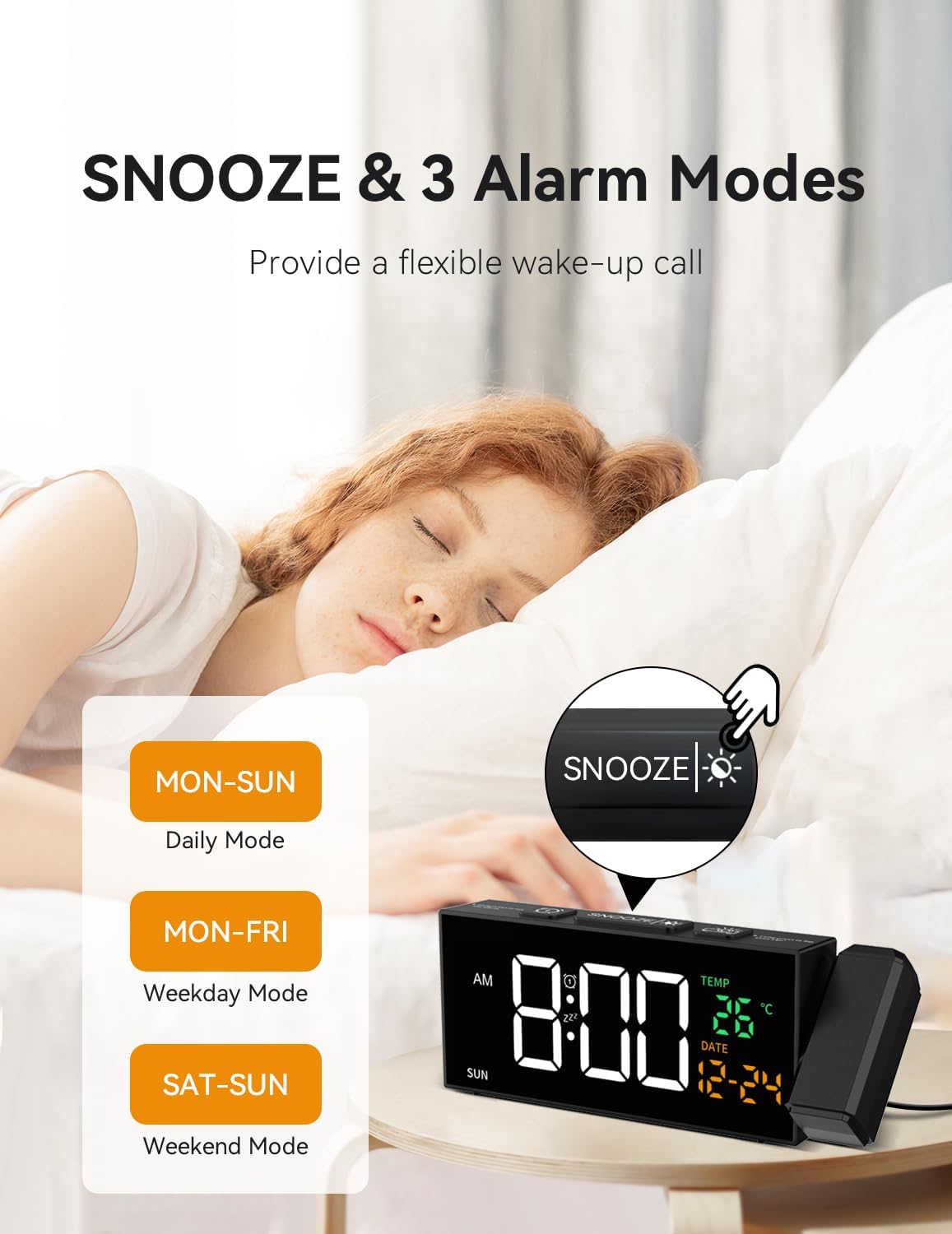
Figure 8: The clock display illustrating the different alarm modes available for selection.
Adjusting Display Brightness
The main display has 5 levels of brightness. Short press the [SNOOZE/LIGHT] button (usually marked with a sun icon) to cycle through the brightness levels (L4, L3, L2, L1, OFF).
Adjusting Projection
- Short press the [PROJECTION] button (usually marked with a projector icon) to turn the projection ON or OFF.
- Rotate the projection arm to adjust the projection angle on your wall or ceiling.
- Short press the [PROJECTION] button again to cycle through the 4 projection brightness levels.
- Long press the [PROJECTION] button to flip the projected image 180° if needed.
Manual DST Adjustment
Long press the [DST] button to move the alarm time forward by one hour when Daylight Saving Time starts, and backward by one hour when it ends. This feature helps keep your clock in sync with seasonal time changes.
Maintenance
- Cleaning: Use a soft, dry cloth to clean the clock's surface. Do not use abrasive cleaners or solvents.
- Lens Care: Gently wipe the projector lens with a microfiber cloth to ensure clear projection. Avoid touching the lens directly with fingers.
- Storage: If storing the clock for an extended period, remove the AAA backup batteries to prevent leakage.
Troubleshooting
| Problem | Possible Cause | Solution |
|---|---|---|
| Clock not powering on. | Power adapter not connected or faulty. | Ensure the power adapter is securely plugged into the clock and a working outlet. Try a different outlet. |
| Projection is blurry or unclear. | Projection distance too far/close, or lens is dirty. | Adjust the clock's distance from the projection surface (1.6-11.4 feet). Clean the projector lens. |
| Projected image is upside down. | Projection orientation needs adjustment. | Long press the [PROJECTION] button to flip the image 180°. |
| Alarm does not sound. | Alarm is not set, volume is too low, or incorrect alarm mode. | Verify alarm settings and ensure volume is audible. Check if the correct alarm mode (Daily, Weekday, Weekend) is selected. |
| Display is too bright/dim. | Brightness level needs adjustment. | Short press the [SNOOZE/LIGHT] button to cycle through brightness levels. |
Specifications
- Brand: Netzu
- Model: 6210PB
- Color: Black
- Display Type: Digital
- Product Dimensions: 8.07"W x 3.07"H
- Power Source: Corded Electric
- Material: Plastic
- Special Features: Projection Clock, Adjustable Brightness, Temperature Display, Adjustable Volume, Manual DST
- Battery Backup: 2 x AAA batteries (not included)
- Country of Origin: China
Warranty and Support
For warranty information or technical support, please refer to the product packaging or contact Netzu customer service directly. Contact details can typically be found on the manufacturer's official website or on the product's retail page.
Ask a question about this manual
Ask about setup, troubleshooting, compatibility, parts, safety, or missing instructions. Manuals+ will review the question and use this page’s manual context to help answer it.