
1. Product Overview
The OMOTON Bluetooth Magnetic Keyboard Case is designed to enhance the functionality of your iPad Pro 13-inch (M4, 2024), transforming it into a versatile laptop-like device. It features a QWERTZ DE layout keyboard with adjustable backlighting, a multi-touch trackpad, and a magnetic floating stand for optimal viewing angles.

Image 1.1: OMOTON Bluetooth Magnetic Keyboard Case in use with an iPad Pro.
2. Package Contents
- OMOTON Bluetooth Magnetic Keyboard Case
- USB-C Charging Cable (1 meter)
- User Manual (this document)
3. Setup
3.1 Compatibility Check
This keyboard case is specifically designed for the iPad Pro 13-inch (M4, 2024). To verify your iPad model, navigate to Settings > General > About > Model Name on your iPad. Compatible models include A2925, A2926, and A3007.

Image 3.1: Verifying iPad Pro 13-inch model compatibility.
3.2 Attaching Your iPad
The keyboard case features strong magnets to securely hold your iPad. Align your iPad Pro 13-inch with the magnetic back panel of the case. The magnets will automatically snap the iPad into place, creating a stable connection.

Image 3.2: Magnetic attachment mechanism.
3.3 Bluetooth Pairing
- Ensure the keyboard is charged (refer to Section 3.4).
- Turn on the keyboard by pressing the power button (usually located on the side or top edge of the keyboard). The indicator light will flash.
- On your iPad, go to Settings > Bluetooth and turn Bluetooth on.
- Locate "OMOTON Keyboard" or a similar device name in the "Other Devices" list and tap to connect.
- Once paired, the indicator light on the keyboard will stop flashing and remain solid, or turn off, indicating a successful connection.
3.4 Charging the Keyboard
The keyboard has a built-in 800mAh Lithium-ion battery. Connect the provided USB-C charging cable to the keyboard's USB-C port and the other end to a power source (e.g., a USB wall adapter or computer USB port). A full charge takes approximately 3 hours. The charging indicator light will show charging status.

Image 3.3: USB-C charging port and battery life indicators.
4. Operating Instructions
4.1 Keyboard Backlight Control
The keyboard features 12 backlight modes and 4 brightness levels. Use the dedicated backlight key (often represented by a light bulb icon or similar) to cycle through modes and adjust brightness. This allows for comfortable typing in various lighting conditions.

Image 4.1: Keyboard backlight options.
4.2 Trackpad Functionality
The integrated trackpad supports multi-touch gestures and the iPadOS cursor, providing a laptop-like navigation experience. It offers tactile feedback for precise control. Refer to iPadOS settings for detailed gesture customization.

Image 4.2: Seamless multi-touch trackpad.
4.3 Function Keys
The keyboard includes a full range of 14 function keys for quick access to common iPadOS features, such as screen brightness adjustment, volume control, and media playback. These keys enhance workflow efficiency.
4.4 Adjusting Viewing Angle
The floating cantilever design allows for continuous adjustment of the viewing angle. Gently tilt the iPad screen to achieve your desired position for comfortable viewing and typing.

Image 4.3: Adjustable viewing angle.
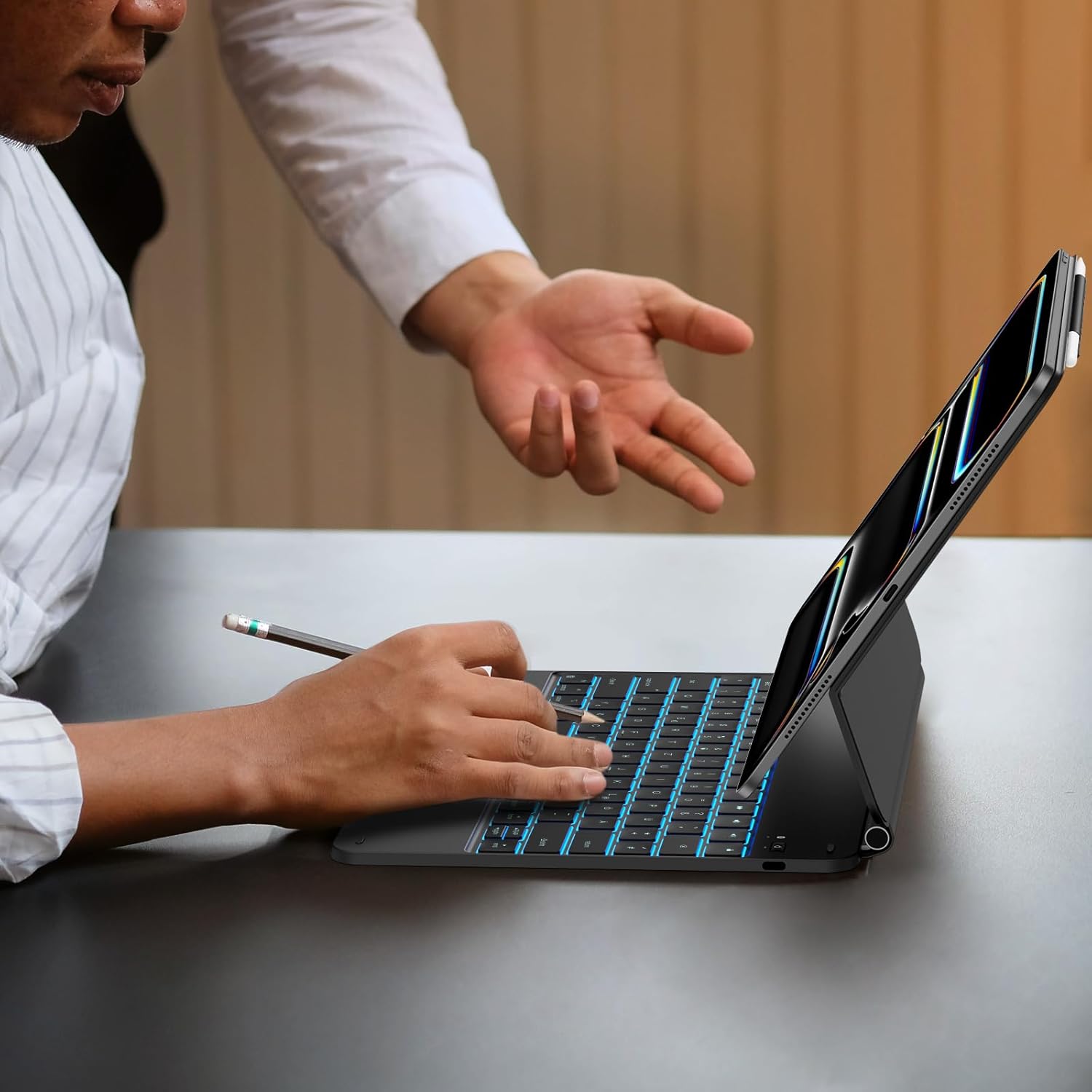
Image 4.4: Keyboard case in use.
5. Maintenance
5.1 Cleaning
To clean the keyboard case, gently wipe surfaces with a soft, damp, lint-free cloth. Avoid using harsh chemicals, abrasive cleaners, or excessive moisture, as these can damage the electronic components or finish.
5.2 Battery Care
To prolong battery life, avoid fully discharging the keyboard frequently. Charge the keyboard regularly, especially if it will not be used for an extended period. Store the device in a cool, dry place.
6. Troubleshooting
- Keyboard not connecting via Bluetooth:
- Ensure the keyboard is powered on and charged.
- Turn off and on Bluetooth on your iPad.
- Forget the device in iPad Bluetooth settings and attempt to re-pair.
- Restart both your iPad and the keyboard.
- Backlight not working:
- Ensure the keyboard is sufficiently charged.
- Press the backlight key to cycle through modes and brightness levels.
- Trackpad unresponsive:
- Ensure the keyboard is connected via Bluetooth.
- Check iPadOS settings for trackpad functionality and gesture settings.
- Clean the trackpad surface to remove any debris.
- Keys not responding:
- Ensure the keyboard is connected and charged.
- Restart the keyboard and iPad.
- The keyboard uses a scissor structure for responsive typing. Ensure no debris is lodged under the keys.
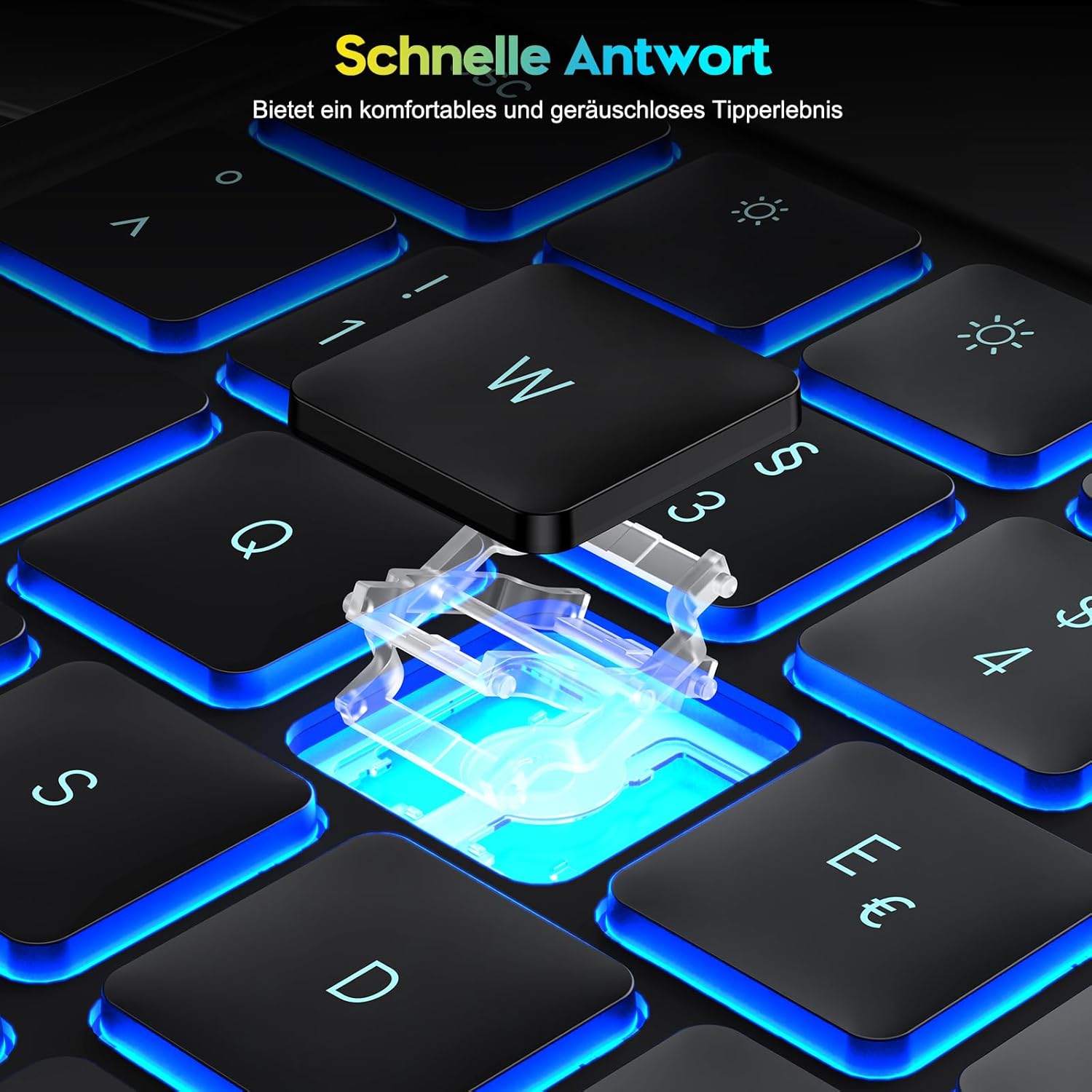
Image 6.1: Scissor-switch key mechanism for responsive typing.
7. Specifications
| Feature | Detail |
|---|---|
| Brand | OMOTON |
| Model Number | KC011 |
| Compatibility | iPad Pro 13-inch (M4, 2024) |
| Connectivity Technology | Bluetooth |
| Keyboard Description | Multi-functional, QWERTZ DE Layout |
| Special Features | Trackpad, Shortcut & Multimedia Keys, Rechargeable, Backlit |
| Color | Black |
| Material | Plastic |
| Battery Type | Lithium-ion |
| Battery Capacity | 800 mAh |
| Charging Port | USB-C |
| Backlight Modes | 12 |
| Backlight Brightness Levels | 4 |
| Estimated Battery Life (no backlight) | Up to 260 hours |
| Estimated Battery Life (with backlight) | Up to 9 hours |
8. Warranty and Support
Information regarding product warranty and specific support contacts is not available in the provided product data. Please refer to the retailer or manufacturer's official website for warranty details and customer support options.


