
1. Introduction
Thank you for choosing the upHere 120mm U3K1 Computer Case Fan. This fan is designed to provide efficient and quiet cooling for your computer system, ensuring optimal performance and stability. Featuring a 4-pin PWM interface, it allows for precise speed control to balance cooling needs with noise levels. This manual will guide you through the installation, operation, maintenance, and troubleshooting of your new fan.
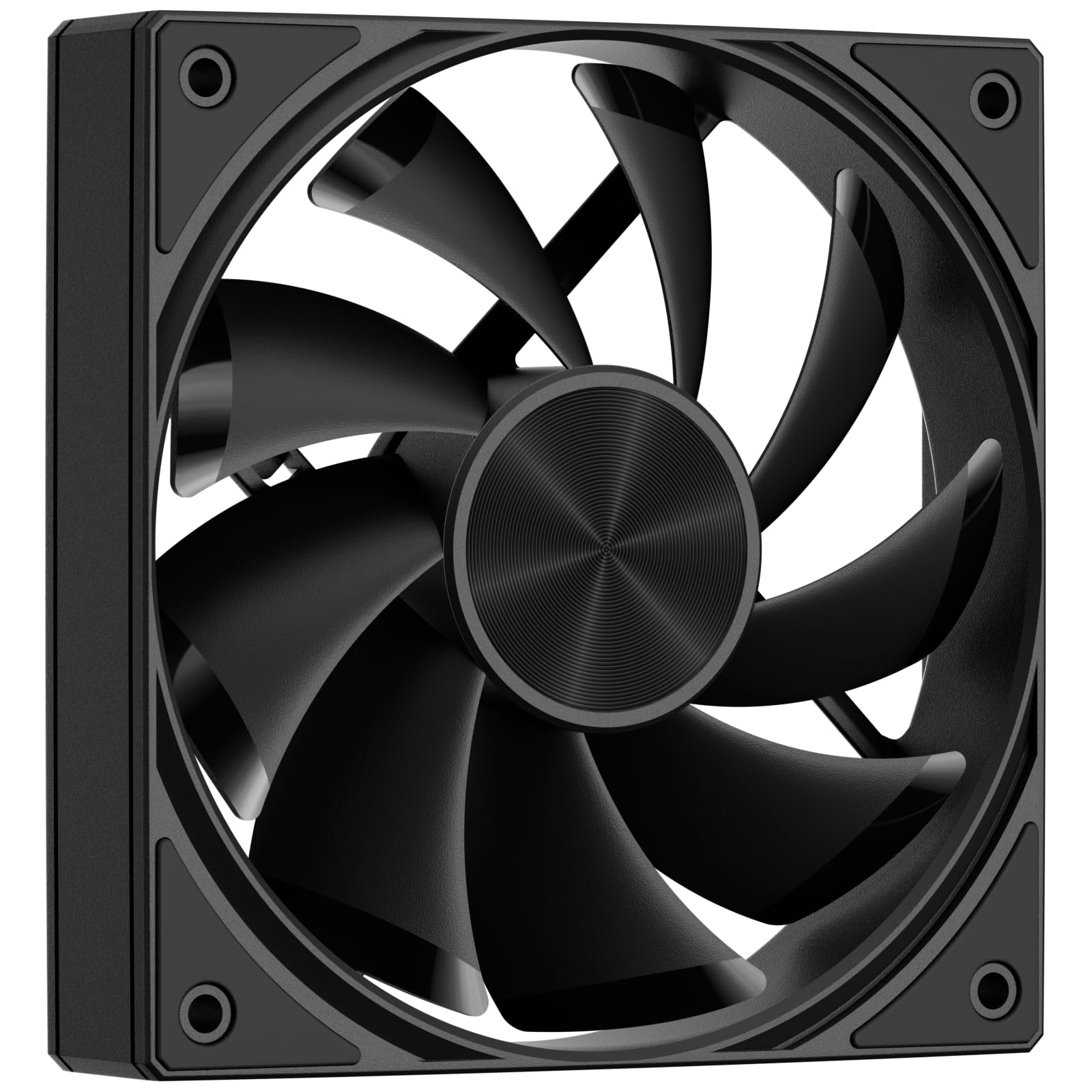
Image 1.1: The upHere 120mm U3K1 Computer Case Fan.
2. Setup and Installation
Proper installation is crucial for the fan's performance and longevity. Follow these steps to install your upHere U3K1 case fan.
2.1 Package Contents
- upHere 120mm U3K1 Computer Case Fan
- Mounting Screws
2.2 Installation Steps
- Prepare Your System: Ensure your computer is powered off and unplugged from the wall outlet before beginning installation. Open your computer case to access the fan mounting locations.
- Identify Mounting Location: Locate a standard 120mm fan mount within your computer case. Common locations include the front, rear, top, or bottom of the case.
- Mount the Fan: Position the fan in the desired location, ensuring the airflow direction is correct (typically, fans are installed to draw cool air in or exhaust hot air out). Secure the fan to the case using the provided mounting screws. The fan includes pre-installed anti-vibration pads to reduce noise and vibration.
- Connect the PWM Cable: Connect the fan's 4-pin PWM cable to an available 4-pin fan header on your motherboard. Refer to your motherboard manual for fan header locations.
- Verify Installation: Once the fan is securely mounted and connected, close your computer case. Power on your computer and verify that the fan is spinning. You may need to adjust fan speed settings in your motherboard's BIOS/UEFI or through software.

Image 2.1: Detail of the fan's anti-vibration pads and hub design.

Image 2.2: Simple connection via the 4-pin PWM header.

Image 2.3: Example of the fan installed in a PC case.
3. Operating Instructions
The upHere U3K1 fan is designed for high-performance cooling with low noise output. Its PWM interface allows for dynamic speed control.
3.1 PWM Speed Control
The 4-pin PWM (Pulse Width Modulation) interface enables your motherboard to precisely control the fan's speed based on system temperature. This allows the fan to operate at lower RPMs when temperatures are low, reducing noise, and increase speed when more cooling is required.
- Speed Range: The fan operates within a speed range of 600 to 1650 RPM ±10%.
- Noise Level: At maximum speed, the noise level is approximately 25 dB(A), ensuring a quiet computing environment.
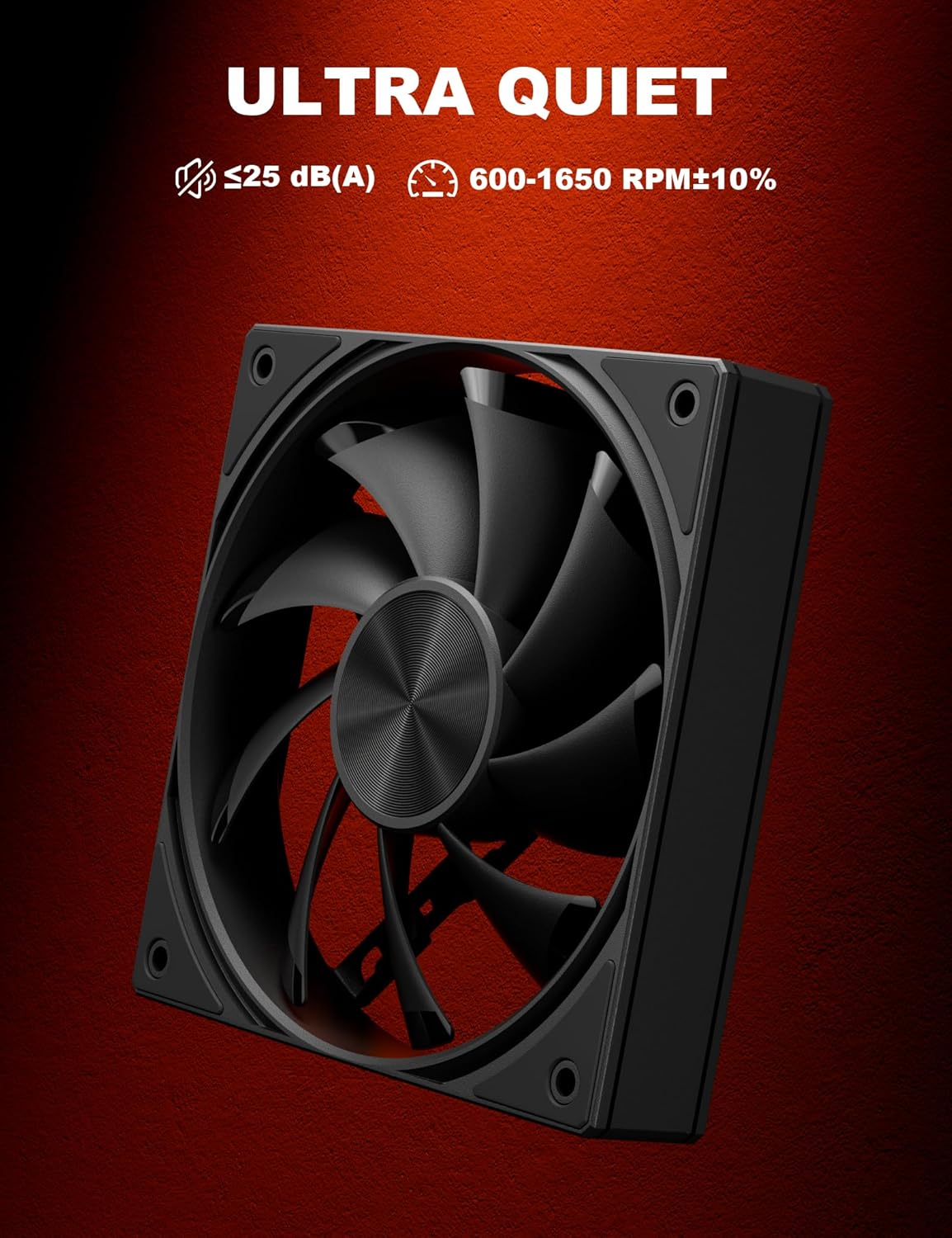
Image 3.1: Fan's quiet operation and speed range.
3.2 Airflow and Cooling Performance
The fan provides an impressive airflow capacity of up to 64.61 CFM, effectively dissipating heat from your computer components. This makes it suitable for various cooling applications, including CPU coolers, PC cases, and water cooling radiators.

Image 3.2: Fan application for CPU cooler and case cooling.
4. Maintenance
Regular maintenance helps ensure optimal performance and extends the lifespan of your fan.
- Cleaning: Periodically clean the fan blades and frame to remove dust buildup. Use compressed air or a soft brush. Ensure the fan is powered off and disconnected from the motherboard before cleaning.
- Inspection: Check for any obstructions around the fan blades or unusual noises during operation. The hydraulic bearing is designed for long-term, silent operation with a Mean Time To Failure (MTTF) of 40,000 hours.
5. Troubleshooting
If you encounter issues with your upHere U3K1 fan, refer to the following troubleshooting tips:
- Fan Not Spinning:
- Ensure the 4-pin PWM cable is securely connected to the motherboard fan header.
- Check your motherboard's BIOS/UEFI settings to ensure the fan header is enabled and configured correctly.
- Verify that your power supply is functioning correctly and providing power to the motherboard.
- Excessive Noise:
- Ensure the fan is securely mounted and the anti-vibration pads are properly seated.
- Check for any cables or obstructions touching the fan blades.
- Adjust fan speed settings in your motherboard's BIOS/UEFI or fan control software to a lower RPM if noise is a concern and temperatures allow.
- Poor Cooling Performance:
- Verify the fan's airflow direction is appropriate for your case (e.g., intake for cool air, exhaust for hot air).
- Clean any dust buildup on the fan blades or surrounding components (e.g., CPU cooler fins, radiator).
- Ensure fan speed settings are adequate for your system's thermal load.
6. Specifications
Detailed technical specifications for the upHere 120mm U3K1 Computer Case Fan:
| Feature | Specification |
|---|---|
| Model | U3K1 |
| Fan Dimensions | 120mm x 120mm x 25mm (4.72 x 4.72 x 0.98 inches) |
| Fan Speed | 600 - 1650 RPM ±10% |
| Air Flow Capacity | 64.61 CFM (Max.) |
| Noise Level | 25 dB(A) (Max.) |
| Bearing Type | Hydraulic Bearing |
| MTTF (Mean Time To Failure) | 40,000 hours |
| Power Connector Type | 4-Pin PWM |
| Voltage | 12 Volts |
| Wattage | 1.8 Watts |
| Cooling Method | Airflow-based |
| Compatible Devices | Desktop Computers |
| Material | Plastic |

Image 6.1: Fan dimensions and key specifications.
7. Warranty and Support
upHere products are manufactured to high-quality standards. For warranty information, technical support, or any product-related inquiries, please refer to the official upHere website or contact their customer service directly. Keep your purchase receipt for warranty claims.
Official Website: Visit the upHere Store on Amazon