
1. Product Overview
The Dreo Air Circulator Fans are designed to provide powerful and quiet whole-room air circulation. This bundle includes both 11-inch and 13-inch models, offering versatile cooling solutions for various room sizes. Key features include adjustable fan speeds, oscillation, tilt, and a convenient remote control.
Key Features
- Powerful whole room air circulation with up to 70ft reach and 343 CFM airflow.
- Convenient cooling control with remote to adjust fan speeds, set auto mode or 8-hour timer.
- Compact and portable tabletop design (11-13 inches tall) for quiet 28dB cooling.
- Oscillating design with 120° tilt for wide air distribution.
- Detachable grille and blades for easy cleaning.
2. Package Contents
- Dreo 11" Air Circulator Fan
- Dreo 13" Air Circulator Fan
- Remote Control (for each fan)
- User Manual
3. Setup
Unpacking
Carefully remove the fan and all accessories from the packaging. Ensure all components are present and undamaged.
Placement
Place the fan on a stable, flat surface. Ensure there is adequate space around the fan for optimal air circulation and oscillation. Avoid placing the fan near curtains or other objects that could obstruct airflow or interfere with the fan blades.
For whole-room circulation, position the fan in a corner or central area, aiming it towards the opposite side of the room or towards the ceiling to bounce air off surfaces.
Power Connection
Plug the power cord into a standard electrical outlet. Ensure the voltage matches the fan's requirements.
4. Operating Instructions
Control Panel
The fan can be operated using the touch controls on the base or the included remote control.
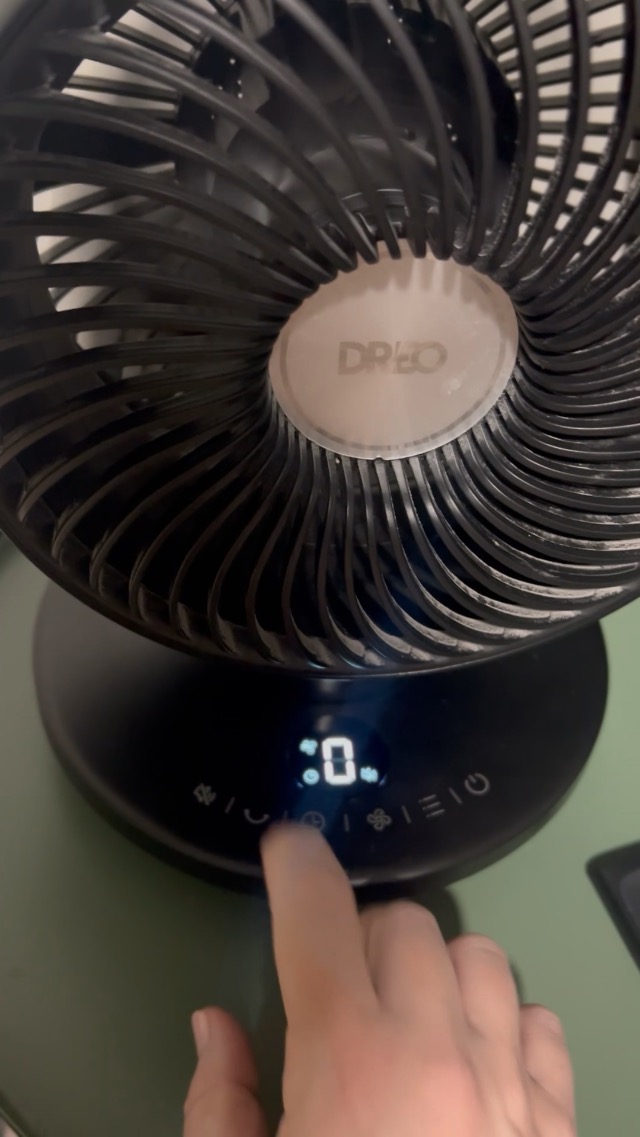
Image: Close-up of the fan's control panel, showing icons for power, fan speed, timer, oscillation, and mute functions.
Power On/Off
Press the Power button (marked with a circle and vertical line) on the control panel or remote to turn the fan on or off.
Adjusting Fan Speed
The fan offers 4 speed settings. Press the Fan Speed button (marked with a fan icon) on the control panel or the '+' and '-' buttons on the remote to cycle through the speeds. The current speed level will be displayed on the LED screen.
Oscillation
To activate horizontal oscillation, press the Horizontal Oscillation button (marked with a curved arrow) on the control panel or remote. The fan will move from side to side to distribute air across a wider area. Press again to stop oscillation.
The fan head can also be manually tilted 120° vertically to direct airflow upwards or downwards.

Image: Two Dreo air circulator fans demonstrating horizontal oscillation and vertical tilt, highlighting their adjustable airflow capabilities.
Timer Function
Press the Timer button (marked with a clock icon) to set an automatic shut-off timer. Each press will increase the timer by 1 hour, up to a maximum of 8 hours. The set time will be displayed.
Mute Button Sounds
To mute the button press sounds, press the Mute button (marked with a speaker icon with a cross) on the control panel or remote. This is useful for undisturbed operation, especially during sleep.
Remote Control
The remote control provides convenient access to all fan functions from a distance. Ensure the remote is pointed towards the fan's receiver for optimal performance.
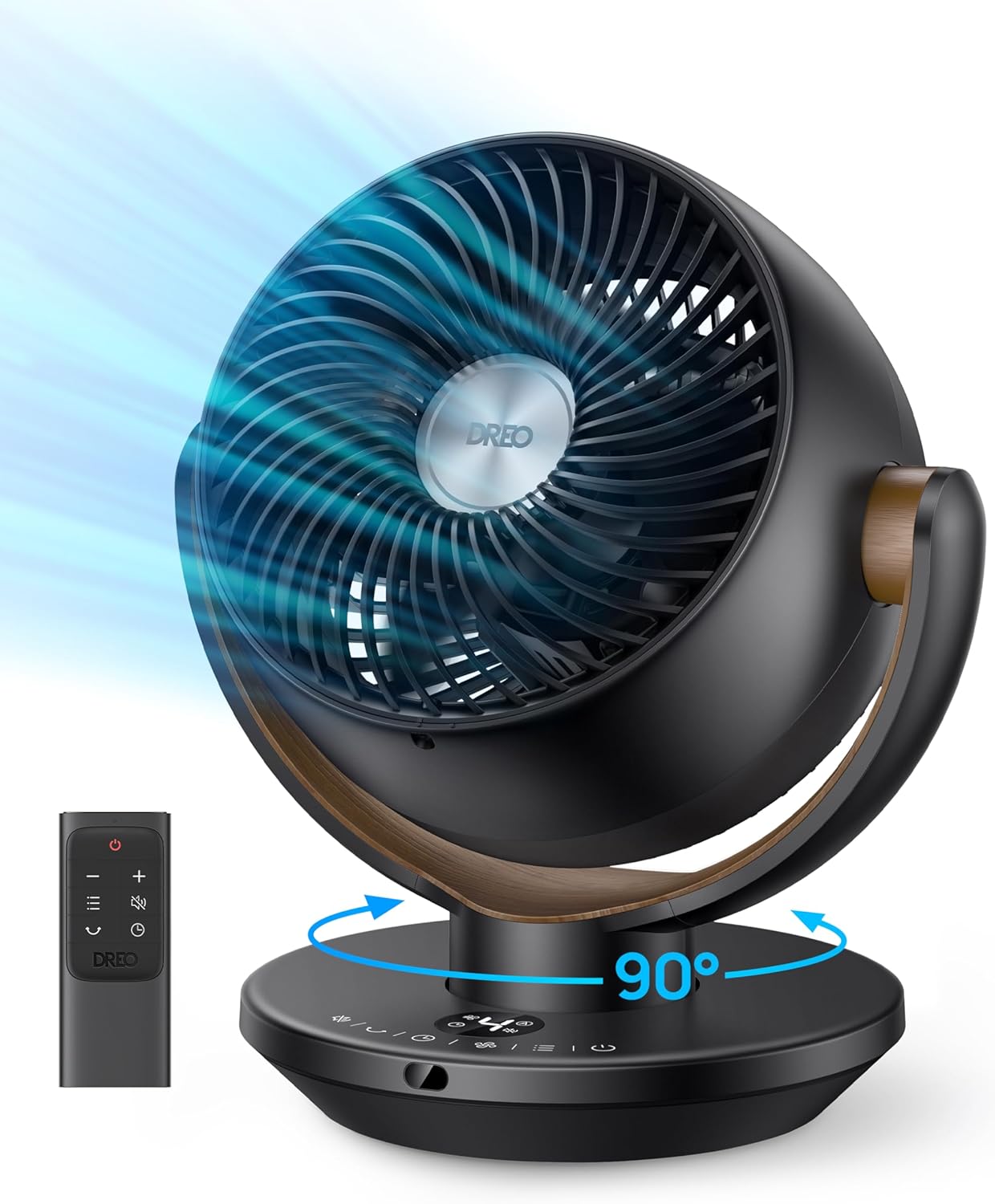
Image: A Dreo air circulator fan on a green side table, with its remote control clearly visible, illustrating ease of use.
5. Maintenance
Cleaning the Fan
Regular cleaning ensures optimal performance and extends the lifespan of your fan. The detachable grille and blades make cleaning simple.
- Unplug the fan from the power outlet before cleaning.
- Twist the front grille counter-clockwise to unlock and remove it.
- Carefully remove the fan blades.
- Wipe the fan blades and grilles with a soft, damp cloth. For stubborn dirt, use a mild soap solution.
- Ensure all parts are completely dry before reassembling.
- Reattach the fan blades and secure the front grille by twisting it clockwise until it locks.
Storage
When not in use for extended periods, store the fan in a cool, dry place, preferably in its original packaging, to protect it from dust and damage.
6. Troubleshooting
Fan Not Turning On
- Check if the power cord is securely plugged into a working outlet.
- Ensure the power button on the fan or remote is pressed.
Weak Airflow
- Increase the fan speed setting.
- Ensure the front grille and blades are clean and free from dust buildup.
- Check for any obstructions around the fan that might be blocking airflow.
Fan Not Oscillating
- Press the oscillation button to activate the feature.
- Ensure the fan is on a stable, level surface.
Remote Control Not Working
- Check and replace the batteries in the remote control.
- Ensure there are no obstructions between the remote and the fan's receiver.
7. Specifications
| Feature | Detail |
|---|---|
| Brand | Dreo |
| Model | 11" & 13" Air Circulator Fans |
| Airflow Reach | Up to 70 ft |
| CFM Volume | Up to 343 CFM |
| Speed Settings | 4 |
| Oscillation | 90° Horizontal, 120° Vertical Tilt |
| Noise Level | As low as 28dB |
| Control Method | Remote, Touch Panel |
| Timer | 8-hour |
| Color | Black |
8. Official Product Videos
Dreo Air Circulating Fan Overview
Video: A detailed review of the Dreo tabletop fan, showcasing its design, adjustable tilt, remote control, and various button functions including power, speed, timer, airflow oscillation, and mute. The video demonstrates the fan's quiet operation and its ability to circulate air effectively.
Dreo Oscillating Fan Features
Video: This video highlights the key features of the Dreo oscillating fan, including its quiet operation, multiple speed settings, timer, and oscillation capabilities. It also demonstrates the fan's power and how it can be used to circulate air effectively in a room.
Dreo 11-Inch Oscillating Fan with Remote
Video: A review of the 11-inch Dreo oscillating fan, emphasizing its compact size, powerful airflow, and remote control functionality. The video showcases its suitability for small spaces and its quiet operation.
Dreo Smart Fan Features
Video: This video provides an overview of the smart features of the Dreo fan, including its various speed settings, oscillation modes, timer function, and the ability to mute button sounds. It also demonstrates the fan's quiet operation at lower speeds.
9. Warranty and Support
For warranty information, technical support, or any inquiries regarding your Dreo Air Circulator Fans, please contact Dreo Support Center.
- Email: support@dreo.com
- Website: www.dreo.com
- Phone: (888) 290-1688
- Operating Hours: Mon - Fri, 9:00 AM - 5:00 PM PST/PDT
You can also scan the QR code on the product base for quick contact.

Image: Close-up of the Dreo fan base showing the support center contact details and a QR code for easy access to customer service.


