
1. Introduction
Thank you for choosing the Makayuron S07 Smart Door Lock. This advanced keyless entry system offers multiple convenient and secure ways to access your home, office, or apartment. This manual provides detailed instructions for installation, setup, operation, and maintenance to ensure optimal performance and security.
Please read this manual thoroughly before installation and use, and keep it for future reference.
2. Product Overview
2.1 Unlocking Methods
The Makayuron S07 Smart Door Lock supports six different unlocking methods:
- Fingerprint: Quick and secure biometric access.
- Passcode: Customizable numerical codes for entry.
- IC Card: Convenient tap-to-unlock functionality.
- Mechanical Keys: Traditional backup for emergency access.
- App Control: Remote unlocking and management via a smartphone application.
- Bluetooth: Local app control via Bluetooth connection.

Image: The Makayuron S07 Smart Door Lock illustrating its six different unlocking methods.
2.2 Components
Familiarize yourself with the main components of your smart door lock:
- Camera: Integrated for remote viewing (Wi-Fi doorbell function).
- Touch Keypad: For passcode entry.
- Card Sensing Area: For IC card unlocking.
- Doorbell Button: Activates the doorbell function.
- Fingerprint Reader: For fingerprint authentication.
- Cylinder Hole: For mechanical key access.
- USB Port Power Supply: Emergency power input.
- Battery Box: Houses the AA batteries.
- Door Lock Handle: For manual operation.
- Safety Lock: Additional security mechanism.
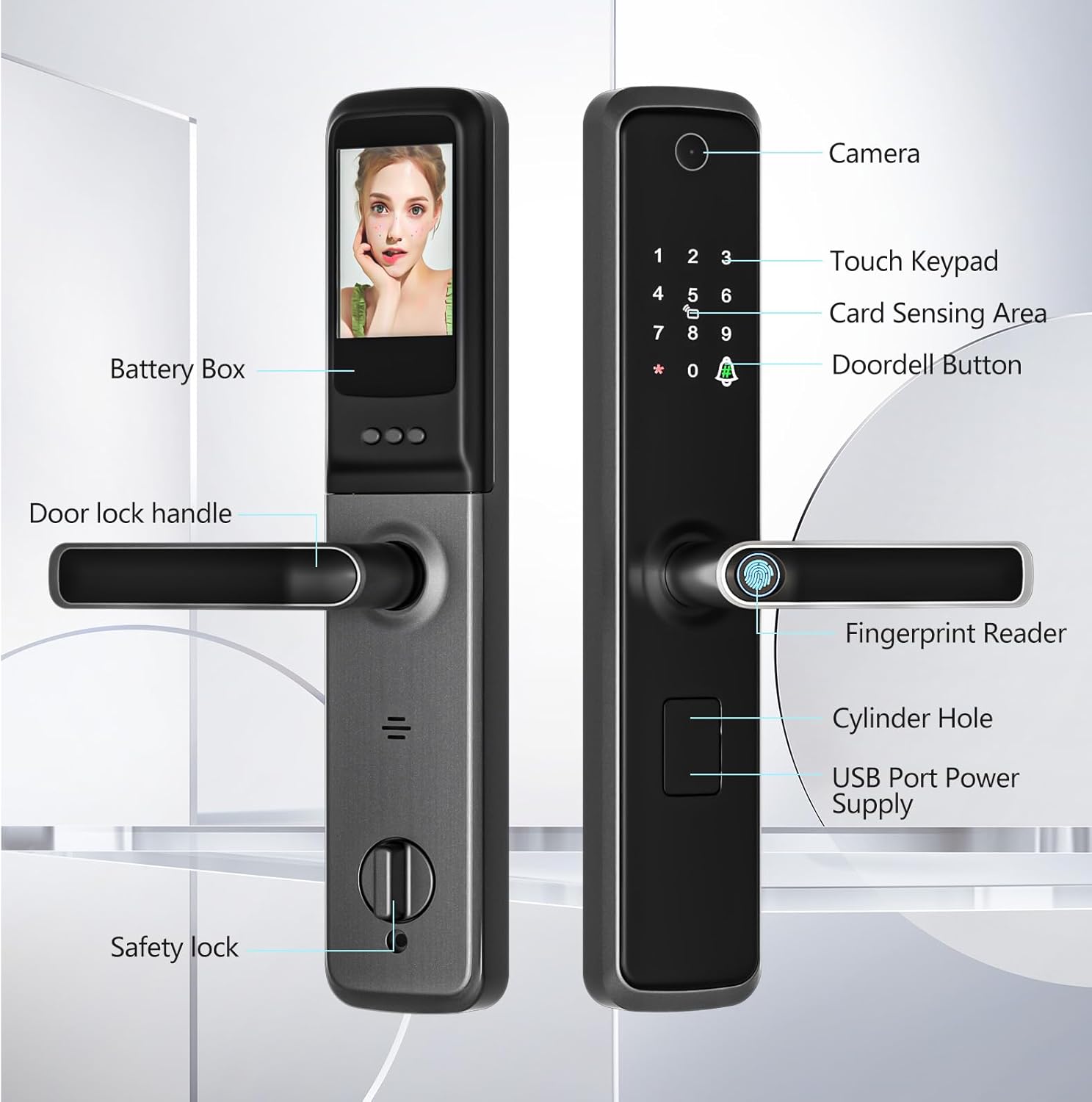
Image: Detailed view of the Makayuron S07 Smart Door Lock's external and internal components.
3. Setup
3.1 Installation
The Makayuron S07 Smart Door Lock is designed for doors with a thickness between 45mm and 100mm and is compatible with the 6068 Mortise. Professional installation is recommended to ensure proper fit and function, especially if door modifications are required.
- Prepare the Door: Ensure your door meets the thickness requirements and is prepared for a 6068 Mortise installation.
- Install Mortise: Insert the mortise into the door edge and secure it.
- Install Front Panel: Route the cable through the door and attach the front panel.
- Install Rear Panel: Connect the cable to the rear panel and secure it to the door.
- Insert Batteries: Open the battery compartment and insert the provided 8 AA alkaline batteries.
- Test Functionality: Verify that the lock operates smoothly using a mechanical key before proceeding with smart features.
Important: Incorrect installation can affect the lock's performance and security. If you are unsure, consult a qualified technician.
3.2 App Setup and Wi-Fi Connection
The Makayuron S07 integrates with the Tuya Smart app for remote control and management.
- Download App: Download the "Tuya Smart" app from your smartphone's app store (iOS or Android).
- Register/Log In: Create an account or log in to your existing Tuya Smart account.
- Add Device: Follow the in-app instructions to add your smart door lock. This typically involves putting the lock into pairing mode (refer to the lock's display or voice prompts) and connecting it to your home Wi-Fi network.
- Configure Settings: Once connected, you can configure various settings, manage users, and view activity logs through the app.

Image: The Tuya Smart app interface for managing the smart lock.
3.3 User Management (Fingerprint, Passcode, IC Card)
After initial setup, you can add and manage users for different access methods.
- Adding Fingerprints: Access the user management menu on the lock or via the app. Follow the prompts to register fingerprints by placing your finger on the reader multiple times.
- Setting Passcodes: Create new passcodes (typically 6-8 digits) through the lock's keypad or the app. Ensure passcodes are unique and not easily guessable.
- Registering IC Cards: Present the IC card to the card sensing area when prompted by the lock or app to register it.
- Deleting Users: Users can be deleted individually or in groups via the app or the lock's administrative menu.
4. Operating Instructions
4.1 Daily Unlocking and Locking
- Fingerprint Unlock: Place your registered finger on the fingerprint reader. The lock will unlock if the fingerprint is recognized.
- Passcode Unlock: Enter your registered passcode on the touch keypad, then press '#' or the confirmation button.
- IC Card Unlock: Present your registered IC card to the card sensing area.
- Mechanical Key Unlock: Insert the mechanical key into the cylinder hole and turn to unlock.
- App Unlock: Use the Tuya Smart app on your smartphone to remotely unlock the door (requires Wi-Fi connection for remote access, or Bluetooth for local access).

Image: Demonstrating passcode access on the smart lock.
4.2 Auto-Lock and One-Touch Locking
The lock features an auto-lock function that can be configured to lock automatically after a set period (10-99 seconds). Additionally, a one-touch locking feature allows for quick manual locking.
- Auto-Lock: The lock will automatically engage after the door closes and the set delay time has passed. This feature can be enabled/disabled and configured via the app or lock settings.
- One-Touch Lock: Press and hold the '#' button on the keypad for 2 seconds to instantly lock the door.
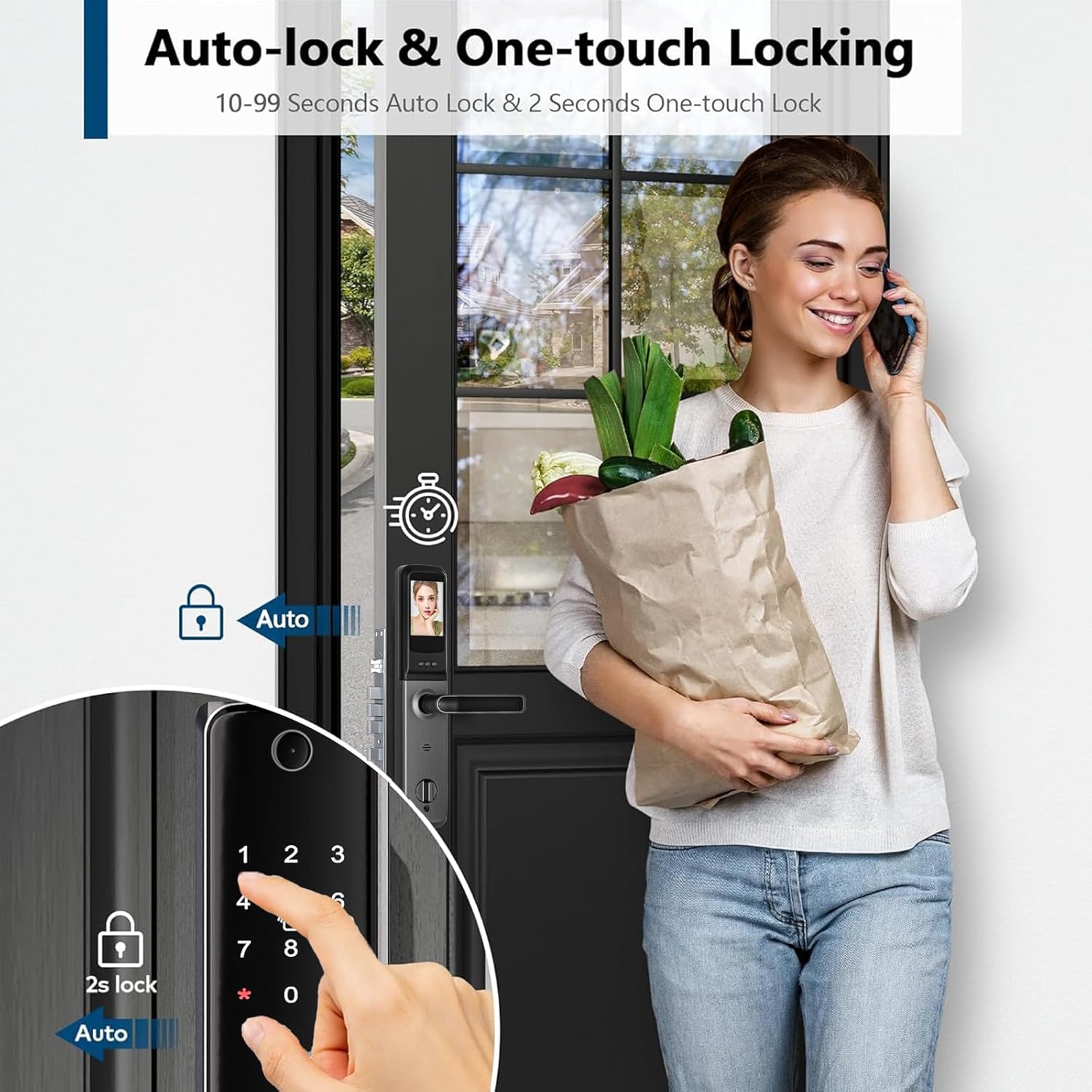
Image: Visual representation of the auto-lock and one-touch lock functions.
4.3 One-Time / Timed Passcodes
Generate temporary passcodes for guests, service personnel, or deliveries directly from the app. These can be set for a single use or for a specific time duration.
- Generate Passcode: In the Tuya Smart app, navigate to the passcode generation section. Choose between one-time, timed, or permanent passcodes.
- Share Passcode: Share the generated passcode with the intended recipient.

Image: Example of generating and using a one-time passcode.
4.4 Wi-Fi Doorbell Function
The integrated camera and Wi-Fi connectivity allow you to see who is at your door remotely via the Tuya Smart app.
- Visitor Notification: When someone presses the doorbell button, you will receive a notification on your smartphone.
- Remote Viewing: Open the app to view a live feed from the lock's camera.
5. Maintenance
- Battery Replacement: The lock uses 8 AA alkaline batteries. When the battery level is low, the lock will provide a low battery warning. Replace all batteries promptly to avoid lockout. Use the emergency USB power supply if batteries die before replacement.
- Cleaning: Wipe the lock's surface and fingerprint reader with a soft, dry cloth. Avoid using abrasive cleaners or solvents that could damage the finish or electronic components.
- Mechanical Key Check: Periodically test the mechanical key to ensure it functions correctly as a backup.

Image: The Makayuron S07 Smart Door Lock is powered by 8 AA batteries for extended use.
6. Troubleshooting
| Problem | Possible Cause | Solution |
|---|---|---|
| Lock does not respond. | Dead batteries. | Replace batteries. Use emergency USB power if needed. |
| Fingerprint not recognized. | Finger is dirty/wet, or not properly registered. | Clean finger and reader. Re-register fingerprint if issue persists. |
| Passcode not working. | Incorrect passcode entered, or passcode expired (for timed/one-time). | Verify passcode. Check app for active passcodes. |
| Cannot connect to Wi-Fi/App. | Weak Wi-Fi signal, incorrect Wi-Fi password, or app pairing issue. | Ensure strong 2.4GHz Wi-Fi signal. Re-enter Wi-Fi password. Restart lock and app, then attempt pairing again. |
| Lock is stuck or difficult to operate. | Improper installation or mechanical obstruction. | Check for obstructions. Re-evaluate installation alignment. Contact professional installer if necessary. |
If you encounter issues not listed here or if the suggested solutions do not resolve the problem, please contact customer support.
7. Specifications
- Brand: Makayuron
- Model Number: S07
- Part Number: S07
- Item Weight: 2.6 Kilograms
- Product Dimensions: 7.2 x 4.99 x 36.8 cm
- Batteries: 8 AA Alkaline batteries (included)
- Size: 6068 Mortise
- Color: Black
- Finish: Spray paint
- Material: Solid alloy
- Shape: Rectangular
- Special Features: Fingerprint, Passcode unlock, Semi-automatic smart lock
- Included Components: Lock, battery, cards, manual, accessories
- Recommended Uses: Home, Hotel, Office, Apartment, Bedroom
- Country of Origin: China
8. Warranty and Support
For warranty information, please refer to the documentation included with your purchase or contact Makayuron customer support directly. If you require technical assistance or have questions regarding your Makayuron S07 Smart Door Lock, please visit the official Makayuron store on Amazon or contact their customer service team.
Makayuron Store: Visit Makayuron Store