
Thomson 50UG5C14
Thomson 50UG5C14 50-inch 4K Ultra HD Smart Google TV User Manual
Model: 50UG5C14
1. Introduction
This manual provides essential information for the safe and efficient use of your Thomson 50UG5C14 50-inch 4K Ultra HD Smart Google TV. Please read it thoroughly before operating the device and retain it for future reference.
Your new television features a 50-inch 4K Ultra HD display, Google TV operating system, Wi-Fi connectivity, Dolby Audio, HDR10 support, Bluetooth 5.1, and a Triple-Tuner for cable, satellite, and antenna reception. It also includes multiple HDMI and CI+ ports for versatile connectivity.

Image 1.1: Visual comparison illustrating the difference between Full HD (FHD) and 4K Ultra HD (UHD) resolutions. The 4K UHD display offers significantly more detail and clarity.
2. Important Safety Instructions
Always follow these basic safety precautions when using your television:
- Power Source: Connect the TV only to an AC power outlet of the specified voltage.
- Ventilation: Ensure adequate ventilation. Do not block ventilation openings or install near heat sources.
- Water and Moisture: Do not expose the TV to rain or moisture. Do not place objects filled with liquids on the TV.
- Cleaning: Unplug the TV before cleaning. Use a soft, dry cloth. Do not use liquid or aerosol cleaners.
- Cables: Protect power cords from being walked on or pinched.
- Mounting: Use only wall mounts or stands recommended by the manufacturer. Ensure the TV is securely mounted to prevent tipping.
- Lightning: Unplug the TV during lightning storms or when unused for long periods.
- Servicing: Do not attempt to service this product yourself. Refer all servicing to qualified service personnel.
3. What's in the Box
Please check the contents of your package. It should include:
- Thomson 50UG5C14 50-inch 4K Ultra HD Smart Google TV
- Remote Control
- Power Cable
- Central Stand (and associated screws)
- User Manual (this document)
- Batteries for Remote Control
4. Setup
4.1 Attaching the Central Stand
Your Thomson TV comes with a central stand for stable placement on a flat surface. Follow these steps to attach it:
- Carefully place the TV screen-down on a soft, clean surface to prevent scratches.
- Align the central stand with the mounting holes on the bottom of the TV.
- Secure the stand using the provided screws. Ensure all screws are tightened firmly.

Image 4.1: Front view of the Thomson 50UG5C14 TV with its central stand. The image also indicates approximate dimensions: 111 cm width, 68 cm total height, 64 cm screen height, and 28 cm stand depth.

Image 4.2: This graphic demonstrates the swivel stand feature, allowing the TV to be rotated up to 30 degrees for optimal viewing angles.
4.2 Connecting External Devices
Refer to the back panel diagram for connecting your devices:

Image 4.3: Detailed view of the TV's back panel connections. From left to right, top to bottom: LAN port, AV IN, Digital Optical Audio Out, 2x USB 2.0, HDMI 2.1 + eARC, 2x HDMI 2.0, CI+ slot, USB 3.0, DVB T2/C/S2 antenna inputs.
- Power: Connect the power cable to the TV and then to a wall outlet.
- Antenna/Cable/Satellite: Connect your antenna, cable, or satellite feed to the appropriate DVB T2/C/S2 input.
- HDMI Devices: Connect Blu-ray players, game consoles, or other HDMI devices to the HDMI ports. HDMI 2.1 supports eARC for enhanced audio return channel functionality.
- USB Devices: Insert USB drives for media playback into the USB 2.0 or USB 3.0 ports.
- Network: For a wired internet connection, connect an Ethernet cable to the LAN port.
- CI+ Module: Insert your CI+ module (for pay TV services) into the CI+ slot.
4.3 Initial Power-On and Google TV Setup
After connecting all cables, plug in the TV and press the power button on the remote control. The TV will guide you through the initial setup process, which includes:
- Language selection
- Connecting to a Wi-Fi network (or using the wired LAN connection)
- Signing in with your Google account to access Google TV features and apps
- Scanning for available TV channels
5. Operating Your TV
5.1 Remote Control Functions
The included remote control allows you to navigate the TV's features. It includes backlit buttons for use in low-light conditions and dedicated buttons for popular streaming services.

Image 5.1: The remote control features a Google Assistant button for voice commands, a profile switch button, direct access buttons for YouTube, Netflix, Prime Video, Apple TV+, and Live TV, and backlit buttons for visibility in the dark.
5.2 Google TV Interface
Google TV organizes your content from various streaming services and live TV into a personalized home screen. You can browse recommendations, manage your watch list, and discover new content.
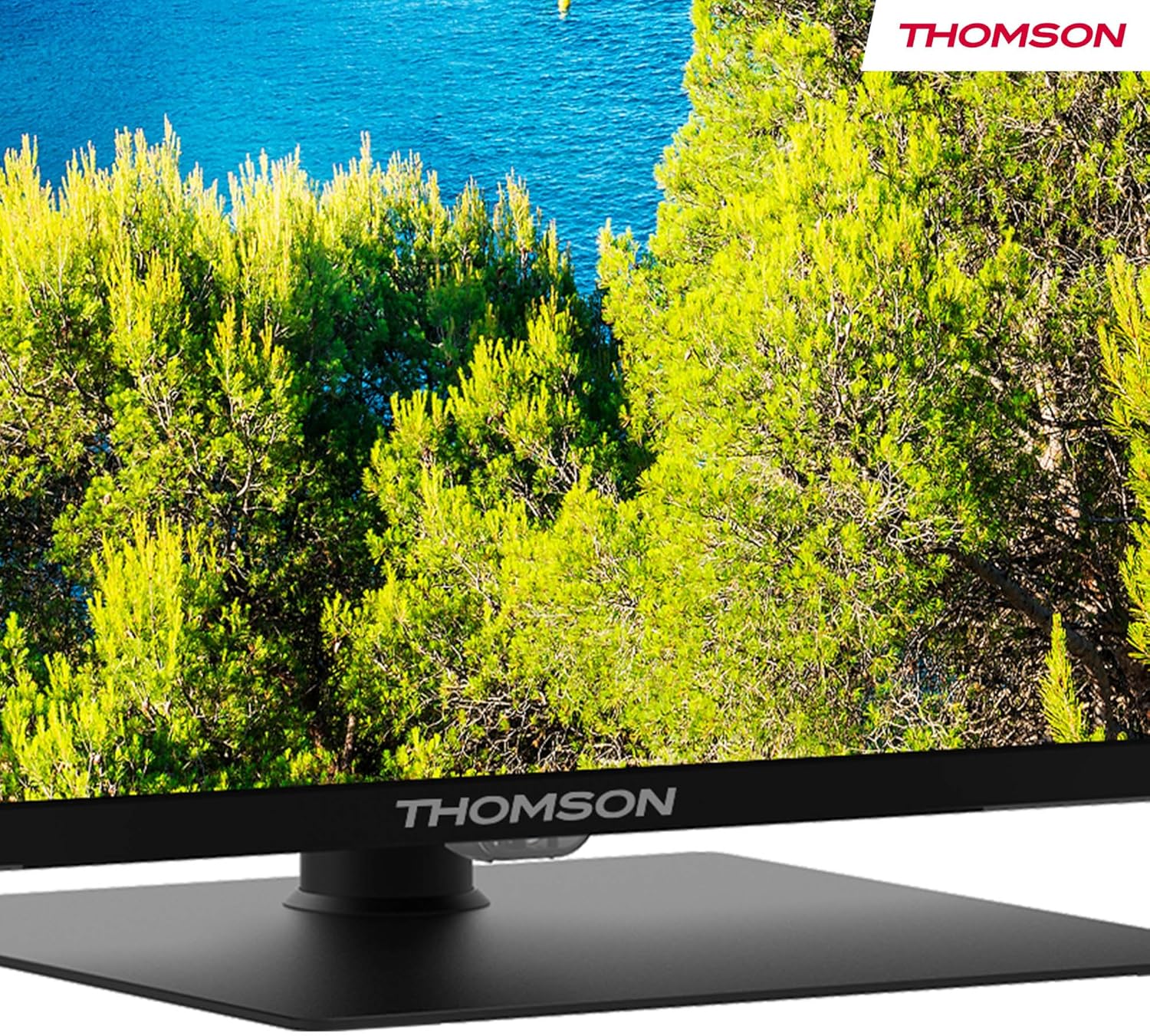
Image 5.2: The Google TV interface displays personalized recommendations and quick access to various streaming applications like Prime Video, Netflix, Disney+, and YouTube.
5.3 Voice Control with Google Assistant
Use the built-in Google Assistant for hands-free control. Press the Google Assistant button on your remote and speak your command to search for content, control smart home devices, or get information.

Image 5.3: A user interacting with the Google Assistant via the remote control, demonstrating voice command functionality.
5.4 Dolby Audio
Experience dynamic sound with Dolby Audio technology, providing clear dialogue, enhanced detail, and immersive surround sound.

Image 5.4: This graphic visually represents the immersive sound experience provided by Dolby Audio technology.
5.5 Google Cast
Google Cast allows you to stream photos, videos, and music directly from your compatible smart devices (phones, tablets, computers) to your TV.

Image 5.5: The Google Cast feature enables seamless streaming of content from various smart devices to the television.
6. Maintenance
6.1 Cleaning the Screen
To clean the screen, first unplug the TV. Gently wipe the screen with a soft, lint-free cloth. For stubborn marks, slightly dampen the cloth with water or a specialized screen cleaner. Never spray liquid directly onto the screen.
6.2 Cleaning the Cabinet
Wipe the TV cabinet with a soft, dry cloth. Avoid using abrasive cleaners, waxes, or solvents as they can damage the finish.
6.3 Remote Control Care
Keep the remote control dry and clean. Replace batteries when they are depleted. Do not mix old and new batteries or different types of batteries.
7. Troubleshooting
If you encounter issues with your TV, consult the following table for common problems and solutions:
| Problem | Possible Cause | Solution |
|---|---|---|
| No power | Power cable disconnected; power outlet not working | Check power cable connection; test outlet with another device |
| No picture, but sound is present | Incorrect input source selected; external device off or disconnected | Press the 'Input' button on the remote to select the correct source; check external device power and connections |
| No sound, but picture is present | Volume muted or too low; audio settings incorrect | Unmute or increase volume; check audio output settings in TV menu |
| Remote control not working | Batteries depleted or incorrectly inserted; obstruction between remote and TV | Replace batteries; ensure clear line of sight (if not Bluetooth); re-pair Bluetooth remote if necessary |
| Cannot connect to Wi-Fi | Incorrect password; router issue; TV too far from router | Verify Wi-Fi password; restart router; move TV closer to router or use wired connection |
| Picture quality is poor | Low-resolution source; picture settings incorrect; antenna signal weak | Ensure source content is high resolution; adjust picture settings (brightness, contrast, sharpness); check antenna connection and signal strength |
If the problem persists after trying these solutions, please contact customer support.
8. Specifications
| Feature | Detail |
|---|---|
| Model Number | 50UG5C14 |
| Screen Size | 50 inches (127 cm) |
| Display Technology | LED |
| Resolution | 4K Ultra HD (2160p) |
| Refresh Rate | 60 Hz |
| Operating System | Google TV |
| Audio Technology | Dolby Audio |
| HDR Support | HDR10 |
| Connectivity | Wi-Fi, Bluetooth 5.1, HDMI (2x HDMI 2.1, 2x HDMI 2.0), USB (1x USB 3.0, 2x USB 2.0), LAN, CI+, AV In, Digital Optical Audio Out |
| Tuner Type | Triple-Tuner (DVB-T2/C/S2) |
| Aspect Ratio | 16:9 |
| Product Dimensions (W x D x H) | 111 x 28.1 x 67.61 cm (with stand) |
| Weight | 16 kg |
| Energy Efficiency Rating | F |
9. Warranty and Support
9.1 Warranty Information
Your Thomson 50UG5C14 television is covered by a 3-year warranty from the date of purchase. This warranty covers manufacturing defects and ensures reliable performance. Please retain your proof of purchase for warranty claims.
9.2 Customer Support
For technical assistance, troubleshooting beyond this manual, or warranty inquiries, please visit the official Thomson support website or contact their customer service. Refer to the documentation included with your product for specific contact details.
Related documents50UG5C14


Ask a question about this manual
Ask about setup, troubleshooting, compatibility, parts, safety, or missing instructions. Manuals+ will review the question and use this page’s manual context to help answer it.